

With the Google Home app, getting your devices online is delightfully simple. Whether you’re trying to connect Google devices, set up Nest devices, or automate your lights so they turn on before you stub your toe on the bed frame at night, the app keeps everything in one tidy place.
This step-by-step Google Home guide will walk you through the full Google Home app setup, from downloading the app to adding rooms, organizing devices, setting routines, and troubleshooting common hiccups. Whether you’re setting up your first smart home or adding to one after a tech haul, this guide will help you get your home running smoothly in no time.


What is the Google Home app?
The Google Home app is like your smart home’s command centre. It’s the central hub where you can control, customize, and monitor everything from your Nest cameras to your living room lights. The app brings all your devices into one interface—no hopping between multiple apps or trying to remember which device connects where.
Available on both Android and iOS, the Home works with Google-branded products like Nest thermostats, Google Media Streamers, and Nest speakers. It also supports thousands of third-party devices. If a device says “Works with Google,” odds are it’ll slide right into your smart home setup like it’s been there all along. With older Nest hardware, however, legacy features may still require the Nest app or a migration step during setup.
What you can do with the Google Home app
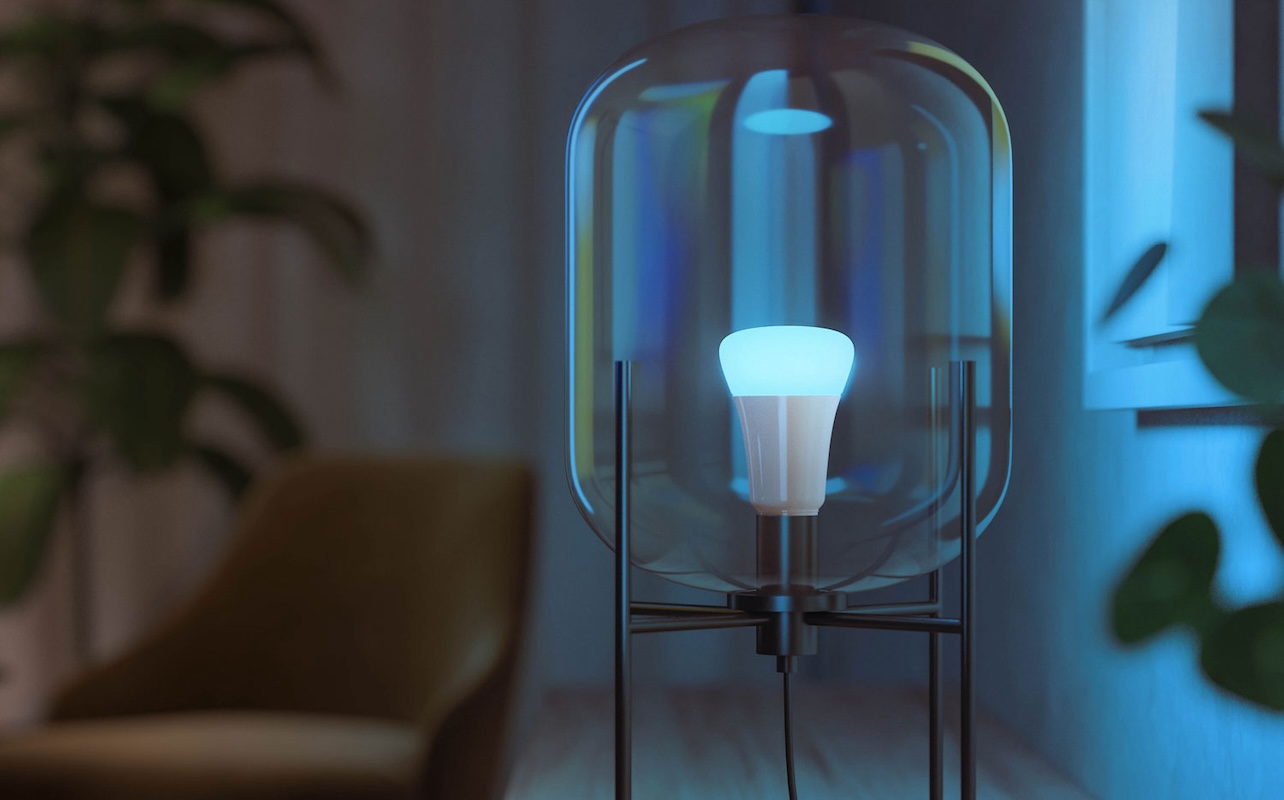
- Add new devices in minutes: The Home app makes it incredibly easy to bring new smart devices into your home, guiding you through setup with clear on-screen prompts. Whether you’re pairing a Nest speaker or linking a third-party bulb, you can get everything connected without fuss.
- Create custom rooms for better organization: You can group devices into named rooms—like “Living room,” “Kitchen,” or “Office”—to keep your smart home neat and easy to navigate. (This also makes voice commands more intuitive since you can control entire spaces with a single phrase.)
- Set up automations and routines: Google Home integration lets you create smart routines that trigger multiple actions at once based on time, voice commands, or sensors. From morning lighting presets to bedtime wind-down sequences, automations help your home adapt to your day without manual input.
- Control devices with Google Assistant voice commands: With Google Assistant built in, you can use voice commands to adjust lights, play music, set the temperature, and more—no need to reach for your phone. It’s hands-free convenience that ties your whole system together.
- Manage your home whether you’re in the living room or at the airport gate: Because the Google Home app works from anywhere, you can check cameras, change thermostat settings, or turn off forgotten devices even when you’re away. It gives you peace of mind and total control, no matter where you are.
If you’re aiming for smooth Google Home automation, the Home app is where everything comes together.
Step 1: Download the Google Home app and sign in
Before you can control anything, you’ll need the app itself—and a Google Account to tie everything together. Install the Google Home app from either the Google Play Store or the Apple App Store. It’s free app and it’s quick to download. Make sure your smartphone or tablet is connected to Wi-Fi before starting the Google Home app setup. Some devices won’t complete setup properly if your phone is trying to switch between data and Wi-Fi.
A Google account is required for syncing your smart devices, saving your preferences, and enabling features like routines, cloud backup, and cross-device control. If you already use Gmail, Google Photos, or a Nest device, you’re good to go—just sign in with the same account you use everywhere else. Using one consistent account keeps your ecosystem clean and makes it easier to manage devices across your home.
If you need to create an account, the app will guide you through it. The whole process takes less time than making a cup of coffee.
Step 2: Add a new device
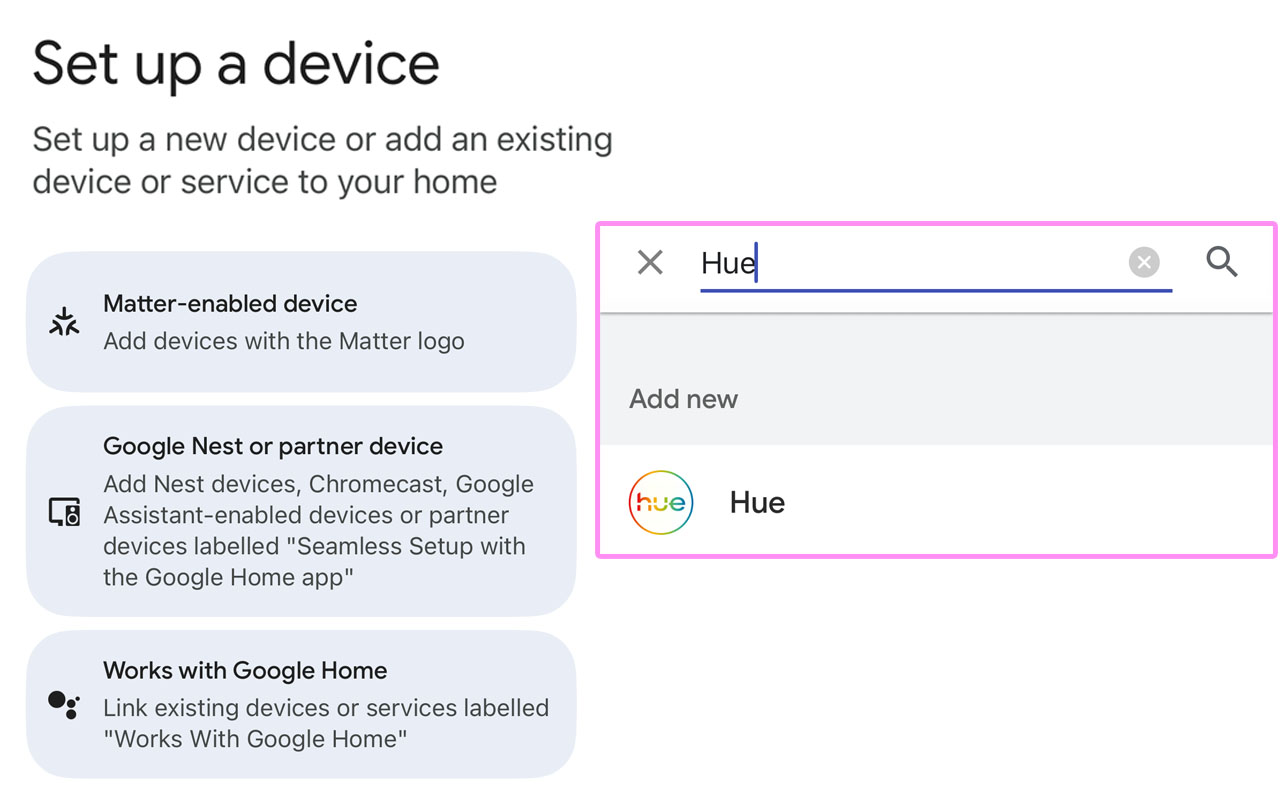
Connecting your first device is where the smart home magic begins. Whether you’re trying to set up Nest devices, plug in a new smart bulb, or get your Google Media streaming, the process follows the same pattern.
Open the Google Home app
Open the app on your phone, then tap the + icon in the top-left corner. Select Set up a device. This is where the app begins scanning for nearby gadgets ready to be paired.
Choose “Google Nest or partner device” or “Works with Google”
It’s important to know whether you’re setting up a Google device or a device that works with Google Home. Let’s clear up the difference between the two.
“Google Nest or partner device“: These Google-designed devices are designed to pair seamlessly with the Home app. Choose this option if you’re setting up a Google-branded device, such as:
- Nest Hub
- Nest Audio or Nest Mini
- Nest Thermostat
- Google TV Streamer
- Nest Doorbell or Nest security camera
If the box says “Works with Google,” you’ll link it through this section. Choose this option for third-party smart devices like:
- Smart lights from brands like Philips Hue, Nanoleaf, and Sengled
- Smart plugs or switches
- Robot vacuums
- Third-party cameras and security sensors
Plus, you can also add Matter-enabled devices. Watch for the Matter logo and set up your devices using this option.
Follow on-screen prompts
Once you choose your category, the Google Home app will automatically search for nearby devices in setup mode. Just follow the prompts on your screen. You’ll typically be asked to:
- Confirm the device your phone has detected
- Approve permissions like Bluetooth or location (these help the app find devices—you don’t need to keep them on permanently for most apps, but they’re important for setup)
- Connect the device to your Wi-Fi network
- Assign the device to a room in your home
Don’t worry: the app walks you through each step like a friendly guide. You can move through setup at your own pace. In most cases, setup takes about two minutes from start to finish.
Step 3: Group and organize devices
Once your devices are added, the next step is organization. This is where the Google Home app starts feeling truly intuitive. A well-organized home layout makes your automations smarter, your voice commands easier, and your daily routines more efficient.
Create rooms
Rooms help you keep everything structured. You can create spaces such as: Living room, Kitchen, Bedroom, Office, Basement, Front porch, and Garage. This setup allows more specific voice commands like: “Hey Google, turn off the kitchen lights” or “Hey Google, play music on the bedroom speaker.” Rooms also become essential when creating automations later on.
Assign devices to rooms
You can assign devices during setup, but if you skipped that step or want to reorganize later, you can move devices anytime.
Open the device inside the app, tap the settings icon, and choose Room. In some app versions, you can also drag and drop devices in the app’s dashboard.
Rename devices for easy control
This step can save you so much hassle during use. Instead of leaving devices with generic names like “Bulb 1” or “Speaker 2,” rename them to something clear and helpful, like “Living room lamp,” “Kitchen speaker,” or “Bedroom thermostat.”
When your device names make sense, Google Assistant commands work more smoothly. Descriptive names are also helpful when multiple people in the home are using voice control. You may know that you named the bedroom lamp George, but your partner not!
Step 4: Set up automations and routines
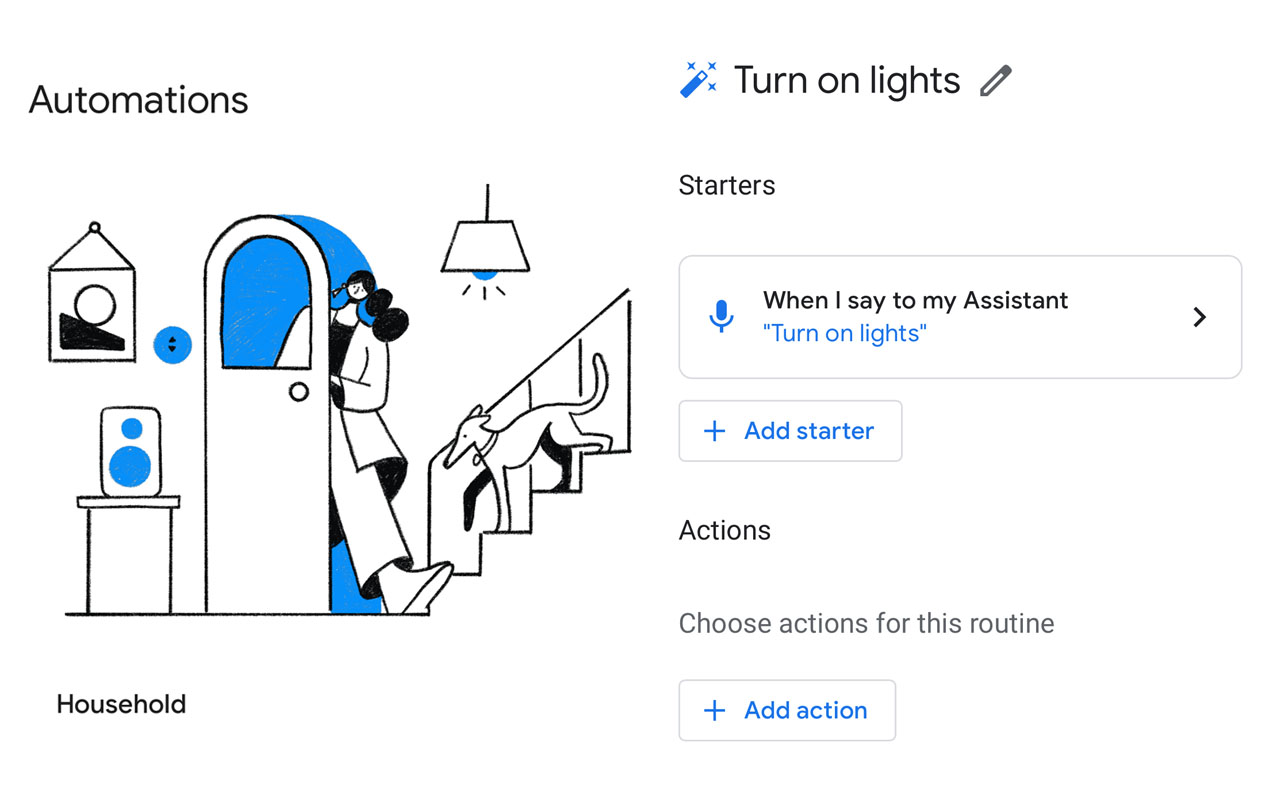
This is where your smart home becomes smart. Automations allow your home to react to your schedule without you lifting a finger. If you’ve ever fantasized about lights turning on automatically at sunset or your thermostat warming the house before you wake up, this is your moment.
Automations and routines are a great way to make your home feel more natural and seamless. They help your body and home follow your natural rhythms (like cooling down before bed or having brighter lights during the day), even in spaces like the basement or attic.
What are Google Home routines?
Routines are custom actions triggered by a voice command, a schedule, or a device event. Examples include:
- Saying “Hey Google, good morning” turns on the lights, reads your day’s weather, and starts your favourite playlist.
- A bedtime routine dims the lights and turns off connected devices.
- A sunset routine automatically switches on your porch lights and dims your indoor lights each evening.
- A workday routine lowers your thermostat and pauses your robot vacuum at the right times.
Routines are the backbone of Google Home automation, allowing multiple devices to coordinate effortlessly. They take the smart home experience from just being convenient to feeling fully immersive.
How to create a routine

- Open the Google Home app
- Tap the Automations tab (this may appear as Routines depending on your version)
- Tap + New to start building your routine
You’ll then choose your triggers:
- Voice trigger: A custom command such as “Hey Google, movie time”
- Time-based trigger: Specific hours or repeating schedules
- Sunrise/sunset trigger: Timed phases, ideal for lights or outdoor devices
- Device trigger: When a sensor or camera detects activity (availability varies by device)
Next, pick your actions:
- Turn lights on/off or adjust brightness
- Play music or news
- Change temperature settings
- Announce reminders or alerts
- Control smart plugs
- Broadcast messages to Nest speakers
- Start or stop appliances supported by the system
Once you save your routine, it’ll run automatically based on the trigger you selected. Routines let you combine creativity with convenience, making your home feel just a little more magical.
Troubleshooting tips
Here are quick fixes for the most common issues you may run into when trying to connect Google devices.
Device not found
If the Home app can’t find your device during setup, try:
- Ensuring Bluetooth is enabled on your smartphone and that Google Home and the device itself have permissions to use Bluetooth
- Making sure your device is powered on and in pairing mode (often indicated by a flashing light)
- Checking that your controlling smartphone is connected to Wi-Fi
- Moving your smartphone closer to the device
Sometimes simply rebooting both your phone and the device resolves detection issues.
Network issues
If your Wi-Fi connection might be the issue, try the following:
- Moving closer to your router during setup
- Restarting your router
- Using a 2.4GHz Wi-Fi network if your device doesn’t support 5GHz
- Restarting the Google Home app
- Ensuring your router isn’t blocking new device connections
If you have a mesh Wi-Fi system, sometimes devices hop between nodes during setup. Sticking close to the main node often helps, so pop a squat with your smartphone next to the device you’re trying to set up.
Compatibility problems?
If a device refuses to connect:
- Double-check that it supports Google Home integration
- Update the device’s firmware if the manufacturer offers an app
- Confirm your region settings match Canada
- Make sure you’re using the “Works with Google” option if it’s a third-party device
- Make sure the device is actively seeking pairing while you’re setting up—the way to trigger pairing mode differs by device
If all else fails, factory reset the device and try again.
FAQs
1. Can I connect multiple homes in the app?
Yes. You can create and manage multiple homes in the Google Home app. This is helpful if you split time between locations, manage a rental property, or want to set up devices at the office. You can switch between homes in the app with just a tap.
2. Do I need Wi-Fi for all devices?
Most smart home devices need Wi-Fi to connect to the cloud and sync with your Google ecosystem. However, some Bluetooth-only gadgets can still be controlled locally through the app—as long as your phone is nearby.
3. Can I control my Home from outside of my home?
Oftentimes, yes! This is usually Wi-Fi dependent. Wi-Fi-enabled Google products and “Works with Google” products can typically be controlled through your Home app even when you’re away. However, many Bluetooth-only devices can typically only be controlled while you’re at home and within range of the product.
4. Can I share access with family members?
Absolutely. You can invite other members of your household to join your home in the app. Once added, they can control devices, adjust settings, and use routines just like you.





No Thanks.
It’s been very helpful. Your information
Thank you for your information.
Comments are closed.