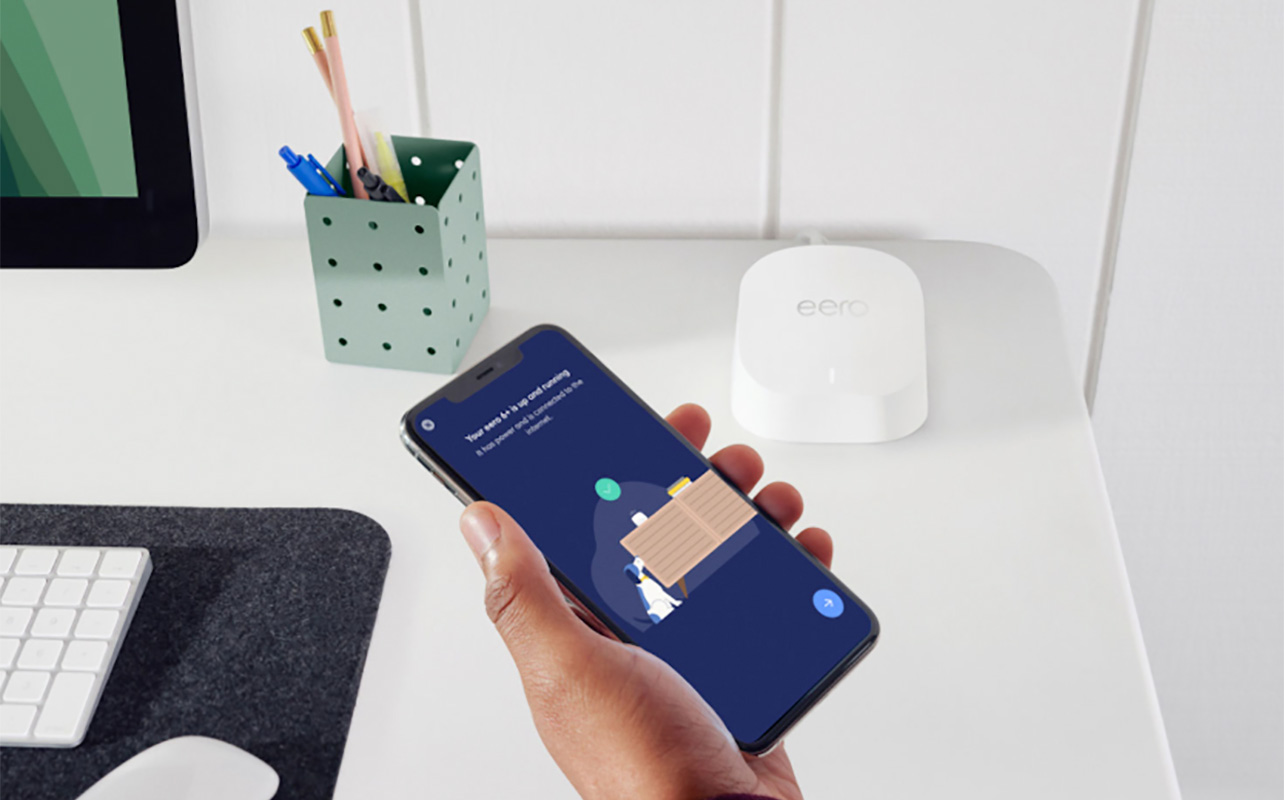
You don’t realize how much you rely on internet access at home until it isn’t working, is slow or laggy, or keeps cutting out. If your internet has suddenly slowed to a crawl, devices keep dropping off Wi-Fi, or your smart home setup has decided to stop cooperating, your router might be the quiet culprit. Resetting your Wi-Fi router can often fix common connection issues. But not all resets are created equal. Knowing when to do a quick reset versus a full factory reset can save you time and unnecessary setup work.
This guide walks you through how to reset a Wi-Fi router without messing with important settings, explains when to reset your Wi-Fi router, and helps you decide what to try before going nuclear with a factory reset. We will also cover when it might be time to upgrade your router altogether.

Why you might need to reset your router

Most people only think about their router when something stops working. A reset can help clear up temporary issues. But it is useful to understand why things go wrong in the first place.
Frequent disconnections or dropped signals
If your Wi-Fi keeps cutting out or devices randomly disconnect, your router may be struggling to manage active connections. This is especially common in homes with lots of connected devices, like phones, laptops, TVs, and other smart products.
Slow internet despite a good plan
You pay top dollar for fast and reliable internet. So, if you aren’t getting the Wi-Fi speeds, it can be frustrating. But it might not have anything to do with your Internet Service Provider (ISP) and everything to do with router issues. While your ISP controls the incoming speed through the provided modem, your router controls how that speed is shared wirelessly among devices throughout the home.
Can’t connect new devices
When a new smart device refuses to connect, it’s possible this has to do with your router. The band could be clogged, especially if you don’t have a dual- or tri-band router than can connect to the 5GHz or even 6GHz bands as well as 2.4GHz, like a Wi-Fi 6, Wi-Fi 6E, or newer Wi-Fi 7 router. If you’re confident your router has the power to support many devices, resetting Wi-Fi settings on the router can help clear connection conflicts. If it’s an older model, however, this could point to a bigger issue that suggests a router upgrade is necessary.
Forgot your admin password
If you cannot access your router’s settings because you forgot the login details, a factory reset process is often the only way back in. Similarly to forgetting your iPhone passcode, if this happens, for security reasons, you’ll have to start all over. That’s why it’s so important to protect your important passwords and keep them logged in a safe place.
Troubleshooting smart home connectivity
Smart lights, speakers, cameras, and plugs can be sensitive to network hiccups. A reset is a common Wi-Fi troubleshooting step when smart home devices stop responding. This can often help reboot the entire system and help these devices reconnect and be more stable.
What happens when you reset your router?

Before you reset anything, it helps to know what actually changes.
Soft reset vs. factory reset: what’s the difference?
A soft reset, also called a power cycle, simply restarts the router by turning it off and on again. It clears temporary memory and refreshes the connection without changing any settings. Think of it like when you press a sequence of buttons on your phone to reboot it when it’s acting funny. Nothing is erased, you’re simply powering down and starting back up again to give it a fresh start. This is best for minor slowdowns or temporary issues and should always be your first step when Wi-Fi starts acting up.
A factory reset router process is more dramatic. It returns the router to its original out-of-the-box state. It’s like you just bought it and you’re starting anew, which means reconnecting everything. The process is similar to a factory reset of a phone, which you do before you hand it over to a new owner. It erases all your contents or, in the case of the router, any custom settings and memory of the devices it connected to before.
After a factory reset, your Wi-Fi network name (SSID) and password are reset to default so you will need to create a new password. Don’t forget to make it something secure: no proper names or easy to guess things like a birthday. Make it a random sequence of letters, numbers, and special characters and store the password somewhere secure like a password manager. Note that all custom settings are erased, including parental controls, port forwarding, and quality of service rules. So you’ll have to start over in setting up the router just like when you first took it out of the box. Firmware processes also restart, but this is a good thing as it can resolve stubborn bugs or glitches. In short, a factory reset fixes deeper issues but requires full setup again. This is the last resort option but may be needed for persistent problems, forgotten credentials, or before selling or giving away a router. If a soft reset does not help, a factory reset is the next step.
How to soft reset your router
A soft reset is quick and low risk and it involves the famous IT service line “unplug it and plug it back in.” It sounds simple, but it can often rectify most connectivity issues.
Step 1: Unplug the power cord
Remove the power cable from the router. Do not just turn it off using a switch if it has one.
Step 2: Wait 30 seconds
This gives the router time to fully clear temporary memory.
Step 3: Plug it back in and wait for a full reboot
Lights will blink and stabilize once the router is ready. This can take a few minutes.
Step 4: Reconnect your devices
Most devices will reconnect automatically once Wi-Fi is back online.
This method solves many everyday Wi-Fi troubleshooting issues. Note that many modern routers allow you to reset via a companion mobile app. You can try this first, but a physical unplug process may be what’s needed.
How to factory reset your router

If problems persist, here is how to reset Wi-Fi router settings completely.
Step 1: Locate the Reset button
This is usually a small pinhole on the back or bottom of the router.
Step 2: Press and hold for 10 to 15 seconds
Use a paperclip or pin. Hold until the router lights blink or turn off.
Step 3: Wait for the router to reboot
The router will restart and return to default settings. This may take a few minutes.
Step 4: Set up Wi-Fi again
Use the default network name and password printed on the router label or follow the setup instructions in the router’s app. It’s best to change the password to something secure and unique.
Keep in mind that you will need to reconfigure everything from scratch after a factory reset.
How to avoid frequent resets
If you find yourself resetting your router often, the issue may be bigger than a simple glitch.
Update firmware regularly
Manufacturers release updates to fix bugs and improve performance. Many routers can update automatically through their app. Check for firmware updates before doing anything. If there is one that hasn’t been downloaded, do this first.
Reposition your router
Place the router in a central, elevated spot away from thick walls and electronics that cause interference.
Use mesh Wi-Fi or extenders if coverage is weak
If you find repositioning the router still doesn’t help yet the network is up and supposedly operating well, consider upgrading to a mesh Wi-Fi system. This includes separate Wi-Fi nodes or satellites you can place throughout the home to boost the Wi-Fi signal. This can help prevent the issue of “dead zones” where Wi-Fi either doesn’t work or is slow, like in the basement, bedroom, even out on the back deck. Mesh systems and range extenders help spread signal evenly throughout your home. You can explore options like range extenders or whole home mesh Wi-Fi systems to improve coverage.
Upgrade an older router
If your router is more than four years old, it may not handle modern internet speeds or multiple devices well. Along with considering a Wi-Fi 6, Wi-Fi 6E, or Wi-Fi 7 router, all three of which are good choices for an upgrade, consider a router with AI technology. These can not only help improve your home network, they can also self-diagnose issues and make adjustments to prevent the need for a reset in the first place.
When to consider a new router instead
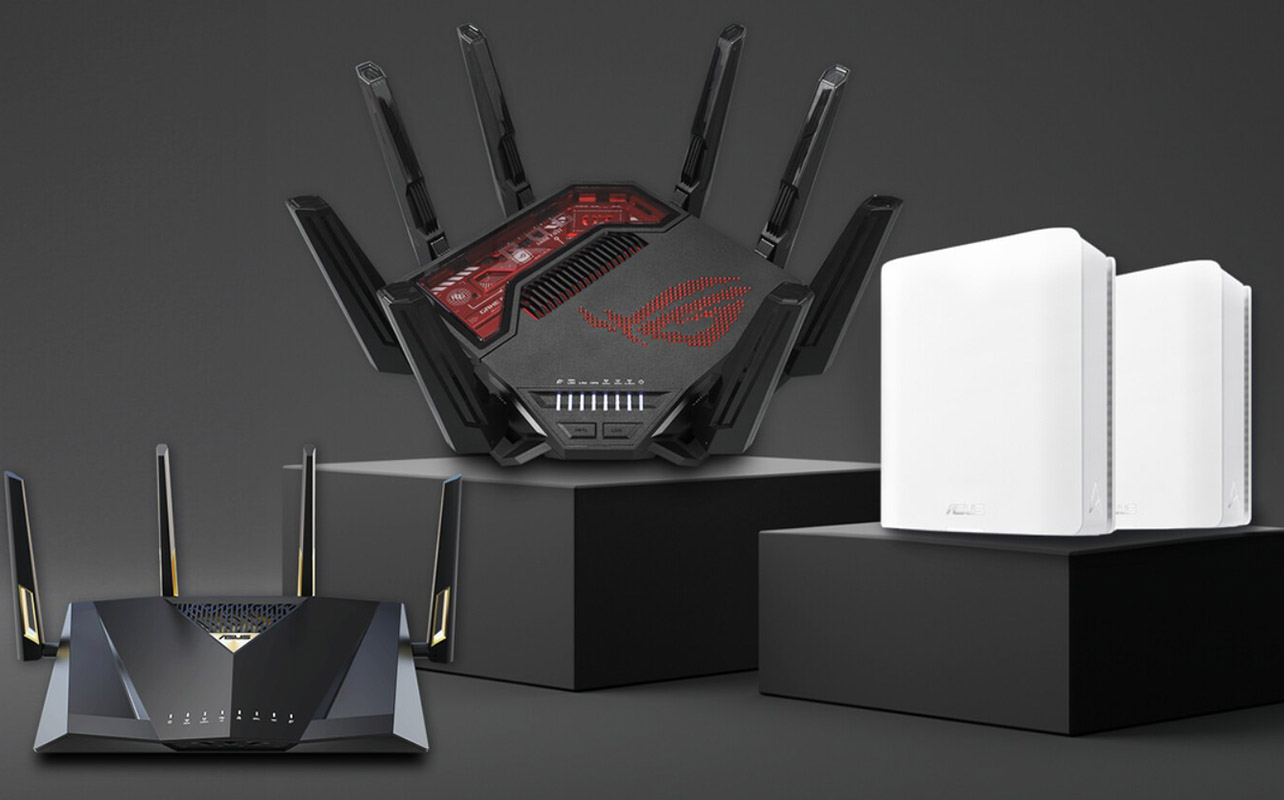
Sometimes, resetting is just a temporary fix. You may want to upgrade if:
- You still have issues after multiple resets
- Your router does not support dual-band or newer Wi-Fi standards like Wi-Fi 6, 6E, or Wi-Fi 7
- You want better parental controls or device management
- You upgraded your internet plan but do not see faster Wi-Fi speeds
Browsing newer wireless routers or networking solutions can make a noticeable difference in performance and reliability.
Keeping your home Wi-Fi running smoothly

Resetting your router is one of the easiest ways to fix everyday Wi-Fi issues, and now you know exactly when and how to do it. If problems are persistent, upgrading your setup can save you a lot of future headaches. Whether you are troubleshooting, expanding coverage, or ready for something new, Best Buy Canada offers a wide range of Wi-Fi and networking solutions, plus expert advice to help you stay connected without the guesswork.
FAQ: Router resets and connection issues
How often should I reset my router?
A soft reset every few weeks can help maintain performance. Factory resets should only be done when necessary, such as to combat major bugs or setup issues.
Will resetting my router delete my internet plan?
No. Your internet service remains active but you can’t connect while the router is resetting. You may need to re-enter settings provided by your internet provider after a factory reset.
Can I reset my router from my phone or app?
Yes. Many modern routers from brands like TP-Link, ASUS, and Netgear allow app-based resets under system or advanced settings.
Do I need to reset my modem too?
Only if you are having issues with your internet signal itself, not just Wi-Fi. The modem connects your home to your provider, while the router manages wireless connections. If you aren’t sure if the modem is the issue, you can check your connection status online by visiting your ISP’s portal or a speed test website. You could also plug a device directly into the modem via Ethernet cable to see if it connects to rule out modem issues.

This article was drafted using AI technology and then reviewed, fact-checked, and revised by a member of our editorial team.