
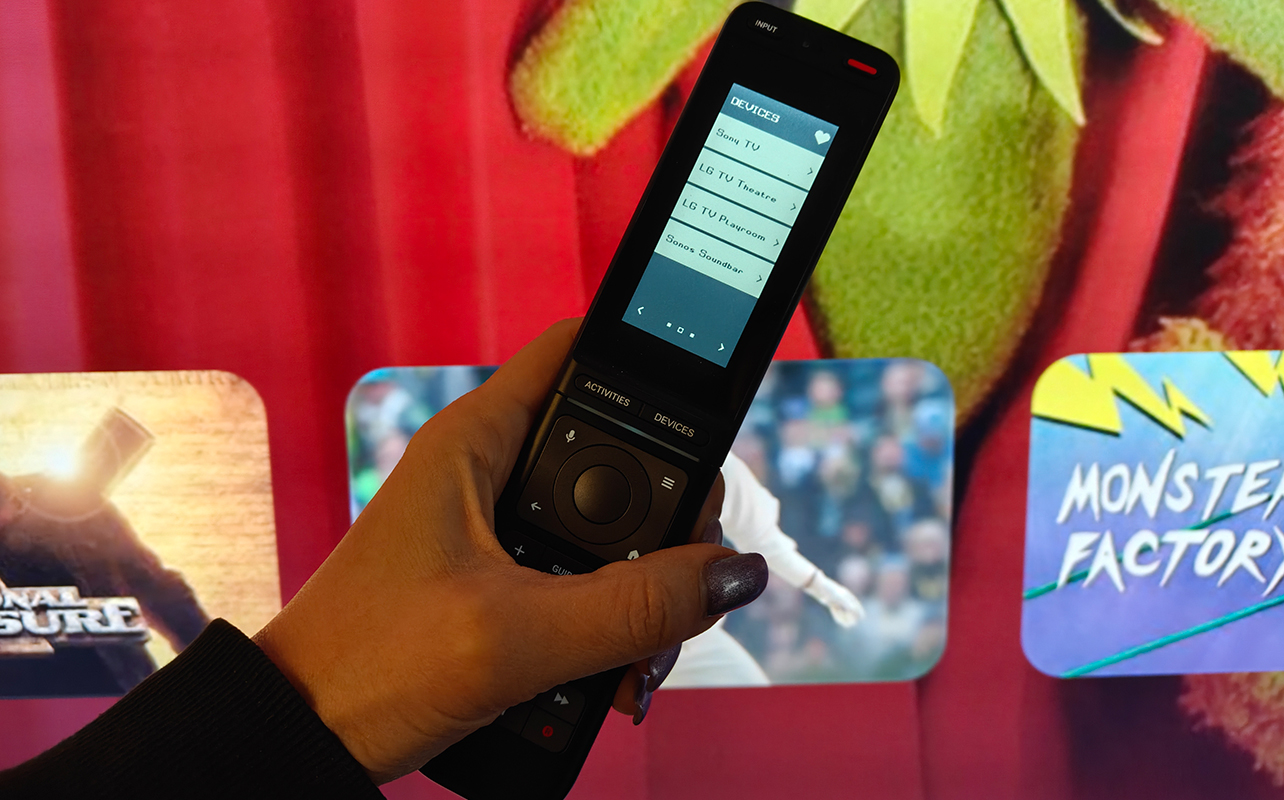
A universal remote is so essential nowadays, especially when you have multiple devices using different inputs, streaming services, and more. It can get confusing when you need to switch inputs and make a series of button presses to activate activities like watching TV, playing movies or video games, even listening to music. The One For All Smart Pro Touch Remote is designed to make this simple. You can connect up to a dozen devices that can all be controlled from simple pre-programmed buttons on the touch screen. It even boasts voice control support for Google TVs from brands like Sony and TCL. I set one up in my home, paired with multiple TVs and other devices, to see how it works.


About the One For All Smart Pro Touch Remote
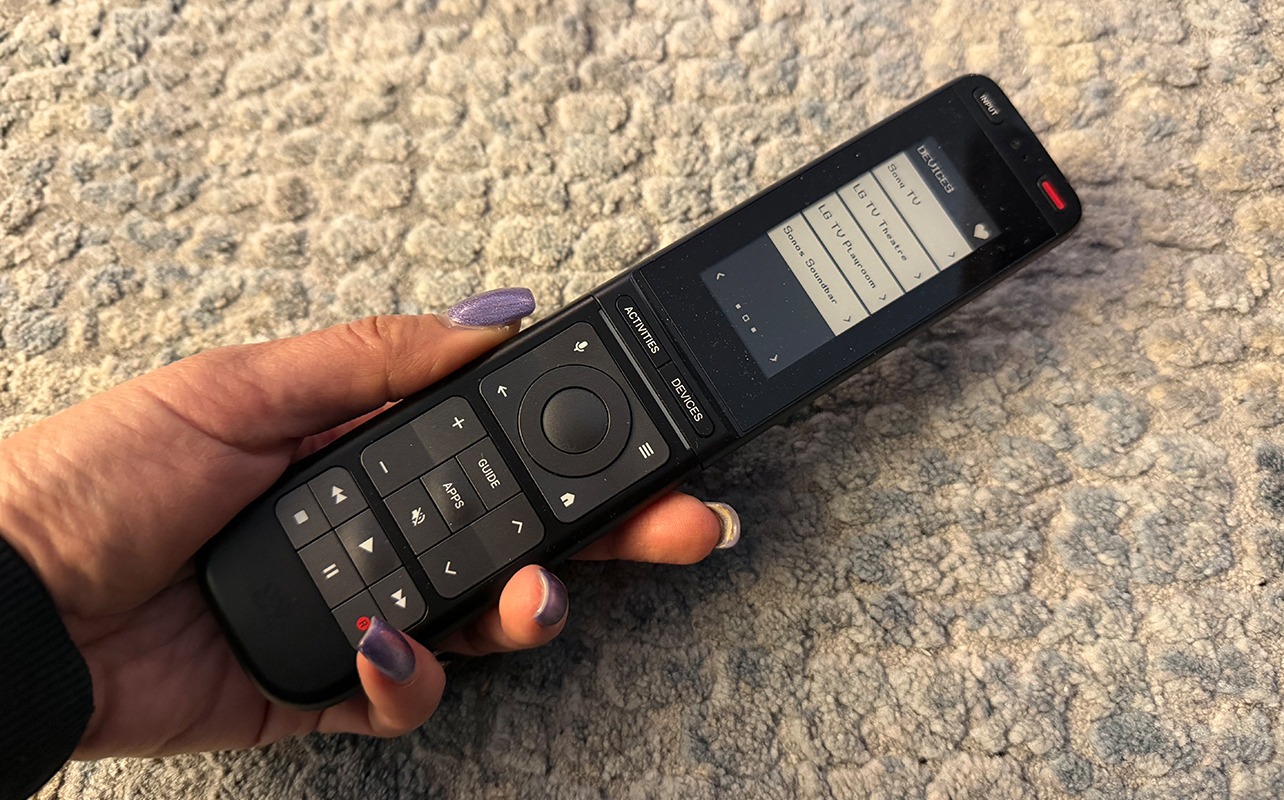
As mentioned, the One For All Smart Pro Touch remote lets you connect up to 12 devices. This can include TVs, speakers, media players, gaming consoles, and more. Once the devices are set up individually, you can create various activities. This will trigger multiple devices with a single button press. For me, these activities include watching TV from my Bell Fibe app and popular streaming services and accessing Apple TV for screener apps, gaming, YouTube, and more. I also connected a soundbar for listening to music.
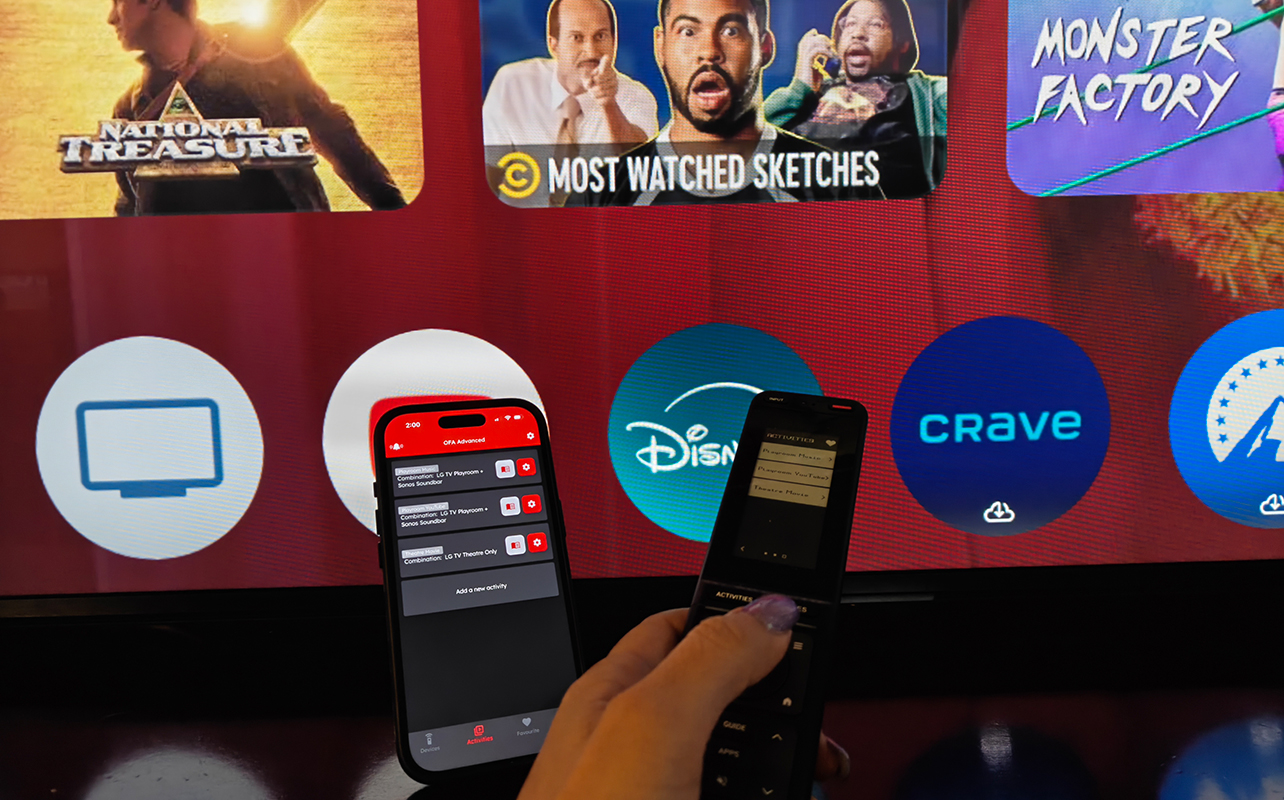
It’s totally customizable with a large touchscreen. Use the One for All Advanced app for initial set-up and tweaks along the way as you add devices or want different functions.
Key features of the remote
There are a few key features you’ll notice in the remote upon setup.
- Devices: Add up to 12 AV devices so you can use the remote to control them all. You just need the device type and brand. Run a few button tests to ensure it works and it takes seconds.
- Activities: Once you have individual devices set, you can trigger a combination of them to turn on an activity like Play Video Games or Watch Movies. Press Watch TV, for example, to turn on your TV, set-top box, and soundbar all at the same time.
- Favourite: Here, you can save favourite activities like Watch TV or Play Xbox.
- Learning Feature: Hold the remote close to your device’s remote and take it through step-by-step to learn keys and functions.
- Macros: These allow for a series of commands with one button press. Add a Macro to an existing Activity and use just the Activity button for a more complex series of commands. These might include things like up, down, right, left, OK, AV1, and more.
- Key Mover: Change what a button does or even its position on the remote.
- Volume Lock: Set the remote so the volume buttons always control the same device, like the soundbar you use with every Activity.
Setting up the One For All Smart Touch Pro remote
The remote is easy to set up.
Initial set-up
You’ll need four AAA batteries (they aren’t included). Scan the QR code on the package to get the app to use for the set-up process. Press the Activities and Devices buttons together until the light flashes blue to pair with the app. Then, begin adding your devices one by one, following on-screen instructions.
Design and ease of use
The remote looks simple, the screen is like a black and white paper screen with lettering that mimics an old computer from the ’90s. I turned brightness up to high but it was still pretty dark, so if you have sight issues, you might have trouble reading the menu options. There is, however, also a backlight option, great for late-night TV watchers like me.
You may or may not like the beep sound each time to choose a device or activity. In settings in the app, you can change it to only play a sound for screen keys, hard keys, both, or none. You can also adjust the sound level on a scale of one to five. Find My Remote is a nice touch, perfect if you use the remote to control multiple TVs. If your child forgets it in the basement, or it has fallen between the depths of the couch cushions, you can follow the sound to find it.
Setting up Activities, Macros
From there, play around with setting up Activities, Macros, and more, and test them all to make sure they’re working well. You’ll need to point the remote at the device for this to work. My home includes an AV rack in the basement, so in the living room, I was only able to set up a Sony Bravia 9 TV. In the basement, I connected an LG QNED TV in the theatre room and an LG OLED TV in my son’s playroom. There’s also a Sonos Arc soundbar.
Using the One For All Smart Pro Touch remote
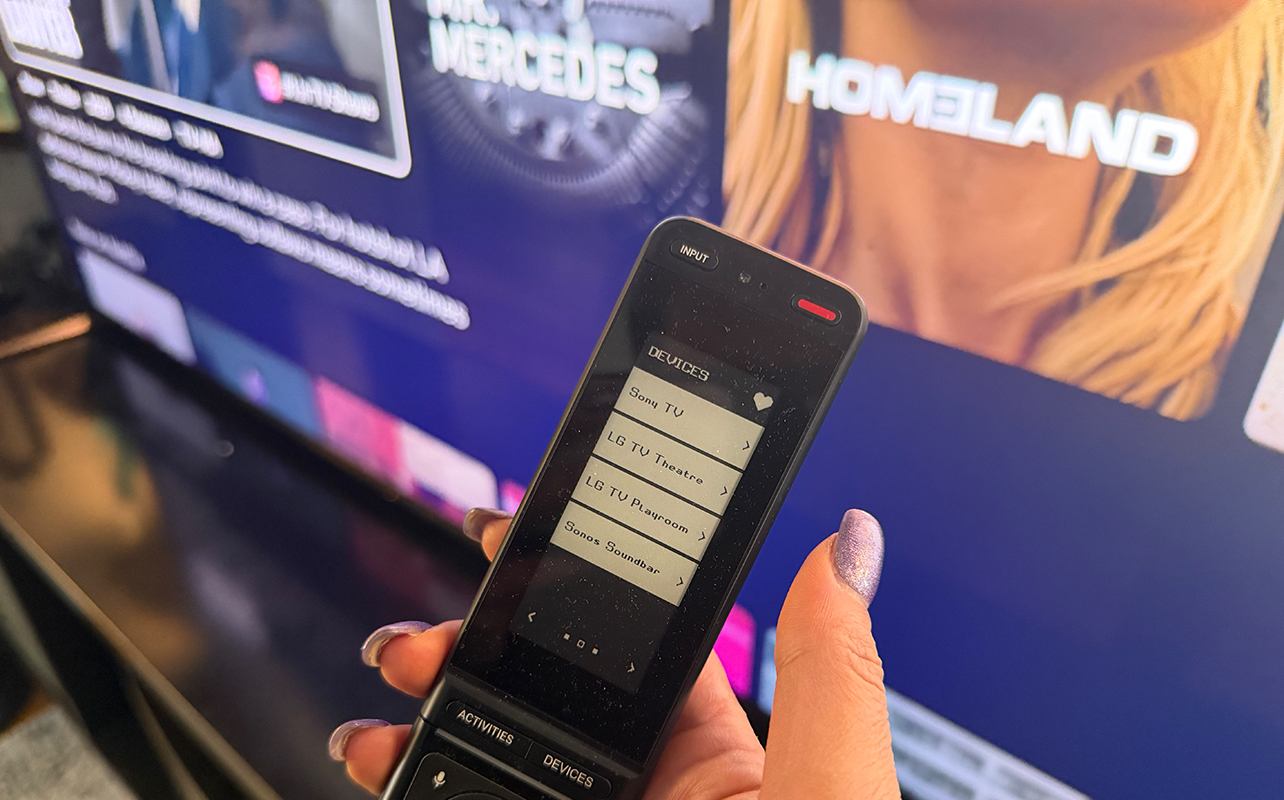
In the living room, since I could only connect to the TV itself, I played around mainly with Macros.
Setting up Macros
I set a Macro for the Apps button so whenever I press it, it will automatically load YouTube. I did this by adding the commands Power, Home, two pauses, then YouTube and OK. Note that YouTube has its own streaming button, however, so you can just press this on the touchscreen to go right to YouTube. But for the sake of testing Macros, I used this. You can also program a Macro to do things like switch inputs, move left or right, up or down, and access discrete keys, like AV 1 or HDMI 2. Oddly, a large exclamation point comes up on screen when a Macro has been activated, which might make you think something is wrong for a split second until you read the text under it. I would have chosen a different graphic for this.
I found that Macros didn’t always work as I wanted, especially when adding things like left and right menu movements. In the end, it was easier just to access the Home button and choose the menu options myself. But even without using them, the remote is still useful for controlling multiple TVs and having one-touch options for popular streaming services like Netflix and Prime Video. It’s also great for Activities.
Setting up Activities
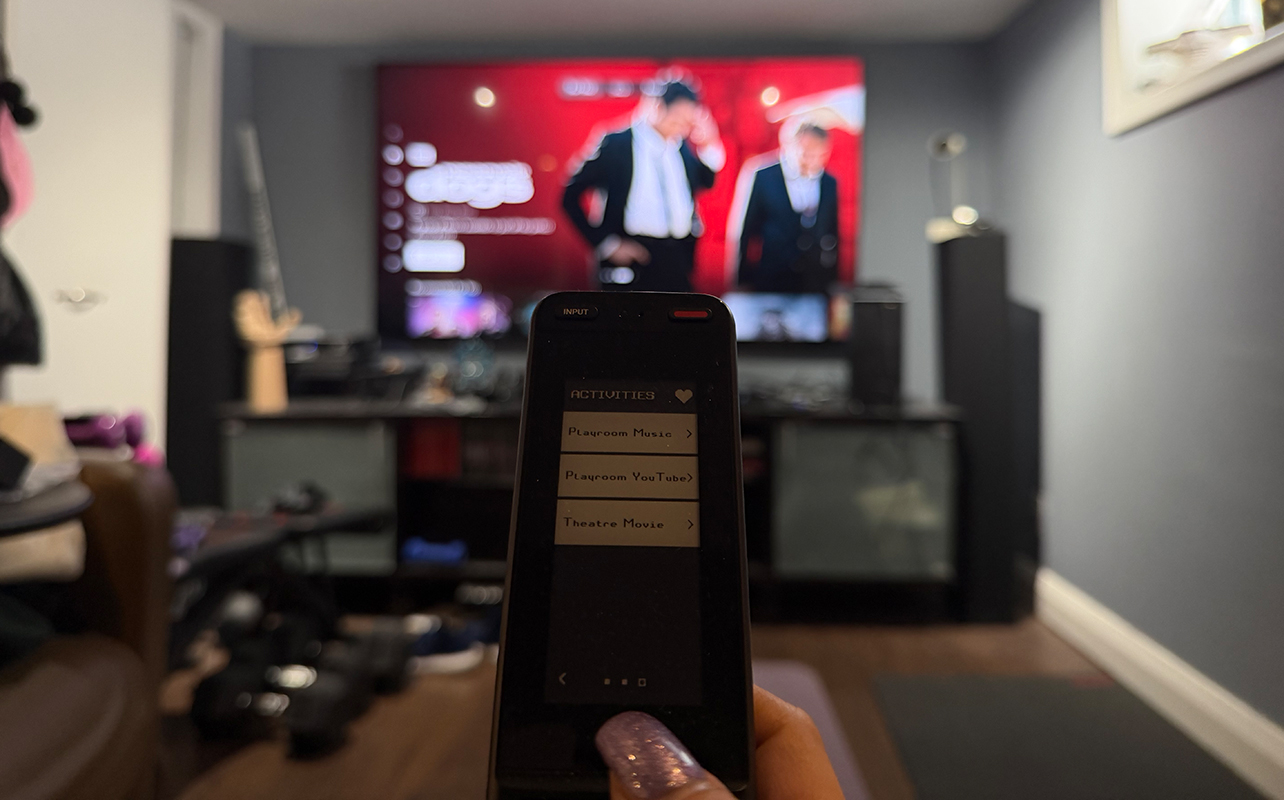
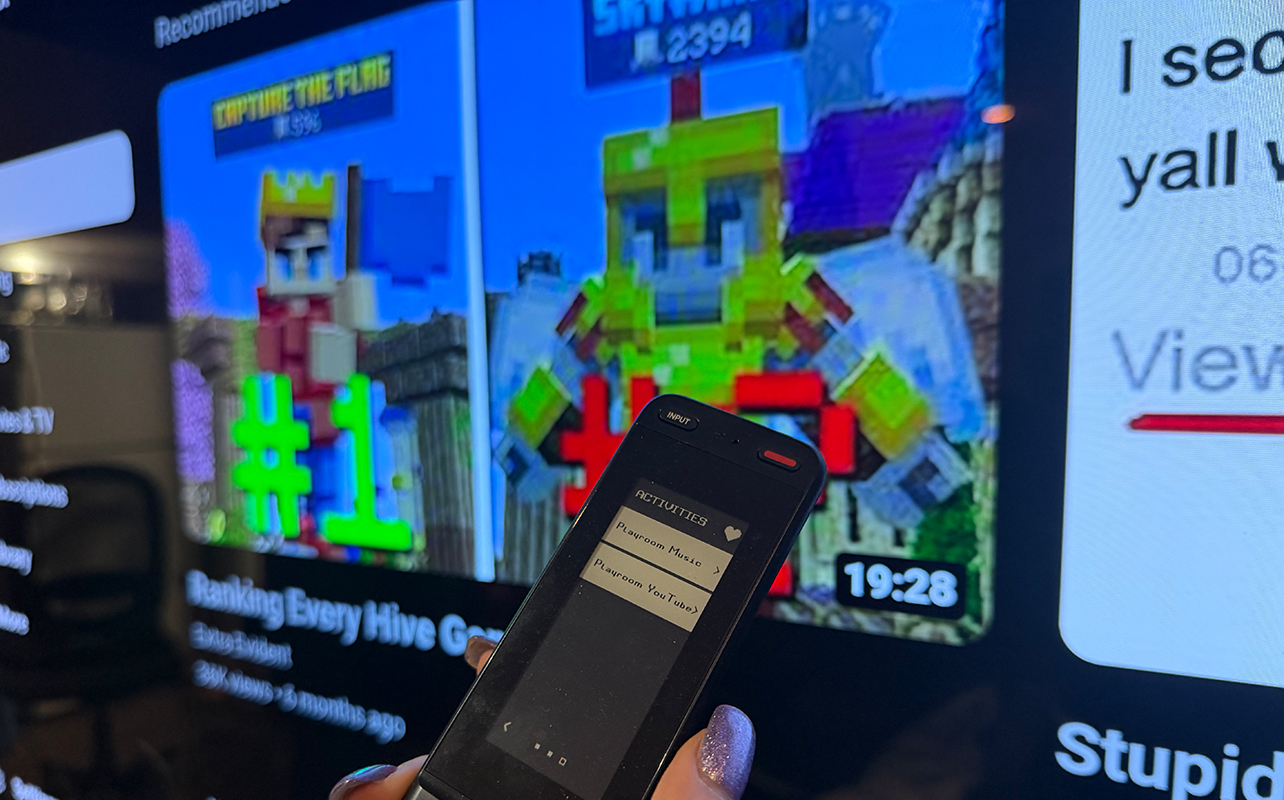
With additional devices in the basement, I set up Activities like Playroom Music so my son could tap the Activity button on the touchscreen of the remote to turn on the Sonos soundbar for playing music. Setting up Activities was simple as well. You’ll have more options with the more devices you connect. But if you want anything more complex, Macros might be the way to go. You can, as noted, add Macros to any Activity and combine the two.
Google Assistant control
Since my living room Sony TV is a Google TV, I was able to test the Google Assistant button. There are a few required steps before you can use it. First, enable voice control on your TV if it isn’t already. Then, you’ll need to pair the remote to the TV via Bluetooth settings and press and hold the Volume + and OK buttons on the remote to put it into pairing mode.
Once I had it set up, it worked well from there. I asked things like to open Netflix or Prime Video, find sci-fi movies, return to the Home menu, or advise who is the lead actor in The Pitt (it called up a cast list). Basically, anything you can ask Google Assistant that’s relevant to content on the TV should work. At times, however, it didn’t pick up my voice and simply stuck on a black screen, unable to answer.
One thing worth noting: once Bluetooth was set up and being used on the TV for Google Assistant, it caused the remote to periodically lose connection with the app on my phone. This won’t be an issue for most people, however. Once you’ve set up your devices, you probably won’t be using the app as often as I was for testing. That said, if you need to re-pair at any time, hold down the Activities and Devices buttons for a few seconds until the blue light illuminates. The remote should re-pair with your phone in seconds.
A quick look at the One For All Smart Pro Touch Remote in action
Should you buy the One For All Smart Pro Touch remote?
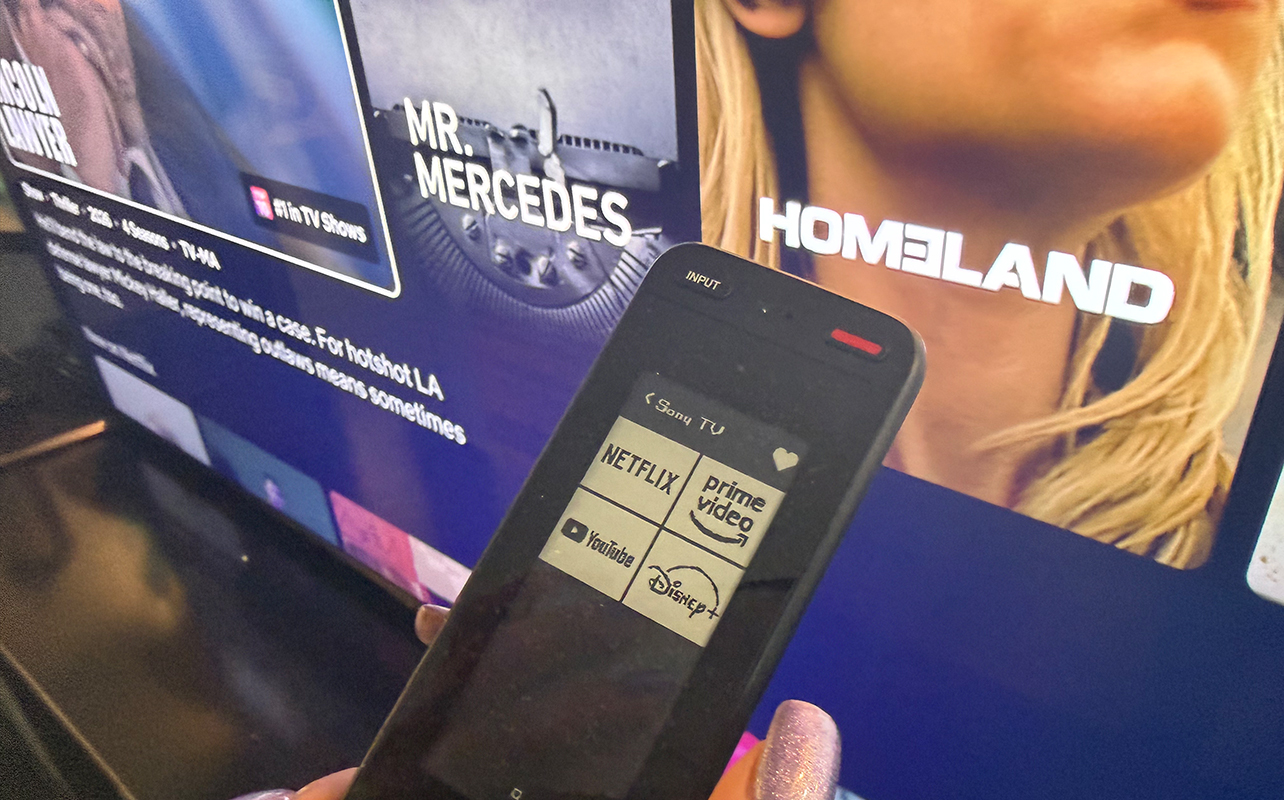
The One For All Smart Pro Touch remote is not the sleekest design I’ve seen for a universal remote. But for someone who is used to a traditional TV remote, it’s a nice bridge between a fully touch-enabled smart remote and a basic one. The screen is a step-up from button-only options. But it’s like an eReader versus a tablet: you aren’t getting a full-colour, advanced experience. You may find the remote finicky at times when trying to set up specific commands. It may respond inconsistently for some devices as well. It really depends on what products you have in the home that you want to add. For example, despite my LG OLED having a YouTube menu option, this didn’t come up as a button for Macros. But it does for the Sony TV.
The One For All Smart Pro Touch remote could easily be used as the main remote for your devices in the living room. And it works well as a back-up remote for other TVs, too. In terms of pairing it with your TV, it’s incredibly simply, literally done within seconds for all three of my TVs. Program it with activities like Play Games, Stream Music, or Watch a Movie and you’re good to go. Plus, with the pre-programmed streaming services buttons, it’s a breeze to use for common one-touch actions, like calling up Netflix. If you’re looking to set up simple activities and commands, this universal remote may suit you just fine.
Find the One For All Smart Pro Touch remote at Best Buy Canada.





We currently support the primary key functions for both devices, and the One for All team is actively expanding that coverage. Discrete Inputs for the Yamaha and the Power Toggle for the Edifier are being added next week, with full availability expected the week after.
You can expect complete control of both devices within the next couple of weeks after a firmware update.
I’ve tried many different universal remotes over the years and their marketing material all say the same thing – that they work with all devices – that if they don’t have a code for your old remote you can train the universal remote to learn from your old remote. What does this One For All remote do for you if your old remote is gone? Can you confirm that it actually has usable codes for your devices before you buy it (not just assume it does)? Two of the devices I have that constantly throw a monkey wrench into the use of any universal remote I have tried are my Yamaha HTR-6190 and my Edifier RD1280 speakers. I no longer have the original remote for either device and I have yet to find a universal remote that properly works with either. Other Yamahas, apparently yes. Other Edifiers, apparently yes as well. My models in particular, no.