
There’s nothing more annoying than sitting down to stream a movie, join a video call, or jump into an online game, and you get that dreaded spinning wheel or buffering and lag because your internet is slow. You have signed up for a fast internet plan for your home networking, so why is this happening? Unfortunately, it can happen from time to time, with slow Wi-Fi being one of the most common tech frustrations at home. The problem doesn’t always have to do with your internet plan or issues with your Internet Service Provider (ISP). In many cases, it comes down to simple things you can fix at home, like router placement, network congestion, or settings that are easy to overlook.
The good news is that you do not need to be a tech expert to fix it. With a few straightforward checks and adjustments, you can often improve your internet connection and enjoy smoother streaming, gaming, and browsing. In this guide, you will learn what is really slowing down your Wi-Fi, how to test your internet speed properly, and the easiest ways to get faster, more consistent performance throughout your home.

Table of contents
- Common causes of slow Wi-Fi
- How router placement affects Wi-Fi speed and stability
- Testing and diagnosing Wi-Fi performance issues
- Impact of devices and users on Wi-Fi performance
- Settings and quick fixes to improve Wi-Fi speed
- FAQs
Overview of common causes of slow Wi-Fi
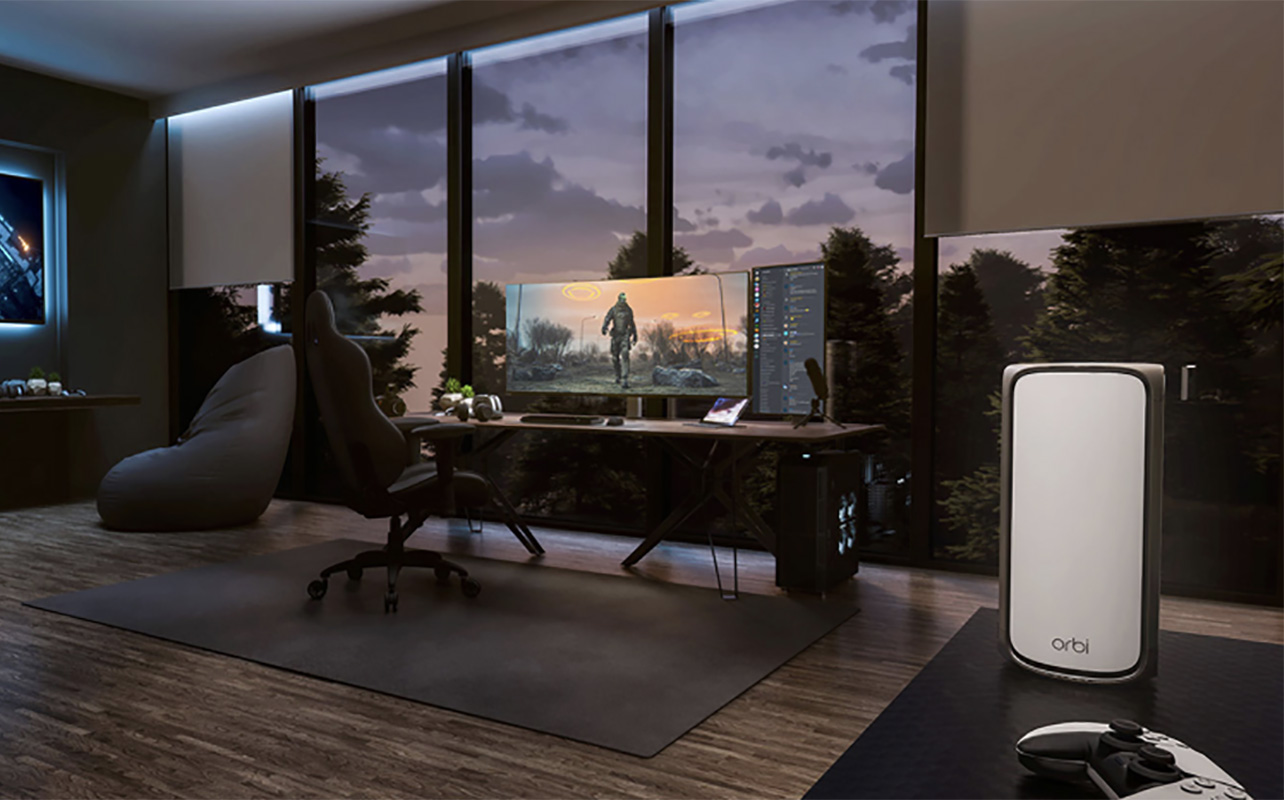
If your internet feels slow, it is rarely just one issue. In most homes, several factors work together to affect performance.
| Cause | What it means | Potential impact |
|---|---|---|
| Weak signal | Router too far or blocked | Slow speeds, dropouts |
| Network congestion | Too many devices | Reduced speed per device |
| Interference | Other electronics or networks | Unstable connection |
| Outdated hardware | Old router or modem | Speed limitations |
| ISP limitations | Plan or service issues | Max speed capped |
Router placement
A weak signal happens when your router cannot reach certain areas of your home. Walls, floors, and furniture can block or weaken the signal. If you notice slower speeds in certain rooms, this is often the reason.
Network congestion
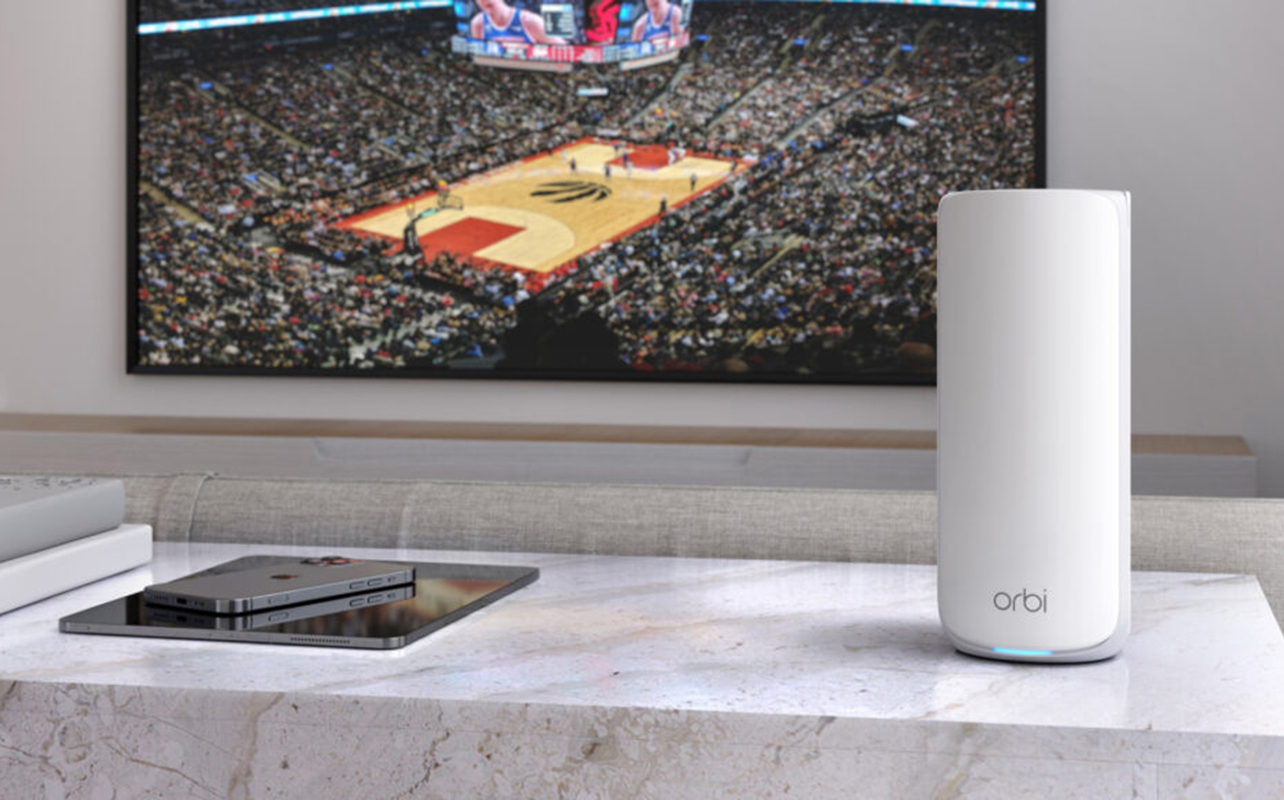
Network congestion is another major factor. Every phone, laptop, smart TV, and smart home device connected to your network shares your available bandwidth. The more devices you have, the more your internet speed is divided. This is especially when several family members are trying to access bandwidth-intensive activities at the same time, like streaming TV, gaming, and doing video calls. Outdated hardware can limit your speed. Older routers may not support higher Mbps or newer technologies. If this is the case, consider upgrading to a Wi-Fi 6, 6e, or 7 router that support additional bands and can free up traffic. Another option is to consider investing in a mesh network. This includes separate nodes/satellites you can place throughout the home to boost the Wi-Fi signal. It’s especially useful for rooms that might be farther away from the router or are traditionally considered “dead” zones where connection is slow and laggy. If the slow connection is isolated to one room, like your home office or games room, consider a Wi-Fi extender instead.
Interference from other networks
Interference can come from nearby electronics or even neighbouring Wi-Fi networks as well. This can make your connection unstable or inconsistent. Usually, this can be fixed by switching to a different band with a router that offers dual- or tri-band connectivity. If it’s a persistent issue, you may need to reposition the router.
Internet provider issues
Your internet provider can also affect performance. If your internet plan has speed limits or if there is congestion in your area, this can impact the speed. After ruling out other issues, it might be time to sign up for a better plan. Check with your ISP as well to see if they are experiencing known outages or issues in your area.
Slow Wi-Fi is usually caused by a combination of signal issues, connected devices, and your overall network setup.
How router placement affects Wi-Fi speed and stability
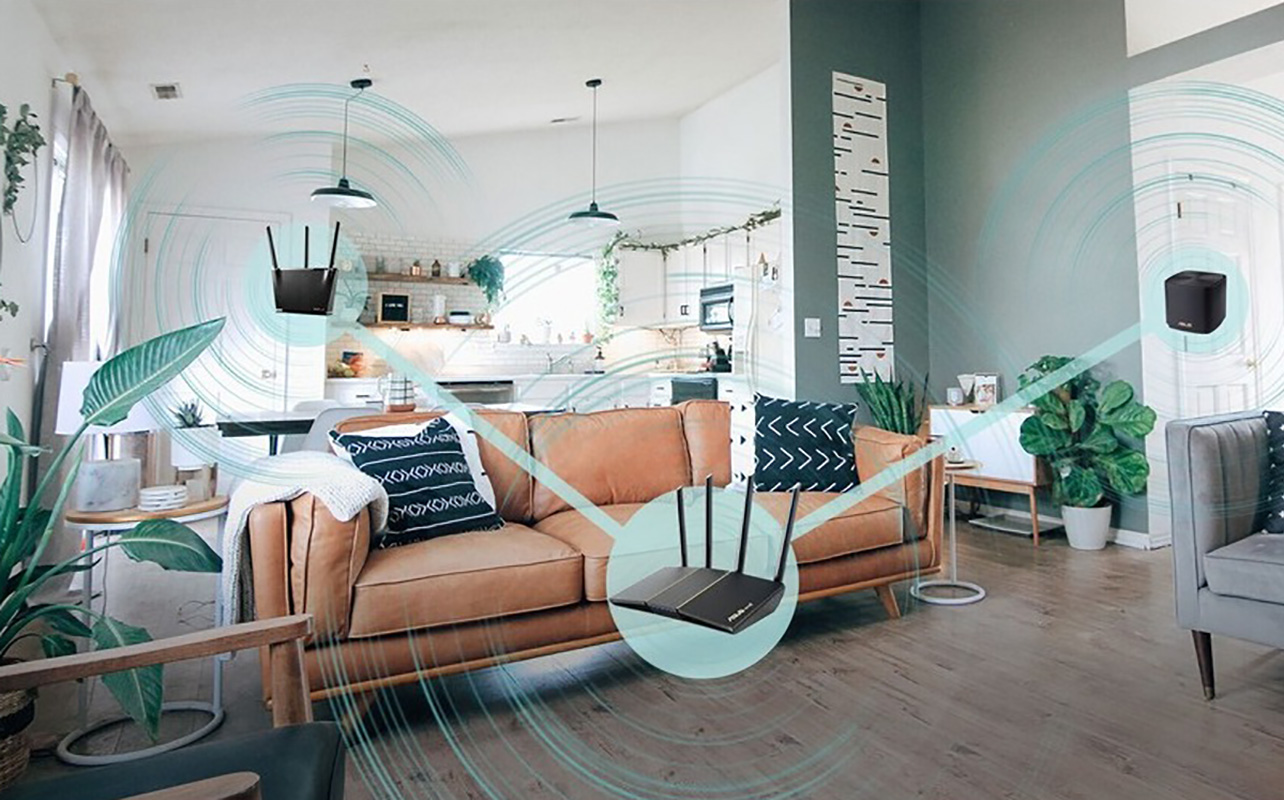
Router placement is one of the most important and often overlooked factors in Wi-Fi performance. Routers send signals in all directions. Placing your router in a central location helps distribute your internet connection evenly across your home. If it is placed in a corner or basement, the signal has to travel farther and may weaken before reaching your devices. Keeping your router elevated also helps. Signals travel better when the router is placed on a shelf or table instead of the floor. Try to avoid placing it near thick walls and metal objects as well. Don’t position it in a cabinet or behind a TV. As noted, a mesh system might be a good solution for larger homes, or homes where your router is tucked away somewhere like a basement.
| Poor placement | Good placement |
|---|---|
| Basement corner | Central main floor |
| Inside cabinet | Open space |
| Behind electronics | Elevated and unobstructed |
Improving your router placement is one of the quickest ways to improve Wi-Fi speed and coverage.
Testing and diagnosing Wi-Fi performance issues
Before making changes, it is important to understand what is causing the slowdown. Start by running a speed test to measure your download speed and upload speeds in Mbps. These numbers tell you how fast your internet connection is performing. If you are not sure what speeds you should expect, it helps to learn how much internet speed you really need at home so you can compare your results to your daily activities like streaming or gaming.
To get accurate results, run tests at different times of day. Test near your router and in slower areas. Make sure to disconnect extra devices while testing. You should also compare wired and wireless performance by connecting a device directly to your router with an Ethernet cable. This will rule out if the issue pertain to your ISP or your Wi-Fi. If you can attribute the issue to your Wi-Fi, try resetting your router.
| Result | What it means |
|---|---|
| Wired fast, Wi-Fi slow | Home network issue |
| Both slow | Possible ISP issue |
Impact of devices and users on Wi-Fi performance
Every device connected to your network uses bandwidth. The more devices you have, the more your internet speed is shared. Think of your network like a busy road. When only a few devices are connected, everything runs smoothly. As more devices join, traffic increases and speeds slow down. This is where dual- and tri-band routers that can divert traffic to different bands comes in. Routers with AI technology are also worth considering since they can do things like prioritize the most important devices.
Consider that different activities use different amounts of bandwidth. Streaming video uses a lot of data while gaming needs a stable connection with low latency. Video calls require both good download and upload speeds while smart home devices like security cameras use small but constant data.
| Number of devices | Impact on speed |
|---|---|
| 1 to 3 devices | Minimal impact |
| 4 to 10 devices | Moderate slowdown |
| 10 or more devices | Significant congestion |
Peak hours, especially in the evening, can also slow down your internet connection. It’s when most people are trying to access devices at the same time in the same area using the same service provider. More devices and heavier internet use reduce the speed available to each device.
Settings and quick fixes to improve Wi-Fi speed
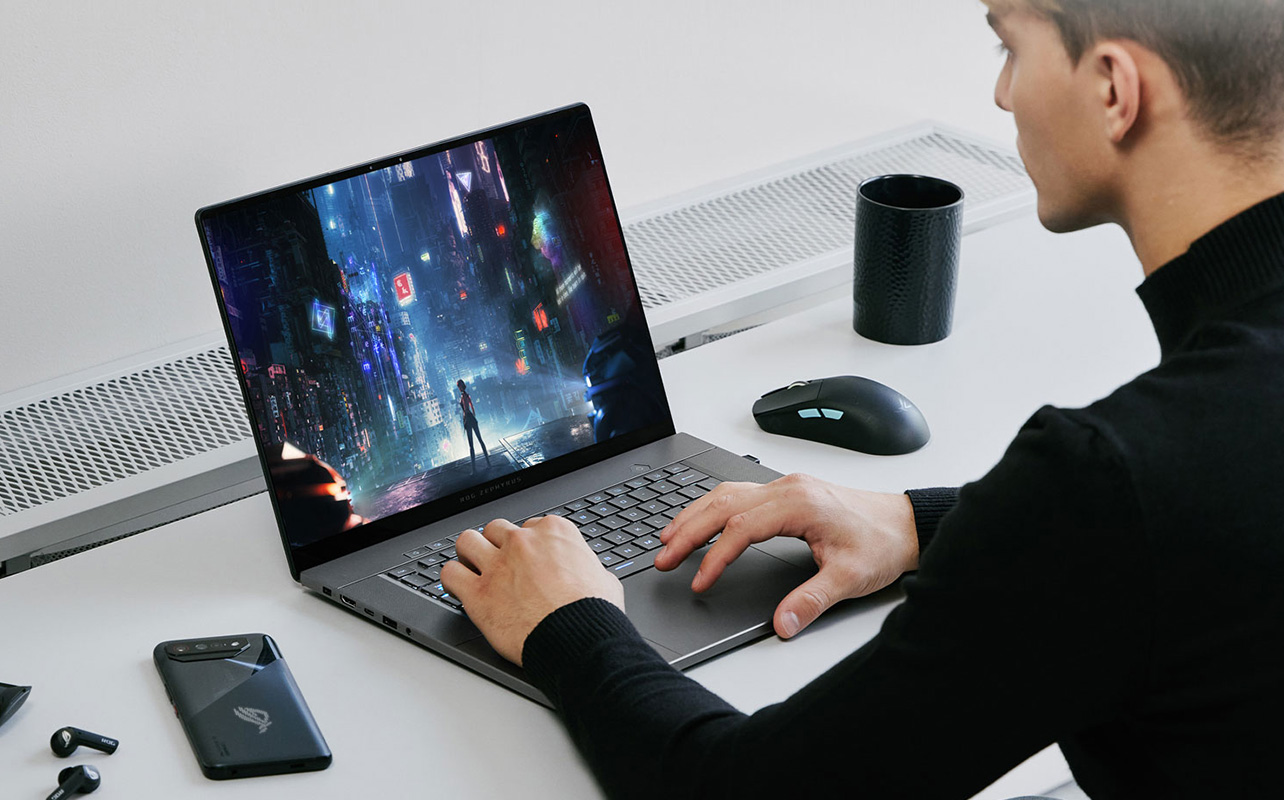
Many Wi-Fi issues can be fixed quickly with a few simple steps.
One of the easiest fixes is restarting or resetting your router, as mentioned. This clears temporary issues and refreshes your connection. Moving your router can also improve signal strength. Even a small change in position can make a noticeable difference. Switching Wi-Fi bands can help as well: 2.4 GHz offers better range but slower speeds while 5 GHz offers faster speeds but shorter range. With more advanced routers, you also get access to the 6 GHz band for devices that support it.
| Band | Best for | Trade-off |
|---|---|---|
| 2.4 GHz | Larger coverage | Slower speed |
| 5 GHz | Faster performance | Shorter range |
| 6 GHz | Ultra-fast performance, multi-device homes | Not compatible with all devices, more expensive |
When to contact your internet provider

If you have tried everything and your internet is still slow, the issue may not be in your home. It’s advisable to check with your ISP before troubleshooting issues at home to rule out a system-wide outage first. Usually, ISPs will indicate on their websites or social sites like X if there’s an area outage. If there isn’t anything area-wide, and you have ruled out issues with your Wi-Fi and router, it might be time to contact them for a service visit. This is especially so if you connect a device like a laptop directly to the modem via Ethernet cable and the connection is still slow. This all but confirms that the problem is with your ISP and not your setup.
Other signs include frequent connection drops, speeds lower than your plan, and slow performance at certain times of day. Before contacting your provider, run multiple speed tests, record when slowdowns happen, and compare wired and wireless results so you can provide them with this data.
| Issue | Explanation |
|---|---|
| Network congestion | High demand in your area |
| Plan limitations | Speed capped by your plan |
| Service outages | Temporary disruptions |
Summary of key points and recommendations
Slow Wi-Fi is usually caused by a weak signal, interference, too many devices, or limitations from your internet plan. Your router placement has a major impact on performance, and small adjustments can improve your connection significantly. Device usage and peak times also play a role. Most importantly, many issues can be solved with simple fixes before upgrading your equipment. Start with simple fixes and build from there. A faster and more reliable internet connection is often easier to achieve than you might expect.
| Problem | Solution |
|---|---|
| Weak signal | Move router or upgrade to mesh |
| Too many devices | Reduce usage or upgrade network |
| Interference | Change channel or reposition router |
| Old router | Upgrade hardware |
| Slow ISP speeds | Contact provider |
If you are ready to improve your home network, explore the latest routers, mesh systems, and Wi-Fi and networking accessories at Best Buy and learn all about home networking in our buying guide to help you narrow down decisions.
Frequently asked questions
Why is my Wi-Fi so slow?
Wi-Fi is usually slow because of a weak signal, interference, too many connected devices, or outdated hardware.
How can I fix slow Wi-Fi quickly?
Restart your router, move it to a central location, and reduce interference from nearby devices by switching to a different band.
Does router placement matter?
Yes, poor placement can reduce both speed and coverage in your home.
Can too many devices slow down Wi-Fi?
Yes, all devices share bandwidth, which reduces the speed available to each one. The more connected devices you have and more bandwidth-intensive tasks you do, especially in large homes with multiple people connecting at the same time, the more important it is to have a powerful router.

This article was drafted using AI technology and then reviewed, fact-checked, and revised by a member of our editorial team.