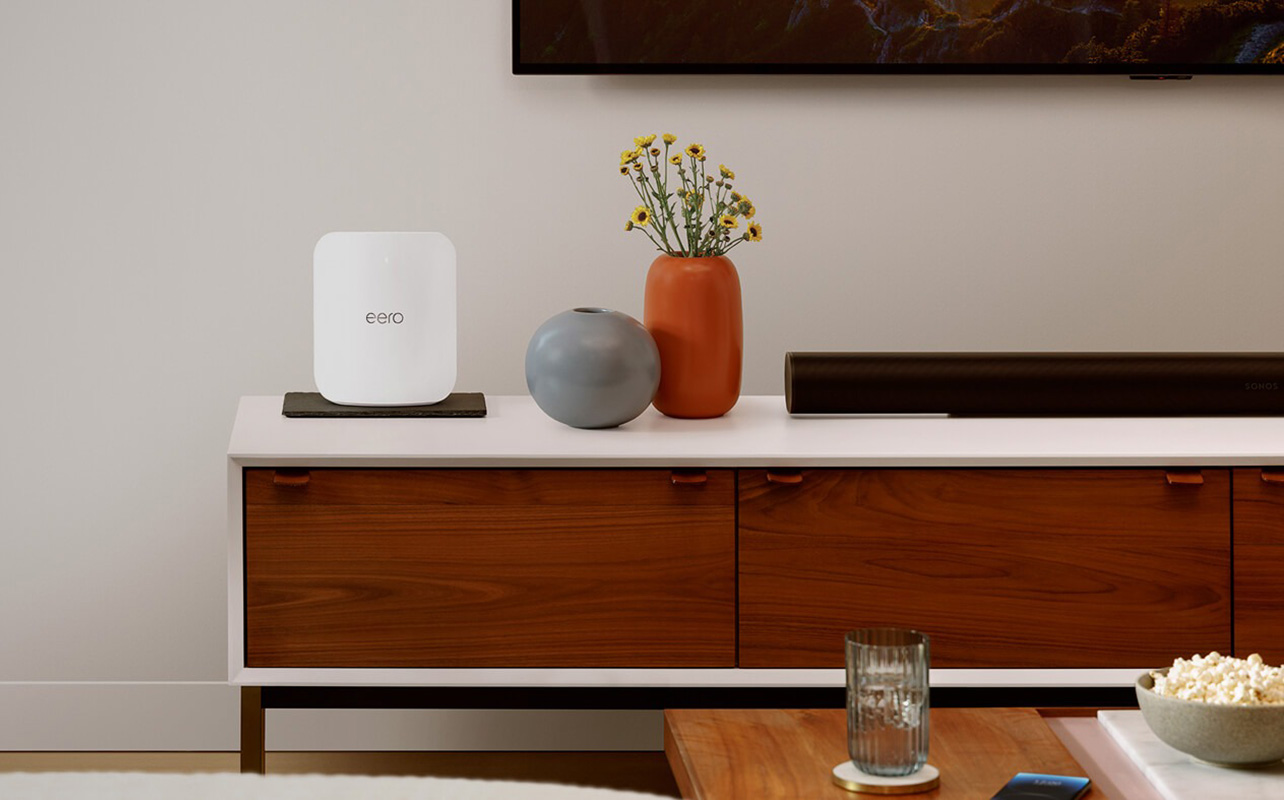
Virtually every home has internet, and this requires both a modem and a router. While you might think they’re one in the same, they are two very different devices. A modem connects your home to your internet service provider (ISP) while a router shares that connection with your devices, usually over Wi-Fi. While you technically could have internet with just a modem, a single device plugged directly into it, this isn’t practical. In most homes, you will need both, either as separate devices or combined into one.
This guide is a simple explainer of how modems and routers work and how they are different. You will learn about modem-router combos as well, set-up and troubleshooting, and how to choose the right setup for your home.

What is a modem and how does it work?
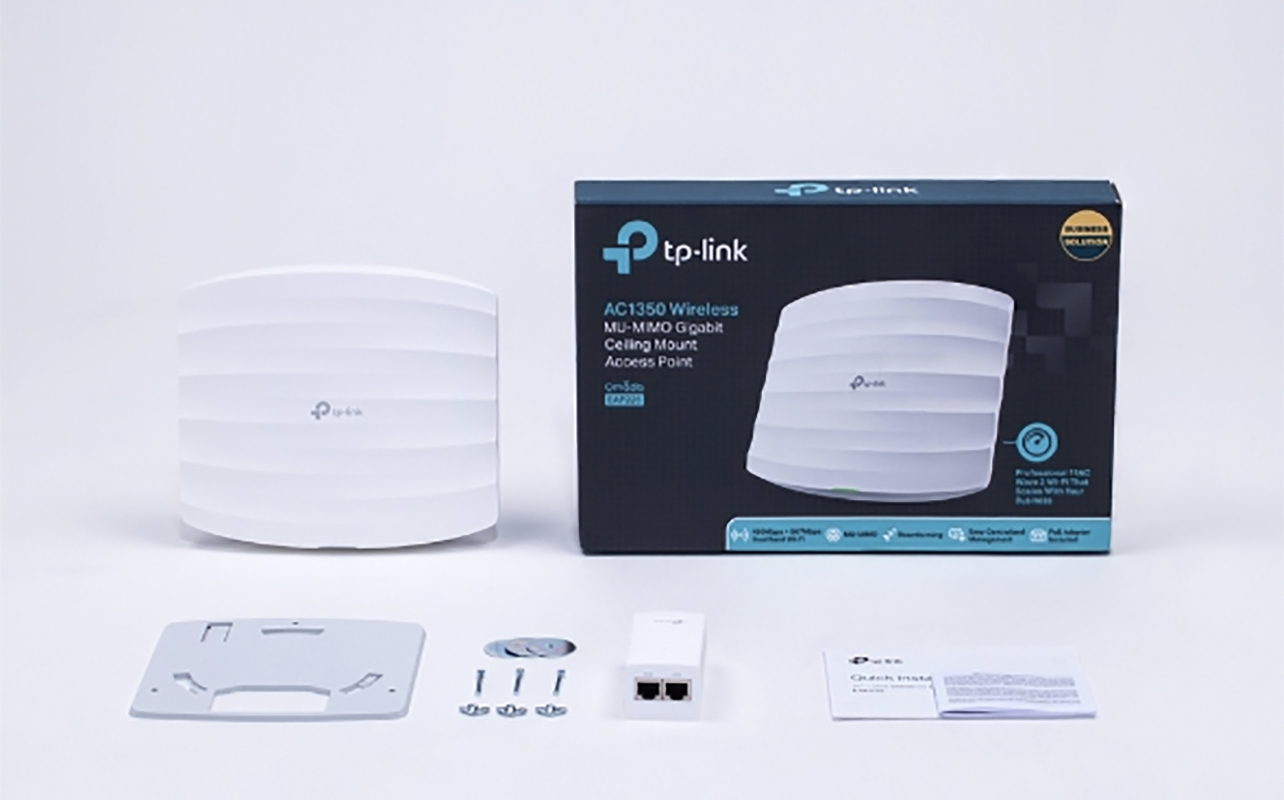
A modem is the device that brings internet into your home. Your ISP sends internet data through cables such as coaxial, fibre, or DSL. A modem receives that signal and converts it into a format your devices can use. This process is called modulation, when data is sent and demodulation, when data is received. Think of your modem as a translator at the border. Your ISP sends data in one format, and your devices understand another. The modem converts between the two so everything works together. Without a modem, your home cannot access the internet. The modem is typically provided by your ISP and set up with an account once you sign up for service.
What is a router and what does It do?
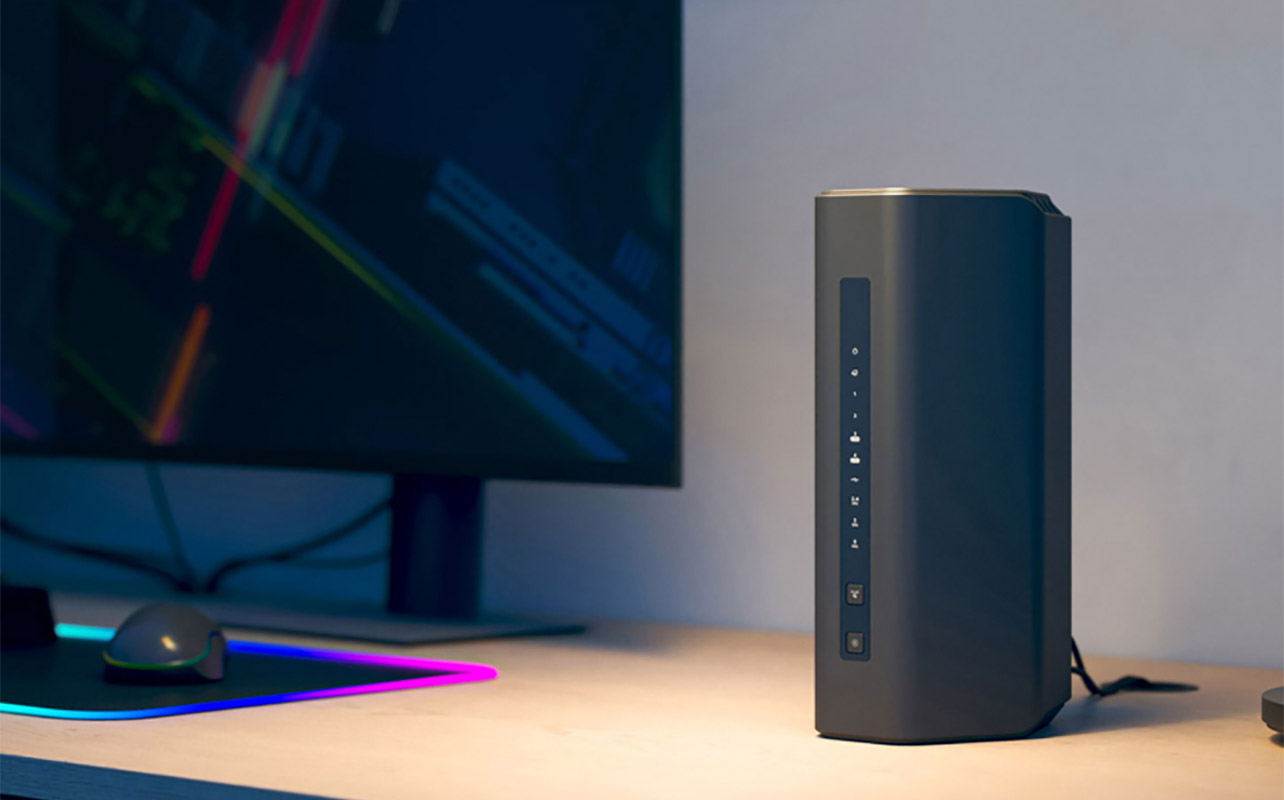
A router takes the internet connection from your modem and shares it across your home. It creates your home network, either wired or wireless. You can connect multiple devices at the same time, and it directs data to the correct device. Most routers include Wi-Fi connectivity, traffic management for streaming or gaming, built-in security such as firewalls, and guest networks and parental controls. Many can be set up through mobile apps nowadays. The latest Wi-Fi 6, Wi-Fi 6E, and Wi-Fi 7 routers afford additional advantages, including additional bands of access for more stable and reliable connectivity. Routers with AI technology can also further improve your home Wi-Fi and even intelligently diagnose issues. Without a router, you cannot easily use Wi-Fi or connect multiple devices.
Modem-router combo devices explained
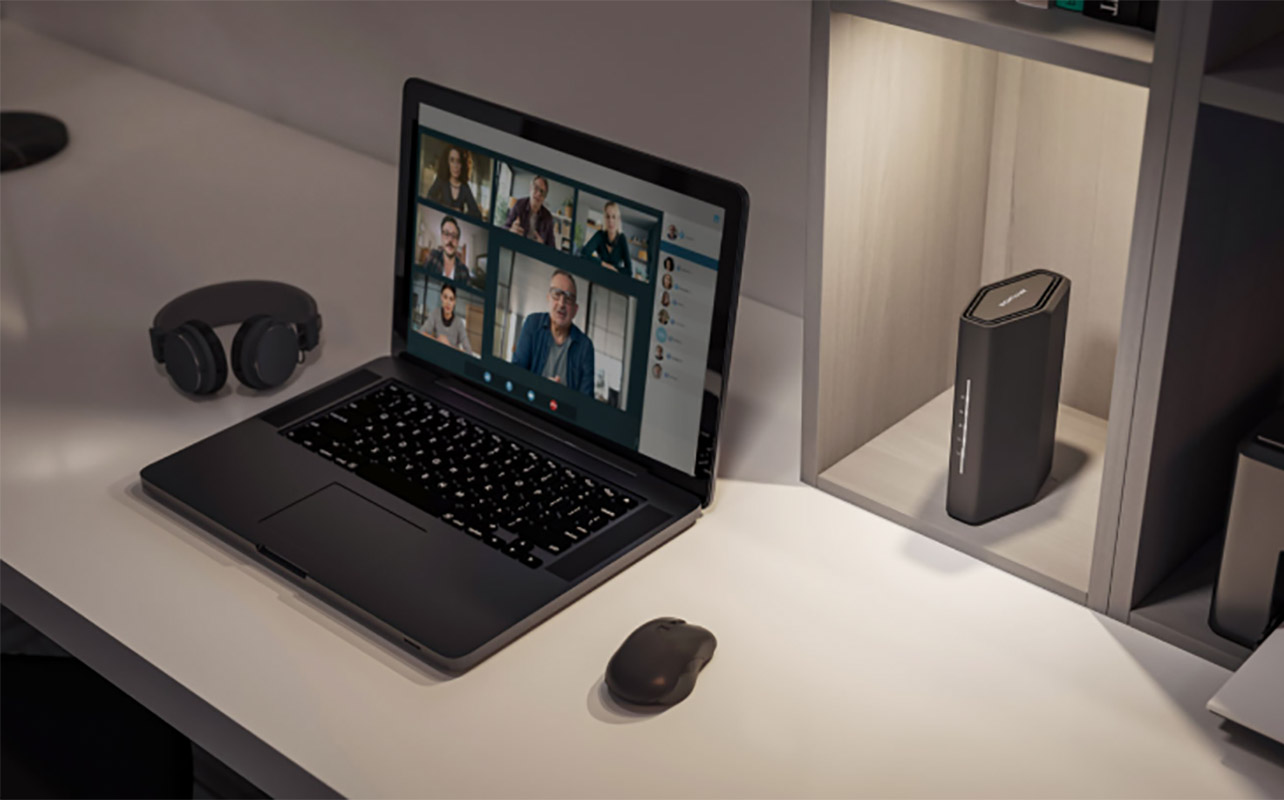
There are modem-router combos that combine both functions in one device. They allow you to connect to your ISP and create and manage your home network through one product. You get simple setup with fewer cables and less clutter. It’s also generally a lower upfront cost. However, there’s limited flexibility when upgrading and performance may not match dedicated routers. Some Canadian ISPs require specific compatible models as well. However, a modem-router combo might be ideal for small homes or condos, light to moderate internet use, and those looking for the simplest setup.
When do you need both a modem and a router?

Most households will benefit from both a modem and a router. Together, they provide strong Wi-Fi coverage, even in larger homes and especially if you have many connected devices. They will provide better performance for streaming or gaming, particularly with newer models, like a Wi-Fi 7 router. This also affords greater flexibility to upgrade your router later.
That said, a combo device might be enough if you, as mentioned, live in a smaller space, just require something for basic usage like light browsing and occasional streaming, and you prefer simplicity over customization. For a single person who travels often, for example, or spends long hours at the office and doesn’t use internet a lot at home, a modem-router combo might suffice.
Note that in Canada, many Canadian ISPs offer rental modem-router combos. But buying your own equipment can save money over time and often gives you better performance. Just make sure to verify compatibility with the ISP with which you want to sign up before investing.
How to set up a modem and router together

To set up a modem and router, you’ll need the modem and router along with an Ethernet cable and a cable connection from your ISP.
Step-by-step setup
- Connect the modem to the wall outlet.
- Power it on and wait for it to connect.
- Connect the router to the modem using an Ethernet cable.
- Power on the router.
- Connect your device to the router’s Wi-Fi network.
- Follow the setup instructions provided by the router.
Placement tips
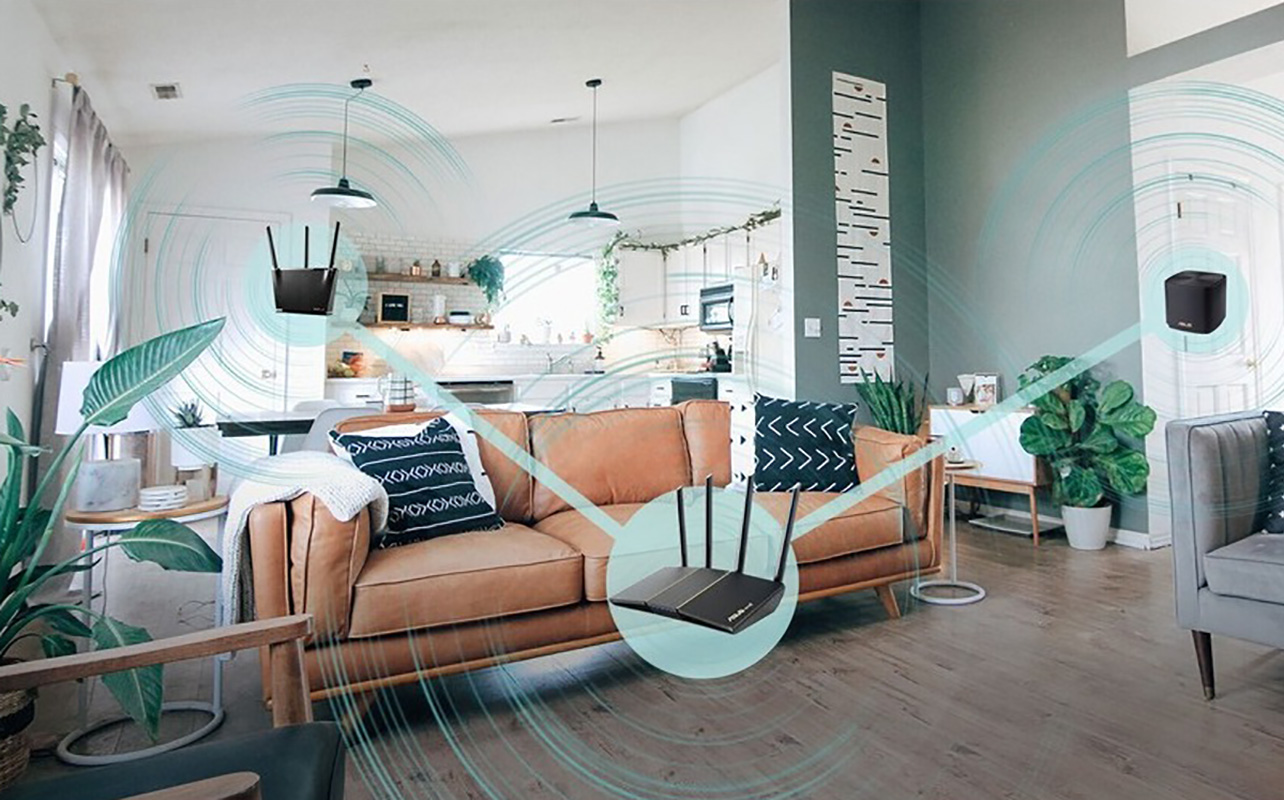
Make sure to place the router in a central location, away from thick walls or metal objects. Position it at an elevated height if possible. You might also want to consider a mesh Wi-Fi system that includes satellites placed throughout the home to extend the Wi-Fi signal. This is especially useful if you position the router in a basement or tucked away in a closet, for example, and you have a large home. For smaller homes, you can also consider a Wi-Fi extender.
Troubleshooting basics
If you run into issues, there are some troubleshooting tips to follow. First, restart both devices if the connection drops. Check that all cables are secure. Check for router software updates and make sure to update it regularly. Also, look into any potential area outages from your ISP. The issue could be unrelated to your setup at home.
Signs your modem or router needs upgrading

If you’re still using an old modem or router, there are a few signs it might need upgrading. Chief among these are slow internet speeds, frequent disconnections, weak Wi-Fi signal in parts of your home, or devices that are struggling to stay connected. Connect a device like a laptop directly to the modem to see if the issue persists. If the connection is still slow or not working, the modem is likely the issue. It’s best to contact your ISP if they provided the modem and get assistance, which might include a replacement or upgrade. If the issue is fine once you connect to the modem via cable, the router may be the bottleneck. Follow the aforementioned troubleshooting steps. If there’s still a concern, or even if this fixes the issue but it keeps happening, it might be time to upgrade.
Keep in mind that modems typically last five to seven years while routers need more frequent updates due to newer Wi-Fi standards. If you’re a power user, it’s worth your while to upgrade to oe of the latest routers anyway to be able to benefit from all the upgrades, additional bands, and even bandwidth prioritization so your most important devices maintain reliable connectivity.
Pros and cons of separate vs combo devices
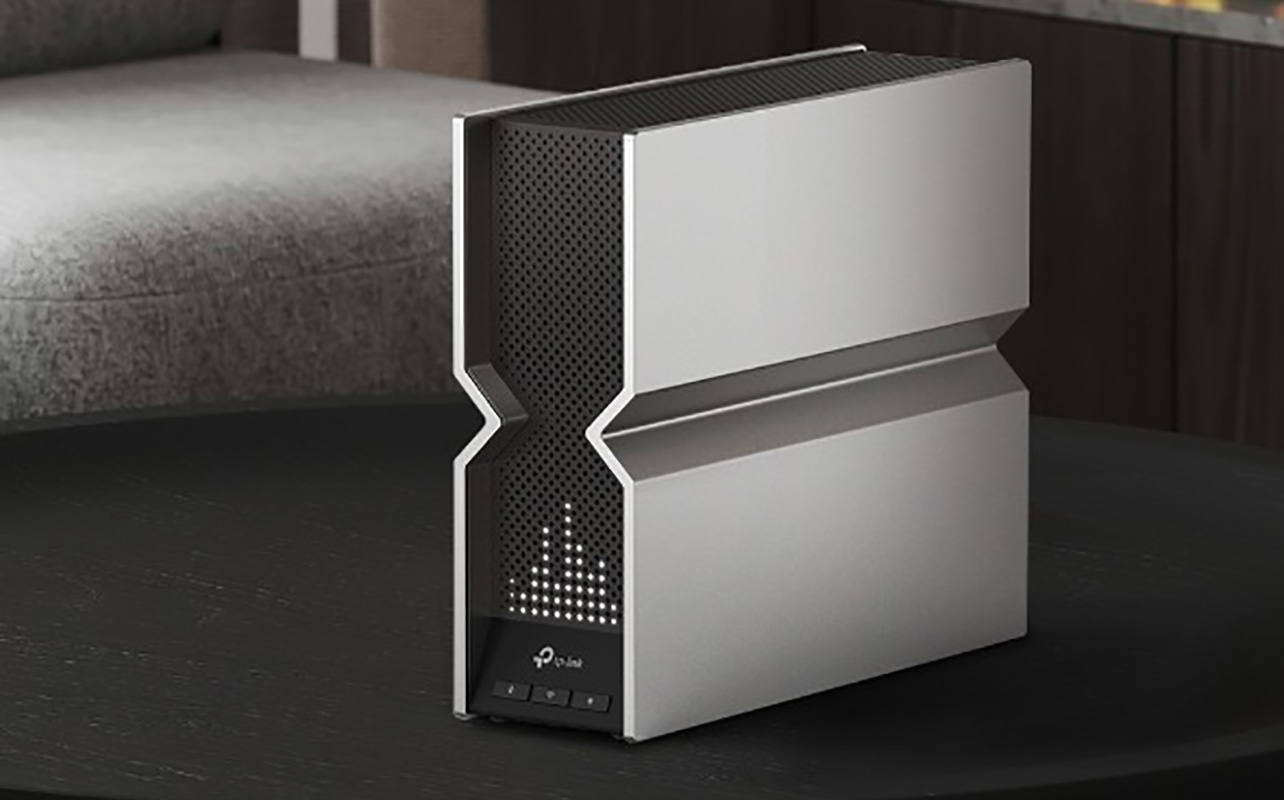
Still unsure if you should get a modem and a router or a combo device? Here’s a breakdown of the pros and cons of each.
Modem-router combo
Pros
- Easy to set up
- Lower upfront cost
- Saves space
Cons
- Harder to upgrade
- May not deliver top performance
- Limited features compared to dedicated routers
Separate modem and router
Pros
- Better performance, especially for Wi-Fi
- More flexibility and control
- Easier to upgrade individual components
Cons
- Higher initial cost
- More complex setup
- Requires more space
Which should you choose?
The decision comes down to your needs. Most people will prefer separate devices for better speed, coverage, and long-term flexibility. Most Canadian ISPs almost always provide a modem/router gateway device upon sign-up, which is the simplest option. From there, you have your pick of the litter if you want an upgraded router. However, if you value simplicity, space-saving, and have basic needs (think grandparents or frequent travelers who are rarely home) above all else, a combo device might be worth it instead.
Get set with the internet
Now that you understand the key differences between a modem and a router, it’s time to equip your home with connectivity, or upgrade from what you might already have. Remember, a modem connects your home to the internet while a router distributes that connection to your devices. And most households need both.
Start with determining which ISP you’ll use and find out what equipment they provide. If you want to buy a modem separately, confirm compatibility first. For improved performance, invest in a quality router. When deciding, consider your home size, the number of devices that will be connected at the time same and for what types of activities they’ll be using (e.g. high-bandwidth streaming versus light web surfing). Look at the internet plan you have signed up for as well, and the speeds it affords before investing in a router that can support them.
A simple rule to follow is that if your internet feels slow or unreliable, upgrading your router often makes the biggest difference.
Find a wide selection of modems and routers at Best Buy Canada.
Modem vs router comparison table
| Feature | Modem | Router |
|---|---|---|
| Main Function | Connects to ISP | Distributes internet to devices |
| Required for Internet Access | Yes | Yes (for multiple devices or Wi-Fi) |
| Creates Wi-Fi | No | Yes |
| Assigns Local IP Addresses | No | Yes |
| Connects Multiple Devices | No | Yes |
| Security Features | Minimal | Firewall, parental controls, guest networks |
| Replacement Frequency | Less frequent | More frequent due to Wi-Fi upgrades |
| Can Work Alone | Yes, for one wired device | No, needs a modem |
Frequently asked questions
What is the main difference between a modem and a router?
A modem connects your home to your ISP, while a router distributes that connection to multiple devices.
Can you use the internet with only a modem?
Yes, but only one wired device can connect at a time, and you will not have Wi-Fi.
Can you use the internet with only a router?
No. A router requires a modem to access the internet.
How do modem-router combo devices work?
They combine the signal conversion of a modem with the Wi-Fi distribution of a router in one device.
Is it better to have a separate modem and router?
Separate devices usually offer better performance, flexibility, and upgrade options.
How do you know if your modem or router needs upgrading?
If your speeds are slower than your plan or you experience frequent disconnections, it may be time to upgrade one or both devices.

This article was drafted using AI technology and then reviewed, fact-checked, and revised by a member of our editorial team.