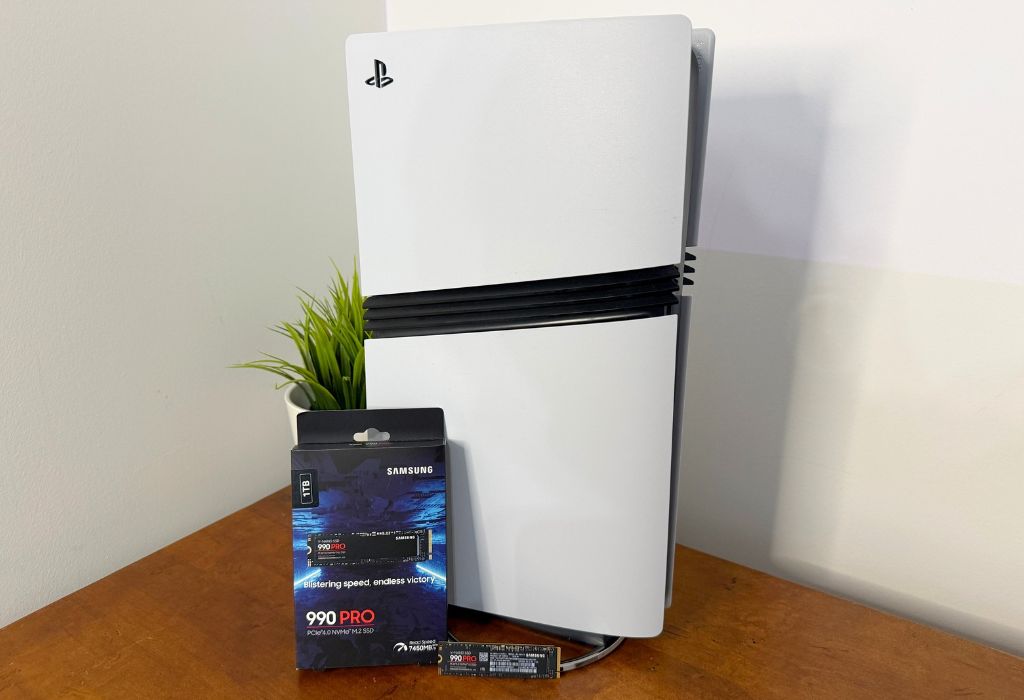
Running out of storage on your PlayStation 5 can be frustrating, especially when you’re ready to jump into a new game. Between massive open-world adventures, multiplayer updates, and growing digital libraries, even a sizeable SSD can fill up quickly. Fortunately, expanding your PS5 storage is straightforward. Whether you own the original PS5, PS5 Slim, or PS5 Pro, you have several options. The key is knowing which one fits your gaming habits and budget.
In this guide, I’ll explain how to expand PS5 storage, compare internal SSDs with external drives, and highlight some worthwhile upgrades.
Table of contents:
- Three ways to expand PS5 storage
- Internal SSD vs external storage: What’s the difference?
- Which PS5 storage upgrade should you choose?
- What to look for in a PS5 internal SSD
- How to install an internal SSD in your PS5

Why PS5 storage fills up so quickly
Many PlayStation games now can easily exceed 100GB, particularly after updates and downloadable content. Install a handful of major releases, and suddenly you’re deciding which games to delete.
The original PS5 launched with an 825GB SSD, although some of that space is reserved for system files. Newer models offer different capacities, but the storage challenge remains the same. Adding more space lets you keep more games installed and spend less time managing your library.
Three ways to expand PS5 storage
There are three main options to expand your PS5’s storage, each with different advantages.
1. Internal M.2 SSD: Best for playing PS5 games
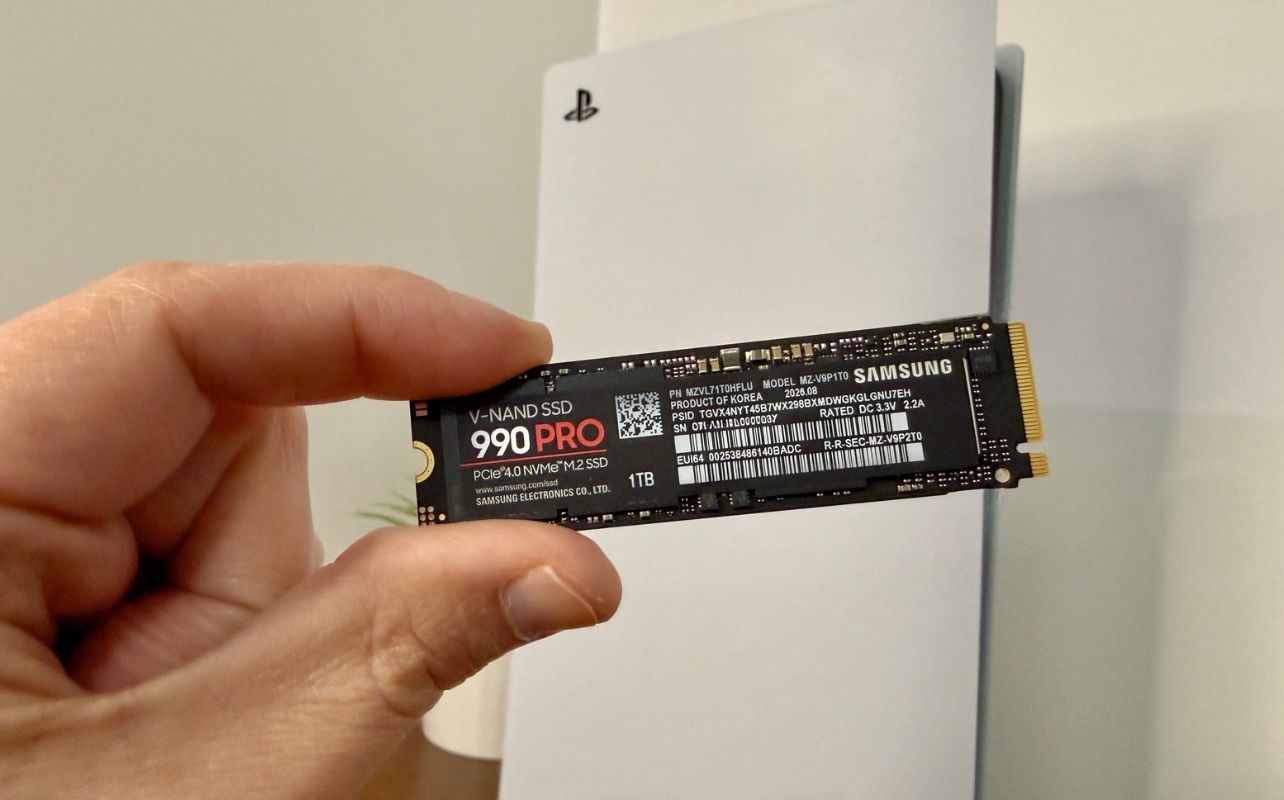
Installing a compatible M.2 NVMe SSD is my preferred way to expand PS5 storage. Sony includes a dedicated expansion slot, allowing you to add storage without replacing the original drive. Once installed, you can download, store, and play PS5 games directly from it.
The Samsung 990 PRO 1TB NVMe SSD is a great option, combining excellent PCIe 4.0 performance with a practical capacity.
2. External SSD: Best for portable storage
An external SSD connects through USB and offers a quick, convenient way to store games. There’s one important limitation: PS5 games cannot run directly from external USB storage due to speed limitations. You’ll need to transfer them back to your console’s internal storage before playing, as the PS5 architecture relies on the blazing-fast speed of NVMe SSDs to deliver high-end gaming performance.
PS4 games, however, can run directly from a compatible external SSD. These drives are also compact, quiet, and generally faster than traditional hard drives.
3. External HDD: Best for affordable capacity
If you’re looking for maximum storage without spending a fortune, an external hard drive makes sense. A 4TB or 5TB HDD can hold a large game collection, making it especially useful for archived PS5 titles and playable PS4 games.
Transfers take longer than with an SSD, but the lower cost per terabyte makes HDDs appealing for larger libraries.
Still deciding which PlayStation 5 console is right for you? Check out our PS5 buying guide to compare your options.
Internal SSD vs external storage: What’s the difference?
Here’s how the three options compare:
| Feature | Internal SSD | External SSD | External HDD |
| Play PS5 games | Yes | No | No |
| Store PS5 games | Yes | Yes | Yes |
| Play PS4 games | Yes | Yes | Yes |
| Speed | Very fast | Fast | Limited |
| Installation | Moderate | Easy | Easy |
| Cost per TB | Varies | Moderate | Usually lowest |
| Best for | Active games | Fast storage | Large libraries |
For most PS5 owners, an internal SSD offers the greatest flexibility. External drives are better suited to storing games you aren’t currently playing.
Which PS5 storage upgrade should you choose?
When choosing the right storage option for your PS5, it really comes down to how you play and how many games you like to keep installed.
Most dynamic option: Internal SSD
If you’re like me and regularly jump between several big games, a PS5 SSD upgrade is a fantastic investment. It lets you launch and play PS5 games directly from the expanded storage without constantly moving files around.
Cost-effective but speed-limited option: External HDD
On the other hand, if you want to save some money, an external hard drive offers plenty of space for games you’re not actively playing on PS5. It’s also especially useful for keeping your PS4 library accessible.
Best of both storage worlds
If you have a massive game library, I recommend combining both options. I like keeping my current favourites on an internal SSD while storing older games on external storage until I’m ready to revisit them.
Middle ground: 1TB SSD
If you only play a handful of games at a time, a 1TB internal SSD is a great middle ground. It gives you some extra breathing room for new releases and those surprisingly large updates without spending more than you need to.
What to look for in a PS5 internal SSD
Not every SSD works with the PS5. Before buying, check these specifications:
- Capacity: Sony supports compatible M.2 SSDs from 250GB to 8TB. For most players, 1TB or 2TB offers a sensible balance of space and cost.
- PCIe compatibility: You’ll need an M.2 NVMe SSD compatible with PCIe Gen4 x4. M.2 SATA drives aren’t supported.
- Read speed: Sony recommends sequential read speeds of at least 5,500MB/s. Faster advertised speeds don’t necessarily mean noticeably quicker loading times.
- Heatsink: A suitable cooling solution is required. Some drives include one, while others need a compatible heatsink purchased separately.
- Reliability: Consider the manufacturer’s warranty and endurance rating, especially if you’re planning to keep the drive for several years.
Samsung 990 PRO 1TB: A strong PS5 storage upgrade
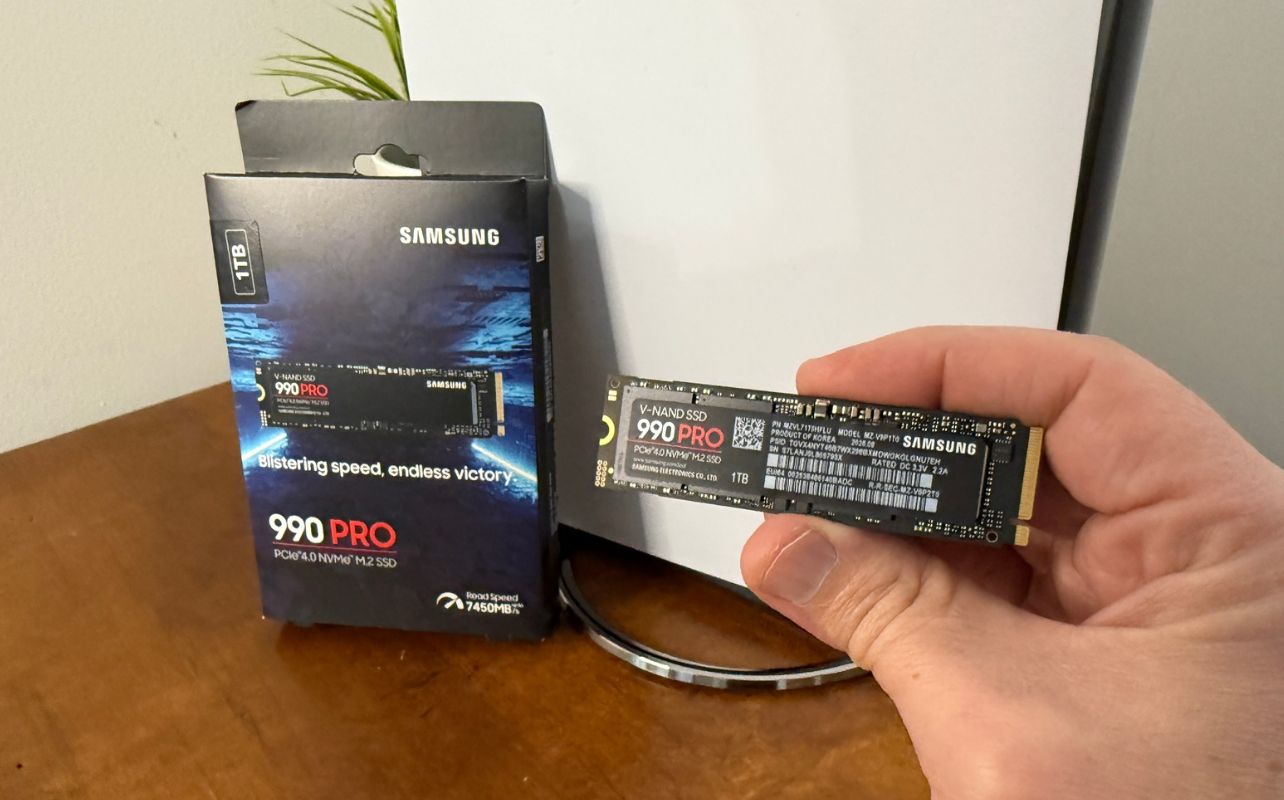
One SSD worth highlighting is the Samsung 990 PRO, which I have on hand for this feature. I’ve been using it extensively, and its ease of installation, plus its performance, has been excellent. The compact M.2 2280 design and 1TB capacity make it an appealing choice for expanding your playable PS5 library.
Its PCIe 4.0 interface delivers sequential read speeds of up to 7,450MB/s and write speeds of up to 6,900MB/s. That’s comfortably above Sony’s recommended read speed.
One detail to take note of: this particular 990 PRO model doesn’t include a heatsink. You’ll need to add a PS5-compatible cooling solution before installing it, so just keep that in mind if you opt for this SSD. Samsung also sells a 990 PRO with a preinstalled heatsink, which further simplifies installation.
How to install an internal SSD in your PS5
Installing an M.2 SSD is easier than it sounds. You’ll need a compatible drive, an appropriate heatsink, and a Phillips screwdriver.
1. Update your PS5 to the latest system software.
2. Power down the console, unplug everything, and let it cool.
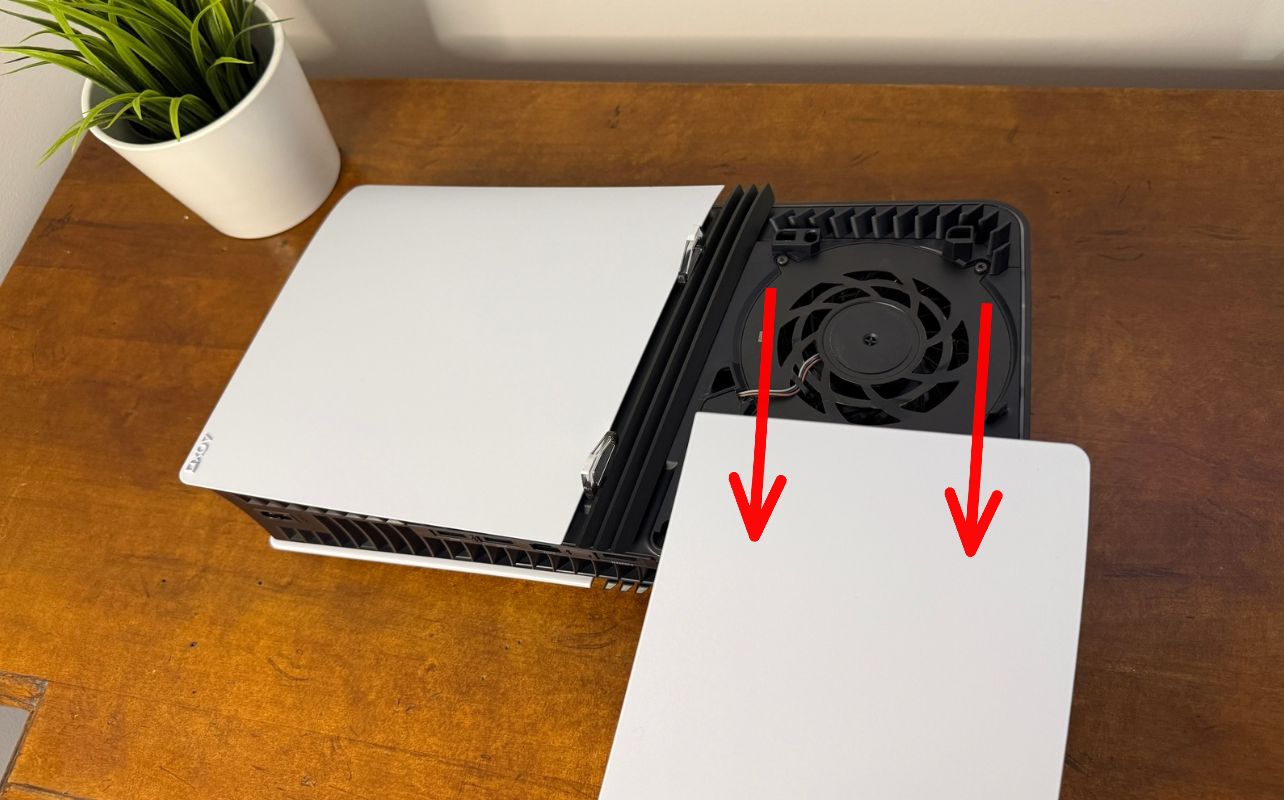
3. Remove the appropriate outer cover and access the M.2 expansion bay.
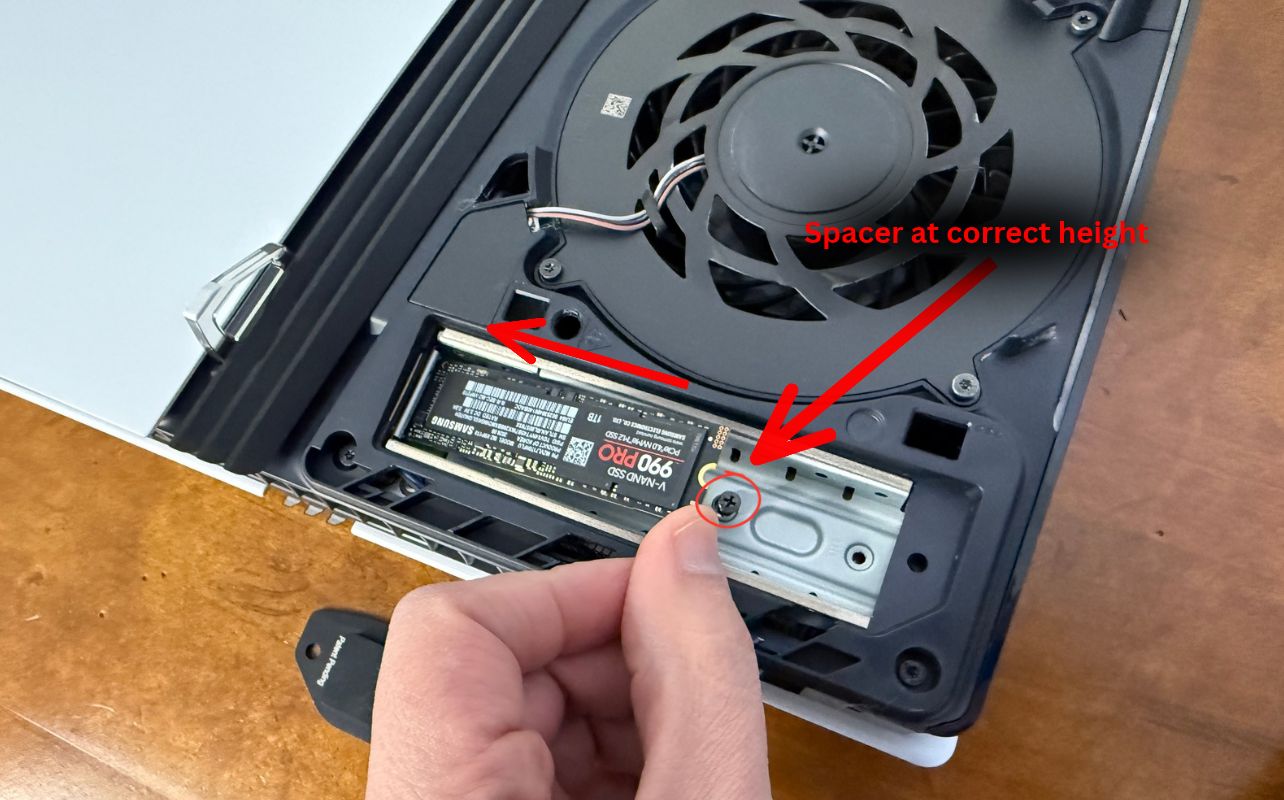
4. Insert the SSD, position the spacer correctly, and secure the drive. Ensure the heatsink fits Sony’s clearance requirements.
5. Reassemble your PS5 and reconnect the cables.
6. Format the SSD when prompted during startup.
Once complete, visit Settings > Storage > Installation Location to choose where new games are installed.
Also check out my PS5 Pro SSD installation guide.
What to look for in an external PS5 drive
For external storage, focus on capacity, transfer speeds, and connectivity. Sony requires compatible SuperSpeed USB storage supporting at least 5Gbps, with capacities between 250GB and 8TB.
An external SSD is ideal if you frequently transfer large games. An HDD costs less per terabyte and works well for long-term storage. Whichever you choose, connect it directly to a supported USB port and avoid using a hub.
Give your PS5 more room to play
Expanding your PS5 storage means less time managing your space, fewer deleted games, and more time playing. An internal SSD like the Samsung 990 PRO offers the most flexibility, while external drives provide affordable alternatives for keeping your library organized.
Ready to upgrade? Explore PS5-compatible external hard drives and SSDs at Best Buy Canada.
Frequently asked questions
No. PS5 games must run from the console’s built-in SSD or a compatible internal M.2 SSD.
Yes. SSDs offer quicker transfers and better loading performance for PS4 games.
For most gamers, a 1TB or 2TB internal SSD is an excellent starting point.
Installing a compatible SSD according to Sony’s instructions generally shouldn’t affect warranty coverage. Damage caused by improper installation may not be covered; make sure to follow the manufacturer’s instructions and specifications carefully.