
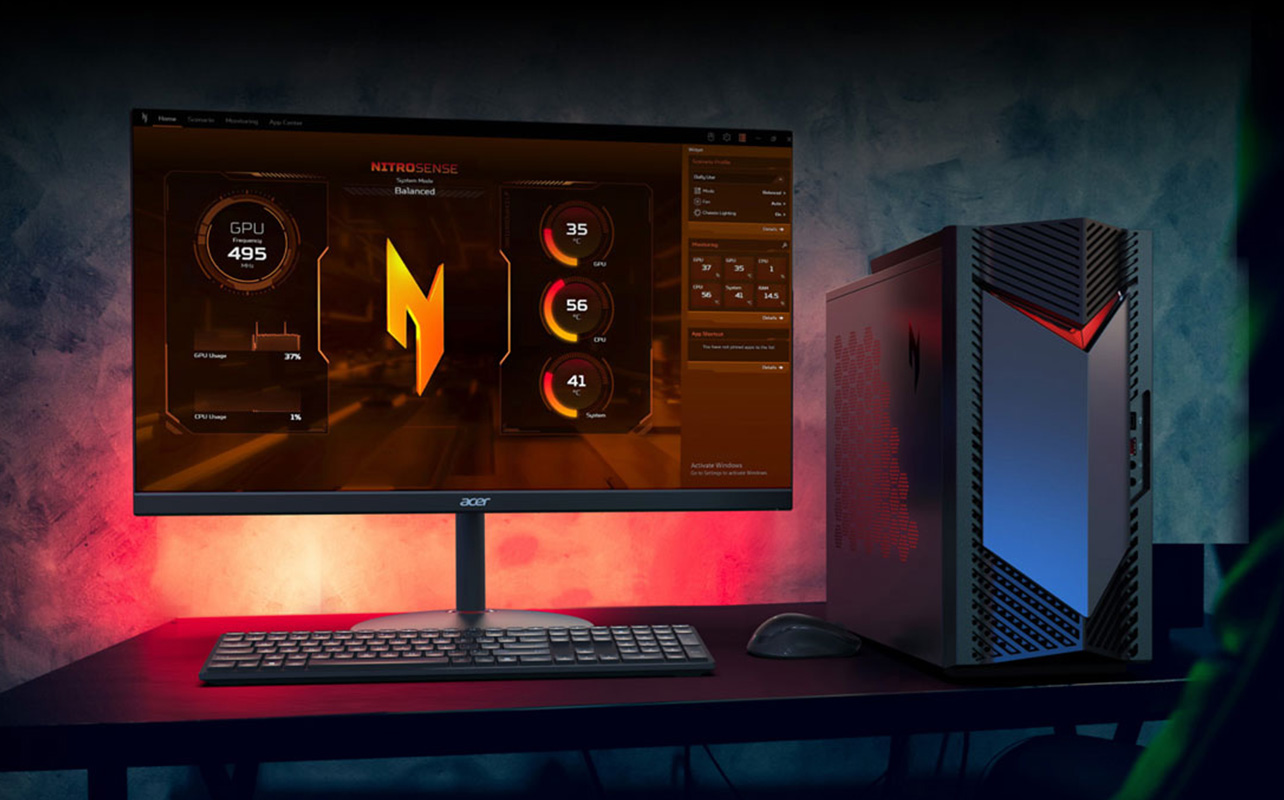
Whether you’re setting up a home office, upgrading the family computer, getting ready for school, creating content, or building a gaming setup, a desktop PC can give you plenty of performance and flexibility. The challenge is knowing which kind of desktop and which specifications actually matter for what you want to do.
Today’s choices range from traditional towers and gaming PCs to compact mini PCs and streamlined all-in-one computers. You’ll also find newer processors with built-in AI acceleration, fast solid-state storage, and increasingly powerful graphics options. You don’t necessarily need the newest or most powerful hardware, though. The best desktop computer is one that balances performance, features, upgradeability, and price around your needs.
This desktop PC buying guide explains the essentials in plain language so you can confidently compare computers, whether you’re buying your first desktop or replacing an older one.
Table of contents
- Why choose a desktop computer?
- Desktop vs laptop: Which should you choose?
- How to choose desktop PC specifications
- What is an AI PC?
- Windows or Mac: Which operating system is right for you?
- Types of desktop computers
- Desktop PC connectivity
- Essential desktop PC accessories
- Should you build your own PC?
Why choose a desktop computer?
A desktop computer can be a great choice when portability isn’t a priority. Depending on the model, desktops can offer plenty of performance, room for upgrades, a wide selection of connections, and the freedom to build a workspace around the monitor and accessories you prefer.
- Performance: Desktop PCs are available for everything from everyday computing and productivity to demanding gaming and creative work.
- Upgrade possibilities: Many tower desktops let you expand RAM or storage, while some also allow components such as the graphics card to be replaced.
- A setup that fits you: Choose the monitor, keyboard, mouse, speakers, and other accessories that suit your workspace.
- More form-factor choices: Pick a traditional tower for expansion, an all-in-one for a streamlined workspace, a mini PC to save space, or a gaming desktop built around higher-performance components.
Desktop vs laptop: Which should you choose?
Choosing between a desktop computer and a laptop starts with one question: does your computer need to travel with you?

A laptop combines the computer, display, keyboard, trackpad, battery, and other essentials in one portable device. That makes it a convenient option for students who move between classes, people who work in different locations, or anyone who regularly needs their computer away from a desk.
A desktop stays in one place, but that can be an advantage. Traditional tower PCs give manufacturers more room for components and cooling, and many models allow parts such as RAM, storage, and graphics cards to be upgraded. You also get the freedom to choose a monitor, keyboard, mouse, speakers, and other accessories that suit your workspace.
A desktop is particularly worth considering if you want a permanent home-office computer, a multi-monitor workstation, a gaming PC, or a computer that you may want to upgrade over time. Just remember that upgradeability differs by model. All-in-one and mini PCs generally have fewer upgrade options than full-size towers.
How to choose desktop PC specifications
Specification lists can look complicated, but you can narrow the decision down to four core components: the processor, graphics hardware, RAM, and storage. Consider them together rather than choosing a computer based on one impressive number.
Processor (CPU): Your PC’s main processor
The central processing unit, or CPU, handles many of the calculations and instructions needed to run your operating system, apps, and games. It plays an important role in everything from browsing the web to gaming, photo editing, video production, and other demanding work.
Today’s desktop market includes several processor families and generations from Intel and AMD, including Intel Core and Core Ultra processors and AMD Ryzen processors. You’ll also see Apple silicon in Mac desktops. Because processor generations can have different capabilities, don’t compare computers by labels such as Core i7 or Ryzen 7 alone. Consider the full model number and generation along with the rest of the PC.
- Everyday computing: Look for balanced performance for web browsing, email, streaming, documents, and video calls.
- Heavy multitasking and creative work: A higher-performance processor can help with demanding applications and workflows.
- Gaming: Balance the CPU and graphics card rather than spending your entire budget on either component.
- AI-enabled computing: Check the computer’s dedicated AI hardware and supported features instead of assuming every new CPU offers the same capabilities.
Graphics (GPU): Integrated or dedicated?
The graphics processing unit, or GPU, handles graphics-related calculations. Some processors include integrated graphics, which can be a practical choice for browsing, office applications, media playback, and other everyday activities.
A dedicated graphics card has its own GPU and video memory. It becomes more important for demanding games, 3D work, video editing, rendering, and compatible AI applications. A more powerful GPU can help provide smoother gaming at higher resolutions and settings, faster creative workflows, and stronger performance in supported GPU-accelerated software.
Current desktop choices include NVIDIA GeForce RTX and AMD Radeon graphics across different performance tiers. For gaming, don’t shop by the words “gaming PC” alone. Consider the games you want to play, your monitor’s resolution and refresh rate, and the graphics settings you want to use. A demanding high-resolution setup can require substantially more graphics performance than casual gaming at lower settings.
Memory (RAM): Room for your active tasks
Random Access Memory, or RAM, gives your computer fast temporary working space for active programs and data. More RAM can help when you keep numerous browser tabs and applications open or work with larger creative projects.
16GB of RAM is a useful starting point for many new general-purpose desktops. Demanding multitasking, gaming, content creation, or professional applications can benefit from 32GB or more. Entry-level computers with less RAM can still suit lighter tasks, so consider what you plan to run.
If you’re buying a tower with future upgrades in mind, check whether its RAM is replaceable and whether there are open memory slots. Compact desktops and all-in-one systems may be less flexible.
Storage: SSD capacity and speed
Storage holds Windows or macOS, your applications, games, photos, videos, and documents. Most shoppers should look for a solid-state drive, or SSD, as their primary drive. SSDs provide fast access to data without the moving parts used in a traditional hard disk drive.
Desktop SSDs commonly use PCIe technology, with systems and components supporting different generations. PCIe Gen 4 SSDs provide ample speed for many users, while newer platforms can also support PCIe Gen 5 drives. Don’t focus on generation alone. Capacity can make a bigger everyday difference if you store large games, videos, photos, or creative projects.
A 512GB SSD can be a practical starting point for lighter computing, while 1TB or more gives games and larger media libraries more breathing room. Some tower PCs also make it relatively easy to add another drive later.
A simple starting point for desktop PC specs
There isn’t one specification that works for everyone. Use these guidelines as a starting point and check the requirements of the software or games that matter most to you.
| What you’ll do | What to prioritize | Practical starting point |
|---|---|---|
| Everyday home, school, and office tasks | Balanced CPU, memory, and storage | 16GB RAM and a 512GB SSD are a useful baseline |
| Photo and video editing | CPU, GPU, memory, and storage capacity | Consider 32GB RAM and 1TB or more SSD storage for demanding projects |
| Gaming | Dedicated graphics, CPU, cooling, and upgradeability | Match the GPU to your games, resolution, and desired settings |
| AI-enabled workloads | NPU or other AI acceleration plus application support | Check which AI features and software the specific PC supports |
| Compact workspace | Size, ports, display support, and thermals | Consider a mini PC or all-in-one |
What can an AI PC do for you?
Many of today’s newest computers come with built-in AI capabilities that can add helpful features to your everyday computing experience. Depending on the device and software, AI can help streamline work and study tasks, support creative projects, and make everyday activities more efficient.
Behind many of these experiences is a neural processing unit, or NPU. This specialized hardware works alongside the CPU and GPU to provide dedicated processing power for compatible AI features and applications.
AI experiences vary by device and platform. Microsoft Copilot+ PCs bring AI-powered experiences to compatible Windows PCs, while Apple Intelligence provides integrated AI features on compatible Apple devices. Best Buy’s broader AI-powered computing selection also includes devices featuring Google AI and Samsung Galaxy AI.
When choosing a new desktop, think about how its built-in AI features fit the way you work, learn, create, or handle everyday tasks. Compare the processor and NPU alongside essentials such as RAM, storage, graphics, operating system, and software compatibility. Explore AI-powered computing at Best Buy Canada to learn more about available technologies and devices..
Windows or Mac: Which desktop operating system is right for you?
The operating system manages the software, files, memory, hardware, and connected devices on your computer. It also affects which applications you can run, which accessories work with your system, and how your desktop fits with the other devices you own.
Windows desktop PCs
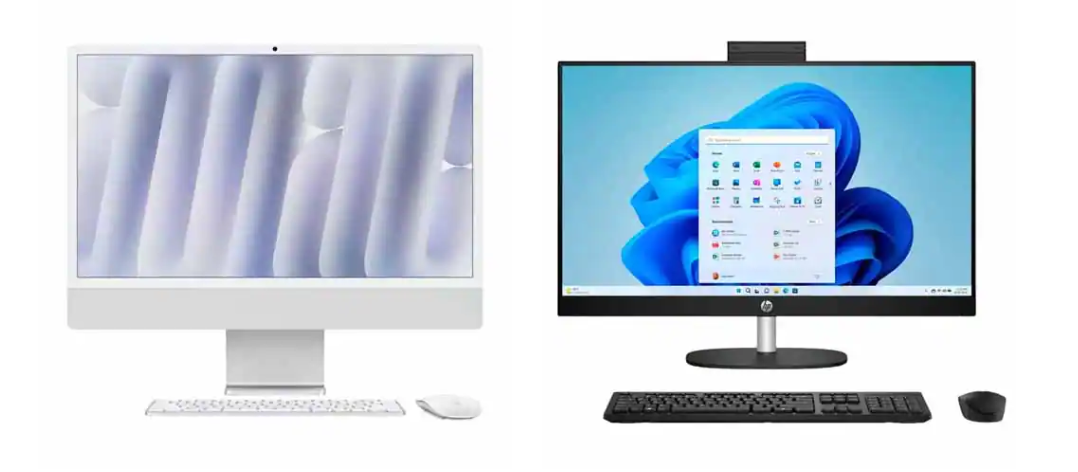
Windows desktops are available in a wide variety of sizes, performance levels, and hardware configurations. That range makes it possible to find Windows PCs for everyday computing, business, creative work, gaming, and other demanding tasks. Traditional Windows towers can also offer considerable flexibility for upgrading components.
Windows is an important option for PC gaming because of the broad selection of gaming desktops, components, and graphics hardware available. Copilot+ PCs add another choice for shoppers interested in Windows computers with dedicated AI acceleration.
Apple Mac desktops
Apple offers several desktop form factors. The iMac combines its computer and display in one unit. The Mac mini puts the computer in a compact enclosure that you pair with your own display and accessories, while Mac Studio is designed for users looking for higher levels of performance.
If you already use an iPhone, iPad, or other Apple devices, macOS may also appeal because of Apple’s connected ecosystem. Before choosing between Mac and Windows, make a list of the applications, games, accessories, and specialized hardware you rely on and confirm their compatibility.
Types of desktop computers
Once you’ve decided how much performance you need, choose the form factor that best fits your space and plans for future upgrades. Keep in mind that form factor and purpose can overlap. For example, an everyday or gaming desktop may also use a tower design.
Everyday desktop computers
Everyday desktop computers focus on balanced performance for common jobs such as web browsing, email, documents, streaming, homework, and video calls. A tower can be particularly useful if you want to choose your own monitor and peripherals or expect to add storage or memory later.
Gaming desktop PCs
Gaming desktops put greater emphasis on graphics performance, processors, power delivery, and cooling. Current systems span a wide range of hardware, including desktops with NVIDIA GeForce RTX 50 series and AMD Radeon RX 9000 series graphics.
Upgradeability is another reason to consider a gaming tower. Depending on its design and component compatibility, a desktop may let you replace the graphics card, add storage, or increase memory instead of replacing the whole computer. Check the case dimensions, power supply, motherboard, and cooling compatibility before planning an upgrade.
All-in-one desktop computers
All-in-one computers integrate the computer and display into a single unit. They’re worth considering for a family room, dorm, reception desk, or home office where reducing cables and saving desk space matter.
The trade-off is flexibility. Compared with many tower PCs, all-in-one computers can offer fewer opportunities for internal upgrades, and the built-in display means you can’t independently replace the computer and monitor as easily. Compare screen size, resolution, ports, webcam features, and internal hardware before choosing one.
Mini PCs
Mini PCs fit desktop computing into a much smaller enclosure. They can be an appealing solution when desk space is limited or when you want a discreet computer connected to a monitor or entertainment setup.
Don’t judge a mini PC only by its size. Check its processor, memory, storage, ports, display support, and upgrade options. Compact designs can have different expansion capabilities than desktop towers.
Desktop PC connectivity: What ports and wireless features do you need?
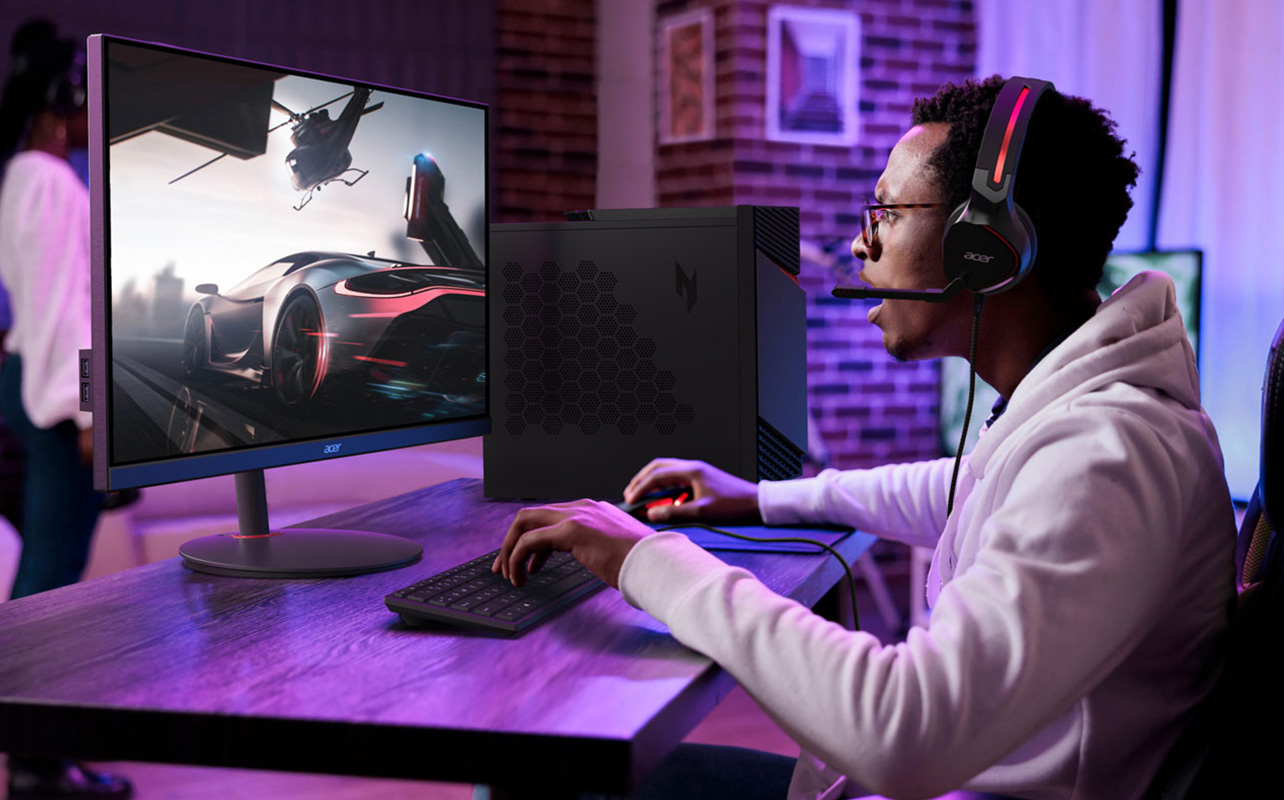
Connectivity is easy to overlook until you try to connect a monitor, external drive, headset, printer, or other accessory. Before buying, count the peripherals you regularly use and check both the type and number of ports on the computer.
- USB-A: Still widely used for keyboards, mice, flash drives, and other peripherals.
- USB-C: A compact, reversible connector that can support different combinations of data, display, and power features depending on the computer and port.
- Thunderbolt: Available on select computers for compatible high-speed peripherals, displays, docks, and storage devices. Check the specification of the PC and accessory for compatibility.
- HDMI and DisplayPort: Common options for connecting monitors and other displays. Make sure the computer’s outputs match the resolution, refresh rate, and number of displays you want to use.
- Ethernet: Provides a wired network connection and can be useful when consistency and low latency matter.
- Wi-Fi: Modern desktops may support Wi-Fi 6, Wi-Fi 6E, or Wi-Fi 7. Your router and other network equipment also need compatible technology to take advantage of newer standards.
- Bluetooth: Lets you connect compatible wireless mice, keyboards, headphones, controllers, and other accessories. Available Bluetooth versions vary by desktop.
Pay particular attention to ports when choosing a mini PC or all-in-one computer, where expansion options may be more limited than on a tower. Also check whether frequently used connections are positioned on the front for easy access or on the back to help keep cables out of sight.
Essential accessories for your desktop PC
Unless you’re buying an all-in-one computer or a bundle, your desktop may not include everything required for a complete setup. Check what’s in the box before ordering accessories.
Monitor
Your monitor should complement what your PC can deliver. For productivity, consider screen size, resolution, ergonomics, and the number of applications you want visible. Gamers should also consider refresh rate and supported display connections, while creative work may put greater emphasis on resolution and colour performance.
For more help, see the computer monitor buying guide.
Keyboard and mouse
Keyboards and mice range from simple wired sets to ergonomic, wireless, mechanical, and gaming-focused options. Some desktops include basic input devices, but what’s included varies by model. Think about comfort first, particularly if you’ll spend several hours at your desk each day.
Webcam, headset, speakers, and printer
A webcam can be useful for video calls if your monitor does not include one. A headset or microphone can improve your communication setup for work, classes, gaming, or content creation. Speakers or headphones cover audio, while a printer may still be useful for a household, home office, or school setup.
External storage and power protection
External drives and flash drives can provide additional storage, make it easier to transfer files, or form part of a backup routine. A suitable surge protector or battery backup can also help protect your desktop and other connected equipment from certain power disruptions. Choose accessories that meet the connection, capacity, and power requirements of your setup.
Should you build your own PC?
A prebuilt desktop gives you a complete system without requiring you to select and assemble every internal component. Building your own PC takes more planning, but it gives you greater control over the hardware that goes into the system.
A custom build lets you choose the CPU, graphics card, motherboard, RAM, storage, case, power supply, and cooling solution. That freedom can appeal to PC enthusiasts and gamers who enjoy selecting their own components.
Compatibility is critical. A processor must work with the motherboard, RAM must be supported, a graphics card must physically fit inside the case, and the power supply needs suitable capacity and connections. Cooling and airflow also need to be considered. If you’d like some of the flexibility of a custom PC without starting completely from scratch, a barebones PC is another option to explore.
Neither approach is automatically better. Choose a prebuilt PC if convenience and a ready-to-use system are priorities. Consider building your own if component selection, customization, and the hands-on experience are important to you.
You can also explore the PC Builder Lab series for more information about PC components and building a desktop.
How to choose the right desktop computer for you
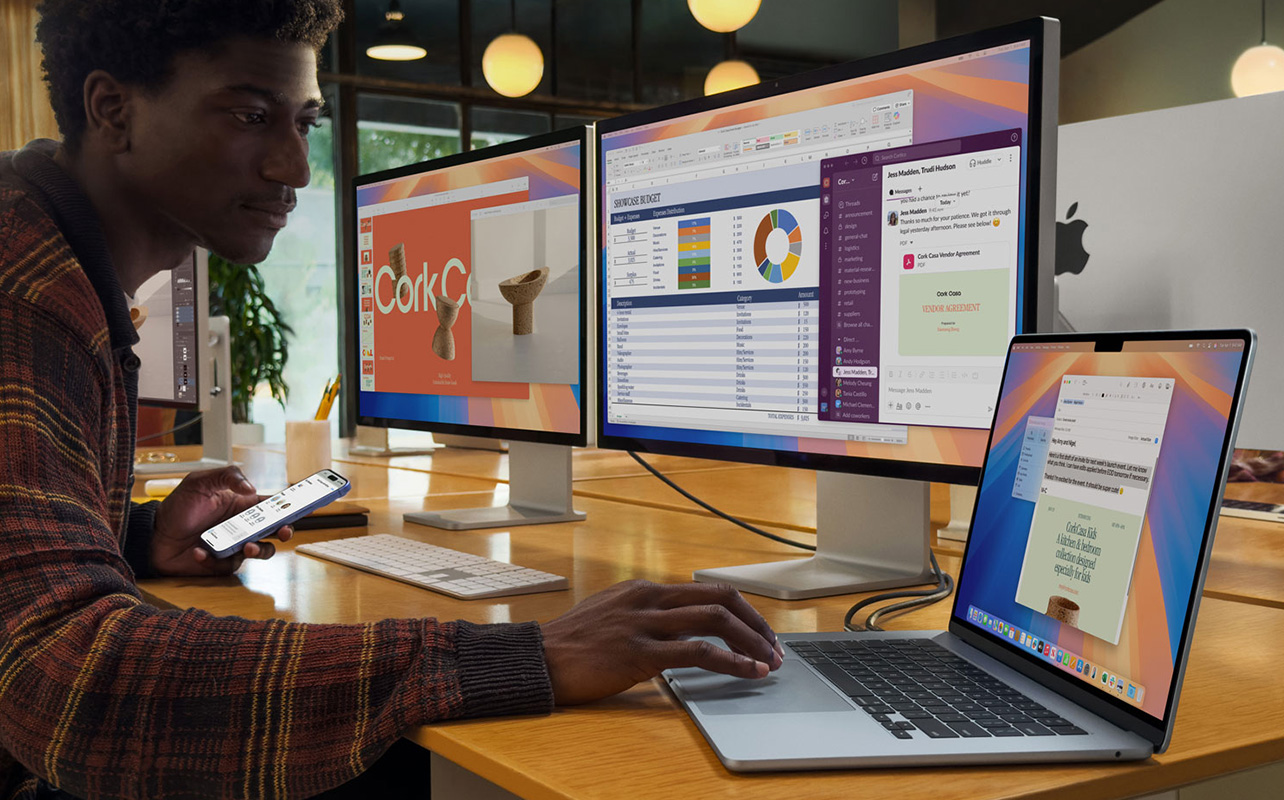
Before you buy, start with what you want your computer to do rather than shopping for the biggest specification numbers. List the programs and games you use, determine how much storage they require, and think about whether you’ll want to upgrade components later.
- Choose your form factor: Consider a tower, gaming desktop, all-in-one computer, or mini PC.
- Check your software requirements: Pay particular attention to games, creative applications, and specialized professional software.
- Balance the CPU and GPU: Prioritize graphics for demanding gaming and GPU-accelerated work rather than overspending on a processor alone.
- Plan your RAM and storage: 16GB of RAM and an SSD are practical starting points for many shoppers. Consider more RAM and storage for demanding workloads.
- Consider AI features: If AI is important to you, compare supported NPU and platform capabilities rather than relying on an “AI PC” label alone.
- Check connections: Make sure the PC can support your monitors, network, USB devices, and other peripherals.
- Check what’s included: Confirm whether you need to buy a monitor, keyboard, mouse, speakers, webcam, or other accessories separately.
- Think ahead: If upgrading matters, check the desktop’s internal expansion and component compatibility before you buy.
Taking those steps can make a long specification sheet much easier to understand. Instead of looking for the most powerful PC, you’ll be looking for the right balance of performance, features, size, and flexibility for the way you actually use a computer.
Frequently asked questions about desktop computers
Consider replacing your desktop when it becomes too slow for your needs, no longer supports essential software, or isn’t practical to upgrade.
Upgrade if RAM, storage, or graphics are the main limitation. A new PC may make more sense if several components need replacing.
Desktop towers generally require a separate monitor, while all-in-one PCs include a built-in display. Always check what accessories are included.
Usually, yes, if both devices have compatible display connections. Check the ports, resolution, and refresh-rate support.
Many can. Check the PC’s graphics capabilities and available HDMI, DisplayPort, or USB-C display connections.
Ready to compare your options? Explore desktop computers at Best Buy Canada, including everyday PCs, gaming desktops, all-in-one computers, and compact models.

This article was drafted using AI technology and then reviewed, fact-checked, and revised by a member of our editorial team.