If you’re staring down a list of processor names, RAID levels, and rack specifications trying to figure out what your business actually needs, you’re not alone; buying a server can feel a lot more complicated than it has to be. This server buying guide cuts through that by starting with the one question that actually matters: what do you need the server to do? Get that answer right, and everything else-form factor, processor, memory, storage falls into place. From here, we’ll walk through how to choose a server that fits your workload today and still has room to grow, whether this is a first dedicated server for a growing business or a replacement for infrastructure that’s reached its limit.

Table of contents
- What is a server?
- Does your business need a dedicated server?
- Should you choose a rack or tower server?
- How to choose the right server processor?
- How much server memory do you need?
- How much server storage do you need?
- What is RAID, and does it replace backups?
- Networking and connectivity
- What should you know about power, cooling, and noise?
- Should you buy a new, open-box, or refurbished server?
What is a server?
A server is a computer that does one job well: it provides resources or services to other computers and users, rather than serving one person who’s using it directly. A desktop or laptop centres around that single user sitting in front of it. A server works differently; it sits in the background and handles requests from everyone connected to it, often around the clock.
In a business setting, a server is usually the thing quietly holding everything together: the shared files, the business software, the backups, the internal website nobody thinks about until it goes down.
Common things a server handles include:
- File storage and sharing across a team
- Business applications (accounting, inventory, CRM software)
- Databases
- Automated backups
- Virtual machines
- Internal websites and applications
- User accounts and access permissions
- Media and content storage
How is a server different from a desktop computer?
The difference isn’t really about raw speed; it comes down to what the hardware needs to sustain. A desktop serves one person running a handful of programs during business hours. A server has to stay on, stay stable, and serve many people or processes at once, often continuously for years.
That’s why server-specific components exist: error-correcting memory that catches data corruption before it causes a crash, storage drives rated for constant read/write activity, and redundant parts (like a second power supply) that keep things running if one component fails. None of that comes standard on a desktop, because nobody expects a desktop to run unattended, all day, for years, with multiple people depending on it.
Does your business need a dedicated server?
Not every business needs one. But there are practical signs that consumer-grade computers and storage have hit their limit:
- Important files are scattered across individual employees’ computers instead of one shared location.
- Multiple people need to access the same application or files at the same time.
- Existing storage is close to full, and adding more is getting messy.
- Backups happen manually, inconsistently, or not at all.
- Managing who can access what is becoming hard to track.
- An application needs centralized processing rather than running locally on each machine.
- Downtime would seriously disrupt the business.
- The business expects to add staff, locations, or workloads soon.
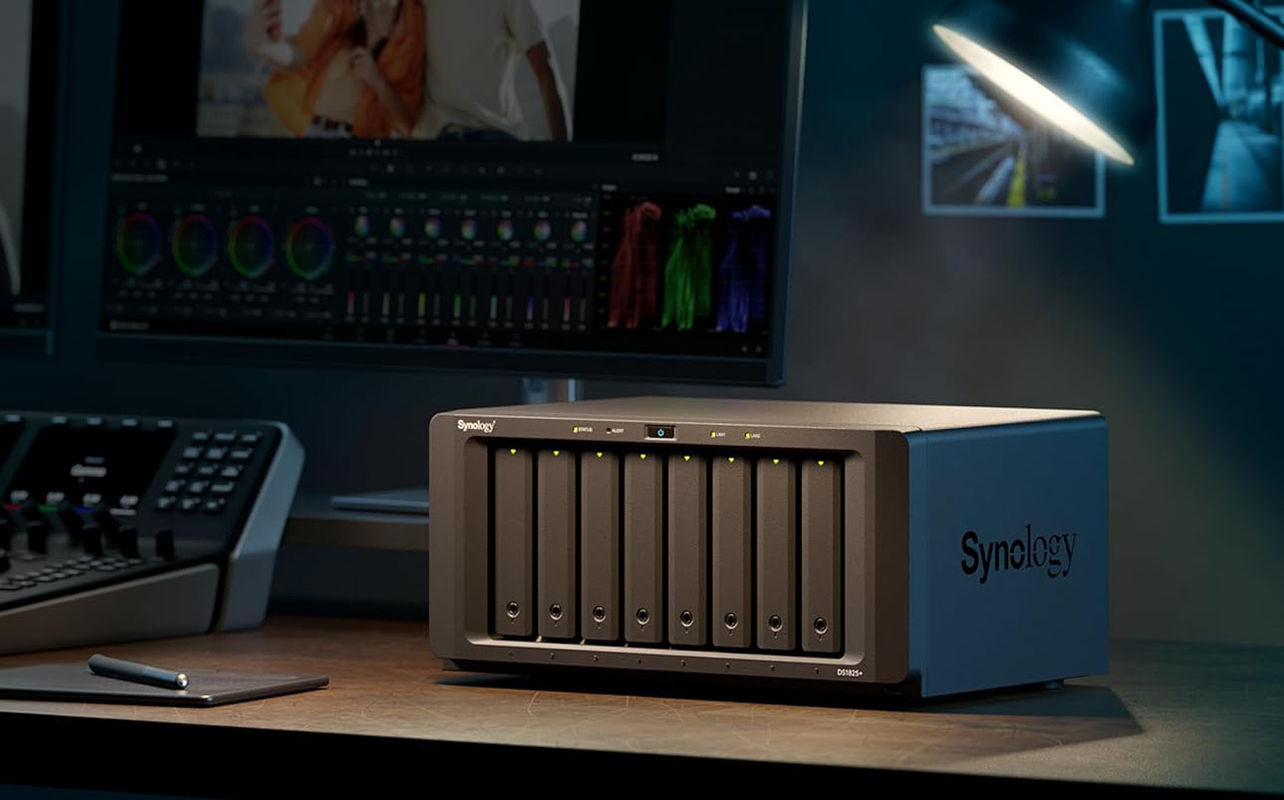
If none of that sounds familiar, a cloud service or a simpler network-attached storage (NAS) device – a smaller, simplified storage box that shares files over a network without full server capabilities- may cover what’s needed without the cost or complexity of a full server. A server tends to make sense once the business has outgrown “good enough” storage and needs centralized management, reliability, and room to grow.
How do you match a server to your workload?
This is the most important decision in the whole process, and it’s where a lot of buyers go wrong: choosing specs before defining what the server actually needs to do. The workload determines everything else: processor, memory, storage, and networking should all be sized around it, not picked independently.
| Workload | Main considerations |
| File sharing | Storage capacity, drive bays, networking, backups |
| Business applications | Processor, RAM, software compatibility |
| Database hosting | Memory, storage speed, processor, redundancy |
| Virtualization | CPU cores, high RAM capacity, storage performance |
| Backup server | Storage capacity, drive redundancy, network speed |
| Web hosting | Processor, memory, networking, security |
| AI or accelerated computing | Supported GPUs, cooling, power, networking |
| Home lab | Budget, virtualization, noise, power usage |
Most real deployments run more than one workload on the same server; file sharing and backups together, for example, or a database alongside a couple of virtual machines. When that’s the case, don’t just pick the heaviest workload’s requirements and call it done. Add up what each workload needs, because running them simultaneously has a cumulative effect on memory, storage speed, and processor load.
If AI or GPU-accelerated computing is part of the picture, that’s specialized enough to warrant its own decision process GPU servers for AI guide covers what changes when GPUs become the priority.
Should you choose a rack or tower server?
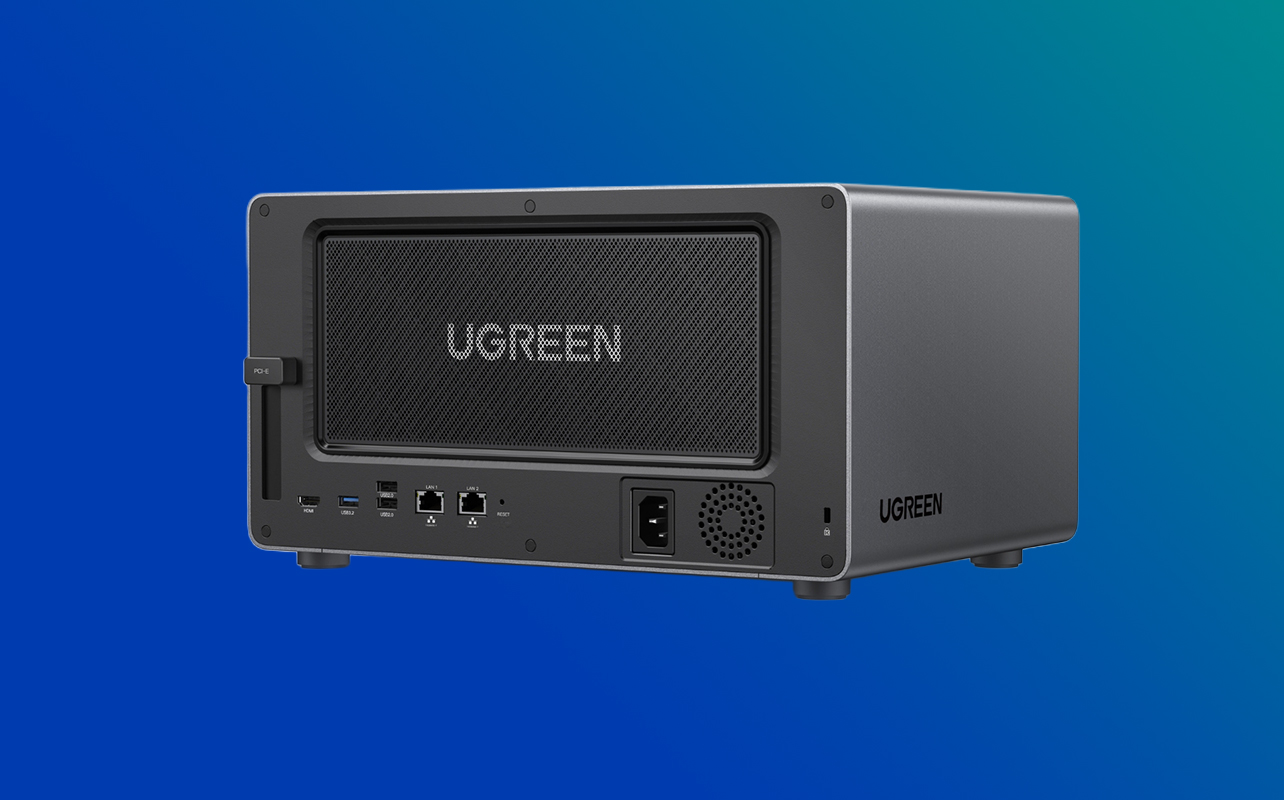
- Tower servers look and stand like a large desktop tower. They don’t need a server rack; they’re straightforward to install in a regular office, and they’re a reasonable starting point for a business running one or two servers.
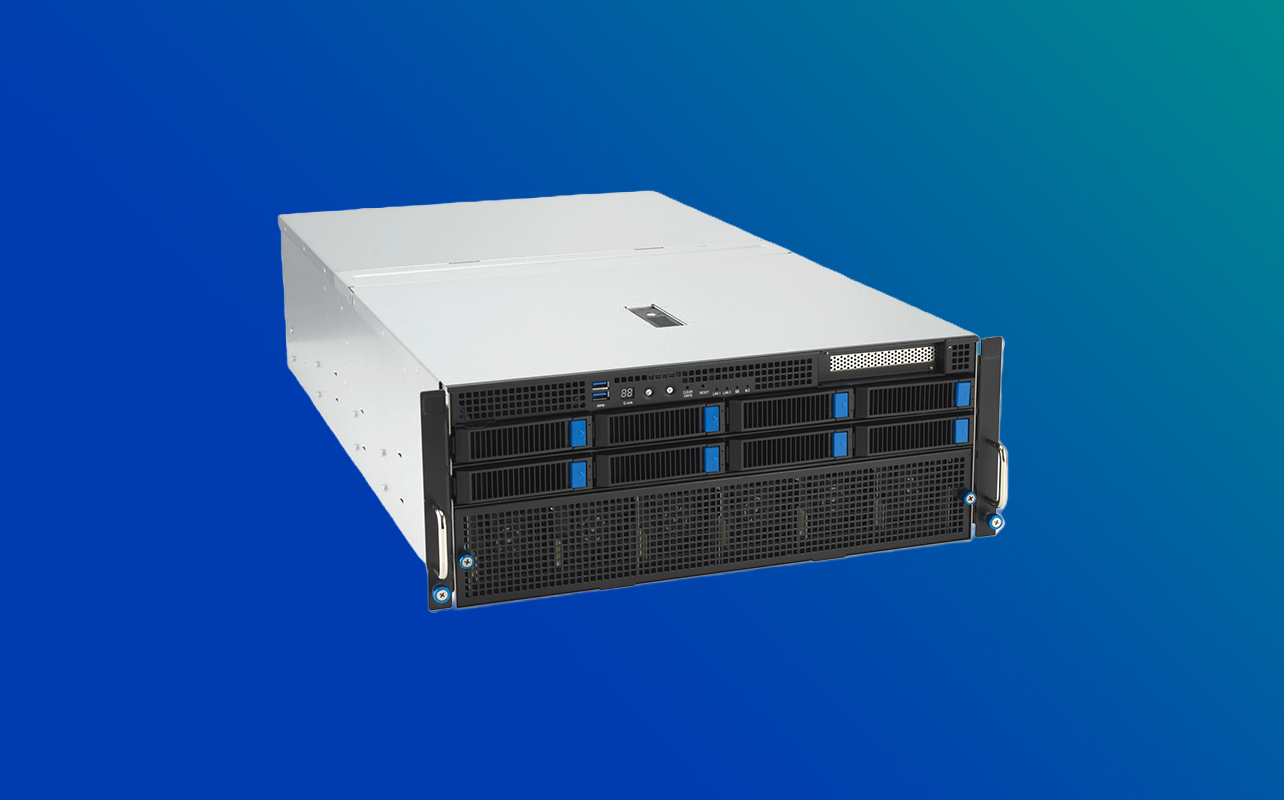
- Rack servers slide into a standardized server rack alongside other equipment. They pack more computing power into less floor space, make it easier to organize multiple servers and networking gear together, and scale better as needs grow; that’s why data centres and growing server rooms depend on them. The tradeoff: they need rack space, proper airflow, and consideration for noise and power draw that a single tower in an office corner doesn’t.
if this is a first server for a small office with no rack infrastructure, a tower server is usually the simpler and more practical choice. If there’s already a rack, multiple servers, or clear plans to scale, a rack server is the better long-term fit. For a deeper comparison, see the rack vs. tower server guide.
How to choose the right server processor?
A server processor decision comes down to a few factors, in rough order of importance:
- Number of processors or sockets: some servers support two physical processors for extra parallel processing power.
- CPU cores and threads: more cores help with workloads that run many tasks simultaneously, like virtualization or database queries.
- Clock speed: matters more for workloads that depend on fast single-task performance.
- Supported memory capacity: the processor sets the ceiling on how much RAM the server can use.
- Power usage: higher-performance processors draw more power and generate more heat.
Server processors are most commonly built around Intel Xeon or AMD EPYC processor families, both designed specifically for multi-user, always-on workloads rather than consumer computing.
One thing worth being direct about: more cores isn’t automatically better. Some business software licenses are per core or per processor, which means an oversized processor can quietly inflate software costs without improving day-to-day performance. Match the processor to the workload identified earlier; don’t default to the highest core count available.
How much server memory do you need?
Memory requirements scale with how much the server is asked to do at once. The main factors are:
- Number of people using the server simultaneously.
- The applications running on it.
- Databases and how much data they cache in memory.
- Virtual machines, each of which needs its own allocated memory.
- File caching.
- Room for future growth.
Two distinctions matter when comparing server specs:
- Installed memory vs. maximum supported memory: the amount currently in the server versus the most it can technically hold. A server with room to add memory later is easier to scale without replacing hardware.
- Available memory slots: how many physical slots are free for future upgrades.
Server memory typically uses ECC (error-correcting) memory, which detects and corrects small data errors automatically; a meaningful reliability difference from standard desktop RAM, since undetected memory errors can quietly corrupt data over the years a server stays in continuous use.
How much server storage do you need?
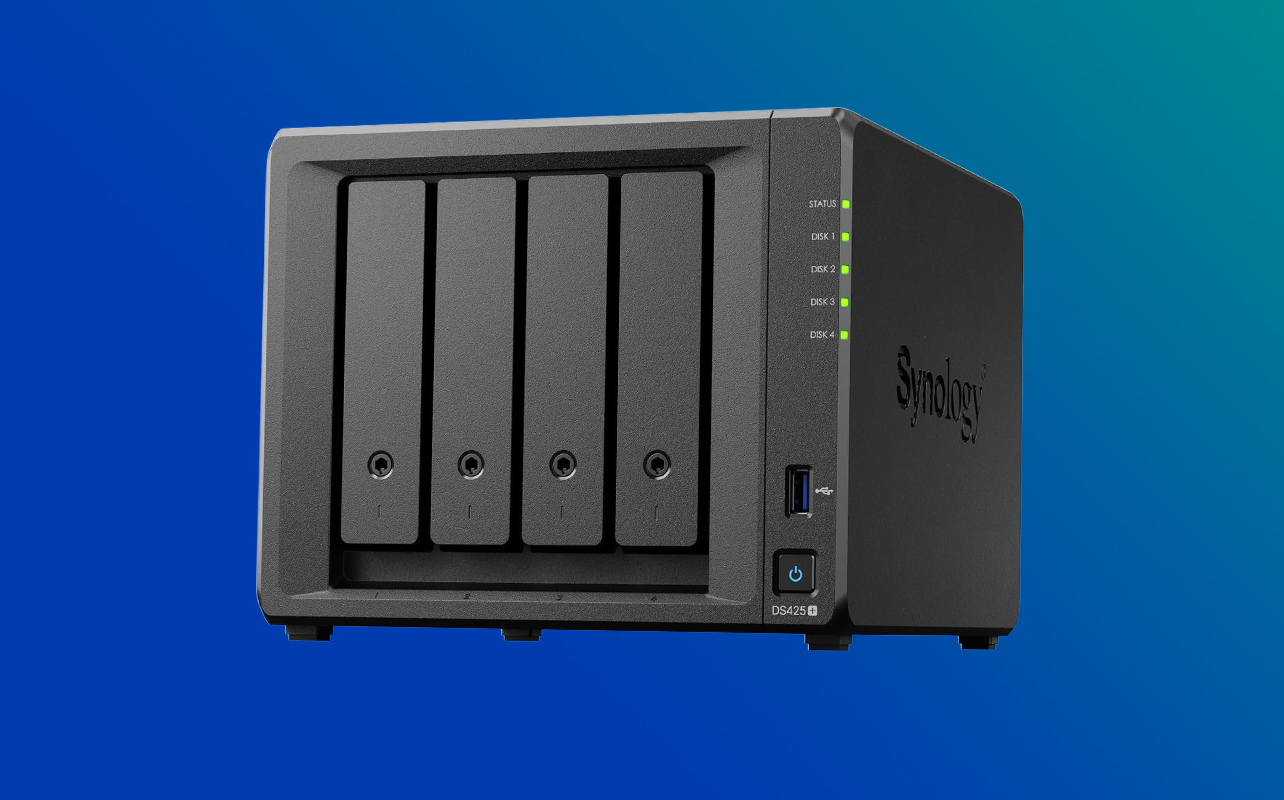
Storage decisions balance three things: capacity, speed, and how the drives are configured.
- Hard disk drives (HDDs) offer the most storage per dollar, which makes them well-suited to bulk storage and backups where speed isn’t the priority.
- SATA solid-state drives (SSDs) are faster than HDDs and a common middle ground for general business applications.
- NVMe drives are the fastest option, typically reserved for databases, virtualization, or anything sensitive to storage speed.
Beyond drive type, a few practical questions shape the storage setup:
- How many drive bays does the server have, and is there room to add capacity later?
- Are the drives hot-swappable, meaning a failed drive can be replaced without shutting the server down?
- What storage controller manages the drives, and does it support the RAID configuration needed?
- Is storage direct-attached (built into the server) or external (a separate storage unit connected to it)?
What is RAID, and does it replace backups?
RAID (redundant array of independent disks) is a way of combining multiple physical drives so they behave as one, either to improve performance, improve fault tolerance, or both, depending on how it’s configured. Different RAID configurations trade off differently between raw speed, usable storage, and how many drives can fail before data is at risk.
Two things worth understanding clearly:
- Usable capacity is less than total raw drive capacity. Some space is used to store redundancy data, so a RAID array never gives you the full sum of every drive’s capacity.
- RAID does not replace backups. It can keep a server running through certain drive failures, but it does nothing to protect against accidental deletion, corruption, malware, theft, or a major hardware failure that affects the whole array. Businesses need an independent backup strategy regardless of which RAID configuration they choose.
What networking capabilities does a server need?
Networking is easy to underestimate until it becomes the bottleneck. Key considerations include:
- Ethernet speed: faster network ports move data to and from the server quicker, which matters more as the number of users or the size of files grows.
- Number of network ports: multiple ports allow for redundancy or separating types of traffic.
- Link aggregation: combining multiple network connections to increase total bandwidth or add a failover option.
- Network switches: the equipment connecting the server to the rest of the network.
- Remote access: whether the server can be managed securely from outside the office.
- Internal network vs. internet-facing requirements: a file server for internal use has very different needs than one hosting a public-facing application.
- Fibre connectivity: relevant for larger, more advanced environments needing very high network throughput.
- Compatibility with existing infrastructure: new networking hardware needs to work with what’s already in place.
Which server operating system should you choose?
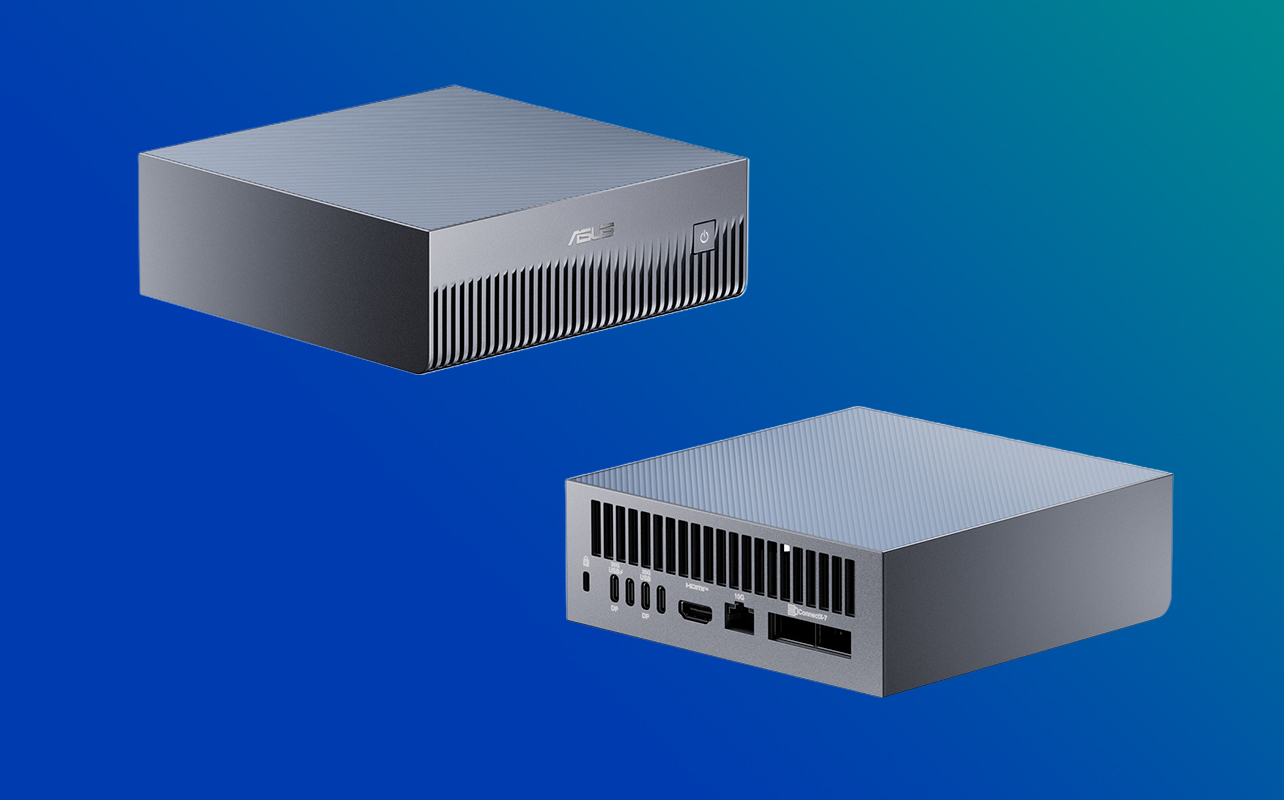
The operating system determines what software the server can run and how it’s managed day-to-day. The main paths are:
- Windows Server: (Windows Server 2025 is the current version) often chosen for businesses already using Microsoft software and familiar with a Windows-style interface.
- Linux distributions: commonly chosen for cost efficiency, flexibility, and strong performance in web hosting and virtualization.
- Hypervisors: specialized operating systems built specifically to run virtual machines, rather than general-purpose computing.
A few practical notes worth knowing before buying:
- Don’t assume an operating system is automatically included with a server; this varies, and it’s worth confirming before purchase.
- Application compatibility should come before personal preference. If the business depends on specific software, that software’s supported operating systems narrow the choice.
- Licensing is often based on users, devices, or cores, which affects total cost beyond the sticker price of the server itself.
- The team’s existing management expertise matters; a Linux server run by a team that’s only ever managed Windows environments adds a learning curve worth planning for.
What is server virtualization?
Virtualization lets one physical server run multiple independent virtual machines, each behaving like its own separate computer with its own operating system and applications. Businesses do this to consolidate workloads that would otherwise each need separate physical hardware, cutting down on cost, power use, and physical space.
Virtualization changes what the server needs, compared to running a single workload directly:
- More CPU cores, since resources are being divided among several virtual machines.
- Higher RAM capacity, since each virtual machine reserves its own memory.
- Faster storage performance, since multiple virtual machines reading and writing at once can strain slower drives.
- A hypervisor compatible with the chosen operating systems.
Licensing again matters here: some software is licensed per virtual machine, which can add up quickly if a business plans to run many.
Why do redundancy and remote management matter?
Redundancy is what keeps a server running through a component failure instead of going down entirely. The building blocks include:
- ECC memory (already covered above): catching memory errors before they cause instability.
- Redundant storage: configuring drives so the failure of one doesn’t take down the whole array.
- Redundant power supplies: a second power supply that keeps the server running if the first fails.
- Hot-swappable components: parts (usually drives) that can be replaced without powering down the server.
Remote management lets an administrator monitor and maintain a server without being physically in front of it, checking hardware health, restarting the system, or troubleshooting issues from another location. This becomes especially valuable once a business has more than one server, or the person managing IT isn’t always on-site.
Not every entry-level server includes every redundancy feature. Dual power supplies, hot-swap drive bays, and full remote-management interfaces are often reserved for higher-tier or rack-oriented models, so it’s worth checking exactly what’s included rather than assuming.
What should you know about power, cooling, and noise?
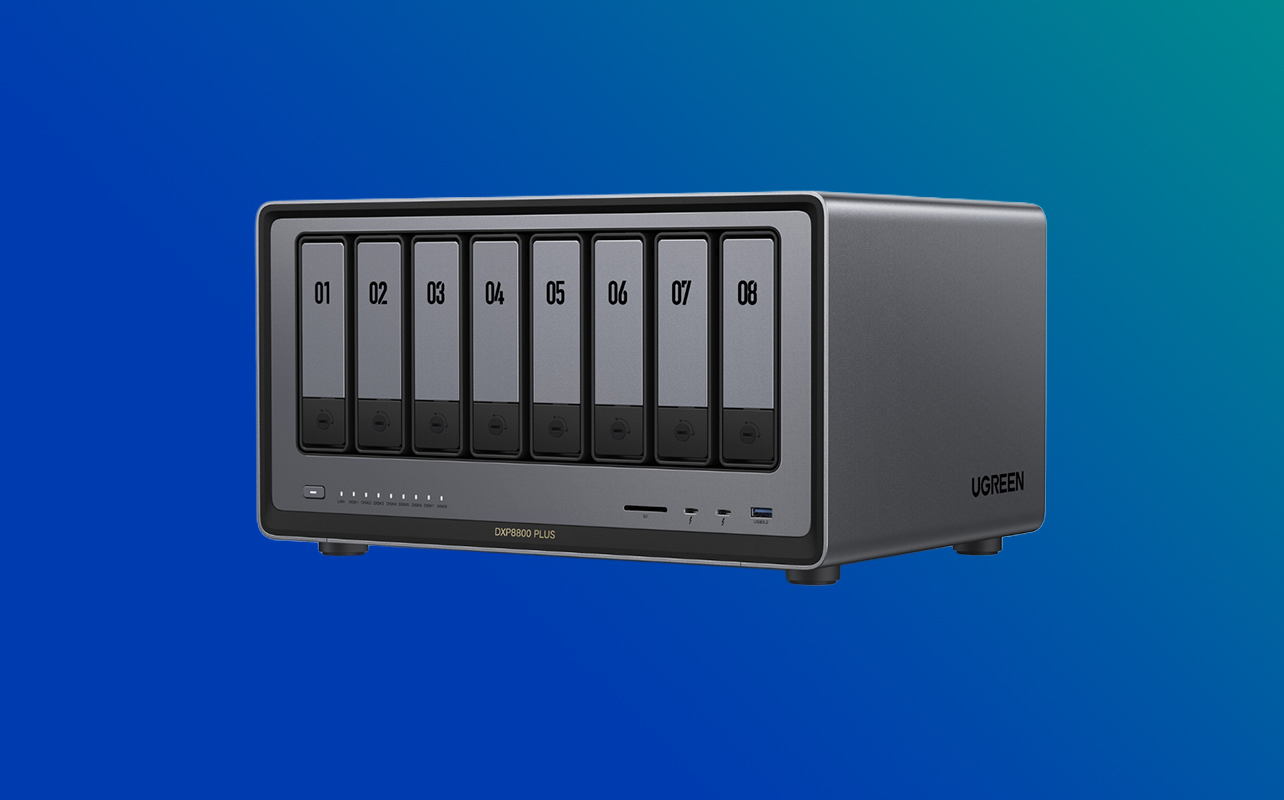
Where the server will physically live affects nearly every other decision:
- An office-based tower server needs reasonable ventilation but not much special planning.
- A rack server in a dedicated server room needs proper airflow, adequate rack ventilation, and sufficient electrical capacity for the equipment installed.
- A UPS (uninterruptible power supply) keeps the server running through a brief power outage and gives it time to shut down safely during a longer one, worth budgeting for regardless of server type.
- Noise is easy to overlook until a rack server ends up in a shared office space; server-grade cooling fans are noticeably louder than consumer PC fans.
- Ongoing operating costs (power draw, cooling) should factor into the total cost of running the server, not just its purchase price.
How do you plan for future server growth?
A server bought for exactly today’s needs often needs replacing sooner than expected. Worth evaluating up front:
- Expected growth in employees or users.
- New business applications likely to be added.
- Storage needs increasing over time.
- Additional virtual machines planned down the line.
- New office locations that may need to connect in.
- Whether there’s room for expansion: free expansion slots, open drive bays, and available memory slots.
- Whether the networking setup can be upgraded later.
That said, it’s just as easy to overcorrect. Buying far more server than the business needs “just in case” adds cost without a defined benefit; the goal is reasonable headroom based on actual, expected growth, not maximum possible capacity.
What else do you need besides the server itself?
A server is rarely the only purchase. A complete setup typically includes:
- A server rack or enclosure (for rack servers) and rack rails to mount it.
- A network switch to connect the server to the rest of the network.
- Networking cables and accessories suited to the required speed.
- Additional or external storage, if needed.
- A separate backup system.
- A UPS for power protection.
- A monitor and keyboard for initial setup (even if the server runs headless afterward).
- The operating system itself, if not included.
- Security software.
- Installation and ongoing support, whether in-house or through a service provider.
Should you buy a new, open-box, or refurbished server?
This decision usually comes down to budget balanced against risk tolerance. Things worth weighing:
- Budget: refurbished and open-box servers typically cost less upfront.
- Warranty: check what coverage remains, since it can vary significantly between new and refurbished units.
- Remaining support life: how much longer the hardware and its operating system will receive updates and support.
- Hardware age: older hardware may lag on power efficiency and performance per dollar.
- Software compatibility: confirm the intended operating system and applications are supported.
- Energy efficiency: newer hardware is often meaningfully more efficient, which affects long-term operating cost.
- Replacement-part availability: worth confirming for older or discontinued models.
- How critical the workload is: a server running core business operations is a different risk calculation than a home lab or a secondary backup target.
Server buying checklist
- Defined workload.
- Expected number of users.
- Required processor.
- Required memory.
- Storage capacity and performance needs.
- RAID configuration and backup plan.
- Networking requirements.
- Form factor (rack or tower).
- Operating system.
- Remote management needs.
- Redundancy requirements.
- Power and cooling setup.
- Warranty coverage.
- Room for future growth.
- Total budget, including software, support, and accessories.
Bringing it all together
A server decision comes down to fit, not firepower. The businesses that end up happy with their purchase are the ones that defined the workload first and let that shape everything else, rather than working backward from whatever specs looked most impressive on the shelf.
From here, servers are the easiest place to start browsing current options by form factor and workload, and commercial-grade servers is worth a look for businesses that need higher-tier reliability built in from the start. If part of the decision still feels unsettled- rack versus tower, a smaller office setup, or a workload built around GPUs the companion guides on rack vs. tower server guide, small business server guide, and GPU servers for AI guide each go deeper on that specific piece.
Frequently asked questions
Start by defining the applications, number of users, storage requirements, uptime needs, and expected growth. Those requirements should drive the form factor, processor, memory, storage, and networking, not the other way around.
It depends entirely on the workload. File sharing generally needs less memory than database hosting or virtualization. Add up the requirements of every application and virtual machine that will run, and leave some room for growth.
For centralized, multi-user, or business-critical workloads, yes, a server is generally the better fit, since it delivers the management, expansion, reliability, and availability that shared business use demands.
No. RAID can reduce disruption from certain drive failures, but it doesn’t protect against deletion, corruption, malware, theft, or a major hardware incident. A separate backup is still necessary.
A tower server is usually easier for a small office running one or two servers without existing rack infrastructure. A rack server makes more sense once density, centralized management, and room to expand become priorities.
For very small, low-stakes needs, a NAS or cloud service can sometimes cover basic file sharing. But once multiple users, business-critical applications, or centralized management enter the picture, the reliability and redundancy features built into server hardware become hard to substitute.
Most businesses plan around a three-to-five-year lifespan before hardware, support, or performance needs prompt a replacement, though this varies with workload intensity and how much growth headroom was built in at purchase.