
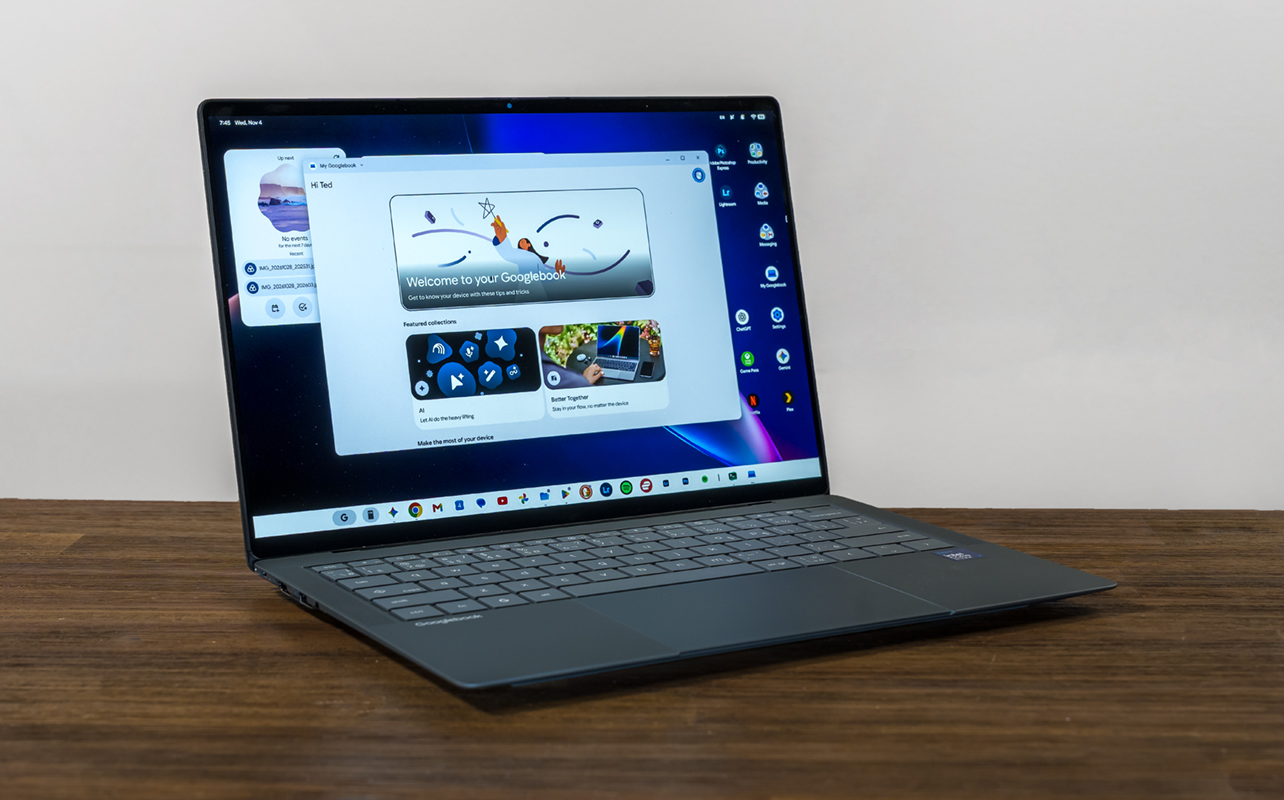
The ASUS Googlebook 14 is designed to be both a laptop and an AI-driven productivity tool that also taps into your Android ecosystem. This isn’t supposed to work like a Chromebook, though Chromebooks already do some of these things. Googlebook OS, as a revamped and revitalized operating system, should make it easier for you to do things you can’t do as easily on other laptops.
Does it? The reality is more mixed because the software itself feels like it’s still in an early stage of development. While ASUS and Google position this laptop as a capable, comprehensive device made for anyone, the truth is you may find that you get more out of it if you’re comfortable tinkering with it. Gemini is a big part of the value proposition but before jumping in, you need to know what to expect.


Watch my full review video
ASUS Googlebook 14 (as tested):
|
A nice body on the Googlebook 14
It’s hard not to like the Googlebook 14 once you start holding it. It may not have the metal body of a MacBook or premium Windows PC laptop but it doesn’t come off as cheap, either. ASUS makes it from a CNC-machined magnesium-aluminum alloy, so it still has a metallic feel. Lightweight, thin, easy to carry, and simple to set up anywhere, its portability and mobility (at 2.18 lbs.) are pretty obvious once you pick it up. ASUS even includes a black faux leather sleeve in the box with the device.
ASUS also includes a lot to like inside and out. The 14-inch 3K OLED HDR touch sensitive display is just gorgeous to look at, complete with vivid and vibrant colours and tones, as well as a 120Hz refresh rate. You’ll enjoy watching shows and movies on it. Gorilla Glass Victus offers a measure of resistance to scratches and smudges.
The large glass trackpad is responsive and comfortable to use, with haptic feedback that simulates clicks and vibrations. A nice keyboard layout also helps, with a tactile feel that you come to appreciate the more you type on it. From screen to trackpad, it’s a well-thought-out combination overall.
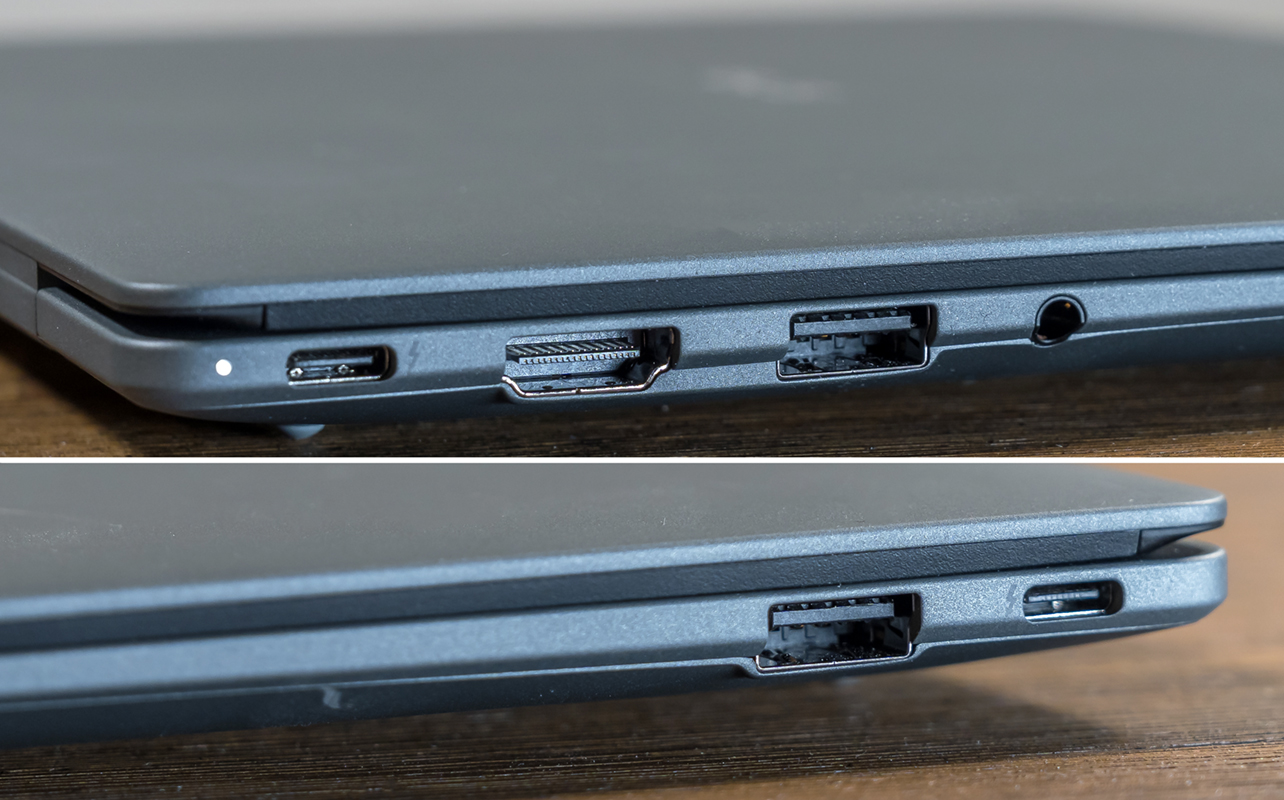
Fortunately, the thinner body doesn’t skimp on the other inputs. You get two Thunderbolt 4 USB-C ports, two USB-A ports, one HDMI 2.1 port, and a 3.5mm headphone jack. This all makes it much easier to plug in accessories, external drives, or even tether the device to a monitor, if need be. The six-speaker array is a pleasant surprise, particularly because of how loud it can get. Lastly, you get either 16GB of RAM and either 256GB or 512GB of internal storage.
Googlebook OS and Gemini
It may be a different OS but Googlebook OS also still feels like a work in progress. In trying to blend together Android and ChromeOS, Google is clearly seeking a different path that caters to those of us who want real desktop features. What I can tell you is we’re not quite there yet but there are reasons for optimism.
First, it’s worth noting that the overall experience differs because of how Google injects its AI into the mix. Magic Pointer is a good example, where you wiggle the mouse pointer (or press the ‘G’ button + the G key on the keyboard) to bring up a Gemini field. From there, you can ask it for additional context on what you’re pointing at or gather images and copied text (up to 10 pieces) and have the AI assess those together.
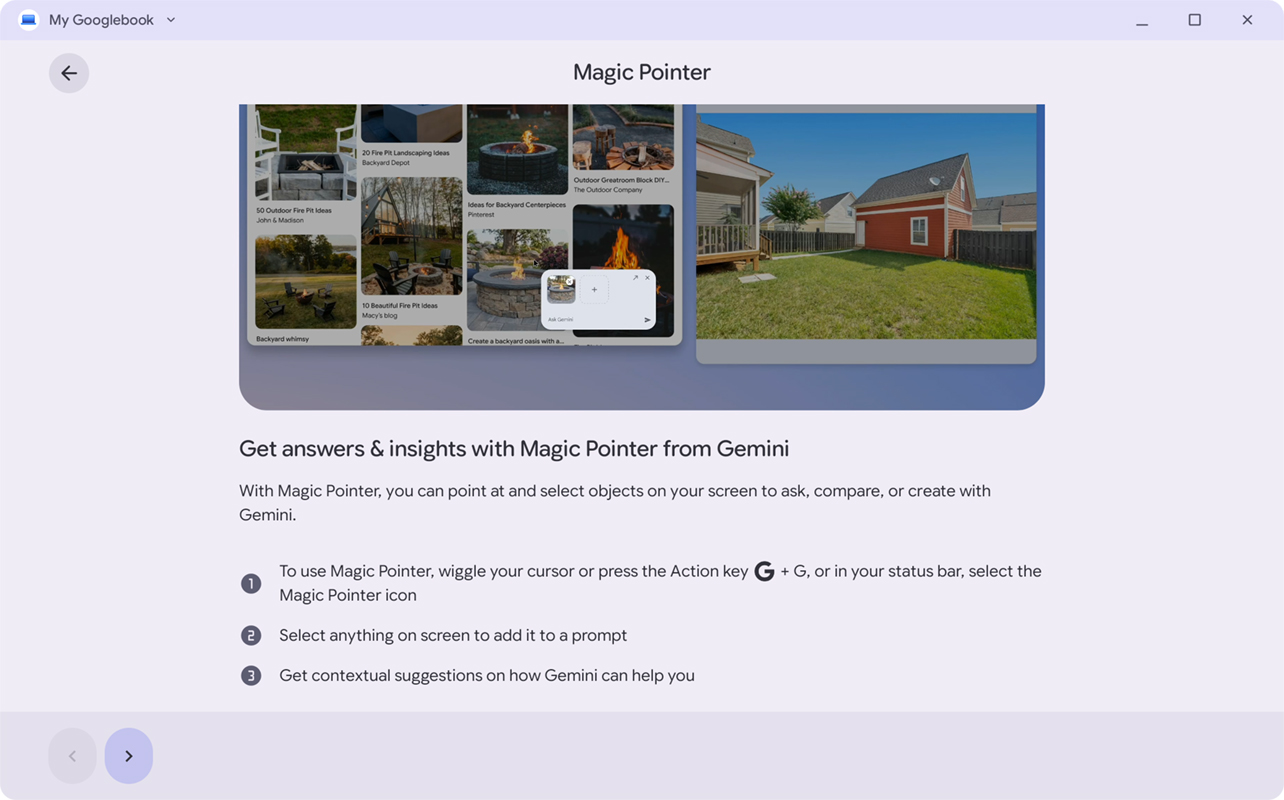
It’s still early days but I see real potential with this implementation, especially when doing research or trying to organize elements together. Same with Rambler, which carries over from Android as a way to dictate and transcribe what you’re saying in natural language. The AI removes the “ums”, “uhs”, and “ahs” in your speech and puts together a more coherent delivery. You can then tell it to change the tone or formality involved, if you want.
Proactive Suggestions is another example (formerly Magic Cue) that can present contextual information stored on the laptop when hovering over something related to it. That could be flight information or reservations, for instance. Still a lot of work to be done on that one, though.
As always, Gemini is available and, along with the My Googlebook app, acts as a helpful guide for navigating the device and discovering what you can do with it.
Web apps vs Android apps
Now, the line between how web apps and Android apps work is important to better understand this laptop’s caveats. First, Android apps work really well within Googlebook OS—and the broader interface—but that’s assuming they’re optimized for it. You may notice that some stretch out or look awkward because you’re essentially seeing a phone version rather than one designed for a laptop, or even a tablet.
Web apps are basically browser-based versions that you can turn into desktop alternatives by making them shortcuts. This works best with apps or services that already have browser-based variants, so streaming music platforms (Spotify, Amazon Music, Apple Music, etc.) and some creative tools (Adobe Lightroom, Photoshop, Canva, etc.) come to mind.
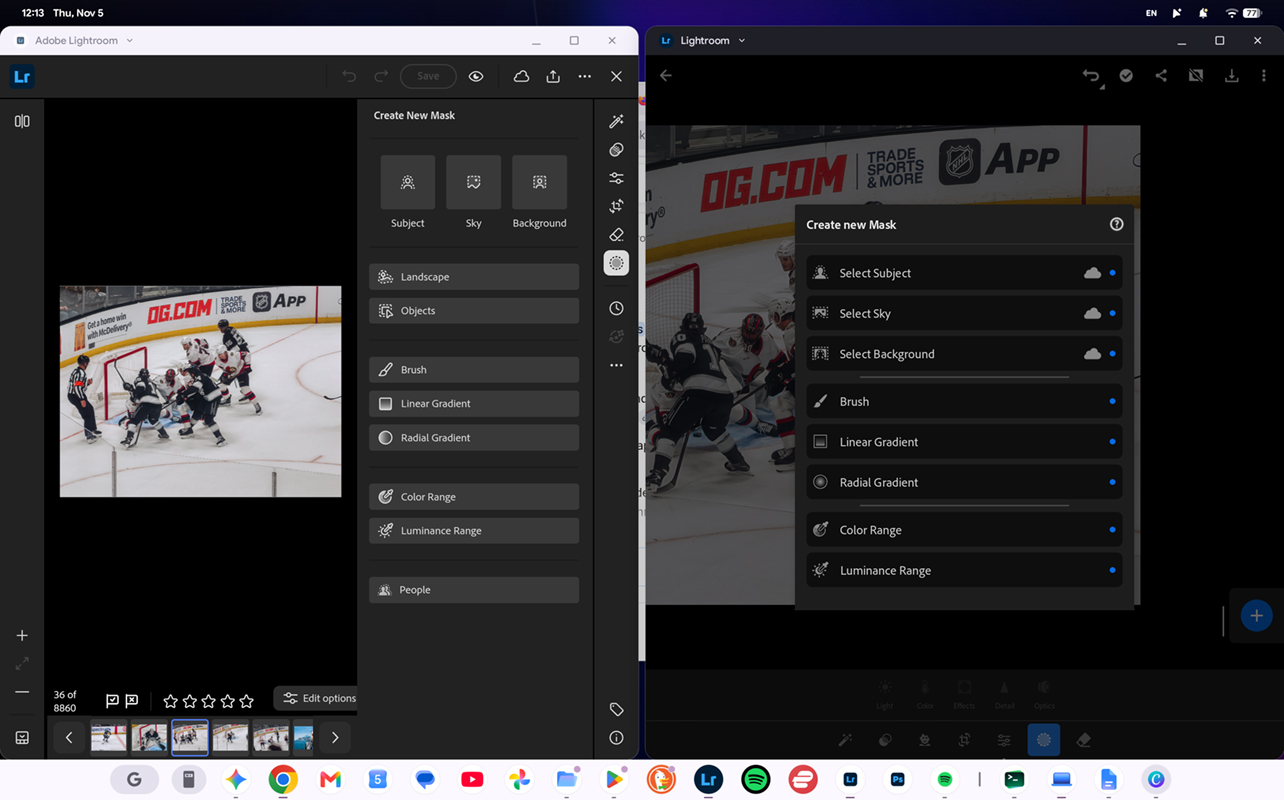
To make this work, you would need to open it in a browser first (I recommend Chrome for sheer compatibility), log in, and once set up, click the triple-dot menu on the top-right corner, then Save and share->Install and create shortcut. You then have the choice to either install or create a shortcut that opens in Chrome. For a more standalone experience, select Install.
Doing this can give you a better overall experience, and there may be functional benefits, too. For example, Photoshop Express is a barebones app compared to the web-based version that, while nowhere near the level of the full desktop app, is more substantial than Express is. The same goes for Lightroom, where masking is closer to the desktop version than the mobile one.
Finding workarounds
The catch to all this is internet access. Lightroom Mobile maintains local storage, which is why I can see all my photos whether I have internet or not. That’s not necessarily the case with the web app because it doesn’t save offline the same way. And just because the Lightroom library is saved to the laptop’s storage, it doesn’t mean the web app can actually see it.
This is why I can see situations like this being confusing. Gemini can help a little because you can ask it for insight into what the nuances are, but in my experience, it can’t always determine which scenario applies to your particular situation.
But there are other cases where this dichotomy may not apply. One example would be Spotify, Netflix, or another streaming service that lets you save content offline. You’re better off doing that with the Android version than the web one because the latter is more dependent on the browser. An Android app just does its own thing. Not that it really matters anyway since all you want is to listen or watch what you’ve saved for offline playback on a plane, for instance. As long as it plays properly, formatting isn’t a big issue.
What this ultimately means is you may be forced to double-dip, meaning you have both Android and web versions of the same app, particularly when there are optimal or functional differences between them.
What works well on the Googlebook
For starters, you won’t find AI integrated into an operating system quite like this. Even Apple and Microsoft have yet to hit this level of fluidity, and I see it only getting better over time here. The difference is that much of what Gemini does depends on internet connectivity. Go offline and you silence much of what it does. A more on-device AI situation would really help in that regard.
A feature like Continue On, which bridges together whatever you’re working on between your Android phone and laptop, is something I expect to grow more robust. It’s a bit rough around the edges right now because of the various settings you need to activate and because it only works with phones running Android 17 and using the same Google account. It’s also different from simply mirroring your phone screen; Continue On is about moving a task from one device to the other.
Not surprisingly, Google’s apps and services work best on this laptop. If you’re immersed in that ecosystem, you’re off to a head start. The same goes for anything that you can do on a web browser. Here, too, there are nuances. I like to use DuckDuckGo as a browser, but here I’m limited to adding it to Chrome. I also use Firefox regularly on my other computers, but getting the desktop version required downloading the Linux version from Mozilla’s website and going through the Terminal app. Gemini helped guide me through the process, but I ultimately couldn’t get Firefox working.
These caveats consistently appear when using the Googlebook 14, mainly because of the software. As an operating system, Googlebook OS feels like it’s got a ways to go before it establishes itself further.
Key details about apps you can use
Since compatibility is so integral here, there are some key details you need to know going in. First, the Google Play Store on the device labels some apps with ratings, like “Made for desktop”, “Optimized for desktop”, or “Compatible with desktop”. These mean different things. “Made for desktop” is rare to see thus far but is the best of the group because it’s exactly what it says. “Optimized” means an app that may have been developed for tablets but translates well to a desktop environment like this. “Compatible” is less certain as to how well it works. It might be fine when using the touchscreen with some limited mapping to the keyboard. When you see, “Better on the website”, you can take that literally.
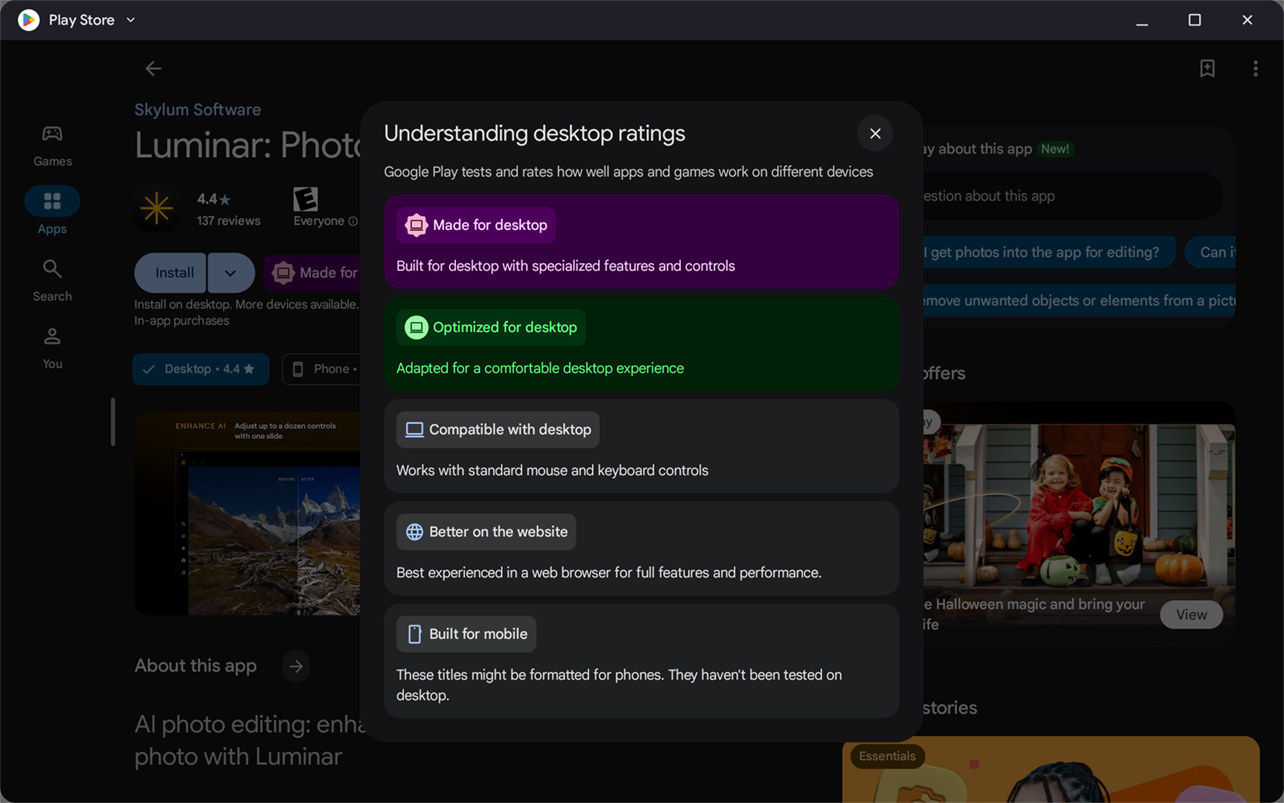
All of this means you may not find apps or games you expect to see. You can sideload apps or games but they have to be APK Android files. Much of this fragmented picture comes down to developer support. Will they optimize their apps to work with this newer platform? I’d like to think so but it’s hard to tell at this early stage.
My own impression is that Google will need stronger developer support to improve the experience, or the fragmented app landscape could turn potential users away. We’ll have to see.
Battery life
Battery life is one thing you probably won’t have to worry about on any given day. ASUS rates it at 16 hours but you’re probably looking at closer to about 10-14 hours based on moderate usage. That’s excellent by any standard and shouldn’t give you any range anxiety as you work through a full day. It also charges relatively quickly, so you’re able to keep on going for longer whenever necessary.
Final thoughts
Frankly speaking, the biggest challenge the Googlebook 14 has is integration. A Mac or Windows laptop offers more flexibility because you can download and use compatible apps from a wider range of sources. In this case, you need to check the compatibility first before doing anything. That should improve over time but, as is, it relies more on the web browser than standalone app installations.
That maturity one expects from a laptop doesn’t feel complete yet. Is it like a Chromebook? Actually, yes, at least in some ways. Is it different from a Chromebook? Yes, in other ways, particularly when it comes to raw power and the room for expanding compatibility. Google has an opportunity to fill these gaps but I’d like to see it do that sooner rather than later.
The ASUS Googlebook 14 is available now in either an Intel Core 5 or Intel Core 7 configuration.