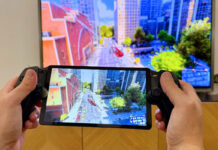
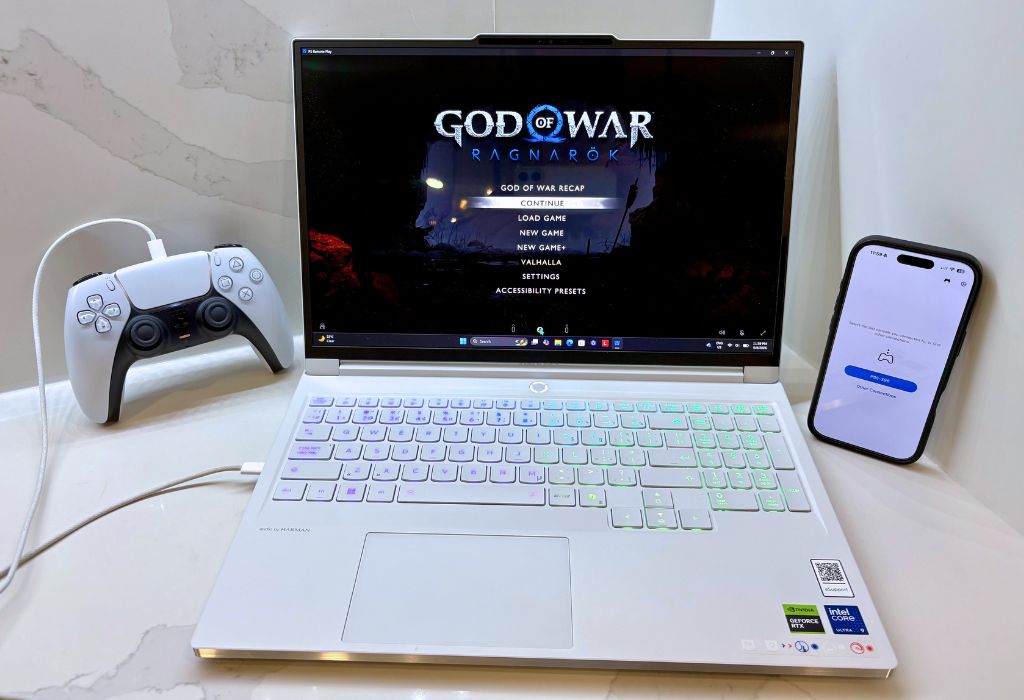
If you want to get more out of your gaming hardware, the PlayStation 5 DualSense wireless controller offers great multiplatform features. It works with the PS5 console, Windows PC, and iPhone for PC games, mobile titles, and PS Remote Play. On PC, you can connect through USB or Bluetooth, while Bluetooth is the easiest option on iPhone. Here’s how to set it up and fix common connection problems you might run into to.

Can you use a PS5 DualSense controller on PC and iPhone?
In short, yes, you can use the PS5 DualSense controller with supported Windows PCs and iPhones. On PC, you can connect through USB or Bluetooth. On iPhone, Bluetooth is the simplest option for connecting.
What you need before connecting a PS5 DualSense controller
Make you have all you need below before you start connecting.
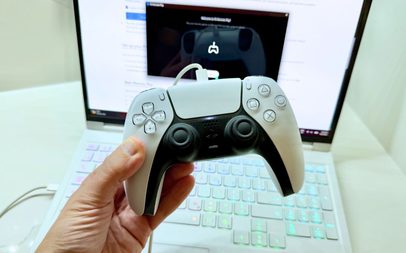
For PC
- A PS5 DualSense wireless controller
- A compatible Windows PC
- A USB-C cable for wired play
- Built-in Bluetooth or a Bluetooth adapter for wireless play
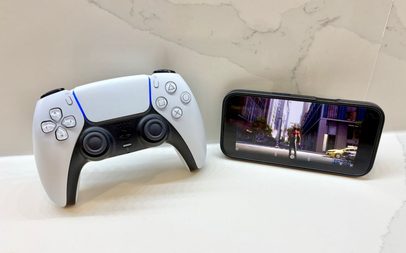
For iPhone
- A compatible iPhone
- Bluetooth enabled
- A charged DualSense controller
Tip: Before Bluetooth pairing, make sure the controller is off and disconnect any USB cable. If the player indicator is illuminated, hold the PS button until it switches off.
How to connect a PS5 DualSense controller to PC with USB
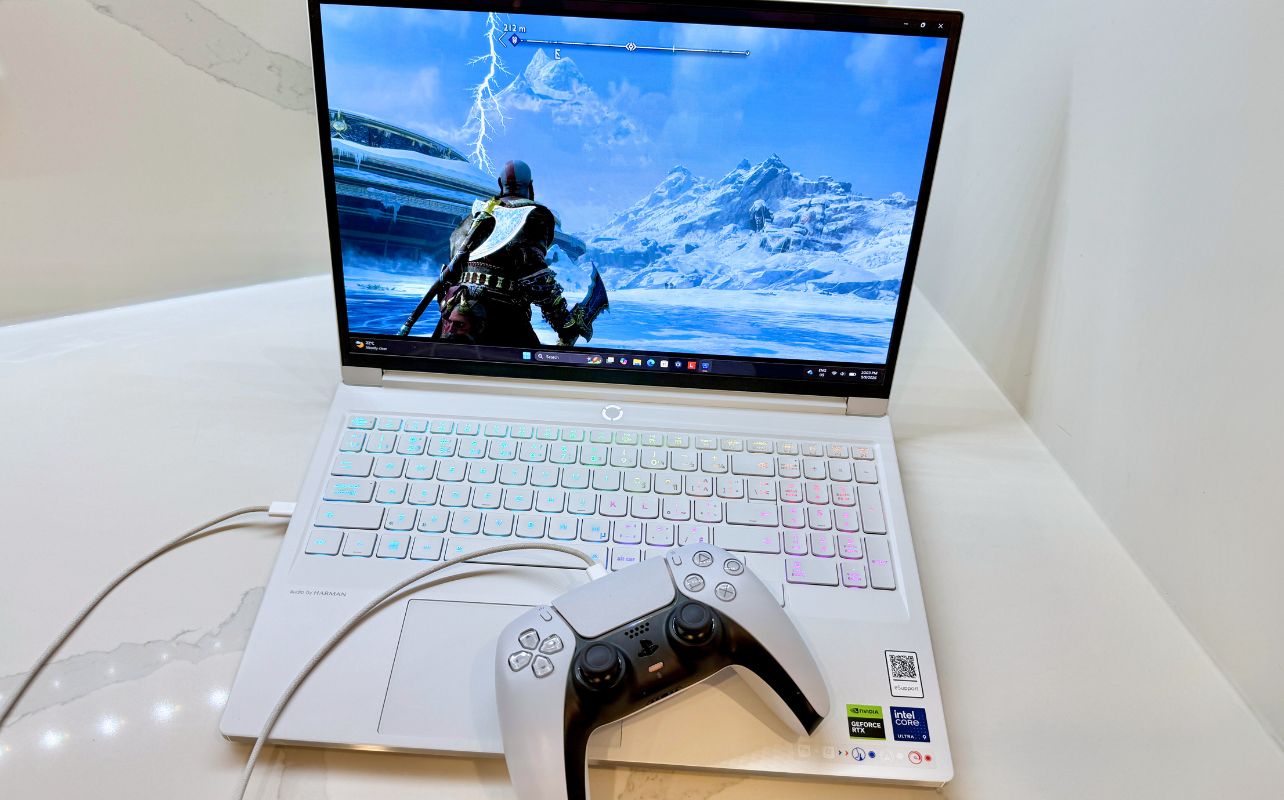
For most PC users, I recommend starting with USB.
- Plug a USB-C cable into the PS5 DualSense controller.
- Connect the other end to your PC.
- Wait for Windows to recognize the controller.
- Open your game or launcher.
- Check your controller settings if the input isn’t detected.
If the controller charges but your PC does not recognize it, try another USB-C cable. Some cables support charging but not data transfer.
How to pair a PS5 DualSense controller to a PC with Bluetooth
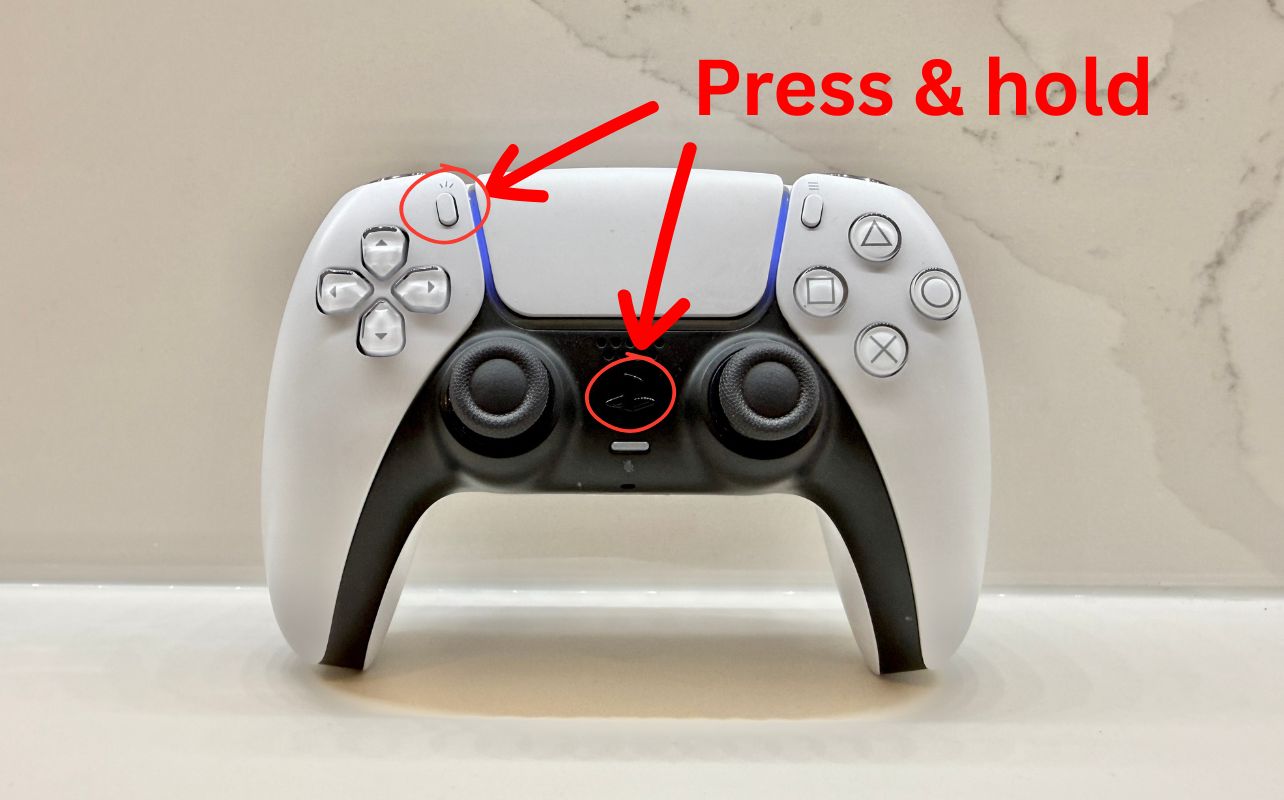
If you are looking to pair a PS5 DualSense controller to a PC wirelessly, follow these steps:
- Disconnect any USB cable.
- If the controller is on, hold the PS button until it turns off.
- Hold the Create button and PS button together until the light bar flashes. Please see the image above to see where the buttons are located in your controller.
- Open Bluetooth settings on your PC
- Choose the option to add a Bluetooth device.
- Select the PS5 DualSense controller when it appears.
On Windows 11, Bluetooth settings are under Settings > Bluetooth & devices. Some games may require additional controller configuration.
How to connect a PS5 DualSense controller to iPhone
Connecting a PS5 DualSense controller to iPhone is very similar.
- Make sure the controller is off and unplugged.
- Hold the Create button and PS button until the light bar flashes.
- Open Settings > Bluetooth on your iPhone.
- Make sure Bluetooth is enabled.
- Select the DualSense controller from the nearby devices list.
- Open a controller-compatible game or app to test it.
You don’t need a special wireless adapter. If the controller connects but does not respond, check whether the game supports controllers.
USB vs. Bluetooth: Which connection should you use?
Here’s a quick guide to help you decide.
Use USB if you want the simplest PC setup
USB is my first choice for connecting a PS5 DualSense controller on PC because it is quick, reliable, and removes wireless pairing and requires far less troubleshooting.
Use Bluetooth if you want wireless freedom
If you are going to sync your controller via Bluetooth, it is ideal for couch gaming and cable-free play. It’s also my preferred option on the iPhone, needing fewer adaptors and cables, making it the ideal solution for travel with less bulk.
Feature differences
DualSense features can vary by platform, game, and connection type, so keep this in mind. The combination of elements that make the controller unique is its adaptive triggers, haptic feedback, microphone, speaker, and headset jack, which may not work in every situation on a platform other than the PS5.
If you want the widest possible feature support from a PS5 DualSense controller for PC, start with USB a cable connection.
Can a PS5 DualSense controller pair with multiple devices?
Yes. Your PS5 DualSense controller can store pairings for up to four devices, which is useful if you switch between PS5, PC, and iPhone. The pairing slots use these combinations:
| Pairing slot | Button combination |
| Slot 1 | PS + Triangle |
| Slot 2 | PS + Circle |
| Slot 3 | PS + Cross |
| Slot 4 | PS + Square |
To register a device, make sure the controller is off, then hold the desired face button and PS button for more than five seconds before completing Bluetooth pairing.
To switch later, hold that face button and the PS button for about three seconds.
Why won’t my PS5 DualSense controller connect to PC or iPhone?
If you’re experiencing issues, below are some things to consider:
- The controller is still connected to your PS5. Turn it off and return to pairing mode by holding Create + PS until the light bar flashes.
- Bluetooth is not enabled. Check Bluetooth settings on your PC or iPhone. A PC without built-in Bluetooth may need a USB Bluetooth adapter.
- The controller is not in pairing mode. Make sure the controller is off and unplugged, then hold Create + PS until the light bar flashes.
- The USB cable may not support data. If the controller charges but Windows does not detect it, try another data-capable USB-C cable.
- The device software or controller firmware may need an update. Keep DualSense firmware, Windows or iOS, Bluetooth drivers, and games updated.
For Bluetooth input lag, move closer, check the battery, or re-pair the controller. On PC, test USB to see whether wireless connectivity is the cause.
The best way to use a PS5 DualSense controller on PC or iPhone
If you are connecting a PS5 DualSense controller to PC for the first time, I recommend starting with a USB cable because it’s practically plug-and-play. It’s still the first option I reach for every time I want to connect my DualSense controller to my PC. If you need wireless freedom, for example, if you are travelling, going through the extra steps to connect via Bluetooth is worth it. No matter your device, PlayStation has really expanded your options with the DualSense, giving you more versatility in how you use it.
If you’re still considering a PlayStation 5 for your gaming setup, read the Blog’s PS5 buying guide.
FAQs about using a PS5 DualSense controller on PC and iPhone
Yes, especially if you like the DualSense layout. Some PC games also support additional DualSense features.
Yes. Use a compatible USB-C data cable.
The game may not support controllers, or you may need to adjust its controller settings.
Yes. DualSense can store multiple device pairings and switch between them.