
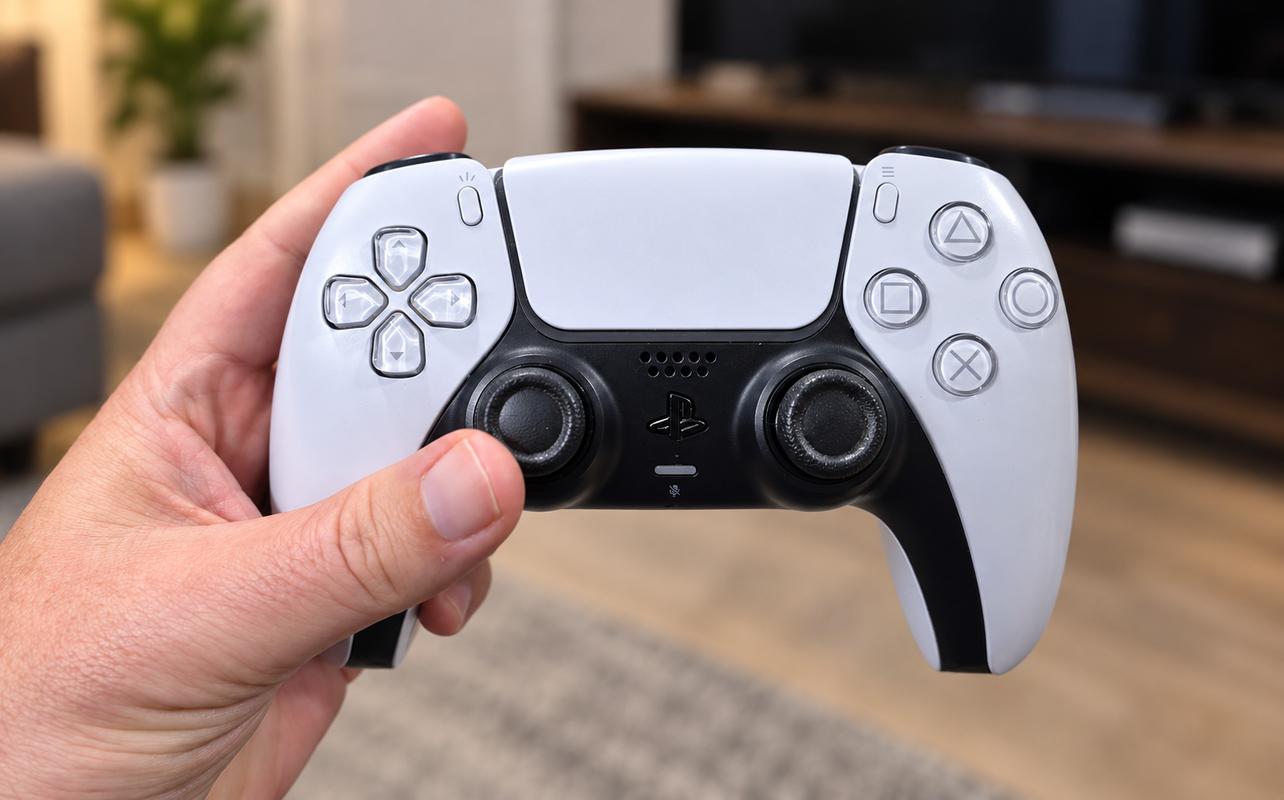
Before you assume your DualSense wireless controller needs to be repaired or replaced, it helps to confirm what your controller is actually doing. If your character starts moving on its own, the camera drifts across the screen, or a menu scrolls without you touching the analog stick, your DualSense wireless controller may be registering movement you didn’t make. That’s stick drift. Debris, component wear, or physical damage can contribute to unwanted stick movement. Software-related controller problems can sometimes produce similar symptoms, which is why the early troubleshooting steps rule those out first.
If you’re trying to fix stick drift on a PS5 controller, start with the low-risk checks first. Resetting the controller, updating your PS5 and DualSense device software, and safely cleaning around the analog sticks can rule out simpler causes before you consider workarounds or repairs. Some methods can reduce the effect of drift without fixing the underlying problem, so it’s important to know the difference.
The eight troubleshooting steps below move from the safest options into more involved repairs. We’ll also cover when it makes more sense to stop troubleshooting and look at PlayStation support, professional repair, or a replacement controller.

What is PS5 controller drift?
Stick drift happens when a controller registers movement even though you aren’t intentionally moving the analog stick. On a PS5, it can affect either stick on a DualSense wireless controller.
The important part is separating actual drift from another controller or game problem. If unwanted movement appears regularly and follows the same stick across different situations, that’s a stronger reason to troubleshoot the controller itself.
Signs your PS5 controller has stick drift
The most obvious sign is movement you didn’t make. A character may slowly walk in one direction after you let go of the left stick. With the right stick, the camera may continue moving after your thumb is off the controller.
You might also notice menus scrolling without input or movement that doesn’t stop cleanly when the stick returns to centre.
Delayed or inaccurate movement can have other causes, so don’t treat every control problem as stick drift right away. Testing the controller in more than one situation can help narrow things down.
What causes stick drift?
There isn’t one cause behind every drifting controller.
Dust or small particles can interfere with the stick mechanism. Internal components can also wear over time, especially the parts that measure stick position. Physical damage may cause similar problems.
Software-related controller problems can produce similar symptoms, which is why reset and software updates come before opening the controller or replacing parts.
If a controller has persistent drift, don’t assume you can identify the exact internal cause from the symptom alone.
Before you begin troubleshooting
Before trying any repair, confirm what the controller is actually doing and check whether it may still be covered by Sony’s warranty.
Those two checks can save you from moving into a more complicated repair before you need to.
Test your controller for drift
Start with the game where you first noticed the problem. Let the analog sticks return to centre and watch for movement you didn’t make.
If possible, check another game or a PS5 menu where the affected stick is used. A problem that only appears in one game could be related to that game’s controller settings instead of the DualSense itself.
Pay attention to which stick is affected and how severe the movement is. A slight camera creep is different from a stick that continuously registers a strong input.
Check your warranty status
Before opening the controller, check when you bought it and keep your proof of purchase handy.
In Canada, Sony Interactive Entertainment provides a one-year limited warranty to the original purchaser for defects in materials and workmanship, subject to the warranty’s terms and exclusions. Stick drift is not automatically covered simply because it occurs during that period.
If the controller may qualify for warranty service, contact PlayStation before attempting an internal repair. Sony also warns against unauthorized modification, which becomes important once you start opening or changing the controller.
Fix #1 Reset your PS5 controller
Resetting your DualSense is one of the first low-risk troubleshooting steps to try. It cannot repair a physically worn joystick component, but it can rule out a simpler controller problem before you move into hardware troubleshooting.
How to reset a DualSense controller
- Turn off your PS5.
- Disconnect the DualSense wireless controller from the official USB cable.
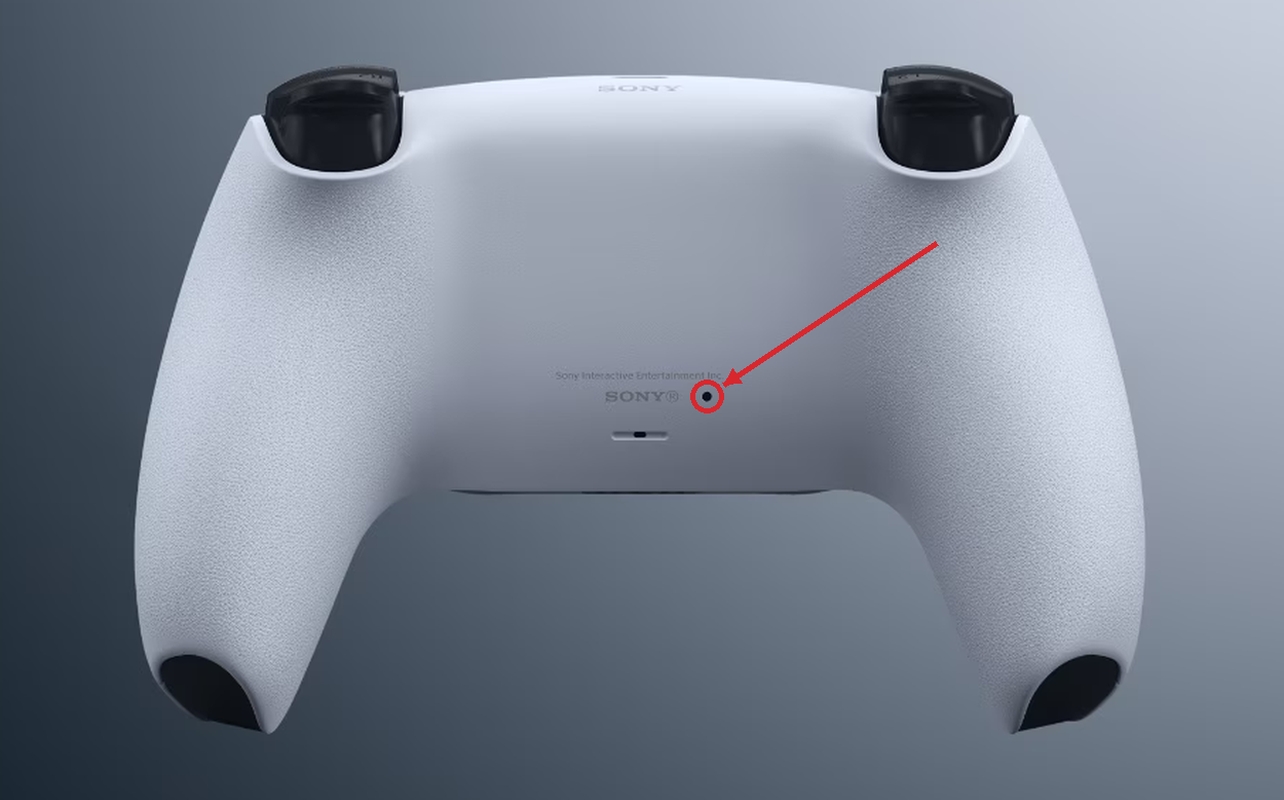
- Find the small reset button on the back of the controller near the Sony logo.
- Use a pin or similar small tool to press and hold the reset button for at least five seconds.
- Connect the controller to your PS5 with the official USB cable.
- Press the PS button.
After reconnecting, test the same game or menu where you noticed the drift.
When resetting may help
Resetting is an official early troubleshooting step, but it isn’t a mechanical repair.
If the stick is drifting because an internal component is worn or damaged, resetting the controller won’t restore that component.
Fix #2 Update PS5 system software and DualSense device software
PlayStation recommends keeping both your PS5 system software and DualSense device software current. Updating both is another low-risk step before you assume the problem is mechanical.
Update your PS5
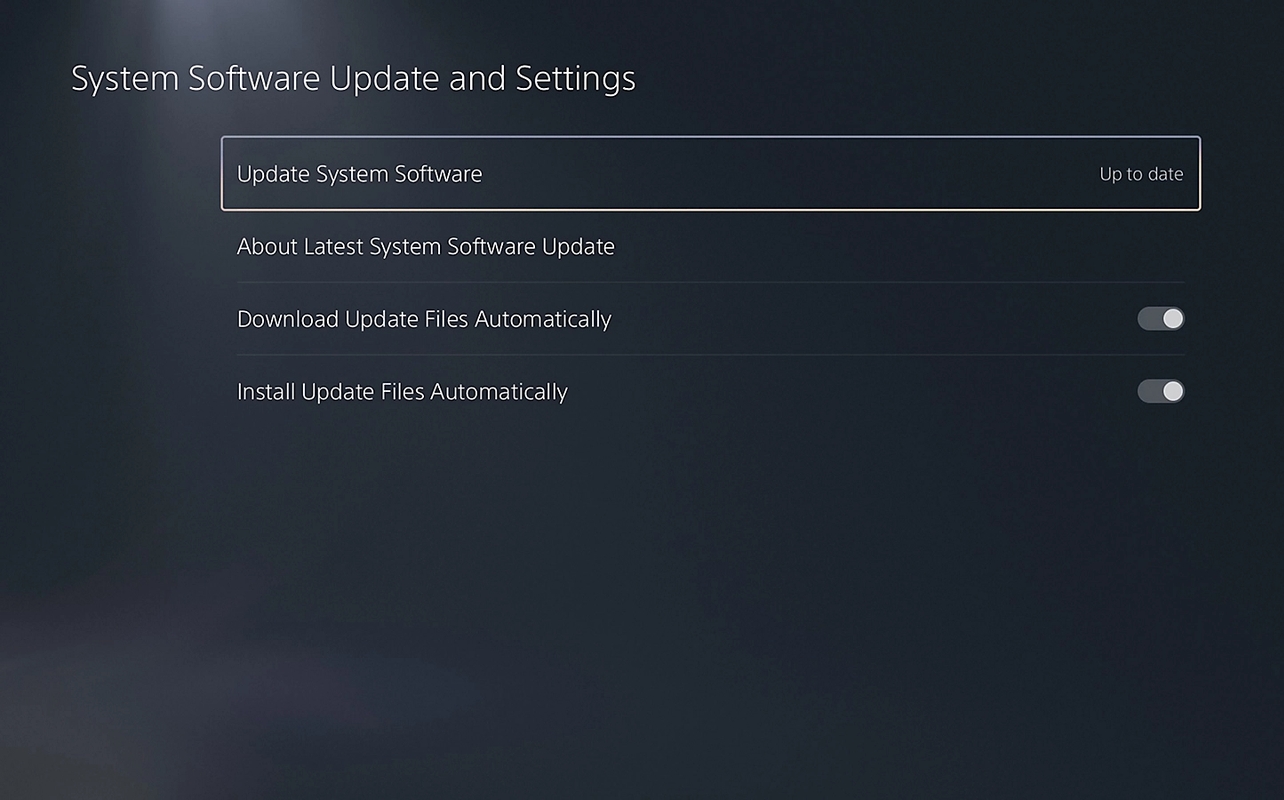
On your PS5, go to Settings > System > System Software > System Software Update and Settings > Update System Software.
Install the latest available system software and restart the console if required.
Test the controller again once the update is complete.
Update your DualSense controller
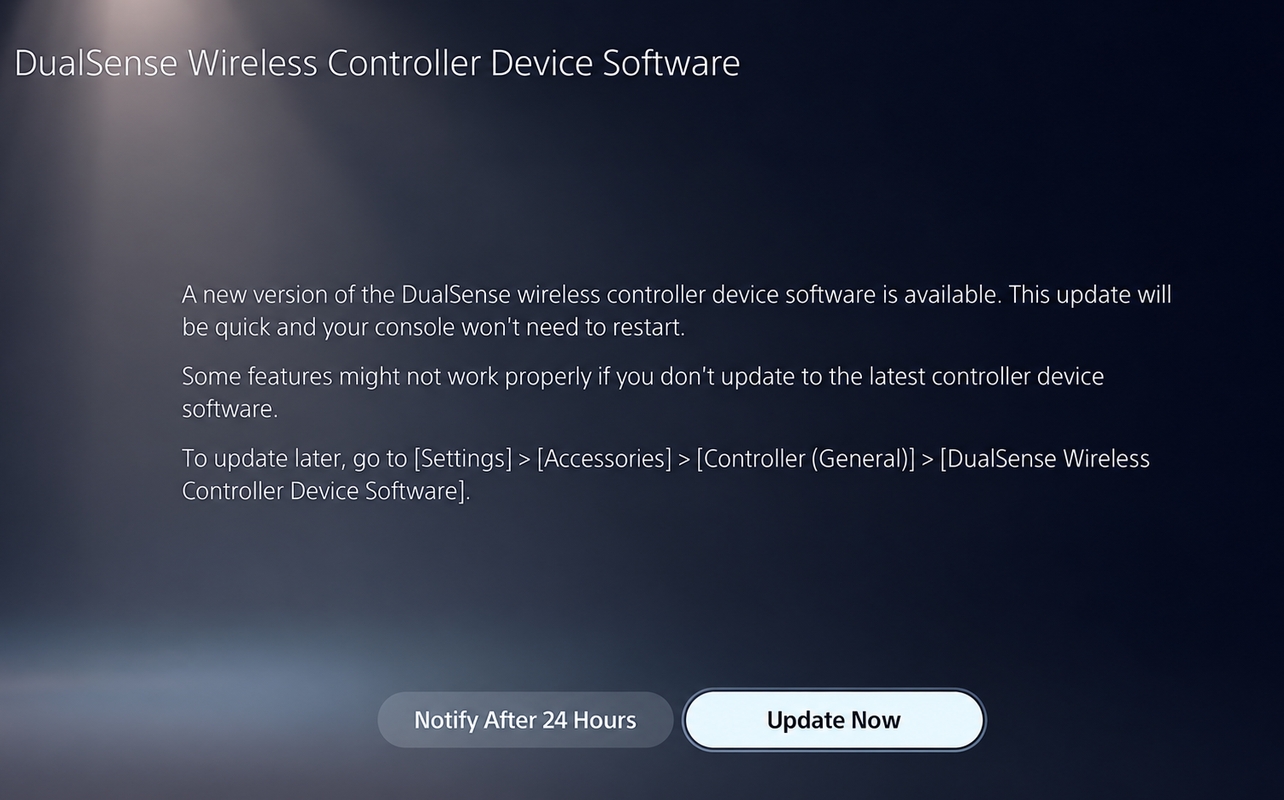
You can also check the controller’s own device software.
Go to Settings > Accessories > Controller (General) > DualSense Wireless Controller Device Software.
If an update is available, follow the on-screen instructions.
Keeping the controller current removes one software variable before you consider more invasive troubleshooting. It will not repair physically worn joystick hardware.
When software updates may help
Software updates are worth ruling out when the controller behaviour could be related to software rather than damaged hardware.
If the stick continues drifting after reset and software updates, move on to the physical checks.
Fix #3 Clean around the analog sticks safely
Dust and small particles around the analog stick area are worth checking before you consider opening the controller.
Keep this step external. Sony warns against unauthorized disassembly or modification and specifically says not to use alcohol on the controller.
What you’ll need
For the exterior cleaning covered here, keep it simple.
Use a clean, soft, dry cloth. Make sure the controller is disconnected from any USB cable before you start.
You don’t need to spray cleaner or liquid into the analog stick opening.
Clean around the analog stick area
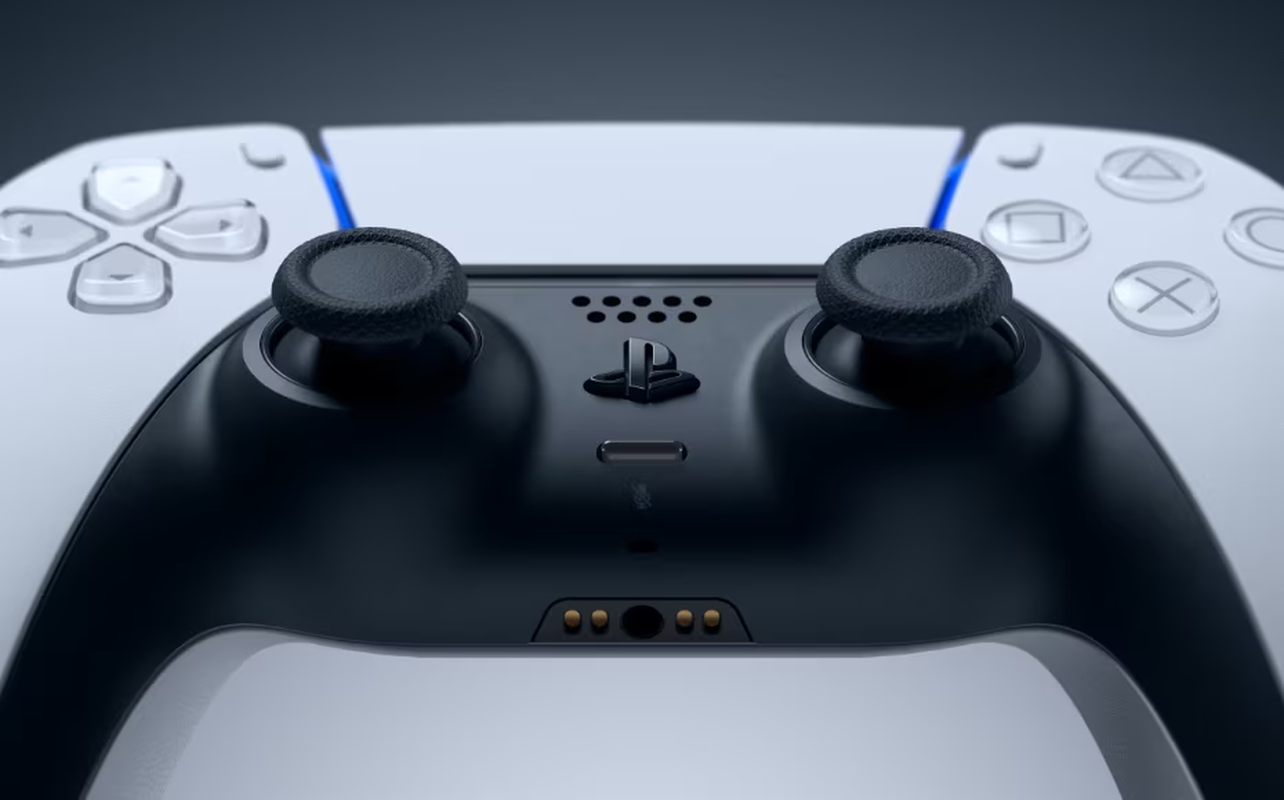
Gently move the affected stick through its normal range while wiping away visible dust around the base and surrounding surface.
Don’t force the stick farther than it normally moves. Avoid pushing cloth, tools, or other objects into the gap around the stick.
Once the outside is clean, reconnect the controller and test it again.
If visible exterior debris was contributing to the problem, you may notice an improvement. If the drift continues, that does not automatically mean the controller needs to be opened.
Cleaning mistakes to avoid
Don’t use alcohol, thinner, benzine, or chemically treated wipes or cloths on the controller. Keep liquid out of the controller and avoid spraying cleaner into the stick opening.
Also avoid forcing tools around the stick. Internal cleaning is a separate repair step with a much higher risk of damage.
Fix #4 Try the analog stick rotation method
You may come across an analog stick rotation technique when searching for DualSense drift fixes. This is an unofficial troubleshooting method with limited supporting evidence, not a PlayStation-supported repair.
How to try the analog stick rotation method
With the controller turned off, gently press the affected analog stick straight down.
While keeping normal pressure on it, rotate the stick through a few full circles in one direction. Repeat in the opposite direction.
Don’t force the stick or apply more pressure than you normally would while gaming.
Reconnect the controller and test it again.
What this method can and can’t do
There isn’t strong evidence that rotating the stick re-centres internal components or permanently repairs drift.
If the problem returns quickly, move on rather than repeatedly forcing the stick.
Fix #5 Adjust deadzone settings
A deadzone is the area around the centre of an analog stick where small movements are ignored.
Increasing that area can sometimes stop a game from reacting to a small amount of unwanted stick input. It can make mild drift less noticeable, but it doesn’t repair the controller.
What is a deadzone?
Every analog stick reports movement away from its centre position. A deadzone tells the game how much movement to ignore before it responds.
A larger deadzone can hide a small unwanted input. The tradeoff is reduced sensitivity around the centre of the stick.
That can affect aiming, steering, or other precise movement.
Adjust deadzones in supported games
On a standard DualSense, deadzone controls are game-specific when a game offers them.
Check that game’s controller or accessibility settings rather than looking for a universal PS5 deadzone setting.
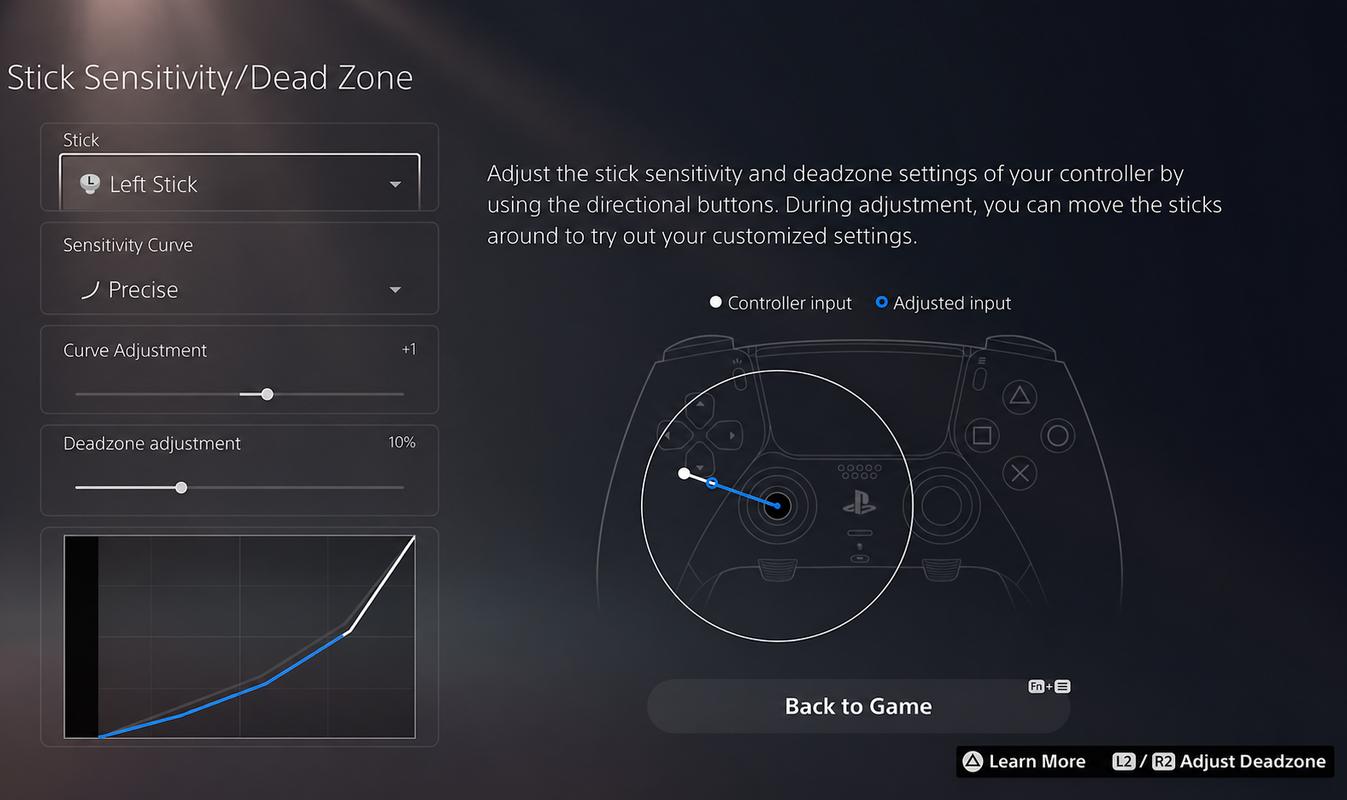
The DualSense Edge is different. PlayStation provides controller-level stick sensitivity and deadzone customization through its custom profiles.
What deadzone adjustments can and can’t do
A deadzone adjustment can make a controller more usable when the drift is minor.
It does not repair debris, worn joystick components, or physical damage.
If you have to keep increasing the deadzone to hide worsening movement, that’s a sign to consider repair rather than continuing to mask the problem.
Fix #6 Consider deep cleaning as an advanced repair
If exterior cleaning doesn’t change persistent drift, some repair guides move into cleaning the internal joystick components.
Opening the controller goes beyond Sony’s normal consumer troubleshooting guidance.
When deep cleaning may be considered
Internal contamination is one possible cause of drift, so deeper cleaning may be considered when low-risk troubleshooting hasn’t helped and the controller is out of warranty.
Before doing that, check your warranty status and PlayStation repair options.
If the controller may still qualify for warranty service, opening it first could create an unnecessary problem.
What internal cleaning involves
Internal cleaning requires opening the controller and reaching the joystick assembly.
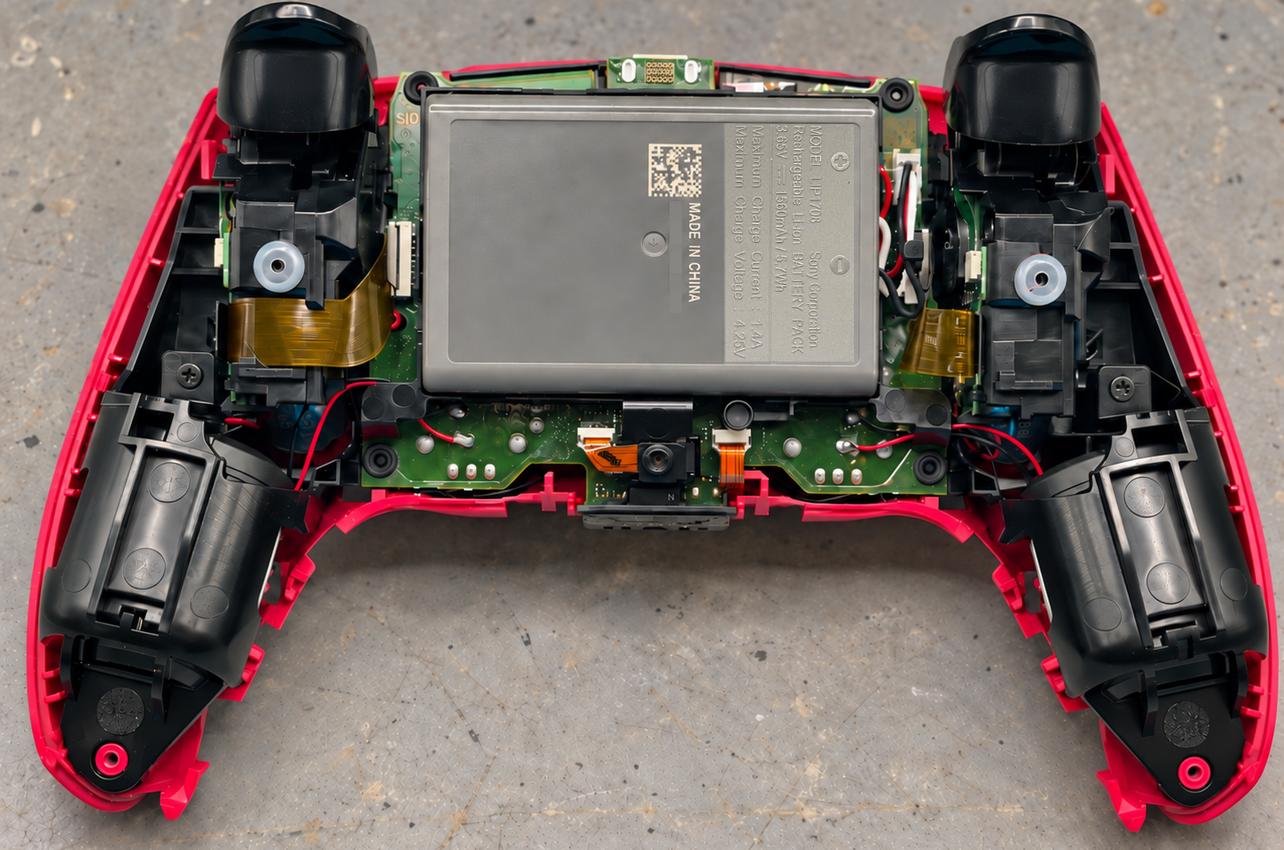
Independent repair guides may use electronics contact cleaner on internal joystick components. Sony does not recommend opening or modifying the controller as routine maintenance, so this article isn’t going to turn that process into a step-by-step home repair.
If you decide to attempt it, use a repair guide for your exact controller revision and understand what you are taking apart before you begin.
Risks of DIY repairs
Opening a DualSense can damage internal components if the controller is handled incorrectly.
Sony’s manual says unauthorized modification voids the manufacturer’s guarantee. Internal cleaning is advanced DIY work, not routine controller maintenance.
Fix #7 Replace the analog stick module
If the joystick mechanism itself is worn or damaged, replacing it can address the hardware instead of masking the symptom.
On a standard DualSense, however, this is not a simple plug-in replacement.
When module replacement may be considered
Module replacement becomes more relevant when drift remains after low-risk troubleshooting and a repair diagnosis points to worn or failed joystick hardware.
Persistent drift alone doesn’t tell you which internal component has failed, so replacing parts blindly isn’t a great first step.
If you aren’t comfortable diagnosing electronics, professional repair is the safer route.
What the repair requires
The analog stick module in a standard DualSense is soldered to the controller board. A module replacement typically requires a soldering iron, a compatible replacement joystick module, desoldering work, and calibration after installation.
That is advanced electronics repair. Poor soldering or calibration can leave the replacement stick off-centre or create another controller problem.
The DualSense Edge uses a different system. Its complete stick modules are user-replaceable without soldering, so don’t apply Edge repair instructions to a standard DualSense.
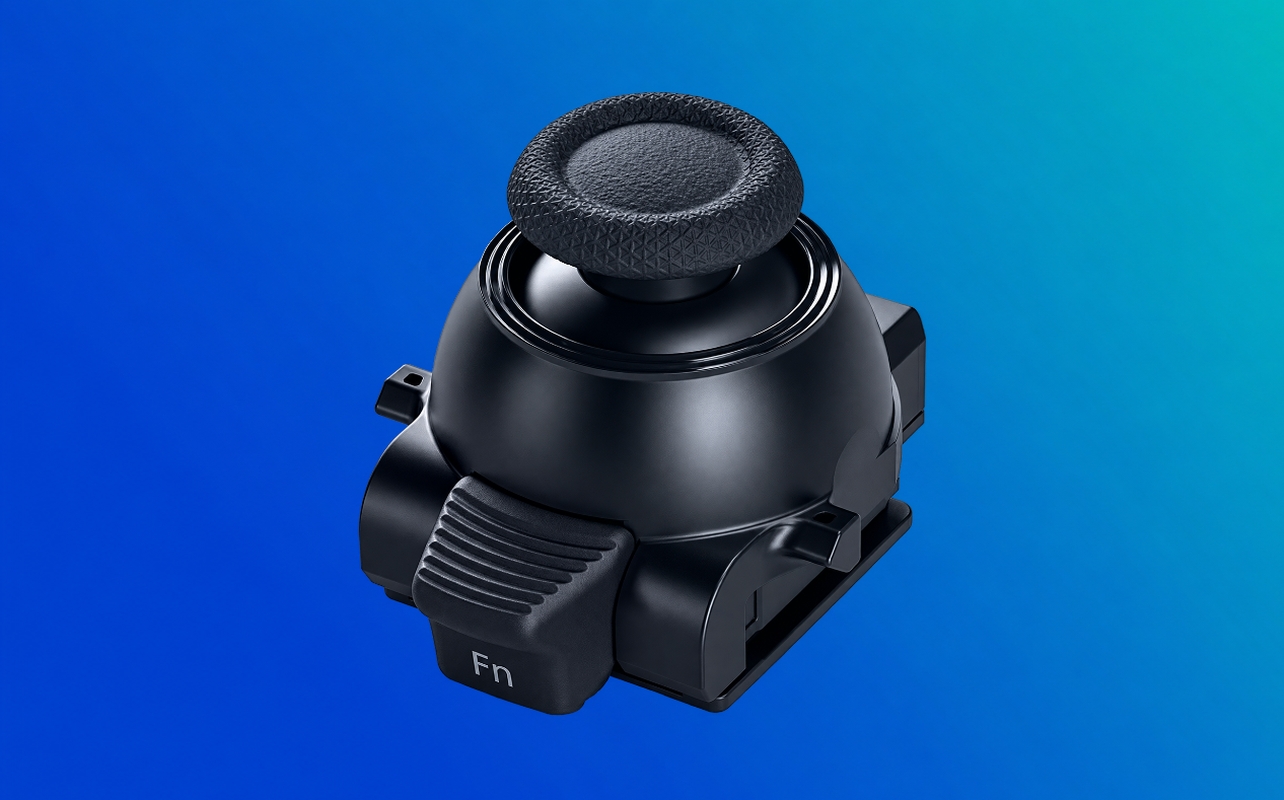
Hall effect joysticks vs. traditional sticks
Traditional joystick modules commonly use potentiometers with physical contact inside the position-sensing mechanism. Those contact surfaces can wear over time.
Hall effect sticks use contactless magnetic sensing. That can reduce wear associated with conventional stick drift, but it does not guarantee drift can never occur.
Third-party Hall effect conversions vary by controller revision, parts, installation quality, and calibration. Treat them as an advanced modification, not a guaranteed permanent fix.
Cost is another consideration. A Hall effect conversion can involve replacement parts, installation labour, and calibration, so there isn’t one useful price that applies to every repair.
If you’re paying a professional, compare the actual repair quote with the current cost of replacing the controller before deciding which route makes sense.
Fix #8 Contact Sony or a professional repair service
You don’t have to open the controller just because the first few troubleshooting steps didn’t solve the problem.
If the DualSense may still be under warranty, PlayStation support should be your next stop before any modification.
PlayStation repair options
PlayStation provides a repair and diagnostic process for controller problems.
Have your proof of purchase available if the controller may still be covered by the limited warranty. Sony may repair or replace qualifying hardware under the terms of that warranty.
There isn’t a single guaranteed turnaround time for every repair, so avoid planning around an assumed number of days.
If PlayStation determines that the problem isn’t covered, you can then compare the available repair and replacement options.
Professional repair shops
A professional electronics or controller repair shop may be another option for an out-of-warranty DualSense.
Before authorizing a repair, find out whether the shop has experience with DualSense joystick modules and whether calibration is included after replacement.
Ask for the repair cost before proceeding, then compare that with the current cost of replacing the controller. There isn’t one standard Canadian repair price that applies everywhere.
How to prevent PS5 controller drift
No maintenance routine can guarantee that a DualSense will never develop drift. Internal components can still wear over time.
You can, however, reduce unnecessary contamination and physical damage through basic controller care.
Routine controller care and storage
Keep the controller and its connectors free from excess dust, small particles, and liquid.
Clean the exterior as needed and keep the controller stored in a dry area away from excessive heat or humidity.
Avoid leaving it somewhere it can easily be dropped, stepped on, or knocked off a desk.
Best practices while gaming
Clean hands help keep oils and debris off the controller.
Try to keep food and drinks away from the controller, especially around the analog sticks and buttons.
Use the controller normally and avoid drops, strong physical impacts, or other rough handling.
When to replace your controller
There isn’t an official age when a DualSense should automatically be replaced.
If drift remains after low-risk troubleshooting, start with warranty or repair options. For an out-of-warranty controller, compare the difficulty and cost of repair with the cost of replacement.
A standard DualSense module replacement requires considerably more technical work than swapping the replaceable stick module in a DualSense Edge.
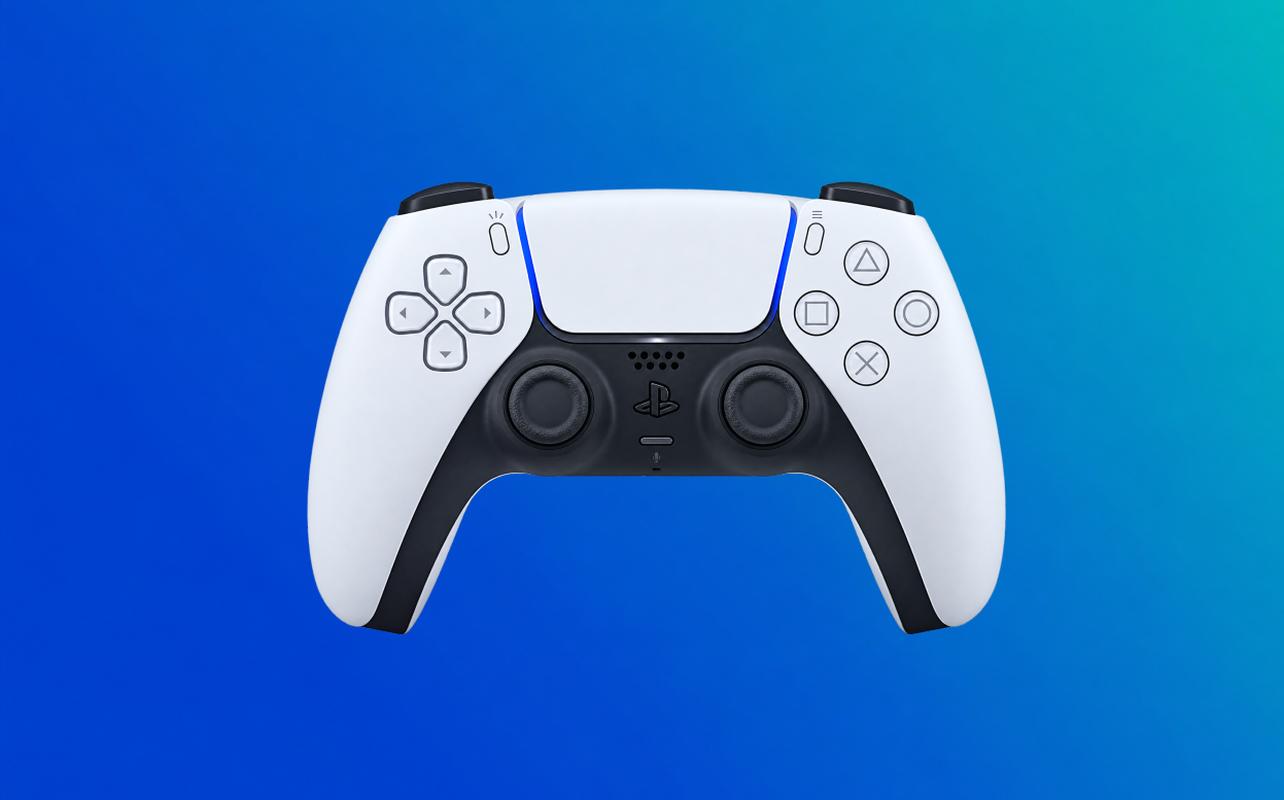
If professional repair no longer makes practical sense, replacing the controller may be the simpler option. Best Buy Canada carries PS5 controllers if you reach that point, and our controller guide can help you compare the available options.
PS5 controller drift FAQs
Not reliably. Drift may seem to improve temporarily, but unwanted input can return if debris, wear, or another controller problem remains.
It may help, but it isn’t a guaranteed drift fix. Resetting won’t repair worn joystick hardware.
Dust and small particles can contribute to stick problems. Start with safe exterior cleaning, but persistent drift may have another cause such as internal component wear.
It may be. Sony’s Canadian DualSense limited warranty covers qualifying defects for one year from the original purchase, subject to its terms and exclusions.
Sony does not publish a fixed lifespan for a DualSense controller. Longevity varies with use, handling, environment, and normal component wear.
Start with low-risk troubleshooting and check your warranty. If the controller is out of warranty, compare professional repair with replacement before attempting advanced soldering or internal repairs.