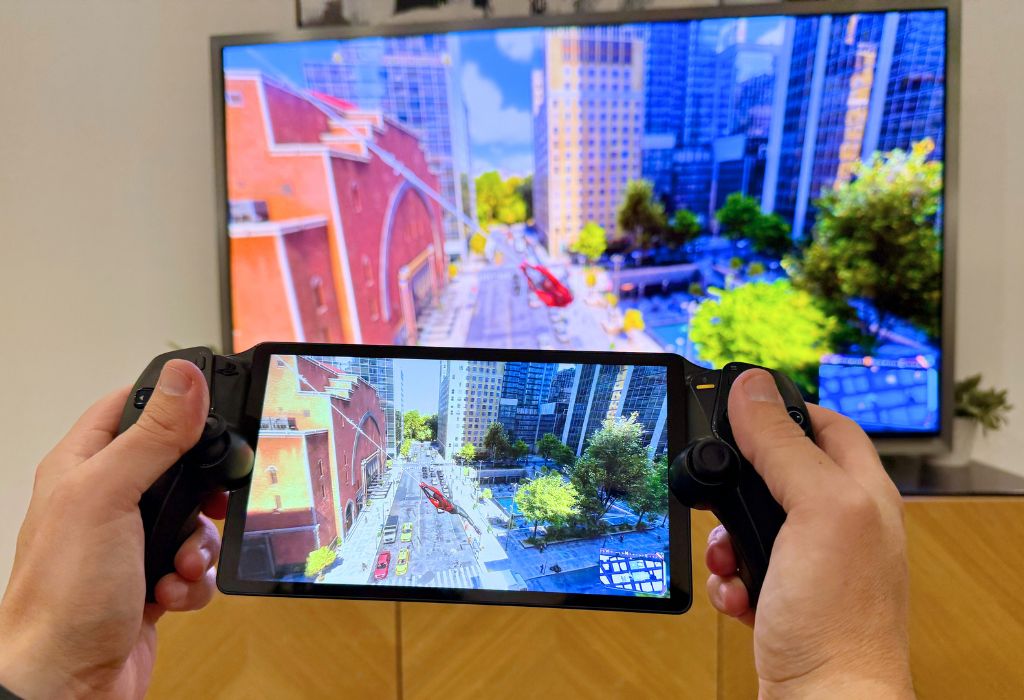
The PlayStation 5 Remote Play feature is one of my favourite ways to keep playing when my main TV isn’t available, or I’m away from my usual gaming setup. Instead of moving my PlayStation 5, Remote Play streams games running on my console to a compatible phone, tablet, PC, Mac, or PlayStation Portal.
The best way to play remotely with the PS5 depends on where you play and what hardware you already own. For the most seamless experience, I highly recommend PlayStation Portal. You can also use an iOS or Android smartphone paired with a DualSense controller as an excellent alternative, while PCs and Macs offer strong large-screen options.
Here’s how every major method compares and what you need for the smoothest PS5 Remote Play experience.

Table of contents
- What is PS5 Remote Play?
- What you need to do before using PS5 Remote Play
- Best ways to Remote Play PlayStation 5
- What to consider when Remote Playing PS5 away from home
- How to improve PS5 Remote Play performance
What is PS5 Remote Play?
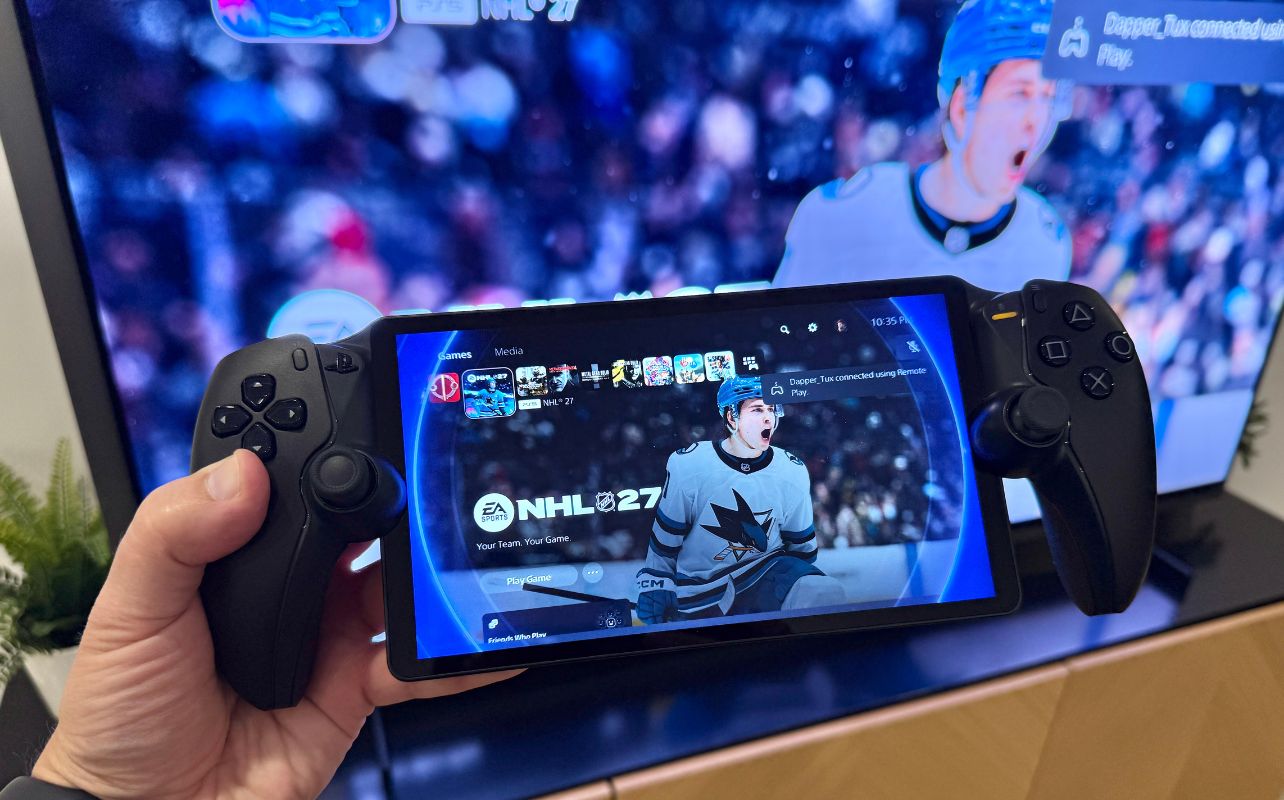
Remote Play lets you access and control your PlayStation 5 from another supported device over your home network or the internet. Your PS5 remains the host console and runs the game while video and audio stream to your Remote Play device.
Sony’s free PS Remote Play app supports compatible iPhone, iPad, Android phones and tablets, Windows PCs, and Macs. The PlayStation Portal is Sony’s purpose-built hardware focused on Remote Play technology.
If you’re still considering a PlayStation 5 for your gaming setup, read the Blog’s PS5 buying guide.
What you need to do before using PS5 Remote Play
Before starting, you need to turn on Remote Play from your PlayStation 5 console. This applies to every method in this guide that connects directly to your PS5, including PlayStation Portal, smartphone, tablet, Windows PC, and Mac. Follow these quick steps:
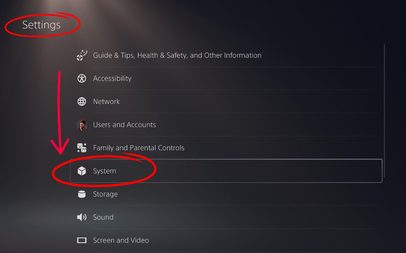
- Press the PS button on your remote and go to Settings > System.
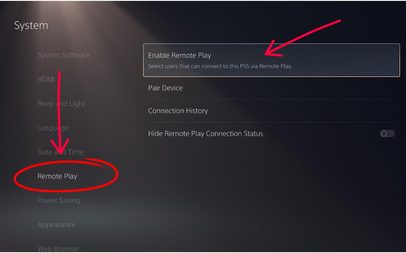
2. Under System, select Remote Play and then Enable Remote Play:
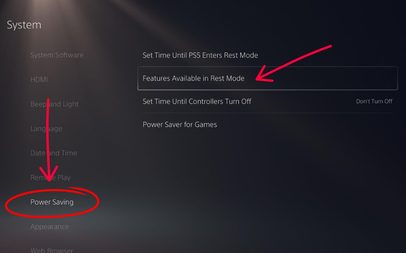
If you want to connect while your PS5 is in Rest Mode, go to Settings > System > Power Saving > Features Available in Rest Mode:
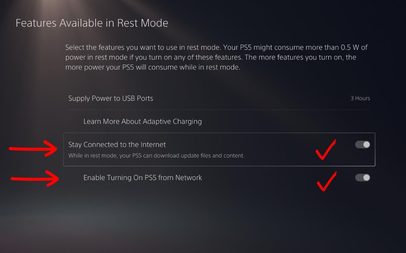
3. Enable Stay Connected to the Internet and Enable Turning On PS5 from Network.
Lastly, you’ll also need to sign in to your Remote Play device with the same PlayStation account you use on PS5.
Best ways to Remote Play PlayStation 5
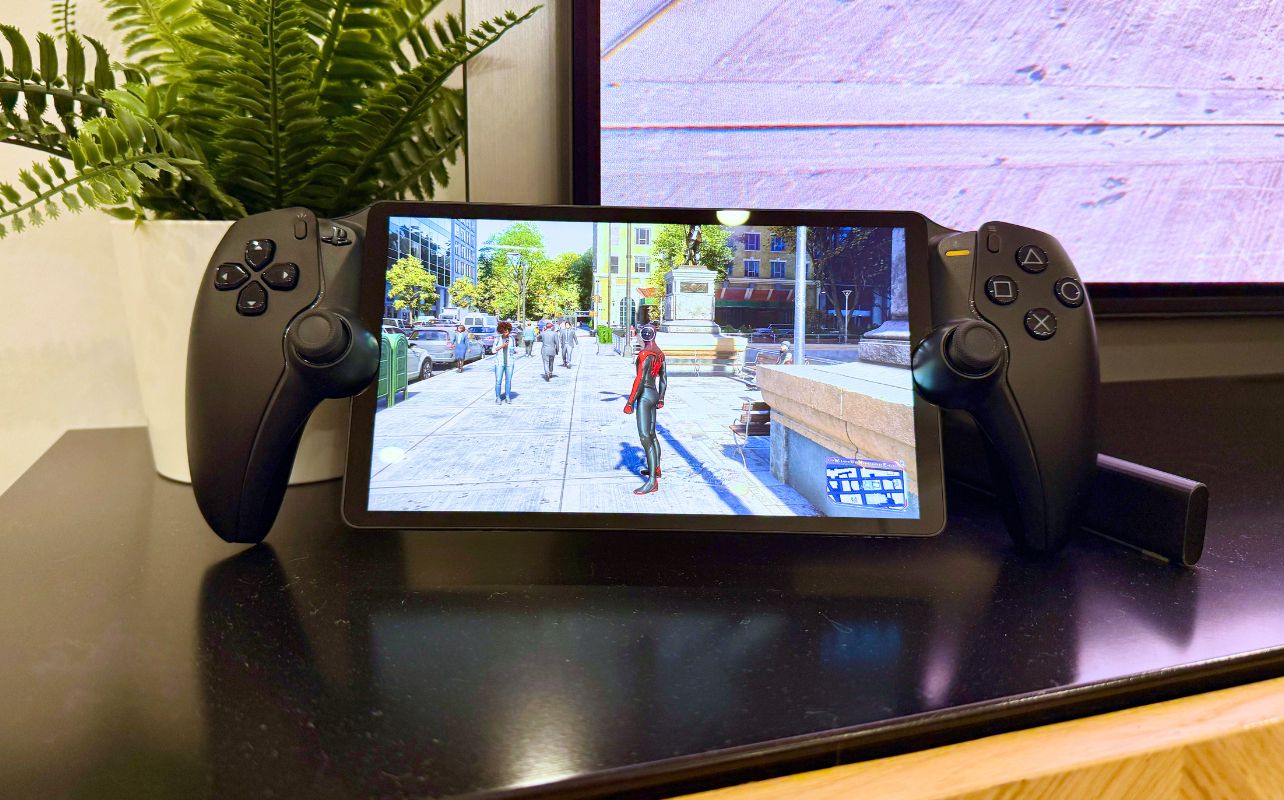
There are five main ways to use PS5 Remote Play, and the best option depends on the hardware you already own and where you plan to play. Here’s how each method compares:
1. PlayStation Portal (best for Frequent PS5 Remote Play users)
Let’s first look at the PlayStation Portal as an option and what it brings to the table. If you are a PS5 owner looking for the most seamless experience, PlayStation Portal is my top pick. I find it’s the fastest to connect and most convenient option when you are looking to get playing with less hassle. Its eight-inch 1080p LCD can display gameplay at up to 60fps, while integrated physical controls in the device’s body bring familiar DualSense controller features such as adaptive triggers and haptic feedback to supported games.
Here are the pros and cons:
Pros: When you break it down, the biggest advantages of PlayStation Portal are its purpose-built PS5 design, integrated DualSense-style controls, eight-inch 1080p display, and simple console-like experience that makes Remote Play easy to jump into.
Cons: The main drawbacks are the added cost of dedicated hardware and the fact that performance still depends heavily on the strength and stability of your network connection.
2. PS5 Remote Play on Mobile, Mac, and PC
If you aren’t looking to invest in new hardware just yet and want to try PS5 Remote Play on a device you already own, it’s straightforward. First, you need to see if you have a compatible device. Major Remote Play hardware options include iPhone, iPad, and Mac; Android phones and tablets; and Windows PCs.
If you have one of these devices, it’s likely to work with the PS5 Remote Play feature, but be sure to double-check that your device is officially supported by Sony. Once you confirm you have a compatible device, you can now set up the software side of Remote Play by installing the app:
Steps to download the PS Remote Play app
1. Download the PS Remote Play app on your compatible phone, tablet, Windows PC, or Mac.
2. Sign in using the same PlayStation account connected to your PS5.
3. Select PS5 when prompted and allow the app to search for your console.
4. Once connected, your PS5 home screen will appear on the Remote Play device.
5. Connect a DualSense controller where supported, or use the available touchscreen controls on mobile devices.
I recommend testing the connection at home before relying on Remote Play while travelling. This gives you a chance to confirm that your Rest Mode and remote wake settings are working properly.
Internet requirements
Sony lists 5Mbps as the minimum connection speed and recommends at least 15Mbps for a better experience. Latency, Wi-Fi interference, network congestion, and distance from your router can also affect responsiveness. For the best results, I recommend connecting your PS5 directly to your router with Ethernet and using a strong 5GHz or Wi-Fi 6 connection on your Remote Play device.
If you are looking for the best options to optimize your home network, feel free to take a look at my article comparing Mesh Wifi vs. traditional routers to get the most out of your connection.
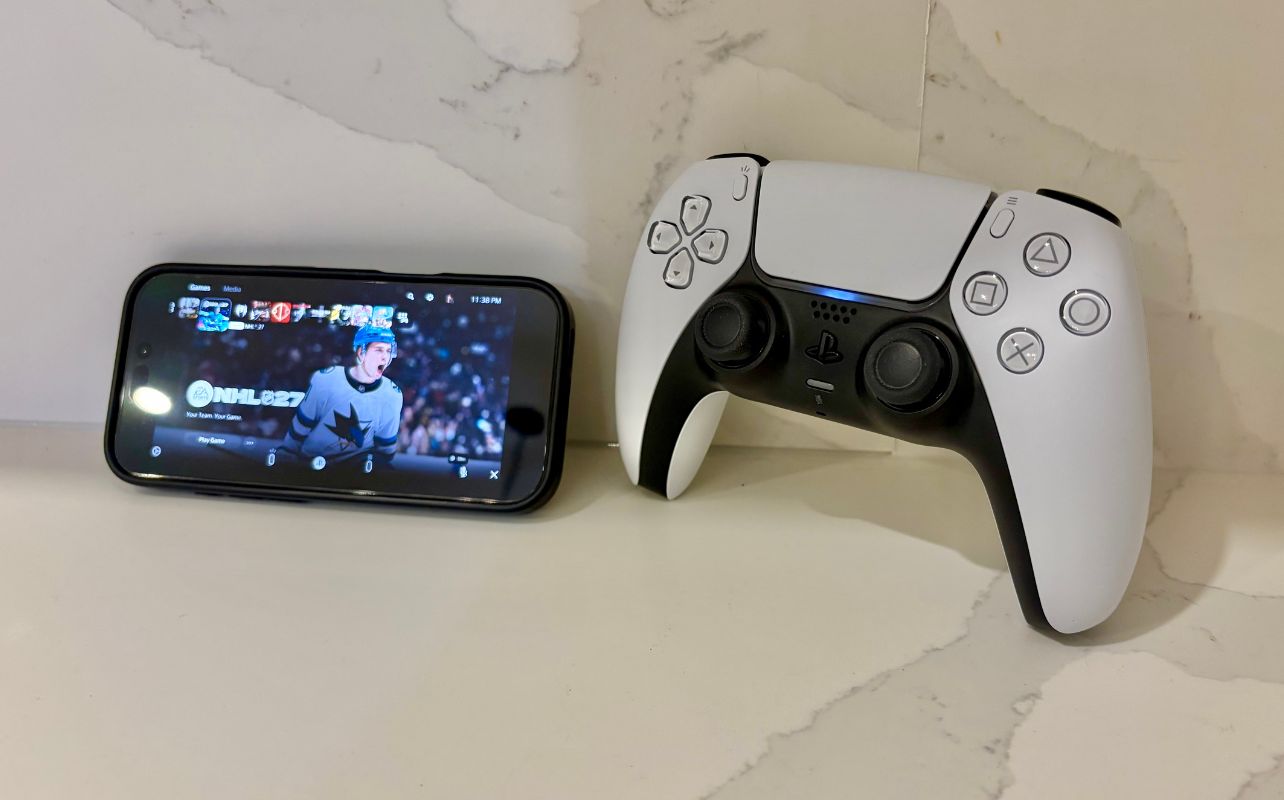
Smartphone Remote Play (best free and travel option)
A smartphone is one of the easiest ways to start because you likely already own everything you need for this setup to work. Here are the steps to set this up:
- First, install PS Remote Play and either use touchscreen controls or pair a DualSense controller. I strongly prefer a physical controller for action games where precise movement matters.
- To use Remote Play on an iPhone or Android phone, open the PS Remote Play app, sign in to your PlayStation account, select your PS5, and let the app establish the connection.
- To pair a DualSense wirelessly, hold the Create and PS buttons until the light bar begins flashing. Then select the controller from your phone’s Bluetooth settings.
Remote Play can also work over compatible mobile data connections, although streaming can use a significant amount of your data allowance.
Smartphone Remote Play advantages
The biggest advantages are accessibility and portability. The PS Remote Play app is free, smartphones are easy to carry, DualSense controllers are supported, and compatible mobile data connections give you another way to play when Wi-Fi isn’t available.
Smartphone Remote Play drawbacks
The main compromise is screen size, especially compared with a tablet or PlayStation Portal. Touchscreen controls are also available, but I find they can feel awkward for games that require fast reactions or precise inputs, making a paired DualSense the better option whenever possible.
Tablet Remote Play (best portable large-screen option)
A tablet offers a nice middle ground between smartphone portability and a laptop-sized display. Pair an iPad or compatible Android tablet with a DualSense controller, and you have an excellent setup for playing around the house.
Tablet Remote Play advantages
A tablet gives you a larger display than a smartphone while still keeping Remote Play relatively portable. Many tablets also offer long battery life, and pairing a DualSense or another compatible controller can create a comfortable setup well suited to longer gaming sessions.
Tablet Remote Play drawbacks
The main trade-off is that a separate controller is highly recommended for the best experience, which means carrying an extra accessory. Tablets are also less pocket-friendly than smartphones, so they are not quite as convenient for quick gaming sessions while travelling.
Windows PC Remote Play: Best for desk setups
PS5 Remote Play on Windows PC is ideal if you already spend time at a desk. A monitor provides more screen space, while wired networking can create a particularly stable setup. For a PS5 Remote Play PC setup, follow these quick steps:
- First, install Sony’s PS Remote Play application on Windows, sign in to your PlayStation account, select your PS5, and let the app locate your console.
- Connect a compatible controller, and an existing desktop or laptop becomes another place to access your PS5 library. If both your computer and PS5 use Ethernet, you can also reduce wireless interference.
Windows PC Remote Play pros
A Windows PC can offer one of the most comfortable Remote Play setups, especially if you already game or work at a desk. You get the benefit of a larger monitor, DualSense support, and the option to use Ethernet for a more stable connection. It is also easy to switch between Remote Play and other desktop tasks without changing devices.
Windows PC Remote Play cons
The biggest limitation is that you need access to a compatible computer in the first place. Desktop PCs also offer very little portability, making this option best suited to a fixed desk or home office setup rather than gaming on the go.
Mac PS Remote Play
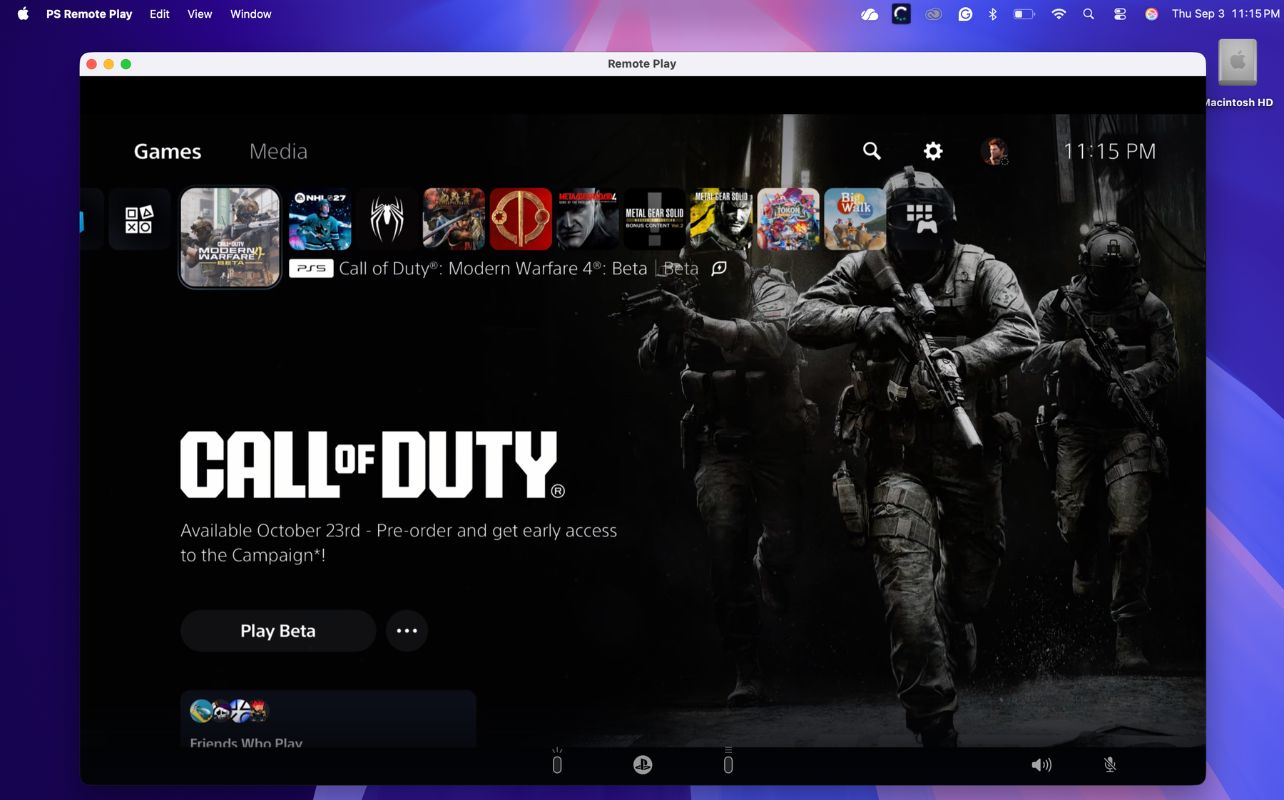
Mac offers essentially the same advantages as PC, especially for MacBook owners who want a portable large-screen option. Download PS Remote Play for Mac, sign in to the same PlayStation account as your console, select PS5, and let the application locate it.
Mac Remote Play advantages
Mac Remote Play is a strong option for Apple users who want a larger screen without giving up too much portability. MacBook, in particular, offers a useful middle ground between a tablet and a desktop setup, while still supporting a compatible controller for a more traditional gaming experience.
Mac Remote Play drawbacks
The main downside is that you will need to carry a controller separately, which adds another accessory to your setup. As with every Remote Play option, the quality of the experience also depends heavily on the speed and stability of your network connection.
Which Remote Play method is best?
We just covered a lot of info and options for hardware combinations that work with the PS Remote app. Here’s a quick “at a glance” chart to help you weigh all the factors and find the best fit for the way you play:
| Device | Performance | Ease of setup | Portability | Best for |
| PlayStation Portal | Excellent | Excellent | Excellent | Best overall |
| Smartphone | Good | Easy | Excellent | Budget/travel |
| Tablet | Good | Easy | Very good | Home gaming |
| PC | Excellent | Easy | Varies | Desk setups |
| Mac | Excellent | Easy | Good | Large-screen play |
What to consider when Remote Playing PS5 away from home
You can use Remote Play outside your home network if your PS5 and Remote Play device have suitable internet connections. Your Remote Play device does not need to be connected to the same Wi-Fi network as your PS5. Your console can remain at home while you connect from another compatible network, provided the PS5 is online and configured to wake remotely.
Before travelling, I recommend connecting remotely at least once to ensure your account and Rest Mode settings are working correctly.
Hotel Wi-Fi performance can vary considerably, especially on busy networks. Mobile hotspots can be another option, but latency and data usage are important considerations. Remote Play over cellular connections also counts against your mobile data allowance.
When using public Wi-Fi, stick to trusted networks and avoid unsecured connections whenever possible.
How to improve PS5 Remote Play performance
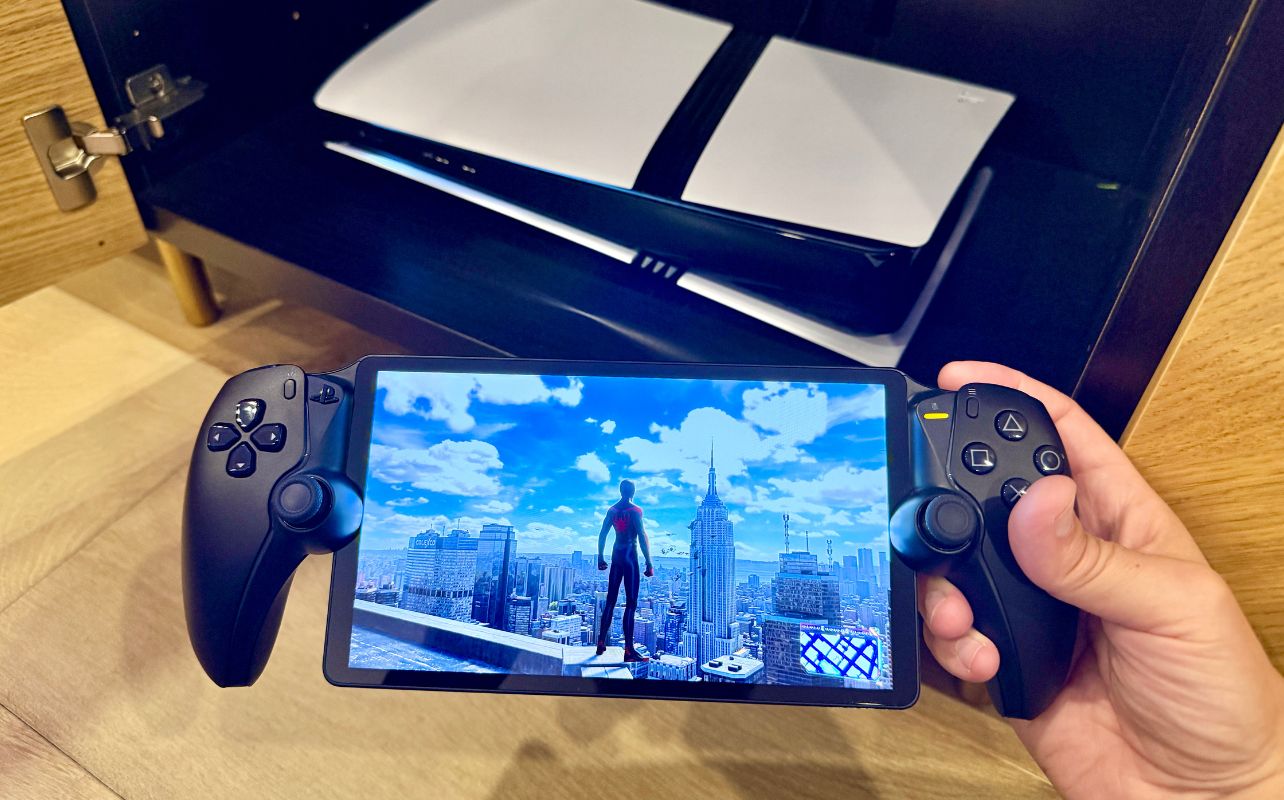
Use Ethernet for your PS5
This is my first recommendation. A wired PS5 eliminates one potentially unstable wireless connection and can dramatically improve consistency with your Remote Play experience.
Reduce network congestion
If you are getting ready to play, I highly recommend pausing large downloads, cloud backups, and unnecessary video streams while playing.
Adjust streaming resolution
Higher image quality needs more bandwidth. If your connection struggles, prioritize stability over resolution, then start scaling up to see if your network can handle it.
Upgrade your router
A newer wireless router can improve coverage and handle multiple connected devices more effectively, especially in busy households with multiple connections.
Use 5GHz or Wi-Fi 6
When you’re reasonably close to your router, 5GHz typically provides better Remote Play performance than a congested 2.4GHz network.
Common PS5 Remote Play problems and fixes
Even with a strong setup, you may occasionally encounter connection, video quality, or responsiveness issues when using PS5 Remote Play. Fortunately, most common problems are easy to troubleshoot with a few quick settings or network adjustments. Here are some potential issues and their fixes:
- Lag and input delay: Wire your PS5, move closer to the router, switch to 5GHz Wi-Fi, and reduce other network traffic.
- Poor video quality: Check Wi-Fi signal strength and network congestion. Lowering streaming quality can help maintain a steadier connection.
- Connection errors: Confirm Remote Play is enabled, your devices are updated, and you’re using the correct PlayStation account.
- PS5 won’t wake remotely: Make sure Stay Connected to the Internet and Enable Turning On PS5 from Network are enabled under Rest Mode settings.
- Controller connection problems: For DualSense Bluetooth pairing, turn the controller off and hold the Create and PS buttons until the light bar flashes. Then, select it from your device’s Bluetooth settings.
PS5 Remote Play vs. PlayStation Portal
Both options deliver a strong PS5 Remote Play experience, but they appeal to slightly different types of players. The better choice really comes down to how often you plan to use Remote Play and whether you value versatility or a more dedicated setup.
The PS Remote Play app wins on cost and flexibility because it works with hardware you may already own, including smartphones, tablets, PCs, and Macs.
PlayStation Portal wins on convenience and controls. Its display and DualSense-style controls are integrated into one purpose-built device, eliminating the need for stands, controller mounts, or additional pairing. For occasional use, I would start with the free Remote Play app. If Remote Play becomes part of your regular PS5 routine, Portal offers the best overall experience.
Final verdict on PS Remote Play
The best way to Remote Play depends on where and how you plan to play. But for me, PlayStation Portal is the clear overall winner. Its dedicated 1080p display and integrated DualSense-style controls make it feel like a natural extension of the PS5.
That said, I recommend trying the free PS Remote Play app first using a smartphone, tablet, PC, or Mac to see how well your network handles streaming before investing in additional hardware.
Whichever option you choose, a strong network connection is key to getting the smoothest experience.
PS Remote Play FAQs
Yes. The PS Remote Play app itself is free, but it requires a PS5 and compatible hardware to stream to.
Yes. Remote Play works over compatible internet connections away from your home network.
Sony requires at least 5Mbps and recommends at least 15 Mbps for a better experience.
Yes, on compatible mobile devices and networks, but it uses your cellular data allowance.
For frequent Remote Play users, like me, absolutely. Its integrated controls and display make it the most streamlined and comfortable option to hold.
No. PlayStation Portal, for example, targets up to 1080p at 60 fps rather than 4K.