
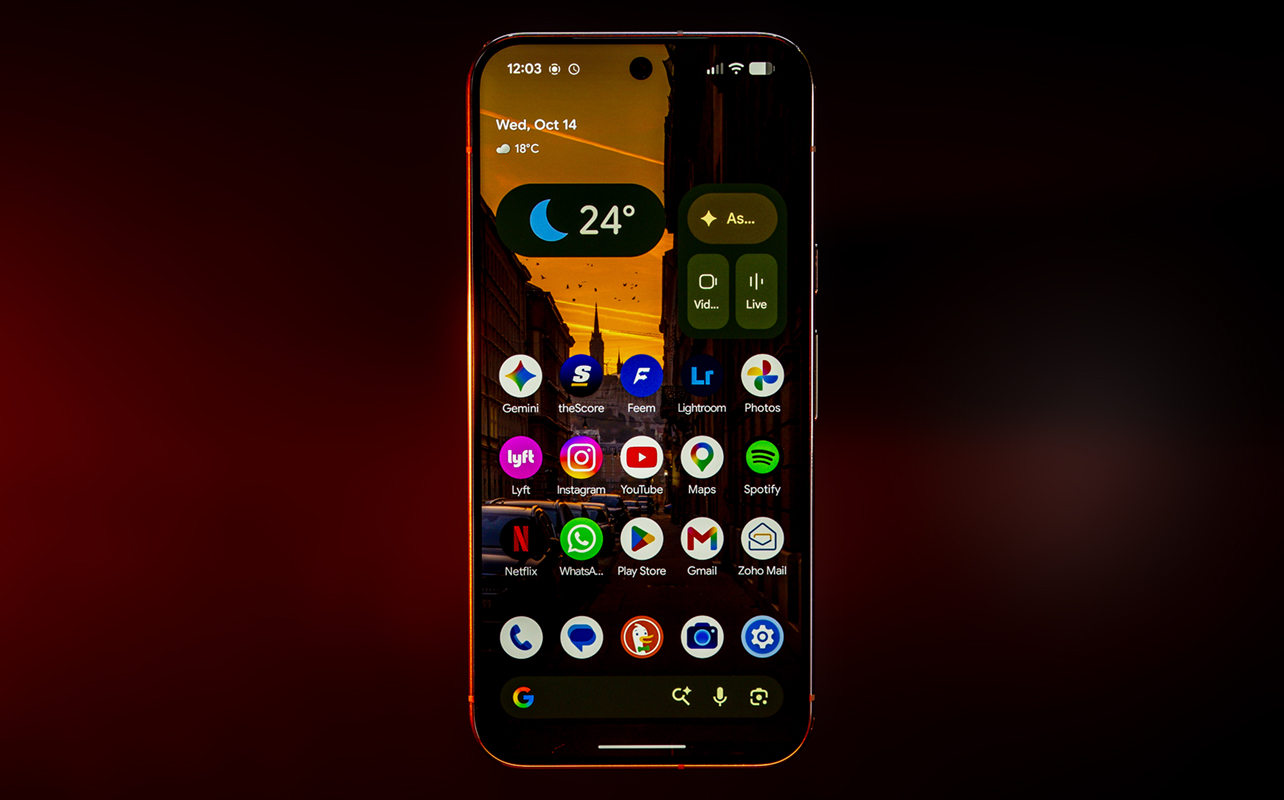
There’s not a whole lot that dramatically changes with the Google Pixel 11 Pro XL but it manages to make new AI features practical, which impacts the apps and features you might use often. This makes the device feel practical in ways that don’t come across as gimmicky, though you also have to get comfortable with how it all ties together.
Messaging, contextual information, and photo-taking all benefit from these shifts. You can dictate text messages and emails using your own natural language. Contextual information can pop up in response to a suggestion or question. New photography styles and AI help in capturing images that better suit your taste and style. These are a few of the examples of what is a solid all-round Android phone.

Watch my Pixel 11 Pro XL review video
Pixel 11 Pro XL design
Google Pixel 11 Pro XL (as tested):
|
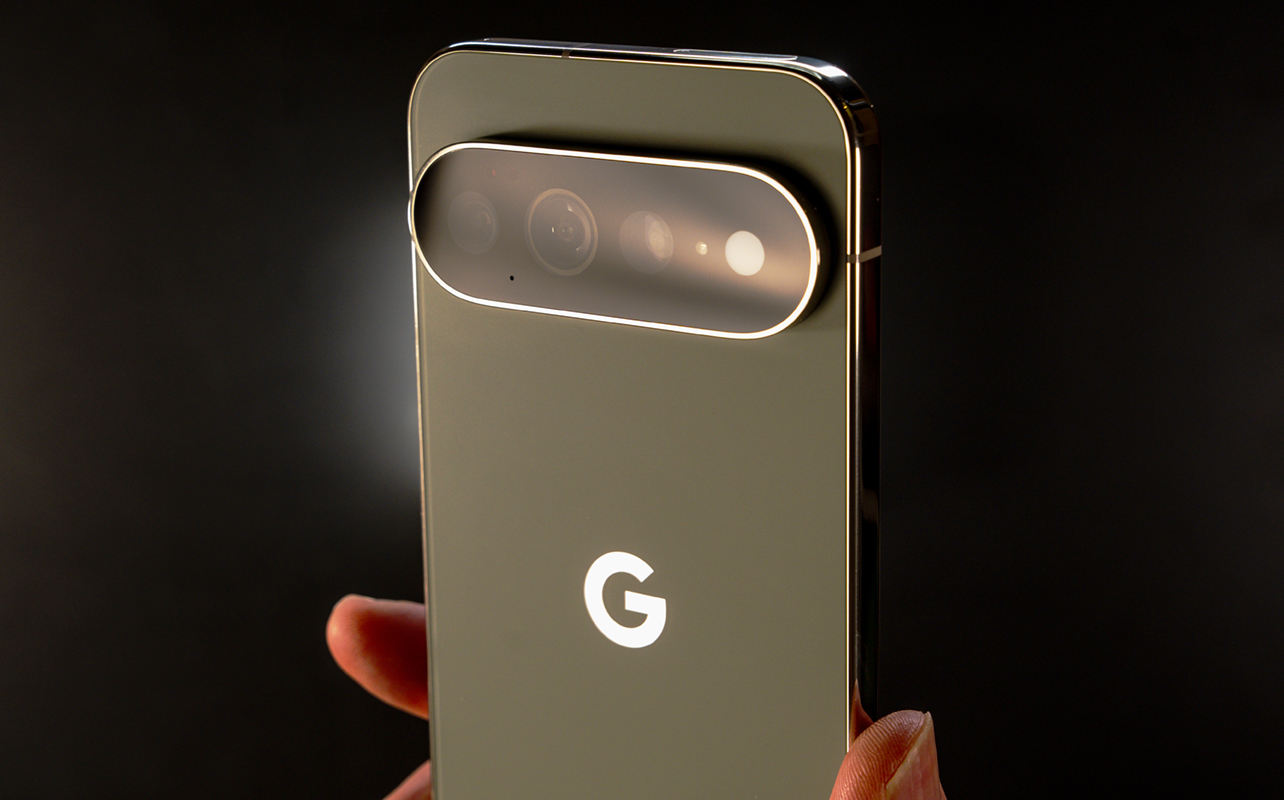
Google has become predictable over the years. The Pixel 11 Pro XL isn’t all that different in design from its predecessor. Apart from a slightly different aesthetic for the rear camera bar (and rearranged LED flash), the phone borrows almost entirely from before. I will say, though, the all-glass look is more refined compared to the previous mixed look. Google also removed the temperature sensor from the bar to make room for the HiLight feature embedded in the LED flash.
Otherwise, the phone has the same shiny aluminum edges and Gorilla Glass Victus 2 on both sides. Additionally, Google now uses a new anti-scratch cover for the 6.8-inch display. This screen is exactly the same panel as the Pixel 10 Pro XL, but what’s interesting is that it’s Gorilla Glass whereas the Pixel 11 Pro Fold uses a tougher ceramic glass on its cover screen.
Despite the familiarity, Google is at least working off a nice canvas. It’s an objectively pretty device, a view reinforced by the feedback I received from friends and family when looking at it. The vibrant screen doesn’t hurt, nor does the fact that Canadian variants continue to have physical SIM card slots, whereas American ones are eSIM-only.
Pixelsnap is also back, the built-in magnetic system in the rear where you can attach accessories such as chargers, stands, wallets, and lights directly to the device. I love this feature and am glad to see Google continue to support it, especially since it works perfectly fine with accessories designed for Apple’s MagSafe system. There are plenty of cases for the phone that are also Pixelsnap-ready.
Performance and usability
Pixel phones are rarely about speed and power. Google’s Tensor chipset never wins any benchmark tests but that doesn’t make it underwhelming. It’s the day-to-day aspect that matters more and that’s where the software experience comes in. However, it’s worth noting the Pixel 11 Pro models start at 12GB of RAM instead of 16GB like last year, so Google has to do more with less in some respects. With seven years of Android and security updates, I have my reservations about how well it will do a few years from now but we’ll see.
The good news is you may not notice if you’re simply looking to do the usual things: messaging, browsing, streaming, photos, video, navigation, and social media. The biggest drawback is gaming, and by “gaming” I mean demanding games that run smoothly on other Android devices. Not every game supports the Tensor G6 and its GPU, so your experience may vary wildly between stuttering gameplay or lag that just hurts the game’s flow. If mobile gaming is a priority, this isn’t the best fit.
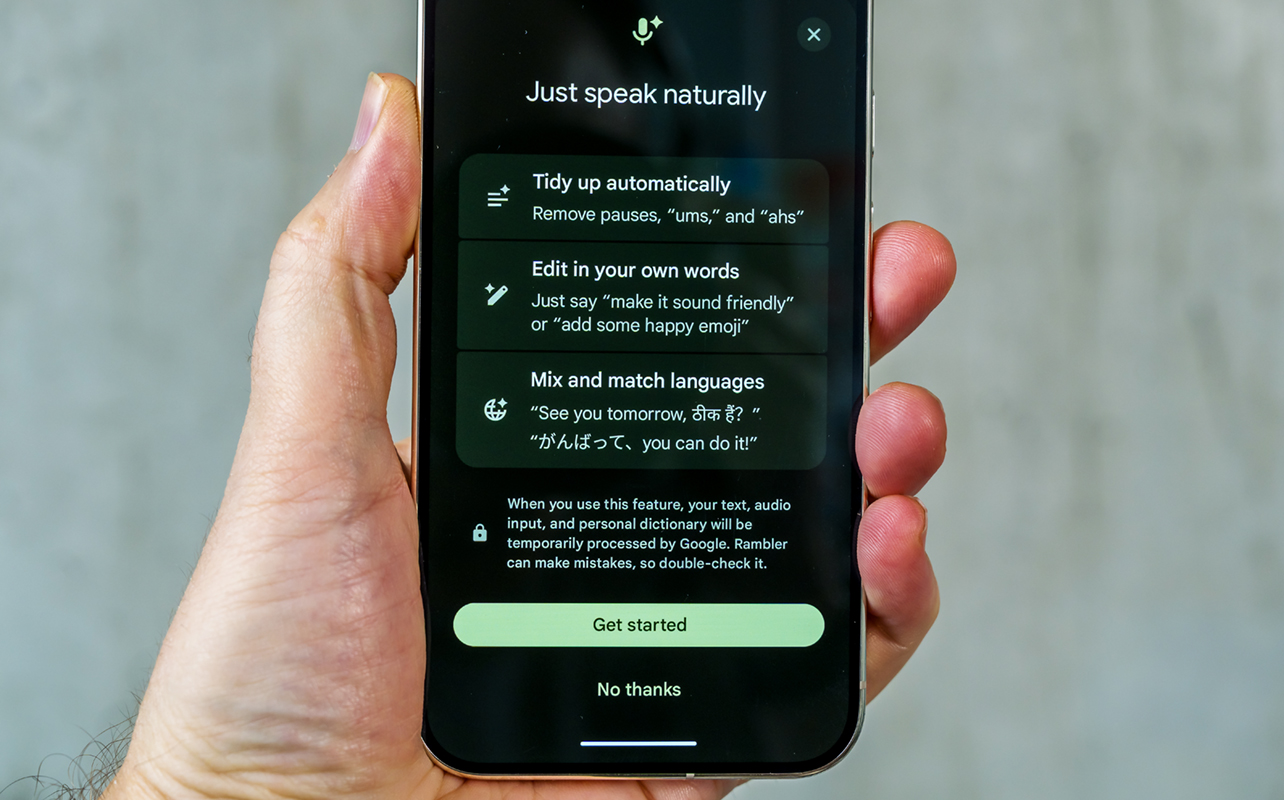
There are some standouts aside from all that. As of this review, Rambler is a Pixel-exclusive and it truly changes how you send messages or emails through the Gboard keyboard. Since it understands natural speech, you can simply say what you want to write, and Google Gemini figures out how to transcribe it. What I like about it is its intentionality, meaning you can tell it to swap out words, add emojis, or even alter the tone and style of what you said. Swap out words or add something to an existing sentence. Since Gemini knows what’s in there, it can oblige in surprisingly effective ways. It’s just very cool and practical. Too bad it’s really only for Messages and Gmail.
There are other useful functional points, like how Quick Share works flawlessly with Apple’s AirDrop. You can share any photo or file with an iPhone, iPad, or Mac just as easily as you can with another Android device.
It’s about the AI in Gemini
No surprise, Gemini highlights much of what’s new, or feels new, in this device. But there’s also Gemini Intelligence. What’s the difference? Gemini is the assistant itself, like you interact with in the Gemini app or when chatting with the AI chatbot and assistant. Gemini Live lets you have an ongoing conversation with it.
Meanwhile, Gemini Intelligence is the broader system integration that connects Gemini with apps, screens and system features by understanding what’s on screen and using that information to perform actions in another app. In other words, it’s supposed to act on context without a chatbot getting involved.
Some of it runs on the device, including features powered by Gemini Nano and the Recorder app, which can transcribe and translate directly on the phone. But most of the AI features you can use will need connectivity to run through the cloud. Mind you, not all are available in Canada, like Ask Photos, but ones that you’d probably use, like Call Screen, Take a Message, and Live Translate are good to go.
If you buy a Pixel 11 Pro XL, you get a 6-month free trial of Gemini Pro (version 3.1 thus far), which is shorter than the 12-month trial Google previously offered. This applies to all Pixel 11 Pro models, including the Fold. The subscription maintains access to features Flow, the AI-powered filmmaking tool for creating cinematic clips, and Veo to create short 8-second AI-generated clips based on your prompts.
Proactive Assistance
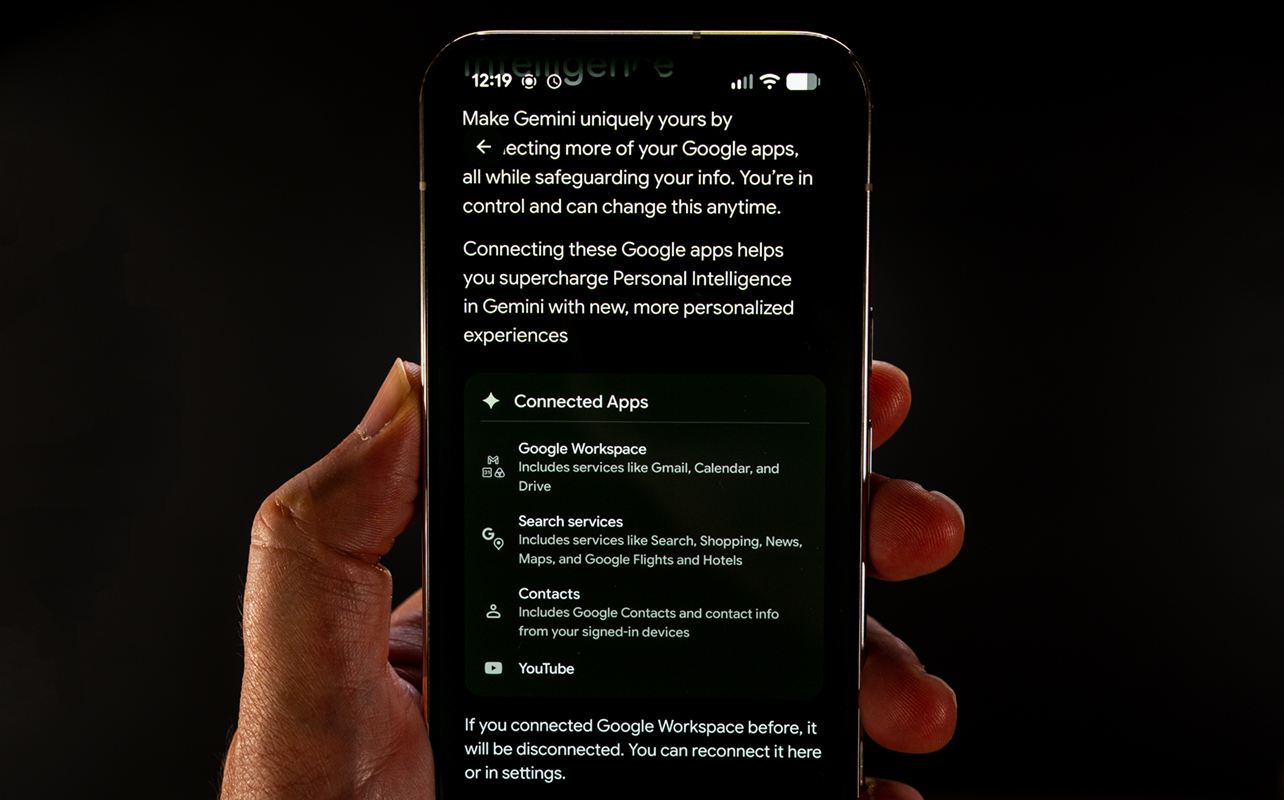
I recognize all the AI stuff going on here might seem confusing by reading about it here but it can feel more fluid once you use the phone. When first setting up or migrating over to the Pixel 11 Pro XL, you may see a section saying, “Supercharge Gemini with Personal Intelligence.” This directly relates to the Gemini Intelligence I noted earlier where connected apps (Gmail, Calendar, Drive) can access details that can include search, maps, flight details, hotels, contacts, and YouTube.
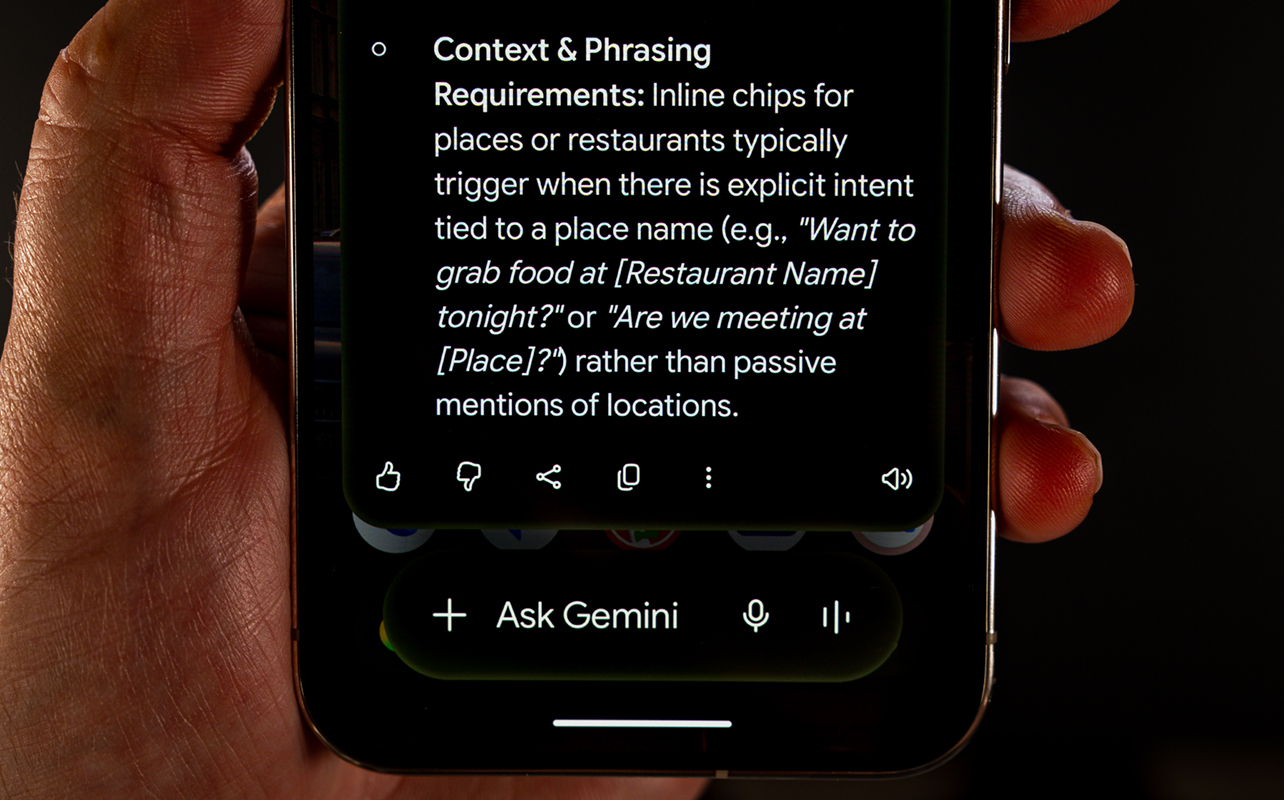
A seeming successor to Magic Cue, an AI feature Google introduced last year, it works to cross things over. In practice, that means the AI would be able to recognize flight or hotel information based on it coming up in a text exchange in Messages, for instance. It could search for a restaurant near a location mentioned in an email or message, or pop up a calendar appointment when someone requests a meeting. There are various ways to utilize Proactive Assistance so these are just a few examples.
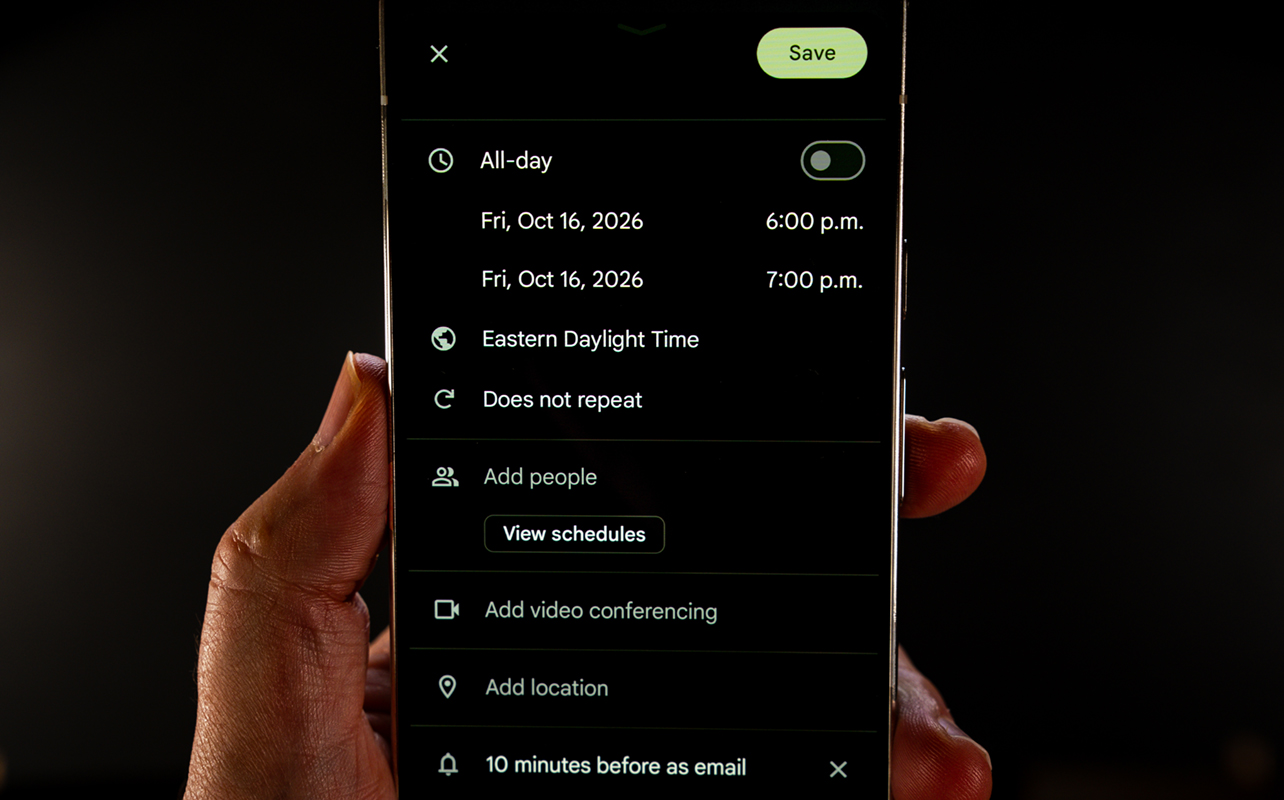
You can choose to either connect all compatible apps or choose the ones you want (or don’t connect any). On the privacy side, human reviewers may process some of the data to debug or improve services, though Google’s fine print also notes that the data is separated from the Google account it originated from and removes personal information before seeing it. All told, you can decide just how much AI you want in the phone, generally.
Voice Translate
While not especially new, it’s another one of those features that can really come in handy—especially when downloading a language for offline use. Voice Translate is a separate setting within the Phone app that you can use to translate calls in real time, using Google AI in a voice mirroring yours and others in the conversation. Live Translate is all-encompassing in that its translations extend to media, onscreen text, and captions, too.
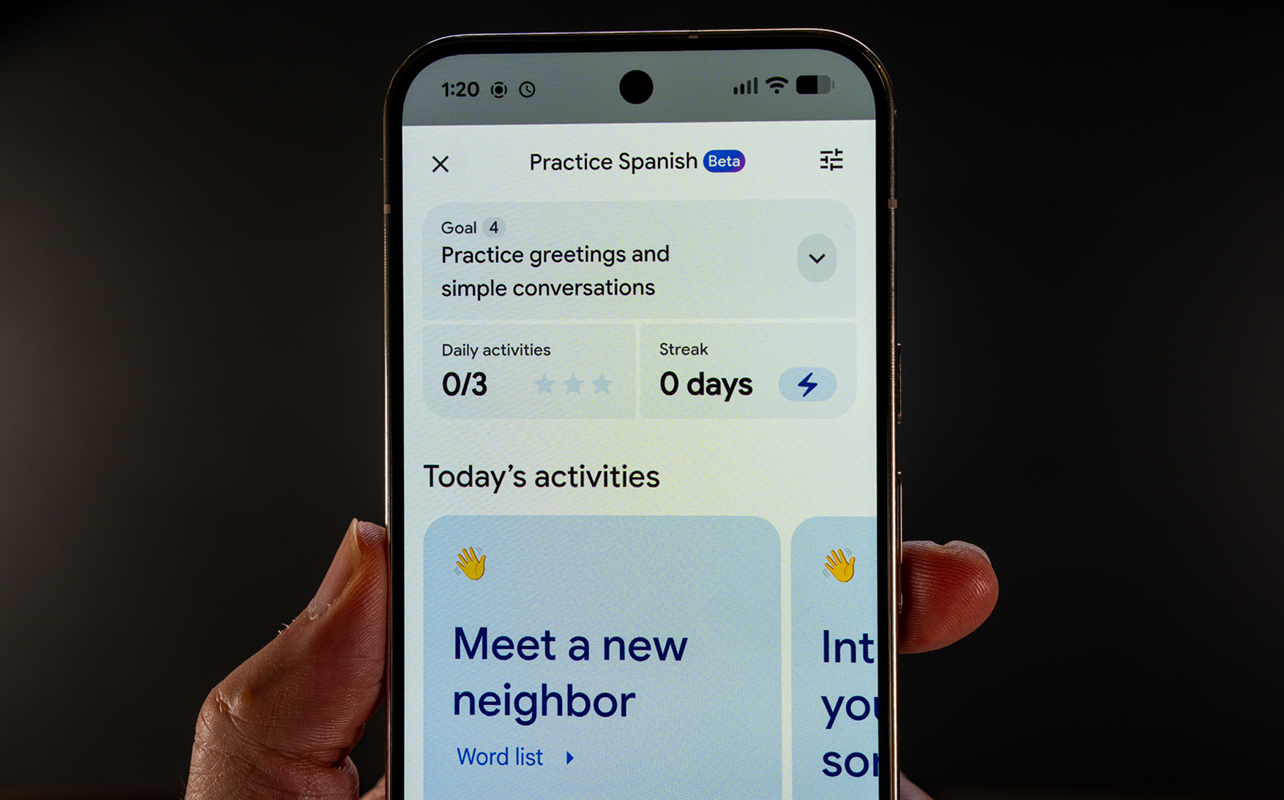
The number of supported languages continues to grow, now including Arabic, Bengali, Chinese (Mandarin), Danish, Dutch, Filipino, Korean, Persian, Polish, Thai, Turkish, and Vietnamese, among others. It otherwise works the same way: you speak in English (or a supported language) and the other side hears their own mother tongue. They respond and you get your own translation.
Camera quality
The main 50-megapixel camera gets a new image sensor that’s supposed to improve photos of all types, including the 3x hybrid zoom. Meanwhile, the 48-megapixel telephoto is all new with a larger sensor that’s also capable of taking photos at 120x Super Res Zoom—with a major AI presence in tow. The ultra-wide is a carryover from the previous two models.
As usual, many of the functional changes you’ll notice lie in the software. Image quality gets a boost because of it, but more importantly, you have more control over how photos look. Features like Camera Looks and Magic Capture, as well as a faster Night Sight for capturing low-light images with less delay.
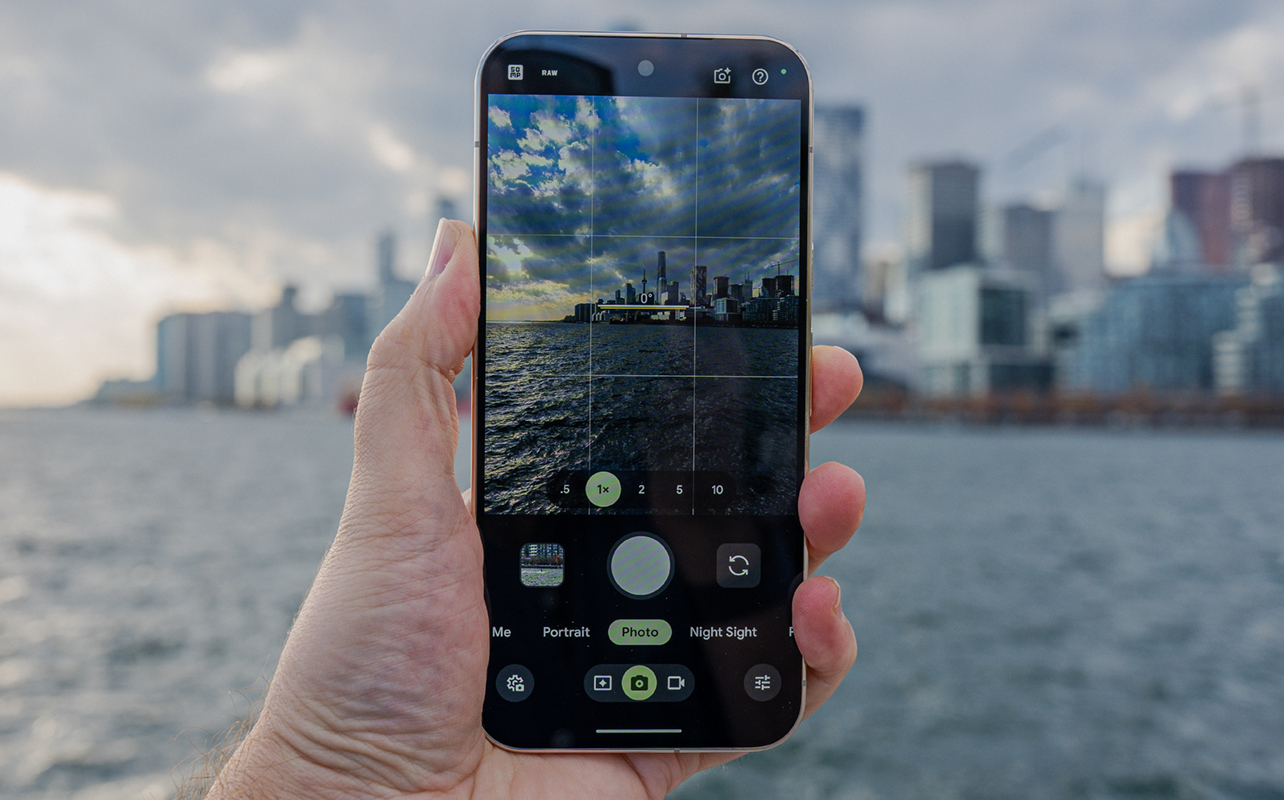
Overall, image quality is generally good, courtesy of better overall composition, colour, and tone. It could be better, though, considering Google’s past pedigree in quality, but I would say it’s better than the previous Pixel 10 Pro XL. The only exception is the ultra-wide camera, which appears to be more or less the same. The only change lies in some of the software options Google introduces in the Pixel 11 Pro lineup.
Don’t get too excited about the 120x zoom. More often than not, it’s terrible. It won’t work well if there are people, animals or cars in the shot, but may do better with architecture and nature. The AI processing is heavy with this in any case.
Camera Looks
I covered this in my review of the Pixel 11 Pro Fold but will go over Camera Looks here, too. These are customized photography styles that give photos a different look. Swipe through them and you get Default Look, Editorial, Velvet, Classic, Digi, Black Tie (the only monochrome one), or Minimal. When you’re on Default Look, you’ll notice another menu to choose Original, Natural, Shadows, or Vanilla. The former changes the look while the latter adjusts Google’s processing.
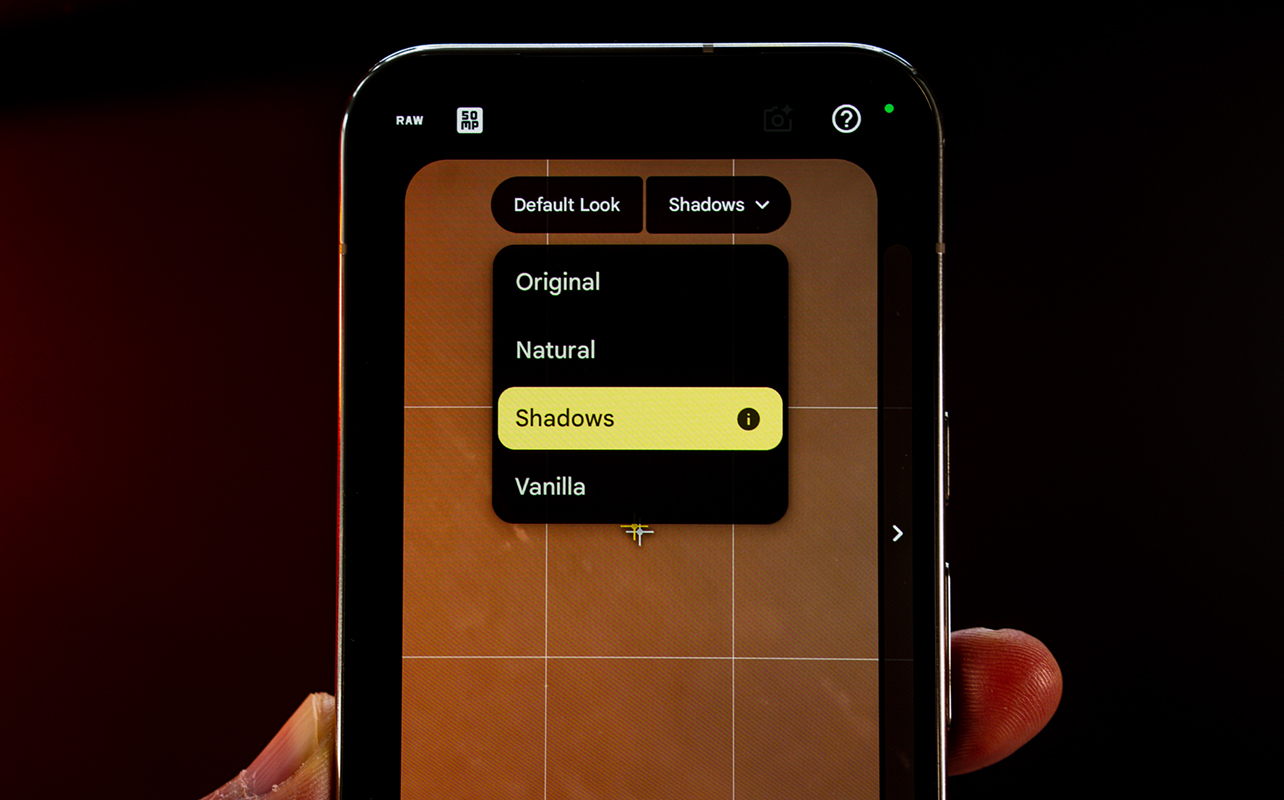
Basically, Original maintains Google’s standard processing. Natural reduces it for a more natural look. Shadows adds extra contrast, especially for shadows, for a more dramatic tone. Vanilla adds a warmer colour temperature and aims for a film-like tonality.









It’s worth experimenting with these to see what kind of look you can come up with, even more so because you can also make adjustments to each Look. The same manual controls also apply, and Looks work regardless of whether you shoot in JPEG or RAW or at full resolution. Just bear in mind that you can’t tack on a Look or change the processing after the fact when editing a photo. You need to capture it that way to begin with.
Magic Capture

This is an AI-driven feature that aims to freeze action or pick the best photo from a short video clip. It’s okay but you don’t determine which still frames come out of it, and it isn’t going to be able to completely freeze fast action. This is especially the case when the subject is closer to the camera, but in the grander scheme, it’s a neat feature that can prove useful in a variety of situations.
Camera Coach
Google rolled this out in the Pixel 10 series but I think it’s getting a little better. The idea behind it is that it uses AI to analyze what the camera is looking at and proposes ways to compose or frame the shot. When it launched, it focused more on changing angles, but now it also offers some perspective shifts as well. Getting low to the ground, tilting up, or tilting sideways to create more depth of field—that sort of thing.
I like this feature a lot because it aims to teach rather than fix. Use it to learn or get inspired by what it suggests rather than trying to change a photo’s framing later. Over time, you will probably start to think about how to photograph (or even video record) something on your own based on ideas that come out of it. Give it a try and see how it goes after a while.
In the camera app, tap the “?” icon on the top right anytime to see tips, examples, and how-to’s for using the various camera modes. It’s a great way to understand what the phone offers but to also reacquaint yourself with all the different modes and features.
Battery life
The Pixel 11 Pro XL’s battery is actually a bit smaller than last year but the G6’s optimization and efficiency is a notable improvement over the Pixel 10 Pro XL. With modest usage, you should be able to get through a full day without any real issues. Google says it put in a better modem to hold 5G connections more effectively though I’m not sure I personally noticed a big difference in that regard.
This is also where I like Pixelsnap. Simply setting it onto a magnetic charging mount or attaching a battery pack can be super convenient.
Final thoughts
The Pixel 11 Pro XL is just a bigger version of the Pixel 11 Pro. You get the same features either way. Google doesn’t do anything all that revolutionary here, so it’s more just iterating on what it did before. I touch on the new HiLight feature in my review of the Pixel 11 Pro Fold but it’s not quite mature or varied enough yet. It’s the rest of the phone that tells the broader story.
The Google Pixel 11 Pro XL and Pixel 11 Pro are available now.