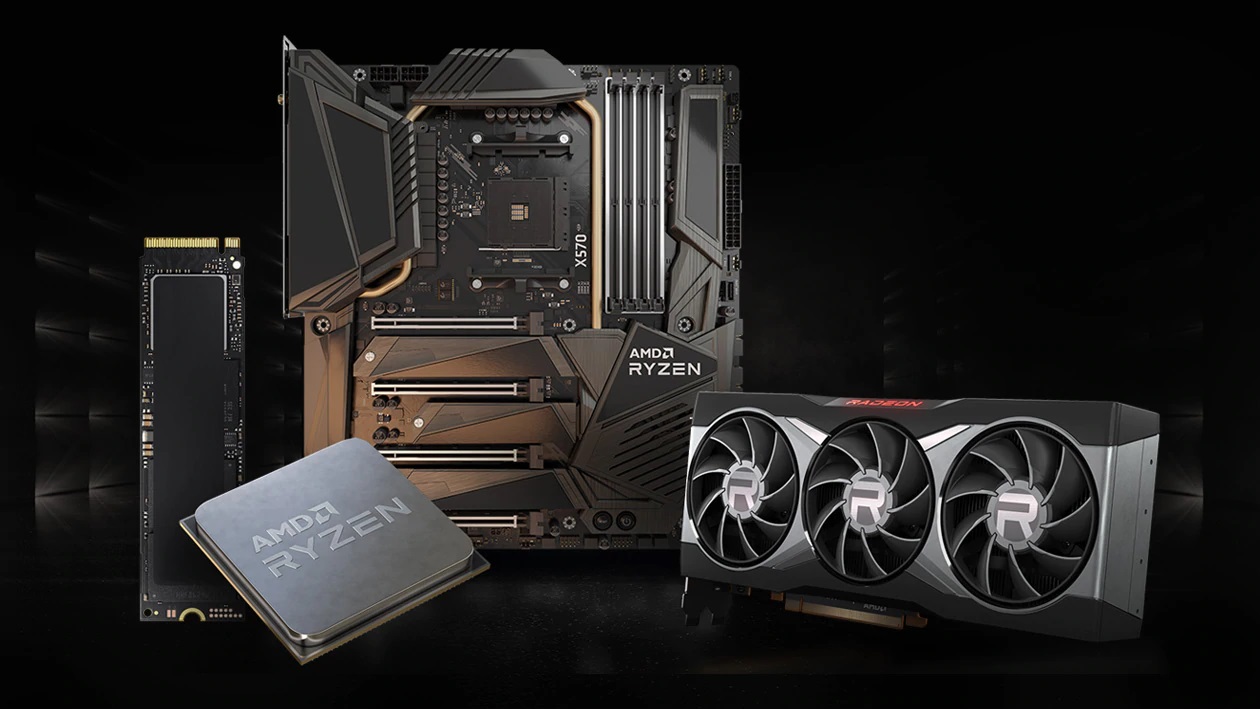
Whether you’re building your first PC, upgrading an older system, or setting up a powerful workstation, choosing the right CPU is one of the most important decisions you’ll make. The processor affects everything from everyday responsiveness to gaming performance and creative workloads.
This guide breaks down what really matters when buying a CPU, helping you understand the key specs, performance factors, and platform considerations so you can confidently choose what fits your needs.

Table of contents
- Understanding the CPU basics
- CPU benchmarking and performance
- Types of CPUs
- Future proofing your CPU purchase
- FAQs

Understanding the CPU basics
What is a CPU?
The Central Processing Unit (CPU) is often called the brain of your computer—and for good reason. It handles instructions, processes data, and coordinates how your system runs. Every task, from opening apps to editing videos or playing games, relies on your CPU.
A well-matched processor ensures your system runs smoothly, responds quickly, and keeps up with whatever you throw at it.
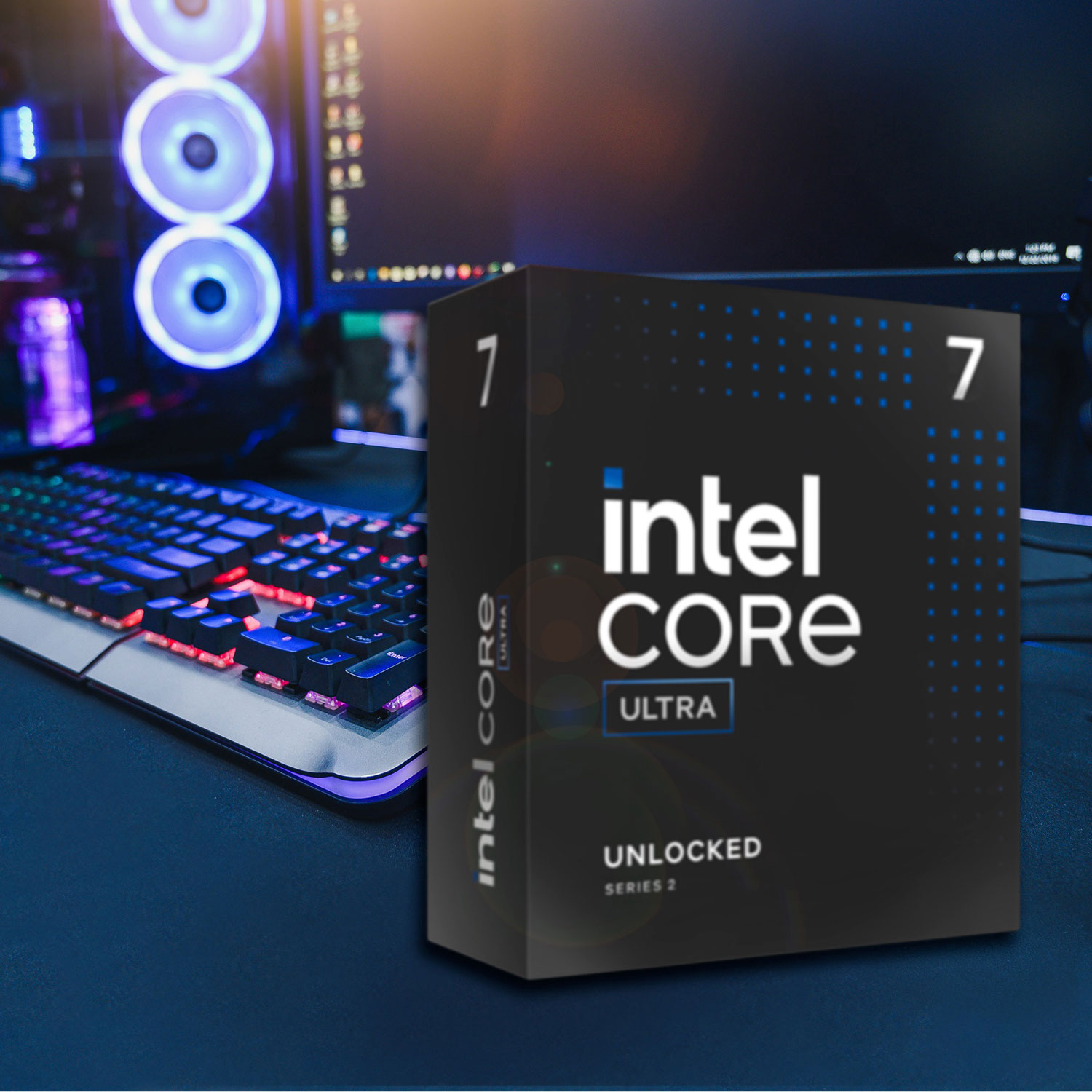
Key CPU specifications, simplified
CPU specs can feel overwhelming at first, but a few core elements will tell you most of what you need to know when comparing options.
Cores and threads
CPUs are built with multiple cores, allowing them to handle several tasks at once. Threads help each core work more efficiently by processing multiple instructions simultaneously.
For everyday use and gaming, a moderate number of cores works well. If you’re editing videos, streaming, or running multiple demanding applications at once, having more cores and threads can make things noticeably smoother.
Clock speed
Measured in GHz, clock speed reflects how quickly a CPU can process instructions. Higher speeds generally help with responsiveness, especially in games and everyday tasks.
That said, clock speed works alongside cores and threads, so it’s best to look at overall balance rather than focusing on a single number.
Cache
Cache is fast memory built directly into the CPU that stores frequently used data. The more cache a processor has, the less time it spends waiting on system memory, which can improve performance in tasks like gaming and real-time applications.
Power and efficiency
Some CPUs are designed to deliver maximum performance, while others focus more on efficiency. This affects not only power consumption but also heat output and cooling needs. If you’re building a compact or quiet system, efficiency can matter just as much as raw performance.
PCIe lanes and expansion
PCIe lanes are the connections your CPU uses to communicate with components like graphics cards and SSDs. More lanes allow for more high-speed devices, which can be important if you plan to expand your system over time.
Platform compatibility
Your CPU determines which motherboard and memory your system can use. Making sure everything is compatible is essential, but it’s also worth looking at newer platforms that support the latest memory and storage standards.
Choosing a more current platform can make upgrades easier down the line and help your system stay relevant longer.
How to evaluate CPU performance
When you’re researching CPUs, you’ll often come across the term benchmark. If you’re new to it, it can sound technical, but it’s actually one of the most useful ways to compare processors.
A benchmark test measures how a CPU performs when running a specific task or application. Because these tests are standardized, they make it easier to compare different processors across brands and generations. Instead of relying on specs alone, benchmarks give you a clearer sense of real-world performance and how a CPU will handle different types of workloads.
You’ll find benchmark results from hardware reviewers, software developers, and manufacturers, which means there’s usually a wide range of data available. Looking at multiple sources can help you get a more balanced view of how a processor performs.
Synthetic vs. Real-world benchmarks
Not all benchmarks measure performance in the same way. Synthetic benchmarks use controlled, simulated workloads to test overall speed and responsiveness, making it easy to compare CPUs side by side. These results are often measured against top-performing processors, giving you a quick sense of where a chip stands.
Real-world benchmarks take a different approach by using actual software applications to test performance. These can be especially helpful because they reflect how a CPU behaves in everyday scenarios. For example, if you’re planning to edit videos, rendering benchmarks will give you a clearer idea of performance. If you regularly run multiple applications at once, multi-threaded benchmark results can help you understand how well a CPU handles that kind of workload.
Some of the most commonly used tools today include Cinebench (R23 and newer versions), Geekbench 6, and Blender. These cover a range of workloads, from raw CPU performance to tasks like rendering and content creation. Alongside these, real-world gaming benchmarks are widely used to show how CPUs perform during actual gameplay.
It’s also worth keeping in mind that gaming performance can vary depending on resolution. At 1080p, the CPU plays a larger role in driving frame rates, which makes differences between processors more noticeable. As you move to higher resolutions like 1440p or 4K, the graphics card takes on more of the workload, so the impact of the CPU becomes less pronounced.
The best approach is to focus on benchmarks that reflect how you plan to use your PC. Whether that’s gaming, content creation, or everyday multitasking, choosing a CPU that performs well in those scenarios will give you the best overall experience.
Cooling, power, and what to expect
Performance isn’t just about specs—how a CPU handles heat and power also plays a big role in how it performs over time.
You’ll often see a value called Thermal Design Power (TDP), which gives a general idea of how much heat a processor generates under typical use. It’s a helpful guideline, but real-world usage can vary, especially during demanding tasks.
For lighter workloads like browsing, streaming, or office work, most CPUs run comfortably with the cooling solution included in the box. As workloads become more demanding, better cooling can help maintain performance and keep noise levels down.
Many gaming and mid-range builds benefit from a tower-style air cooler, which offers improved airflow and quieter operation. For higher-performance systems that spend long periods under load—such as video editing or 3D rendering—liquid cooling can help maintain more consistent temperatures.
Types of CPUs
The right CPU depends on the kind of system you’re building and how you plan to use it.
Desktop processors are designed for performance and flexibility. They’re a great fit for gaming PCs, creative workstations, and anyone who wants the option to upgrade components over time. Because they operate in larger systems with better airflow, they’re able to sustain higher performance during demanding tasks. For more information, check out our desktop PC buying guide.
Laptop processors are built with efficiency in mind. They’re optimized to deliver strong performance while preserving battery life, making them ideal for portable devices. While they handle everyday tasks and even moderate creative workloads well, they typically aren’t designed for extended heavy use in the same way desktop CPUs are.
Another consideration is graphics. Some CPUs include integrated graphics, which are capable of handling everyday computing, media playback, and light gaming. This can be a convenient option for budget builds or compact systems, especially if you’re not planning to add a dedicated graphics card right away.
Compatibility is just as important as performance. Every CPU is designed to work with a specific motherboard socket and chipset. Choosing a platform that supports newer memory and connectivity standards can make your system feel more current and give you more flexibility when upgrading in the future.
Choosing the right CPU for your needs
A good starting point is thinking about what you’ll use your PC for most often.
If gaming is your priority, look for a processor that delivers strong single-core performance and fast responsiveness. For content creation—like video editing, streaming, or 3D rendering—more cores and threads can help speed up demanding tasks and improve multitasking.
For everyday use, including browsing, productivity, and streaming, a balanced mid-range CPU offers more than enough performance without overspending. If you plan to run multiple applications at once or stream while gaming, a CPU with a bit more headroom can make the experience smoother.
Rather than focusing on having the highest specs, aim for a processor that aligns with how you actually use your system.
Intel and AMD: what to consider
Today’s CPUs offer strong performance across the board, regardless of brand. Both major manufacturers provide options for everything from budget builds to high-end systems.
The better approach is to compare processors based on their performance, features, and compatibility with your build. Looking at how a specific CPU performs in your intended use cases will give you a much clearer answer than choosing based on brand alone.
Future proofing your CPU purchase
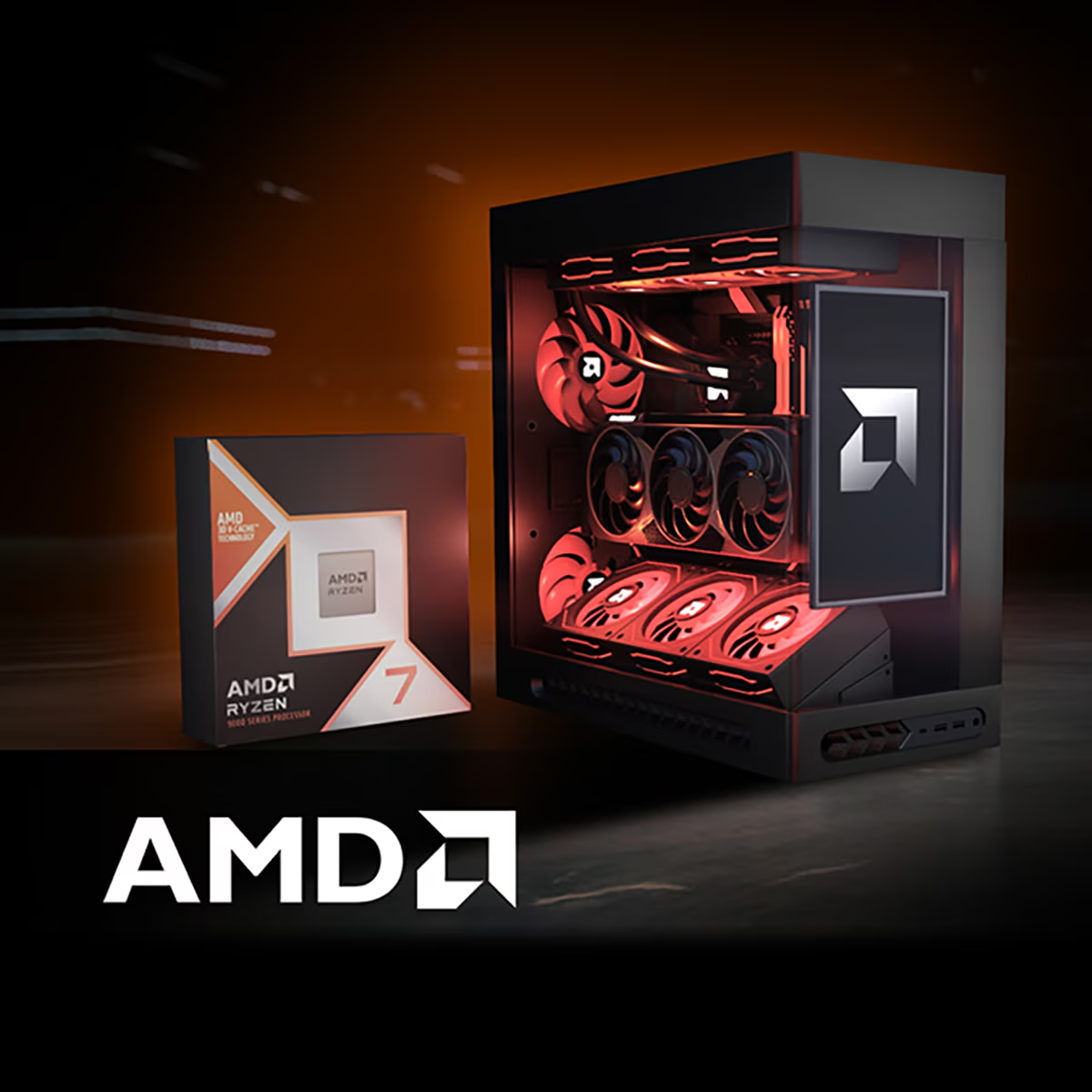
Focus on platform longevity rather than chasing core count. Check motherboard socket compatibility, PCIe generation support, and DDR5 memory standards to ensure your CPU remains viable for several years.
It’s natural to want a system that will last for years, but future-proofing isn’t about buying the most powerful CPU available.
A more practical approach is to build a well-balanced system on a modern platform. Support for newer memory and faster storage can help your system stay relevant longer, even as software and workloads evolve.
It’s also helpful to think about how your needs might change. If you expect to take on more demanding tasks over time, choosing a CPU with a bit of extra performance headroom can make sense. Otherwise, a strong mid-range option often delivers the best overall value.
In many cases, a balanced build will age more gracefully than a top-tier CPU paired with older components.
Choosing the right CPU comes down to understanding how you’ll use your PC and finding the right balance between performance, features, and budget. By focusing on what matters most for your setup—whether that’s gaming, multitasking, or creative work—you can build a system that feels fast, reliable, and ready for whatever comes next.
If you want to learn more about other PC components, make sure to check out our comprehensive PC components buying guide and CPU compatibility guide for detailed information and tips to help you make informed decisions when selecting and assembling parts for your custom build.
Click here to see all the articles in the “PC Builder Lab” series.
Frequently Asked Questions
How many CPU cores do I need?
For most people, 6 to 8 cores is more than enough for gaming and everyday tasks. If you’re working with video editing, 3D rendering, or heavy multitasking, having 12 or more cores can make a noticeable difference.
Is Intel or AMD better?
Both offer excellent options. The right choice usually depends on the specific processor and how it performs in the tasks you care about.
Does clock speed matter more than core count?
It depends on your workload. Games and everyday tasks tend to benefit from higher clock speeds, while creative applications and multitasking take advantage of more cores and threads.
Do I need a separate graphics card?
Not always. CPUs with integrated graphics can handle everyday computing and light gaming. For more demanding games or creative work, a dedicated GPU is recommended.
Do I need liquid cooling?
Most systems don’t. A quality air cooler is enough for the majority of builds. Liquid cooling is typically used for higher-performance systems or workloads that keep the CPU under sustained load.
How important is compatibility?
It’s essential. Your CPU, motherboard, and memory all need to work together. Making sure everything is compatible will save time and make future upgrades easier.
Should I try to future-proof my CPU?
Instead of overbuying, focus on a balanced system with modern features. That approach usually delivers better long-term value and flexibility.
Upgrade your setup today and experience unparalleled performance! You can find all the PC components you would need, including CPUs, at Best Buy.