Desktop computers haven’t always been known for saving space. For years, they meant large towers under desks, cables running everywhere, and setups that rarely moved once installed. But as technology evolved, the power inside those bulky machines became smaller, faster, and far more efficient. That shift gave rise to Mini PCs, compact desktop computers that pack the essential components of a traditional PC into a much smaller form factor.
Despite their size, they’re capable of handling everyday tasks like web browsing, office work, media streaming, and even light gaming. Mini PCs are becoming increasingly popular among students, remote workers, and anyone looking to create a clean, minimal workspace without sacrificing functionality. In this guide, we’ll explore what Mini PCs are, how they work, and how they compare to traditional desktops so you can decide if one fits your setup.

Quick overview: what you need to know about Mini PCs
Mini PCs are compact desktop computers designed to handle everyday computing while taking up far less space than traditional desktop towers. They use energy-efficient components, operate quietly, and are ideal for home offices, streaming setups, and general productivity. While they may not offer the same upgrade flexibility as large desktop PCs, they provide a clean, efficient solution for most modern computing needs.
Introduction to Mini PCs and their growing popularity
What is a Mini PC?
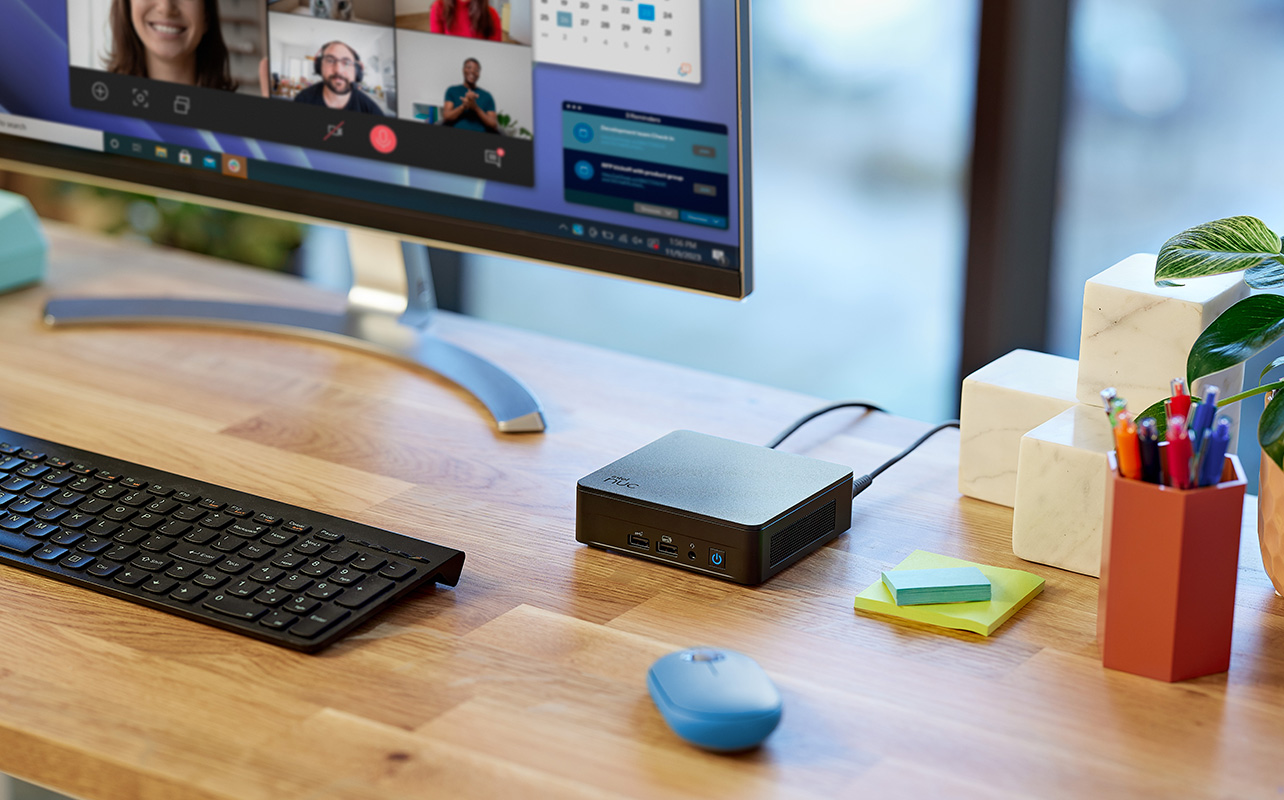
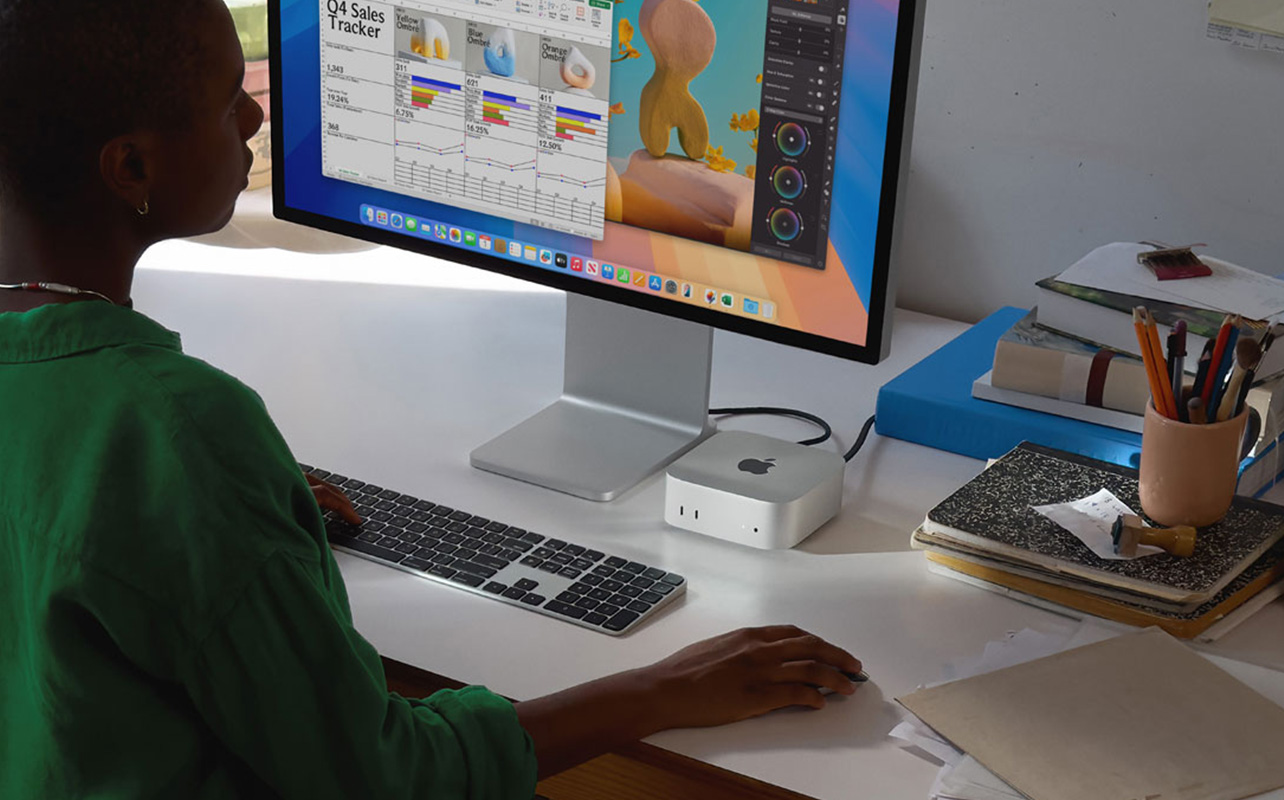
A Mini PC is a compact desktop computer that contains the same core components as a traditional desktop such as a processor, memory (RAM), and storage. but in a much smaller and energy-efficient form factor. Instead of a large tower sitting under a desk, a Mini PC is often small enough to sit in the palm of your hand or mount behind a monitor.
This makes it an appealing option for users who want the functionality of a desktop computer without the bulk. Mini PCs have grown rapidly in popularity because they combine performance, portability, and energy efficiency in a single compact device. If you’re curious about available models, you can explore current options at Best Buy Canada.
Why Mini PCs are gaining attention
Several trends have made Mini PCs more attractive in recent years:
- More people are working from home and want compact office setups.
- Students often need powerful computers that fit in small dorm spaces.
- Streaming and entertainment setups benefit from quiet, small computers.
- Energy efficiency has become more important for both homes and businesses.
Because of these factors, Mini PCs are now used for everything from basic productivity tasks to home media centres and even light gaming.
Key benefits of Mini PCs
Compact size and portability
The biggest advantage of a Mini PC is its size. Traditional desktops can take up significant desk or floor space, while Mini PCs are designed to deliver similar functionality in a much smaller footprint. Many models are small enough to:
- Sit discreetly on a desk without taking up much space.
- Mount behind a monitor using a VESA mount.
- Fit easily into a backpack or travel bag.
Because of their compact design, Mini PCs are ideal for minimalist workspaces, small apartments, shared desks, and even portable work setups where flexibility matters.
Energy efficiency and quiet operation
Mini PCs typically consume far less electricity than traditional desktop computers. Their components are designed with efficiency in mind, which results in lower power consumption and less heat output. This brings several practical advantages:
- Lower electricity usage.
- Reduced heat generation.
- Quieter cooling systems.
Some Mini PCs are even fanless, meaning they operate almost silently. This makes them especially appealing for quiet home offices, libraries, or study environments where noise can be distracting. Over time, their energy efficiency can also help reduce electricity costs.
Affordability and versatility
Mini PCs often provide strong value for users who do not need extreme computing power. Many models are priced competitively compared to full desktop systems, making them an accessible option for everyday computing. They are also highly versatile devices that can be used for a wide range of purposes, including:
- Home office productivity.
- Streaming movies and TV shows.
- Digital signage for businesses.
- Learning and schoolwork.
- Web browsing and online communication.
Because of this flexibility, Mini PCs work well in both personal and professional environments.
Cleaner workspace and minimal setup
Another advantage of Mini PCs is how easily they fit into modern workspace designs. Their compact footprint helps reduce clutter and makes desk setups feel simpler and more organized. Many users pair Mini PCs with wireless keyboards, wireless mice, and compact monitors to create a streamlined setup that feels organized and efficient.
Some models can even be hidden behind a monitor, making the computer almost invisible while still providing full desktop functionality. While Mini PCs improve workspace design and efficiency, their real value also comes from how well they perform in everyday situations.
Understanding Mini PC performance and use cases
Everyday computing and media streaming
For many people, a Mini PC can easily replace a traditional desktop for routine computing tasks. If you’re also exploring newer AI-powered laptops and desktops, our AI laptop and desktop buying guide explains how AI features are changing modern computers.
Modern Mini PC models are built to handle common workloads smoothly, making them practical for both home and office environments. Typical everyday uses include:
- Web browsing.
- Email and online communication.
- Document editing and productivity apps.
- Video conferencing and virtual meetings.
- Streaming services such as Netflix, YouTube, or Spotify.
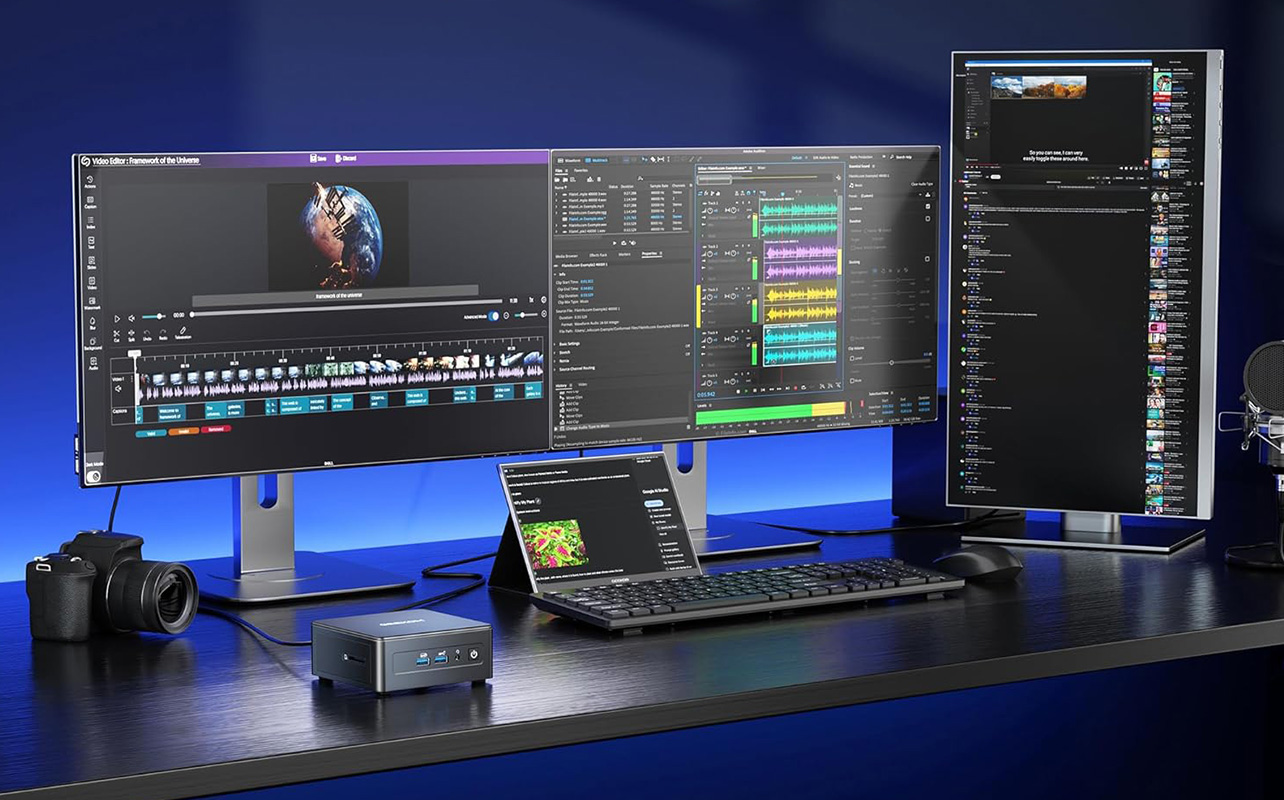
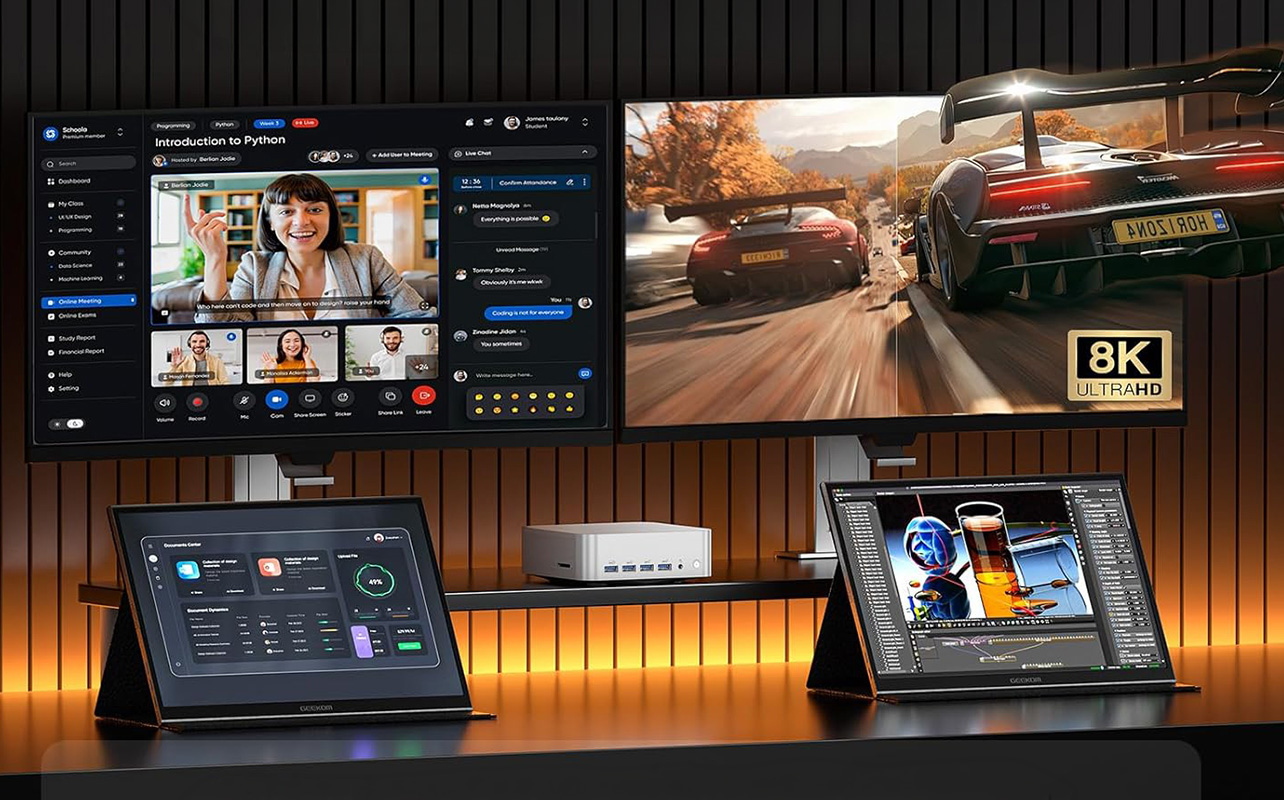
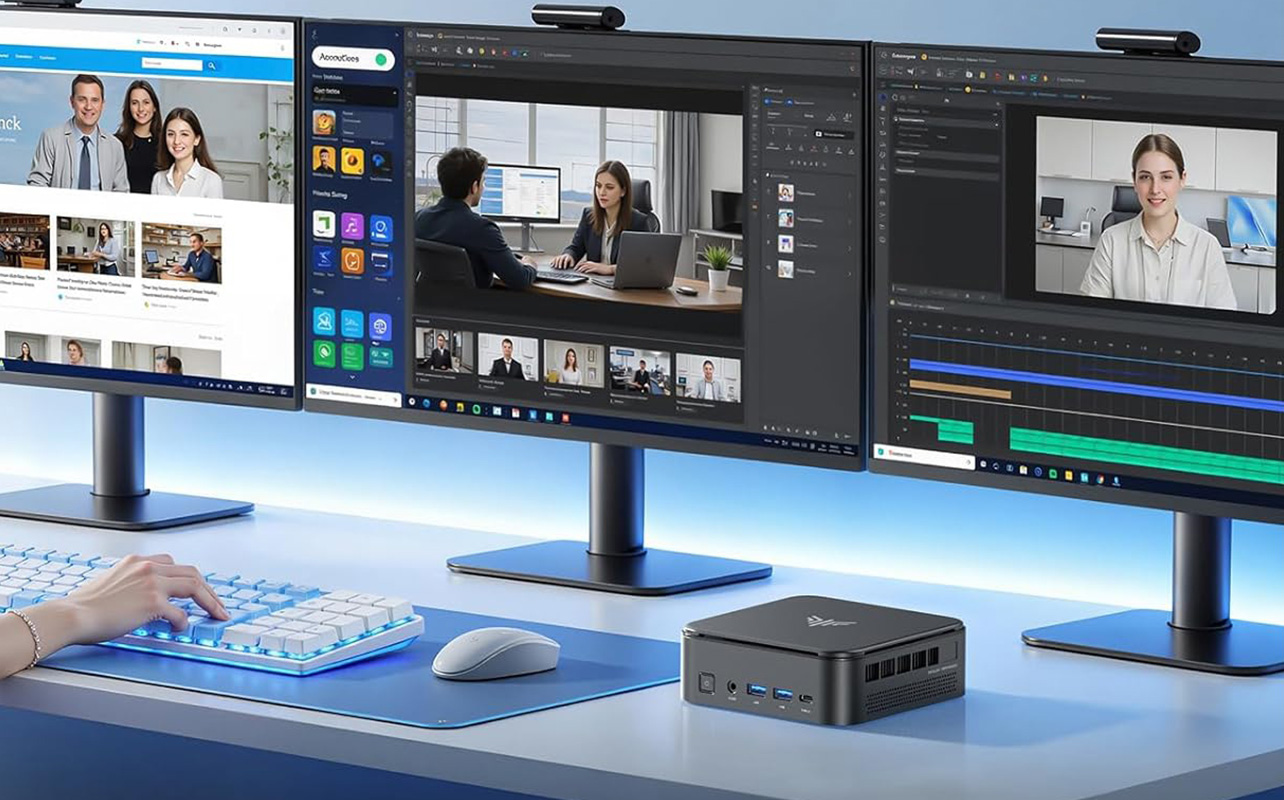
Most modern Mini PCs come equipped with efficient processors and solid-state drives (SSDs), which help deliver fast startup times, quick application launches, and responsive performance for daily workloads. Another advantage is their ability to support multiple monitor setups. Many Mini PCs include several display ports, allowing users to connect two or even three monitors.
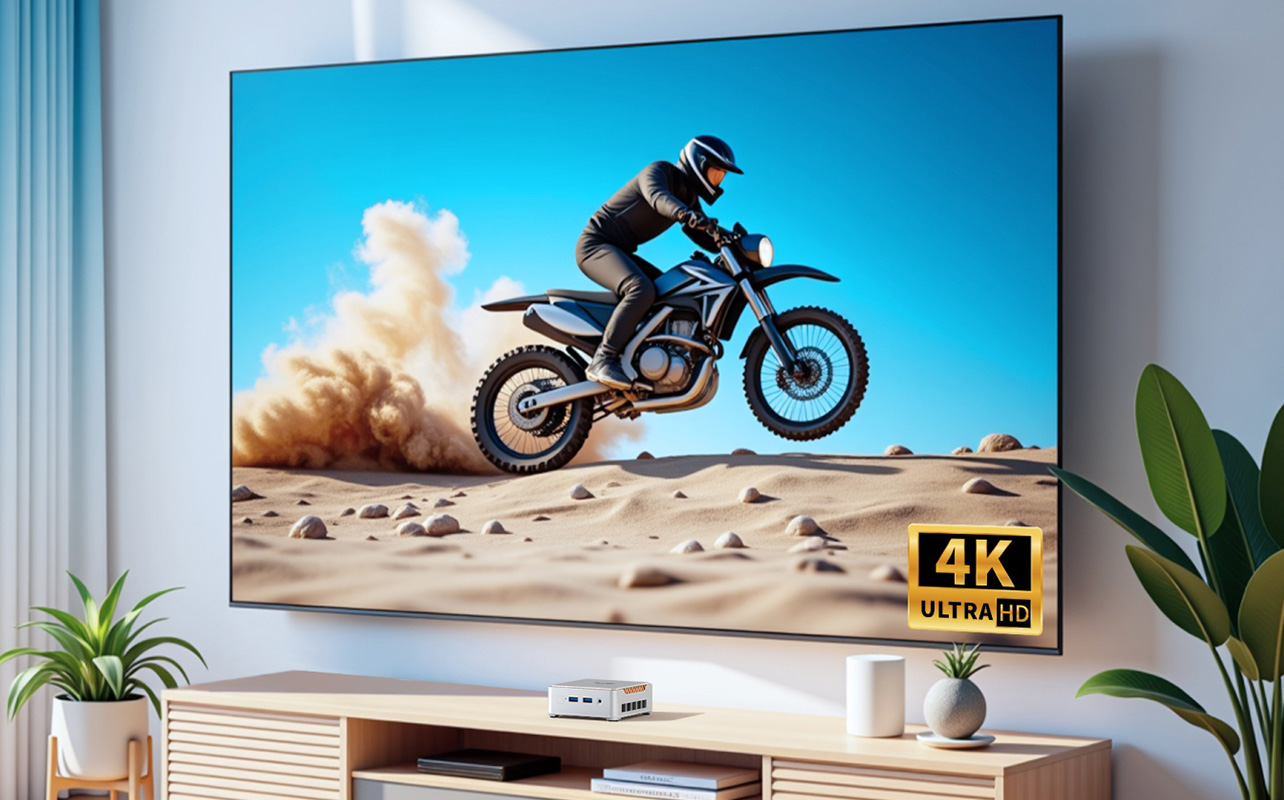
This makes them especially useful for remote work, multitasking, and productivity-focused setups. Because of their compact design and quiet operation, Mini PCs are also commonly used as home media centres, where they can run streaming apps, manage digital libraries, or connect to a TV for entertainment.
Gaming and creative workloads
While Mini PCs are typically built for efficiency rather than maximum power, higher-end models can still handle a variety of more demanding tasks. Some examples include:
- Light to moderate gaming.
- Photo editing and graphic design.
- Programming and software development.
- Content creation using lightweight editing tools.
Many Mini PCs use integrated graphics or compact GPUs that are capable of running casual games and some popular titles at moderate settings. They can also perform well for creative tasks like editing photos, designing graphics, or writing code. However, mini PCs are generally not designed for heavy gaming or professional-grade creative workloads such as advanced video editing, large-scale 3D rendering, or running high-end AAA games at maximum settings.
For those types of tasks, traditional desktop computers with dedicated graphics cards and more powerful processors usually provide better performance and upgrade flexibility. For most users, though, Mini PCs still offer more than enough performance for productivity, entertainment, and light creative work while occupying far less space than a traditional desktop system.
Home and office applications
Mini PCs are widely used in both home and professional environments because of their versatility and compact design.
In home settings, they can serve as:
- Family computers.
- Streaming hubs.
- Smart home control systems.
In office environments, Mini PCs are often used for:
- Office productivity workstations.
- Digital signage or kiosks.
- Reception desk systems.
- Meeting room computers.
- Lightweight business applications.
Their small footprint allows businesses to maintain clean, organized workspaces while still delivering the functionality of traditional desktop systems.
Upgradeability and expansion options in Mini PCs
Typical upgradable components: RAM and storage
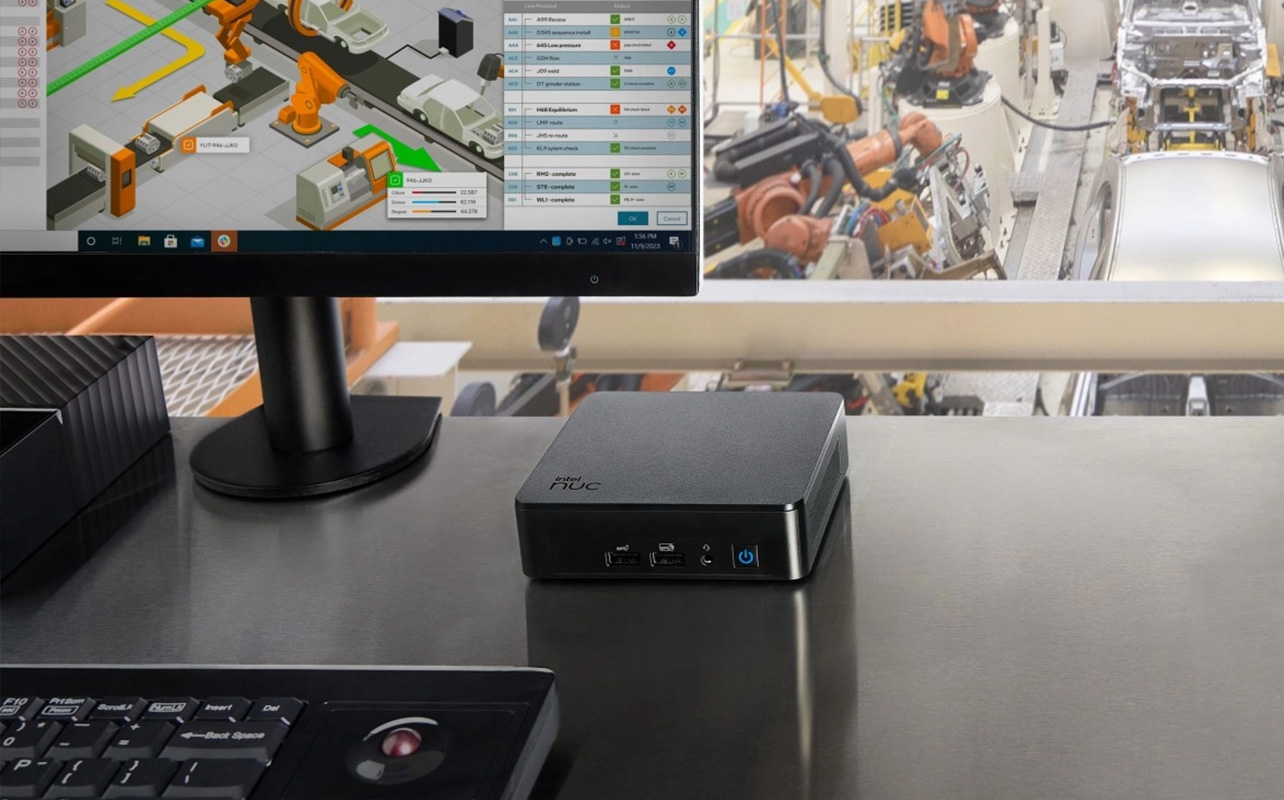
Most Mini PCs allow upgrades to a few key components, particularly RAM (memory) and storage drives. These upgrades help improve performance and extend the lifespan of the system without replacing the entire device. Common upgrades include:
- RAM (memory).
- Storage drives, typically SSD or NVMe storage.
Adding more RAM can make multitasking smoother, especially when running multiple applications or browser tabs. Upgrading storage can also provide additional space for files, software, and media libraries, while faster SSDs can improve overall system responsiveness. Some Mini PCs even provide access panels that make upgrading these components relatively simple, allowing users to customize their system over time as their needs change.
Limitations: CPU and GPU upgrades
Unlike traditional desktop towers, most Mini PCs have very limited internal space. Because of this compact design, certain components are usually fixed and cannot be upgraded later. Common limitations include:
- CPU upgrades are rarely possible, as processors are often soldered onto the motherboard.
- Dedicated graphics upgrades are usually not supported.
- Expansion slots are limited compared to full desktop PCs.
These limitations don’t necessarily affect everyday use, but they are important to consider if you plan to upgrade hardware frequently or require high-performance graphics in the future.
Practical tips for buyers
Before purchasing a Mini PC, it’s helpful to think about your current needs as well as potential upgrades down the road. Checking a few key specifications can help ensure the system remains useful for several years. Consider factors such as:
- Whether the RAM can be upgraded later.
- If the storage can be expanded or replaced.
- The processor performance required for your daily tasks.
- The number and type of ports available for accessories and displays.
Taking these factors into account can help you choose a Mini PC that balances compact design with the flexibility you need.
Operating system compatibility for Mini PCs
Windows support
Most Mini PCs ship with Windows pre-installed, making them ready to use right out of the box. This allows users to run common productivity applications such as Microsoft Office, web browsers, and video conferencing tools without additional setup. Because of this compatibility, Mini PCs are well suited for both home users and office environments, offering a familiar experience for anyone accustomed to a traditional Windows computer.
Linux and other OS options
Mini PCs are also popular among developers, programmers, and technology enthusiasts because many models support Linux distributions such as Ubuntu, Fedora, or Debian. Linux users often use Mini PCs for purposes such as:
- Running home servers.
- Building development environments.
- Coding, testing, and experimentation.
Their compact size and energy efficiency make them especially useful for small server setups or continuous development work.
ARM-based and niche systems
Some Mini PCs use ARM-based processors instead of traditional x86 processors. These systems are typically designed for specialized or lightweight computing tasks. They may run alternative operating systems such as:
- ChromeOS.
- Custom Linux builds.
- Lightweight embedded operating systems.
These setups are often used in specialized environments such as digital kiosks, smart displays, or dedicated computing systems where efficiency and stability are more important than raw performance. Understanding software compatibility is only part of the picture. It’s also helpful to see how Mini PCs compare directly with traditional desktop computers.
Comparing Mini PCs with traditional desktop computers
Size, portability, and noise levels
One of the most noticeable differences between a Mini PC and a traditional desktop computer is their physical size. Mini PCs are dramatically smaller than desktop towers, sometimes compact enough to fit in the palm of your hand. This smaller form factor brings several advantages:
- Less desk space required.
- Easier portability when needed.
- Quieter operation.
Because Mini PCs use energy-efficient components and smaller cooling systems, they often generate less noise than traditional desktops. Traditional desktops require larger cases to accommodate powerful hardware and cooling systems, which allows them to handle heavier workload
Performance and expandability differences
When it comes to raw performance and hardware flexibility, traditional desktops still have a clear advantage. Desktop towers are built with expansion in mind, allowing users to upgrade or replace major components over time. Traditional desktops are typically the best choice for users who need:
- High-end gaming performance.
- Professional creative workloads such as video editing or 3D rendering.
- Extensive hardware upgrades over time.
Mini PCs, by comparison, prioritize efficiency and compact design. While modern models offer impressive performance for their size, most upgrades are limited to RAM and storage. For general productivity and media use, however, Mini PCs remain more than capable.
Cost considerations and user suitability
Cost is another important factor when comparing Mini PCs and traditional desktops. Mini PCs are often a cost-effective option for users who need a reliable computer for routine productivity and entertainment. Traditional desktops vary widely in price depending on the configuration. High-performance systems with powerful CPUs and GPUs can become significantly more expensive.
Ultimately, the best choice depends on how the computer will be used. Mini PCs are ideal for compact workspaces and everyday productivity, while desktop towers remain better suited for users who require maximum performance.
Mini PC vs traditional desktop comparison table
The differences between Mini PCs and traditional desktops become clearer when comparing their core characteristics side by side:
| Feature | Mini PC | Traditional Desktop |
| Size | Ultra-compact | Large tower or mid-tower |
| Portability | High | Low |
| Noise level | Very quiet | Moderate to loud |
| Upgradeability | Limited (RAM & storage) | Extensive (CPU, GPU, RAM, storage) |
| Gaming capability | Light to moderate | High-performance capable |
| Power consumption | Low | Higher |
| Ideal for | Home office, streaming, light tasks | Gaming, creative work, heavy workloads |
| Cost | Generally affordable | Wide range (budget to high-end) |
Top Mini PC brands and recommended models
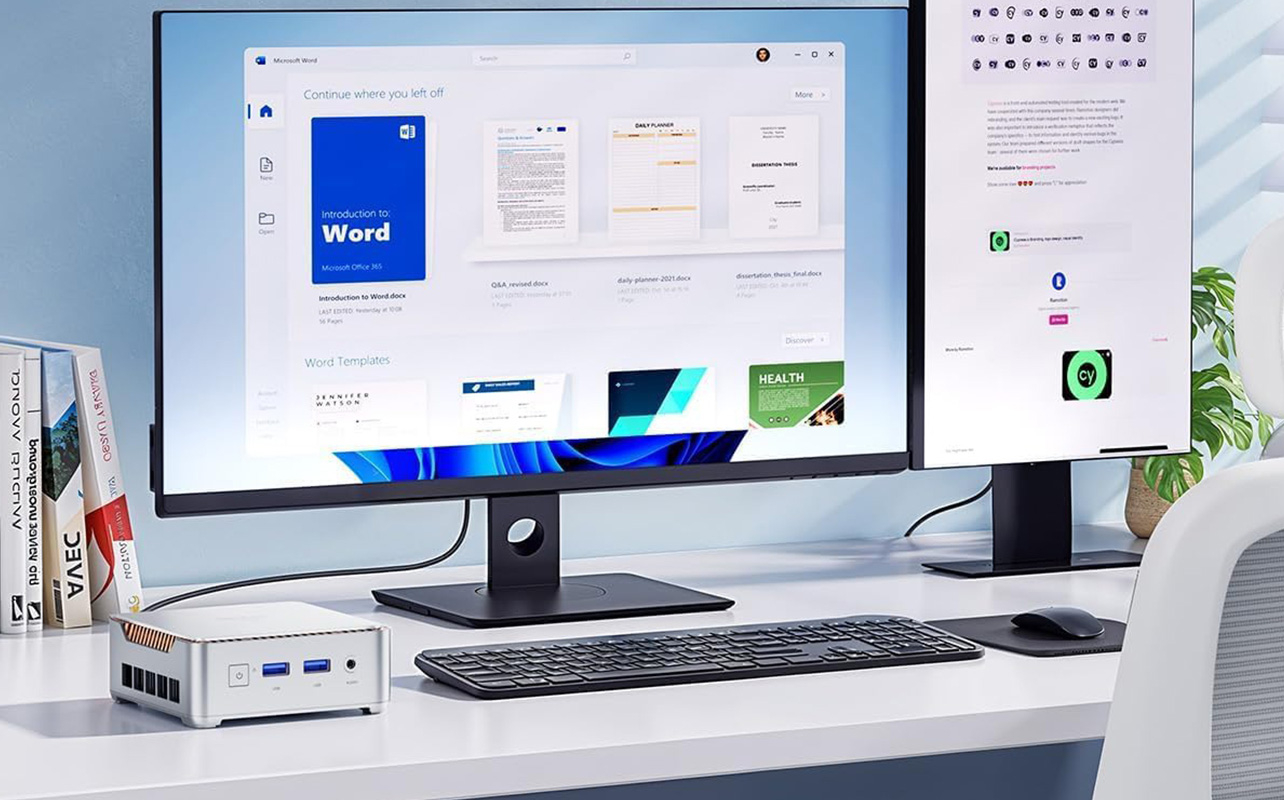
Mini PCs have evolved into powerful, space-saving alternatives to traditional desktops, with leading brands offering systems tailored for everything from everyday productivity to high-performance workloads. Whether you’re setting up a home office, building a media hub, or need a compact workstation, there are strong options across a wide range of budgets—many available at Best Buy Canada.
Top Mini PC brands
Several trusted manufacturers consistently deliver reliable Mini PCs with distinct strengths:
- Intel (NUC series): Known for compact, upgradeable kits like the NUC 14 Pro, powered by Intel Core Ultra processors. Ideal for business users, developers, and creators who want flexibility in a small form factor.
- ASUS (PN and NUC series): Offers a balance of performance and practicality with models like the PN64 and ASUS NUC 14 Pro. These systems are well-suited for everyday computing, multitasking, and home office setups.
- Apple (Mac mini): Designed around Apple’s M-series chips, the Mac mini delivers exceptional efficiency and performance for productivity, creative workflows, and seamless integration within the Apple ecosystem.
- Beelink: A strong value-focused brand, with models like the SER5 Max (Ryzen 7) offering solid performance for streaming, browsing, and light productivity at a more accessible price point.
- Minisforum: Known for pushing performance boundaries in compact systems, with high-end options like the UM890 Pro (Ryzen 9) suited for demanding workloads and enthusiast setups (often available via Marketplace).
Each of these brands caters to different priorities—whether that’s affordability, upgradability, or maximum performance in a compact footprint.
Best models by use case and budget
Match your pick to your workflow here are top Best Buy Canada recommendations across budgets:
| Use case | Budget (<$400) | Mid-Range ($400-800) | Premium (>$900) |
| Office/Work | KAMRUI P2 | Beelink SER | ASUS NUC, Intel NUC |
| Streaming/Media | Beelink Mini | Minisforum MS | Apple Mac Mini |
Choosing the right Mini PC
To get the best experience, focus on the specs that matter most for your workflow:
- Processor: For everyday use, look for at least an Intel Core i5 or AMD Ryzen 5. For more demanding tasks, consider Intel Core Ultra, Ryzen 7/9, or Apple’s M-series chips.
- RAM and storage: 16GB RAM is a solid baseline for multitasking. Many Intel NUC and ASUS models offer upgradeable memory and storage, which helps extend the system’s lifespan.
- Ports and connectivity: Ensure support for HDMI, USB-C, and Wi-Fi 6 or newer—especially if you plan to run multiple monitors or connect modern peripherals.
- Intended use: Integrated graphics are sufficient for office work and streaming, while creative workloads or light gaming benefit from stronger integrated GPUs or external GPU support (where available).
A smaller computer, a smarter way to work
Computing has quietly changed over the years. What once required a large tower and a permanent spot under the desk can now fit into a device small enough to sit beside your monitor or disappear neatly behind it. Mini PCs reflect this shift perfectly, delivering the performance most people need for work, streaming, and everyday tasks while keeping desks cleaner, quieter, and far more space-efficient.
They may not replace every high-powered desktop, but for many homes, offices, and study spaces, they strike a balance that simply makes sense. If you’re considering a compact setup of your own, exploring the range of Mini PCs available at Best Buy Canada is a great place to begin. With options designed for productivity, entertainment, and everyday computing, finding a system that fits both your workspace, and your routine has never been easier.