
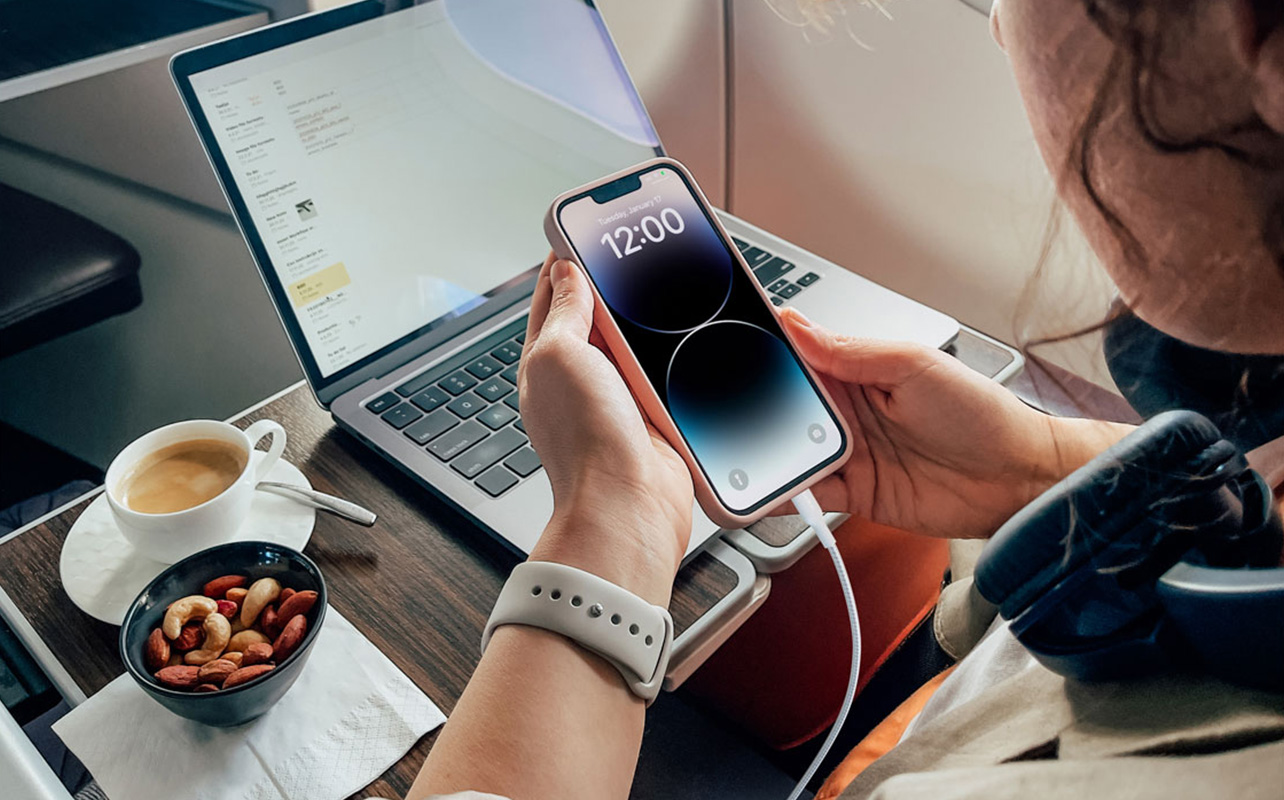
If you’ve ever plugged in your phone with a USB-C cable and wondered why it’s charging so slowly, or why your laptop barely gains any battery despite being plugged in, the cable itself is likely the problem. Not the charger. Not the outlet. The charging cable.
This surprises a lot of people because USB-C cables all look essentially the same. Same oval-shaped connector, same plug, same shape on both ends. But the similarity stops at the surface. Underneath that identical exterior, USB-C cables can vary significantly in what they’re capable of. How much power they carry, how fast they move data, and whether they can do both at all, none of that is guaranteed by the connector shape.
Understanding those differences doesn’t require a degree in electrical engineering. Once you know what to look for, picking the right cable becomes straightforward. This guide walks you through everything you need to know.

Table of contents
- Not all charging cables are the same anymore
- What makes USB-C different from older cables?
- Why the right cable matters for charging speed
- Data transfer speeds: what you actually need to know
- USB-C vs Lightning vs Micro USB: which cable do you have?
- How to choose the right charging cable
- Ready to find the right cable?
- Frequently asked questions
Not all charging cables are the same anymore
For most of the early USB era, cables were simple. A standard cable was a standard cable; the connector shape told you what would fit, and performance differences were minimal. USB-C changed that completely.
The USB-C connector itself is just a physical shape. It tells you that the plug will fit the port, nothing more. What the cable can actually do depends entirely on its internal construction and specifications. How fast it charges, how quickly it moves files, whether it can carry video signals, none of that is determined by the plug shape. Two USB-C cables sitting side by side on a store shelf, identical in appearance, could perform completely differently once plugged in.
The practical consequence is this: if you grab the cheapest USB-C cable available, or use the basic one that came bundled in the box, you may be quietly throttling your device’s charging speed or your data transfer rates without realizing it.
What makes USB-C different from older cables?
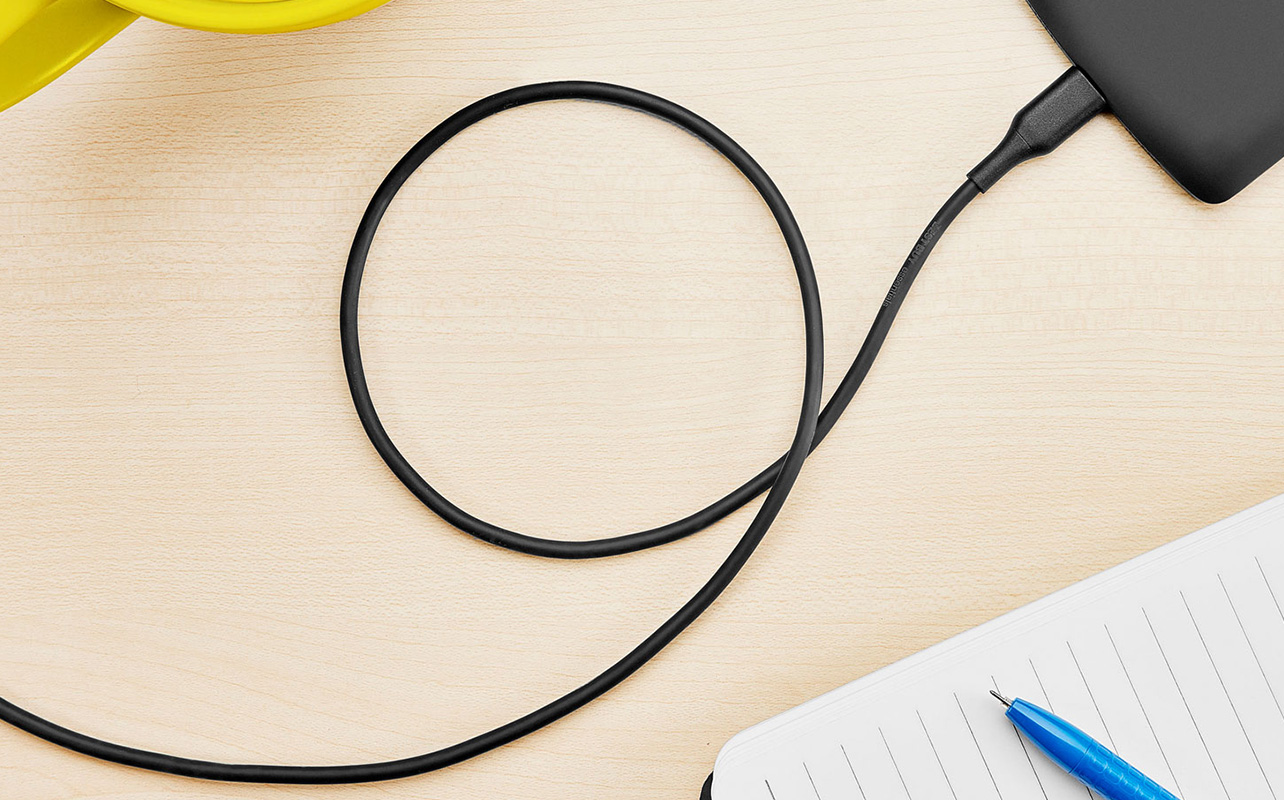
Older USB cables were straightforward; the shape told you what would fit, and performance was largely the same across the board. USB-C raises the ceiling considerably, but it also introduces more complexity. Here’s what actually sets it apart:
USB-C is reversible, but that’s the least interesting part
The most visible feature of USB-C is that the connector is symmetrical, meaning you can plug it in either way without any fumbling. That’s a genuine quality-of-life improvement over older USB-A and Micro USB connectors, but it’s a minor convenience compared to what USB-C actually enables under the hood.
USB-C supports significantly more power
Older USB cables were designed to carry modest amounts of power, enough to charge a phone slowly or power a small peripheral. USB-C, when paired with the USB Power Delivery (USB-PD) standard, can carry far more. The current specification supports up to 100W over standard cables. USB PD 3.1, the latest version, pushes that ceiling to 240W, enough to charge a high-performance laptop at full speed.
USB Power Delivery works through a negotiation process: when you connect your device, the cable and charger communicate briefly to establish how much power is safe and appropriate to deliver. The device gets exactly what it needs, no more, no less. But if the cable can’t support that negotiation, or can’t safely carry the required wattage, the whole system defaults to a lower power level. A fast charger paired with a slow cable is limited by the cable, every time.
USB-C can carry data at very different speeds
USB-C supports a wide range of data transfer standards, from old USB 2.0 all the way up to USB4 and Thunderbolt. The connector is the same across all of them; the cable’s internal wiring and certification determine which standard it actually runs. A USB-C cable built to USB 2.0 specifications transfers data at 480Mbps, the same as cables from the early 2000s. A USB 3.2 Gen 2 cable moves data at 10Gbps. A Thunderbolt 4 cable reaches 40Gbps. Same plug, dramatically different performance.
Why the right cable matters for charging speed
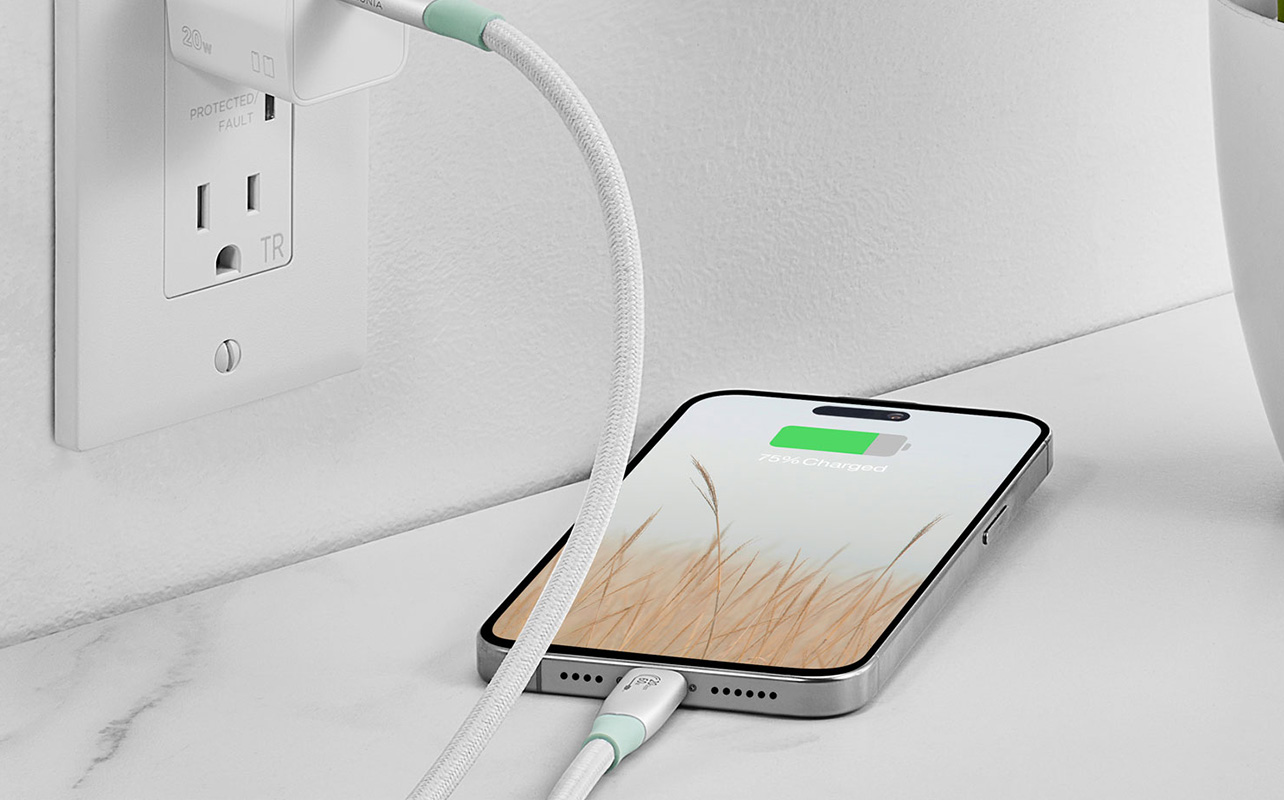
A fast charger is only half the equation. If the cable connecting it to your device can’t keep up, the whole system slows down to match the cable’s limits, not the charger’s capability. Here’s why that happens and what it means in practice.
Your charger is only as fast as your cable allows
This is the most important thing to understand about USB-C charging: a cable can be the limiting factor in how fast your device charges, even if your charger is capable of much more.
Say you have a 65W USB-C charger for your laptop. If you pair it with a basic USB-C cable that’s only rated for 18W of power delivery, the system negotiates down to that lower limit. Your laptop charges, but at a fraction of the speed it’s designed for. The charger has the capacity; the cable doesn’t. Make sure you have a USB-C cable that matches the power required.
Higher-wattage cables contain a small but important chip
Cables rated to carry 60W or more are required to contain an e-marker chip, a small embedded component that identifies the cable’s capabilities during the power negotiation process. Without this chip, a charger won’t attempt to push higher wattage through the cable, as a safety measure. Most cheap or generic USB-C cables don’t include one. If you’re charging a laptop or any device drawing more than 60W, you need a cable with an e-marker chip. The packaging won’t always mention it by name—it’s best to look for cables explicitly rated at 100W or higher from a reputable brand is the most reliable way to confirm the chip is included.
Cheap cables can also create a safety risk
Uncertified USB-C cables, particularly very inexpensive ones with no recognizable brand or certification mark, have been known to cause problems ranging from inconsistent charging to, in rare cases, damage to devices or chargers. The USB Implementers Forum (USB-IF) certifies cables that meet confirmed safety and performance standards. Spending a few extra dollars on a USB-IF certified cable from a known brand is one of the simplest ways to protect your devices.
Data transfer speeds: what you actually need to know
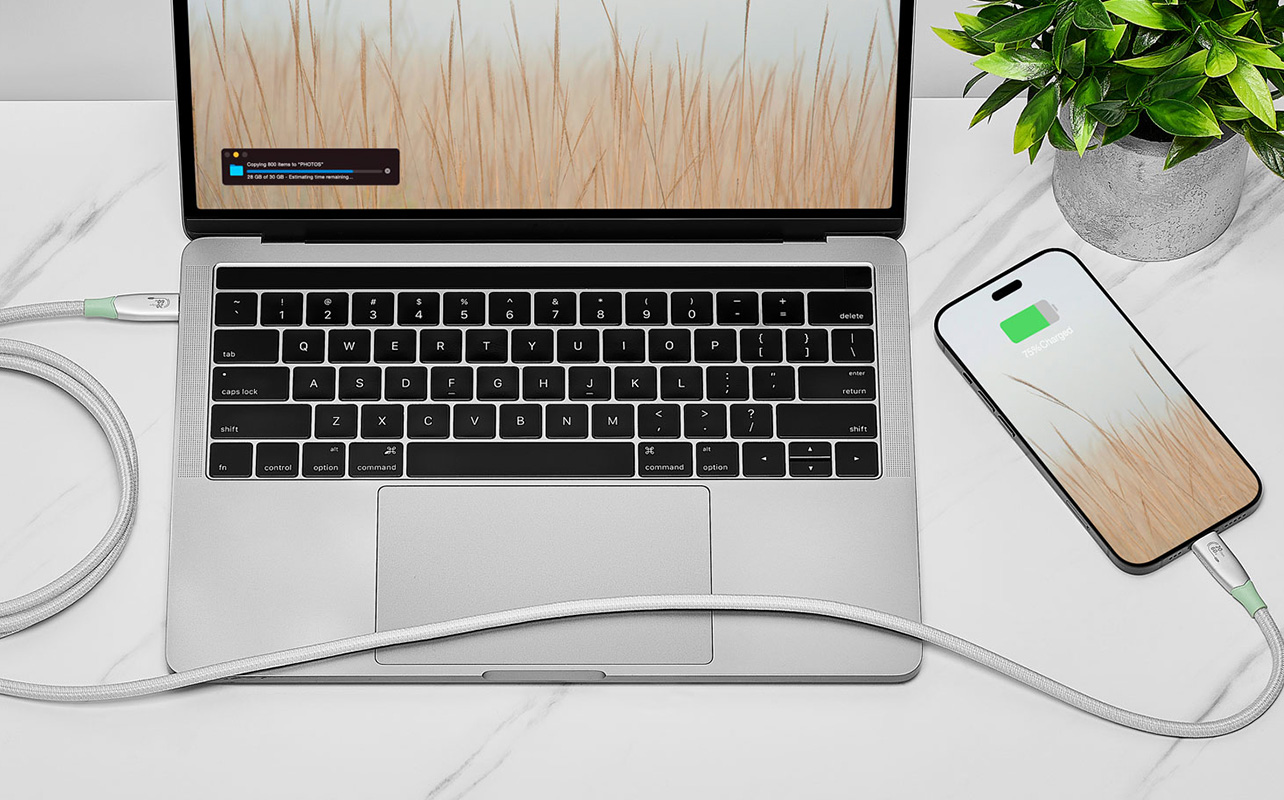
Charging speed gets most of the attention when it comes to USB-C cables, but data transfer is just as affected by the cable you choose. If you ever connect your phone or laptop to a computer to move files, the cable in between determines how fast that actually happens.
Not every USB-C cable can transfer data; some can’t transfer it at all
This is where USB-C gets genuinely surprising. Some USB-C cables are charge-only: they carry power but are physically wired without the connections required for data. They’re cheaper to make and perfectly fine for charging, but if you plug a charge-only cable between your phone and your laptop expecting to transfer files, nothing will happen.
If you ever need to move files using a cable, backing up photos, syncing a device, connecting to an external drive, make sure the cable you’re using is explicitly labelled as a data cable, not just a charging cable.
For most everyday tasks, the speed difference won’t matter. For some, it will
If you’re casually syncing contacts or charging overnight, the distinction between USB 2.0 and USB 3.2 data speeds is irrelevant in practice. But if you’re regularly transferring large files, raw video footage, photo libraries, and full device backups, the difference is significant. A USB 2.0 cable tops out at 480Mbps. USB 3.2 Gen 2 reaches 10Gbps. To put that in real-world terms: transferring 200GB of 4K video footage over a USB 2.0 cable takes close to an hour. The same transfer over a USB 3.2 Gen 2 cable takes a few minutes.
For the max data speed per USB standard, here’s a quick reference:
| USB standard | Max data speed | Common use case |
| USB 2.0 | 480Mbps | Basic charging, simple syncing |
| USB 3.2 Gen 1 | 5Gbps | File transfers, external drives |
| USB 3.2 Gen 2 | 10Gbps | Fast backups, large media files |
| USB4 / Thunderbolt 4 | 40Gbps | High-performance laptops, 4K+ displays, pro workflows |
If you’re buying a cable primarily to transfer files, match the cable spec to the port spec on your device. There’s no benefit to a USB4 cable if your device’s port only supports USB 3.2.
USB-C vs Lightning vs Micro USB: which cable do you have?
If you’ve got a drawer full of cables, you’re probably dealing with at least two of these connector types, and possibly all three. Each one looks a little different, works differently, and suits a different set of devices. Here’s a quick breakdown so you know exactly what you’re working with and what each connector can and can’t do.
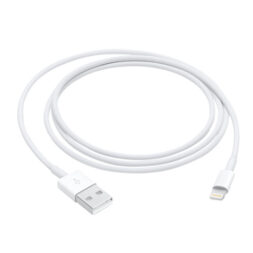
Lightning
The Lightning cable is Apple’s proprietary connector, used on iPhones up to the iPhone 14, older AirPods models, certain Beats headphones, and some Apple accessories like the Magic Keyboard and Magic Mouse. It’s a reversible 8-pin connector that was genuinely ahead of its time when Apple introduced it in 2012.
The limitation is that Lightning is capped at USB 2.0 data speeds (480Mbps) and supports a maximum of around 20W for charging, enough to partially charge an iPhone in 30 minutes with the right adapter, but nowhere near the power ceiling of USB-C.
The more significant issue today is compatibility. Lightning only works with Apple devices. If you own a mix of devices, you’ll need a separate cable just for older Apple gear. The iPhone 15 onwards uses USB-C, and Lightning is being phased out across the industry. If you’re still using an iPhone 14 or older, you’ll still need Lightning cables for the foreseeable future.
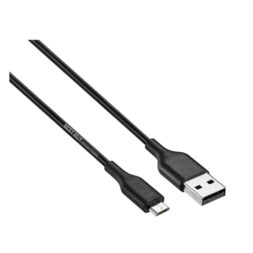
Micro USB
Micro USB is the older Android standard and is now largely a legacy connector. It’s still found on some budget Android phones, older wireless earbuds, power banks, and accessories. Charging is slow by modern standards (typically 5–18W), and data transfer is limited to USB 2.0 speeds. If you have devices still running on Micro USB, it’s worth keeping a cable around, but this standard isn’t being developed further.
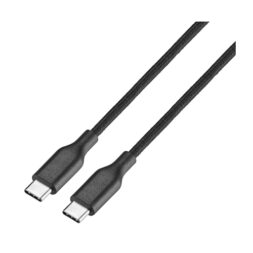
USB-C
USB-C is the current and future standard for consumer electronics globally. It’s used across Android phones, iPhones (from the 15 onwards), iPads, MacBooks, Windows laptops, gaming handhelds like the Nintendo Switch, and a growing range of accessories. A single high-quality USB-C cable can, in theory, serve all of these devices, though as covered above, the cable’s specifications still determine what it can actually do for each one.
How to choose the right charging cable
With different types of charging cables, it’s important to choose the right one for your devices.
1. Check your device’s charging spec first
Every phone, tablet, and laptop has a maximum charging rate, the highest wattage it can accept. There’s no benefit to a 100W cable if your phone caps out at 25W, and there’s real harm in using a 15W cable with a laptop that needs 65W. Check the original charger that came with your device, or look up your device’s charging spec online, and match the cable accordingly.
2. Look for USB-IF certification (or MFi for Apple devices)
USB-IF certified cables have been independently tested against confirmed safety and performance standards. For Lightning accessories (older iPhones and Apple accessories), look for MFi (Made for iPhone/iPad) certification, Apple’s own quality assurance mark. Both certifications are a simple, low-effort way to avoid cables that underperform or cause problems.
3. Consider braided cables for longevity
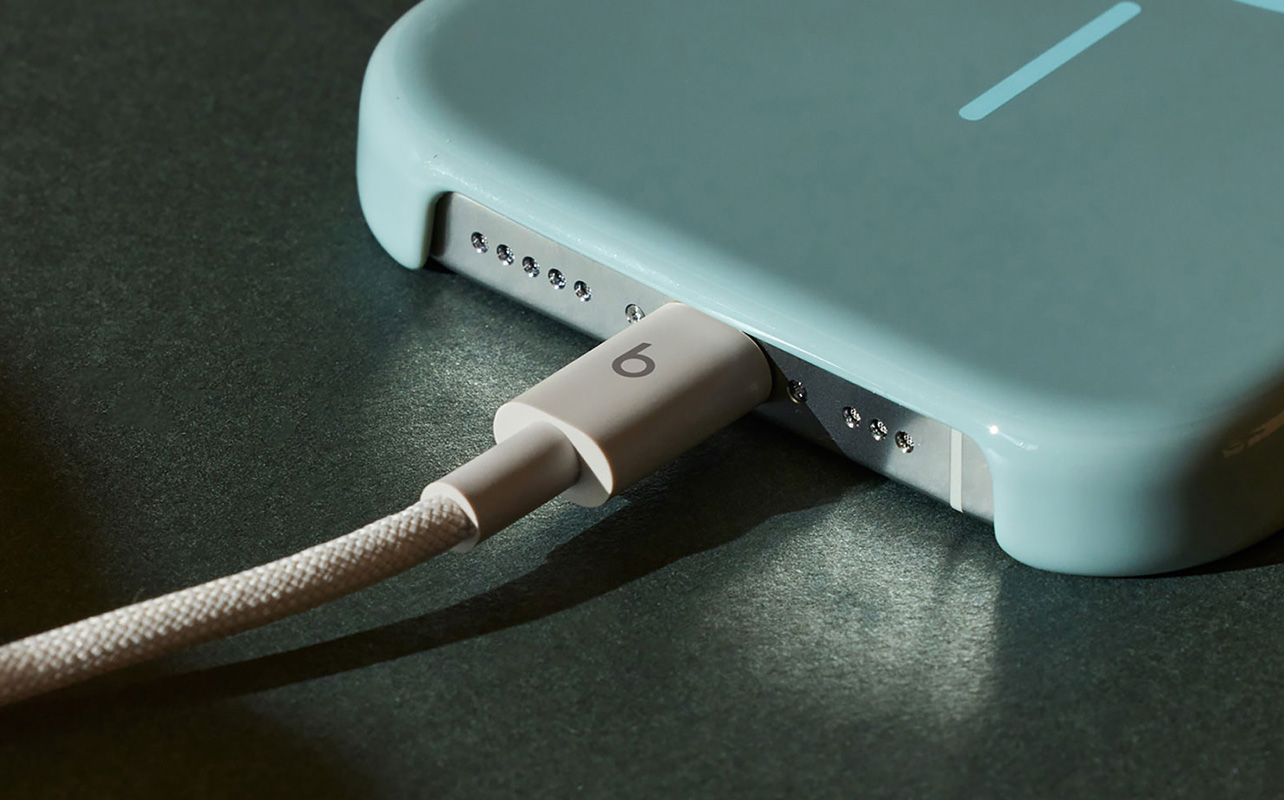
Standard rubber-jacketed cables tend to fray and crack over time, especially near the connectors where they flex repeatedly. Braided cables, typically nylon or similar, are significantly more durable and hold up far better to daily use. If you’re buying a cable that will live on a desk or travel in a bag, spending slightly more on a braided option is worth it.
4. Factor in the cable length
For most everyday use, charging overnight, syncing occasionally, the cable length is a matter of convenience. But for cables carrying 100W or more, length matters. Longer passive cables may not maintain full power delivery over distance. Cables rated for 100W+ at lengths of two metres or more often include the e-marker chip discussed earlier. Check the specs on longer cables before assuming they’ll match the performance of a shorter one from the same brand.
5. Choose between charge-only and full-featured
If you only ever use a cable for charging and have no need to transfer files, a charge-only cable is fine, and often slightly more durable due to its simpler internal construction. If you want one cable that handles both charging and data transfers, make sure it’s explicitly labelled as a data cable and check the data speed it supports.
Ready to find the right cable?
The USB-C connector standardized the plug, but not what’s inside it. A cable rated for 18W and one rated for 100W look identical from the outside, but only one will fully unlock your charger’s potential. The difference shows up every time you plug in.
For most people, the fix is simple: match the cable to your device’s charging spec, look for certification, and don’t assume the cable that came in the box is doing you any favours. If you move large files regularly, make sure your cable is rated for data transfer and check the speed.
Best Buy Canada carries a wide range of USB cables across every spec and price point, whether you need a reliable everyday charger cable, a high-wattage option for your laptop, or a full-featured cable that handles both charging and fast data transfer. Pair it with the right USB-C wall charger, and you’ll get everything your device is actually capable of, without the guesswork.
If you’re also thinking about cutting down on cables at home, wireless charging might be the perfect one for you.
Frequently asked questions
Will any USB-C cable charge my device?
Most USB-C cables will charge most USB-C devices, but the speed depends entirely on the cable’s wattage rating. A basic cable may charge your laptop at a fraction of its potential speed. Match the cable’s wattage to your device’s requirements for full charging performance.
Can a cheap USB-C cable damage my device?
Very cheap, uncertified cables can cause issues, inconsistent charging, slower than expected speeds, or, in rare cases, damage to the charger or device. USB-IF certified cables from reputable brands are a safer choice.
Do I need a special cable for fast charging?
Yes. Fast charging requires a cable rated for the appropriate wattage (and containing an e-marker chip for anything above 60W), paired with a charger that supports the same standard. Both the cable and charger need to be capable.
I have an iPhone 14. Do I need to switch to USB-C?
Not yet. iPhone 14 and earlier use Lightning, and Lightning cables will continue to work with those devices. If you upgrade to an iPhone 15 or later, you’ll need USB-C. It’s worth checking what you already have before buying new cables.
Can I use a USB-C cable from one brand with a charger from another?
Generally, yes, as long as both are USB-IF certified and the cable’s wattage rating matches or exceeds what the charger delivers. The USB-C standard is designed to be interoperable across brands.
What does “USB Power Delivery” mean on the packaging?
It means the cable supports the USB-PD charging protocol, which allows the charger and device to negotiate optimal power delivery. A cable with USB-PD support will typically charge faster than a basic cable, provided your charger and device also support it.






I always thought my laptop charged slowly because of the charger, but this page says the cable can throttle power delivery down to 100W or even less