
 If you just got yourself one of the new Google Nest Audio smart speakers you might be wondering what’s involved in getting one set up.
Setting up Google Nest devices is extremely simple. If this is your first device, you’ll need to sign up for the Google Home app and then log in. Adding a device is easy and the app will actually do most of the work for you on its own.
 How to set up Nest Audio speakers?
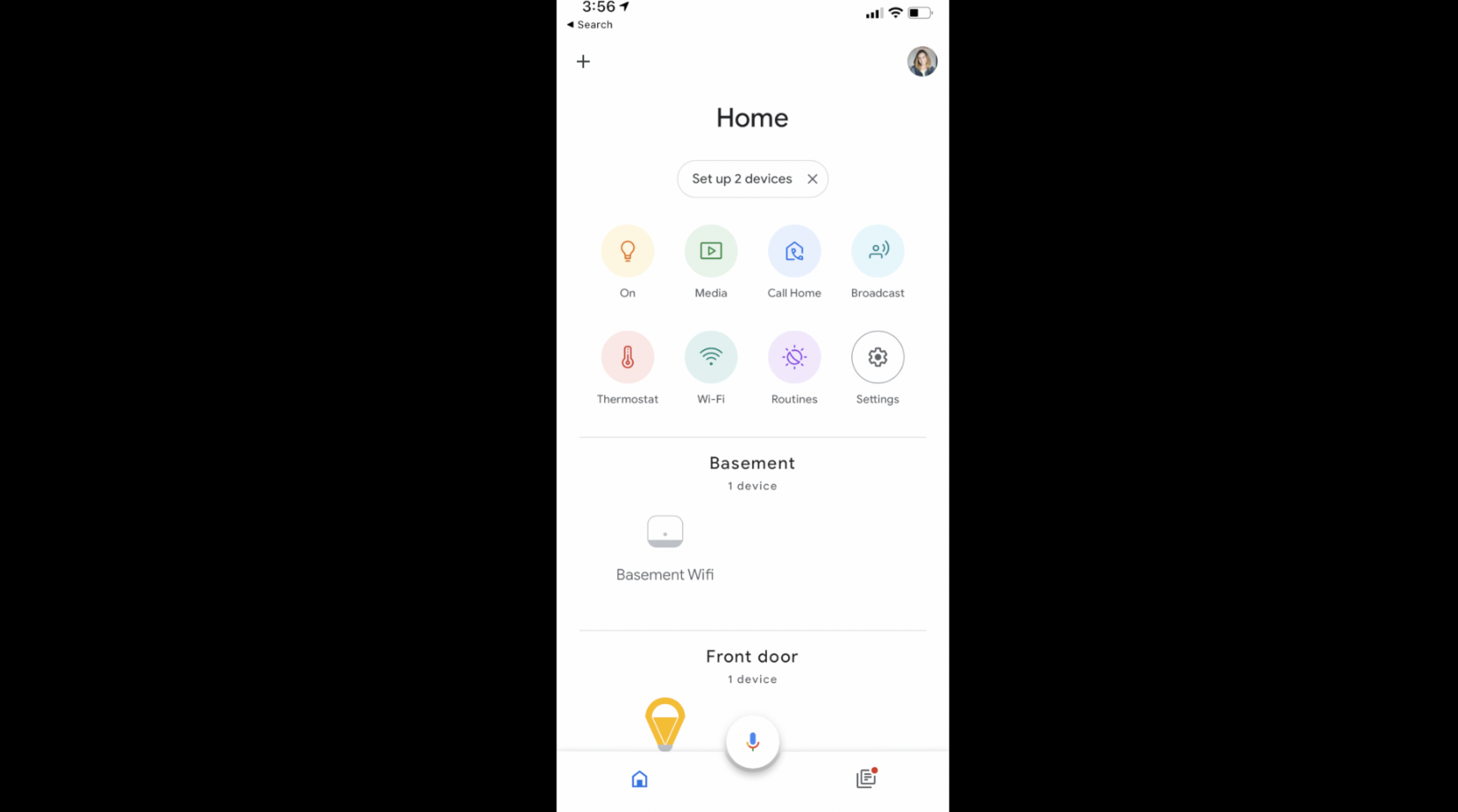
Go to the Google Home app and look at the top of the screen. You’ll likely see a small bubble with ‘Set Up New / 2 devices’ inside. (If you don’t see the pop up, just go to the “+” on the top left of the app and choose Set Up Device, then Set up New Devices”. )
Click that bubble and follow the prompts. You’ll essentially choose which devices to add, then add the device to your home by connecting to your Wi-Fi network. You may also be asked to update firmware. A test sound will confirm the speakers are working, then you’ll assign it to a room in your home so you can use voice control and give each speaker a unique name.
How to make a stereo pair with Nest Audio
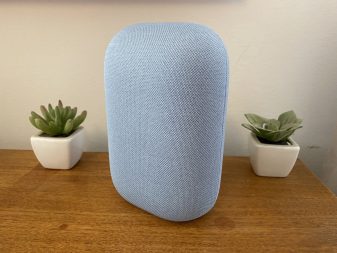
If you’d like to use two Nest Audio speakers as a stereo pair, you can link them and set left and right channels. Here’s how:
- Place the speakers where you want them in the room.
- If you haven’t already, set up each speaker in your Google Home app.
- Make sure that the device you’re using to set up the speaker pair is connected to the same WiFi network as the speakers.
- Open the Google Home app and tap on one of the speakers that you wish to pair.
- Tap on the Settings icon in the top right corner.
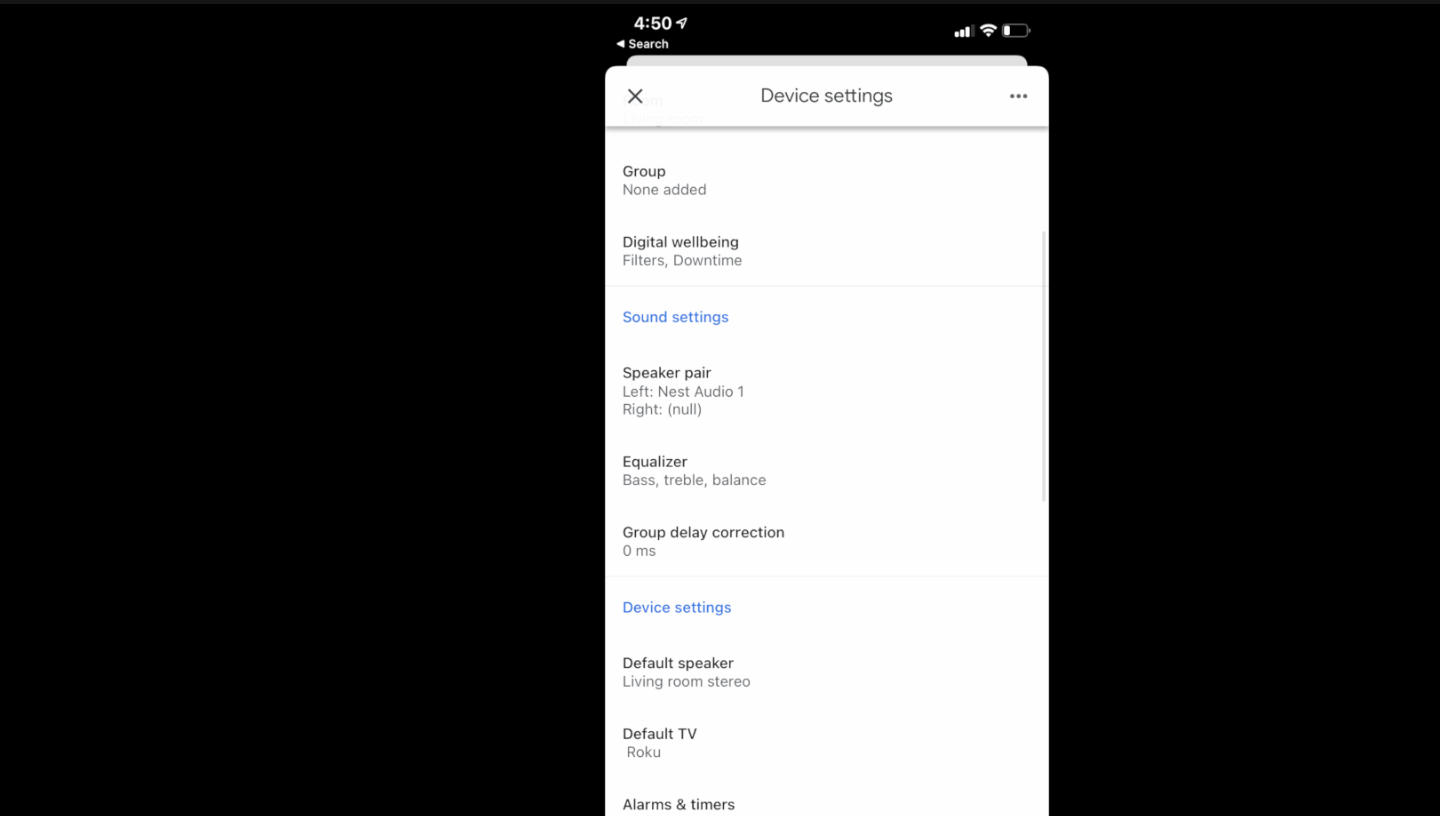
- Tap Speaker pair then Next. **If you don’t see speaker pair, check your other Nest Audio Speaker’s settings; mine didn’t show the pairing option for the other speaker
- Choose which two devices you want to make a speaker pair out of, then tap Next.
- You will be prompted to indicate which room your speaker pair is located. Select or create a room, and then tap Next.
- Give your speaker pair a unique name, like “Living Room Stereo.” Tap Next.
 How to unpair Nest Audio speakers
If you no longer want to use your speakers as a stereo pair, you can unpair them.
Make sure your mobile device or tablet is connected to the same Wi-Fi or linked to the same account as your Google Nest or Home speaker.
- Open the Google Home app.
- Tap the speaker pair.
- At the top right corner, tap Settings Speaker pair Separate speaker pair Separate.
- Important: After you unpair your speakers, you’ll need to re-link the device that was on the right side to your Google Account:
- From the Home tab, select the right-side speaker that you need to re-link tap Settings Link Account.
- You’ll see your two speakers listed separately on the home screen.
 How to group Nest Audio speakers
You can also group your Nest Audio speakers with other Google speakers too.
Here’s how:
- Make sure your mobile device or tablet is connected to the same Wi-Fi or linked to the same account as your Chromecast, Nest speaker, or Nest display.
- Open the Google Home app.
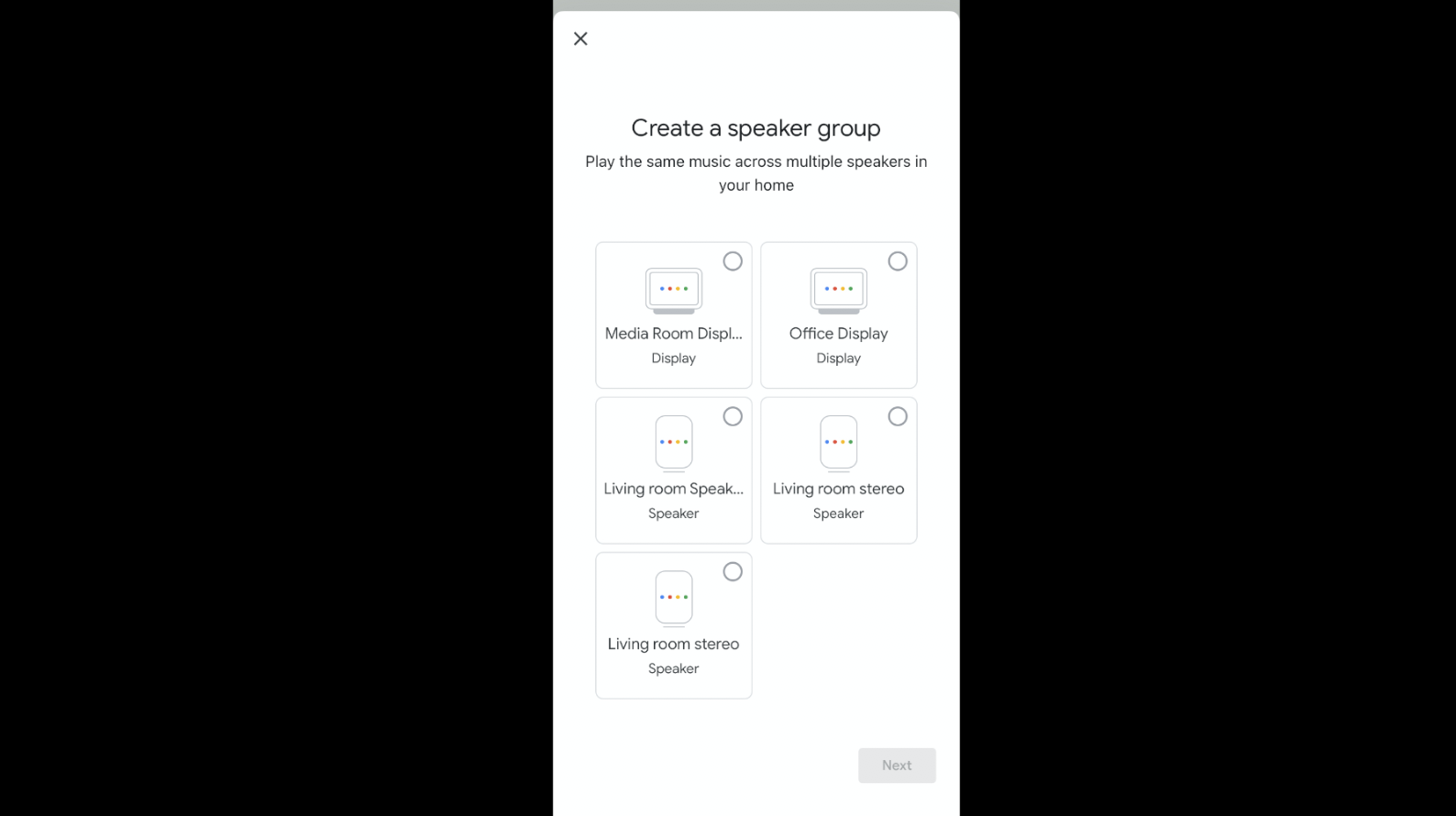
- At the top left, tap Add Create speaker group.
- Tap each device you want to add to the group. A check will appear next to each device you select.
- Tap Next Enter a name for your group Save.
Getting your new Nest Audio speakers set up is easy and hassle free. If you want to learn more about these all new speakers, read the full review here on the blog.



Is it possible to group the stereo pair (the two google nest audio) with another speaker, say Google Home max, and still keep the stereo setup, or will it default to a 3 speaker mono settings?
Im just wondering it I could use the Nest Audio as a left and right speaker while using the Home max as a center speaker in the setup….
Oh wow! Are these devices only used as speakers and sold in pairs? Are they also used as Google Home devices with the same features? Great article!
Obv I am not very tech savvy lol 🙂
Comments are closed.