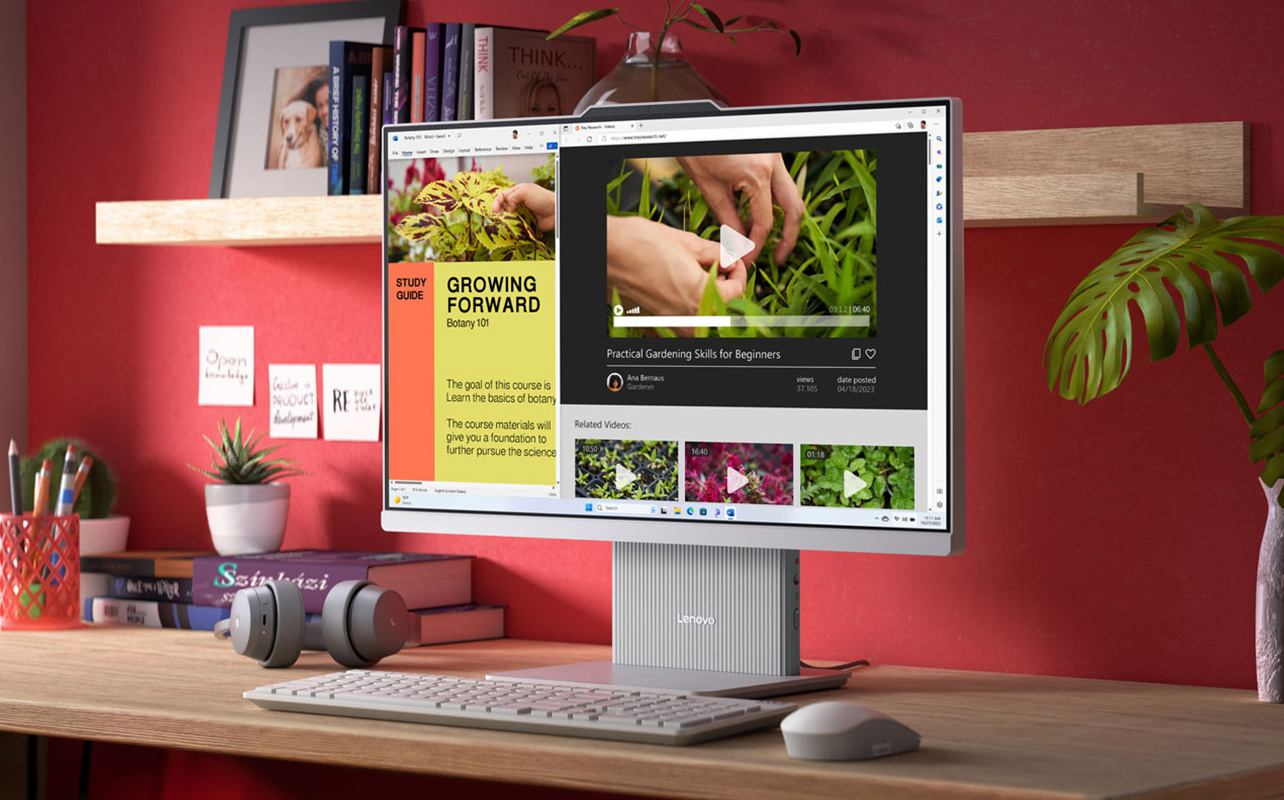
Choosing a computer monitor for studying doesn’t have to be complicated. The problem is that most displays on the market are built for gaming, loaded with high refresh rates, aggressive styling, and specs that do nothing for reading or writing. What students actually need is almost the opposite: a screen that’s comfortable to look at for hours, sharp enough to read text clearly, and easy to connect to a laptop.
The good news is that a monitor built for studying is also one of the more affordable categories you can shop. You just need to know which features matter and which ones you can safely ignore.

Table of contents
- Start with your study habits
- Pick the right size and resolution
- Choose a panel that feels comfortable
- Check comfort, ergonomics, and eye care features
- Ensure proper connectivity
- Match the monitor to your budget
- Frequently asked questions
Why students need a monitor?
Most of your screen time as a student involves reading documents, writing papers, switching between browser tabs, and attending video calls. None of those tasks requires a 144Hz refresh rate or HDR1000 certification. What they do require is a screen that renders crisp text, stays comfortable during long sessions, and connects easily to your existing setup.
Three things matter most for studying: (1) image sharpness at normal desk distances, (2) comfort during long sessions, and (3) clean connectivity to your laptop. Size, resolution, panel type, ergonomics, and ports all feed into those three priorities.
Before diving in, here’s a quick reference based on how you’ll actually use the monitor:
| Student need | Recommended setup |
| Basic studying and homework | 24-inch 1080p IPS |
| Multitasking and productivity | 27-inch 1440p IPS |
| Small desk setup | 24-inch compact monitor |
| Creative work (design, video, photo) | 27-inch 1440p or 4K IPS |
| Budget-focused setup | 24-inch 1080p IPS |
Want to learn more? Read our computer monitor buying guide.
1. Start with your study habits
Not every student needs the same monitor. The right choice depends on what you actually do at your desk, and different habits put different demands on a screen. Here’s how to think about it.
Reading, writing, and research
If most of your time is spent in Google Docs, Word, a PDF reader, or a browser, text clarity and comfortable brightness matter most. A sharp, well-calibrated IPS panel makes long reading sessions noticeably less tiring. It’s especially noticeable in the evenings when screen brightness becomes more of a factor.
For this kind of work, a 24-inch 1080p IPS monitor is genuinely excellent. The pixel density at that size keeps text clean and defined. Most monitors in this category also include basic eye comfort features that help during extended sessions.
Multitasking with tabs, notes, and documents
If you regularly work with multiple windows open at once, screen real estate matters more. A larger monitor at a higher resolution gives you more usable workspace. You stop constantly resizing windows or toggling between applications.
This is where a 27-inch 1440p monitor earns its place. The extra resolution doesn’t just make things sharper; it gives you more room to arrange your work. Split-screen workflows become practical when each half of the screen is still large enough to read comfortably.
Online classes and video calls
Monitor placement matters for video calls. Your screen should sit at or just below eye level. This way, your webcam captures you at a natural angle instead of looking up at the ceiling. A monitor with a thin top bezel makes it easier to position an external webcam close to the screen’s centre.
Speaker and headphone compatibility is worth considering, too. Some monitors include built-in speakers, though the quality is usually modest. If you’re using a headset, check that your monitor’s connectivity works well with your laptop.
2. Pick the right size and resolution
What size and resolution should a student monitor be? Size and resolution work together, and getting the balance right between the two is what separates a monitor that feels sharp and comfortable from one that looks soft or wastes desk space. Here’s what to look for.
Why 24 to 27 inches fits most students
The 24-to-27-inch range is where most students find the right balance. At a typical desk, you’re sitting roughly 50 to 70 centimetres from your screen. A 24-inch monitor feels spacious without overwhelming your desk. A 27-inch monitor gives you more room to spread work out, but it takes up more physical space.
Anything below 22 inches can feel cramped for document work. Anything above 32 inches is designed for creative professionals or shared viewing; it’s overkill for a student desk and can become uncomfortable at close range.
1080p vs 1440p vs 4K: What’s the difference for studying?
Resolution refers to how many pixels make up the image. More pixels mean a sharper image, but screen size matters just as much as pixel count. The relationship between resolution and screen size determines pixel density, measured in pixels per inch (PPI). PPI is what actually determines how crisp your text looks.
Here’s a practical breakdown:
| Monitor size | Resolution | Best for |
| 24-inch | 1080p (Full HD) | General schoolwork and everyday use |
| 27-inch | 1440p (QHD) | Multitasking and productivity |
| 32-inch+ | 4K (UHD) | Creative workflows |
1080p (1920×1080) is Full HD. It’s the most common resolution and perfectly adequate for most students, especially on a 24-inch screen. At that size, pixel density is high enough that text looks sharp and clean. The same resolution on a 27-inch screen looks noticeably softer. The pixels are spread over a larger area, and the difference is visible.
1440p (2560×1440) is also called QHD or Quad HD. On a 27-inch screen, it provides enough pixel density to make text look well-defined. It also gives you meaningfully more room to arrange open windows. If you multitask heavily or spend long hours reading on-screen, the jump from 1080p to 1440p on a 27-inch monitor is one you’ll notice every day.
4K (3840×2160) is impressive, but not a practical priority for most students. At 24 or 27 inches, the pixel density is extremely high. Your operating system needs to scale the interface up to keep text readable, which can cause occasional quirks in older applications. The cost difference is significant. For general schoolwork, you won’t notice much difference compared to a well-calibrated 1440p display.
Why pixel density matters more than resolution alone
Two monitors with the same resolution can look very different depending on screen size. A 24-inch 1080p monitor has a pixel density of around 92 PPI. The same resolution on a 27-inch screen drops to around 82 PPI. The difference in text sharpness is visible, especially at smaller font sizes. As a general rule, monitors above 90 PPI look sharp and comfortable for text-heavy work at normal desk distances. Below that, text can appear slightly soft around the edges.
Find the right computer monitor that fits your needs. Here are key monitors specs you need to know.
3. Choose a panel that feels comfortable
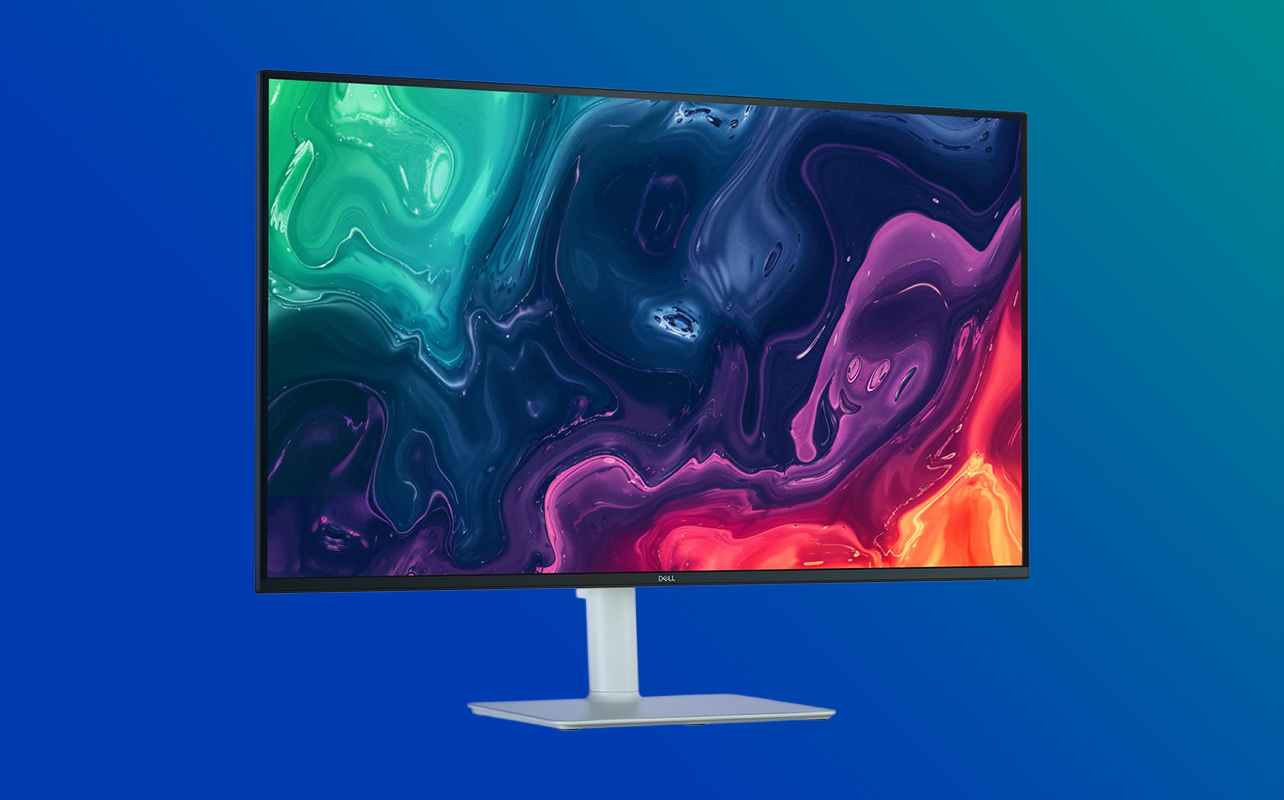
The panel inside your monitor determines colour accuracy, viewing angles, contrast, and how consistent the image looks from off-centre. For students, this comes down to a fairly simple choice. Here’s a quick panel comparison:
| Panel type | Best for | Main trade-off |
| IPS | Studying and productivity | Moderate contrast |
| VA | Media and mixed use | Narrower viewing angles |
| OLED | Premium visuals | Higher cost, burn-in risk |
| TN | Older budget gaming displays | Poor colour quality |
Why IPS is the safest default for studying
IPS (In-Plane Switching) panels are the most versatile option for studying and productivity. The key advantage is wide viewing angles. An IPS panel looks consistent whether you’re sitting directly in front of it or leaning to one side. Colour accuracy is also strongly useful for presentations, visual projects, or anything involving images. For students, IPS delivers a reliable, comfortable experience across every kind of schoolwork. It’s the sensible default.
When VA or OLED makes sense
VA (Vertical Alignment) panels have a clear advantage in contrast. They produce deeper blacks, which makes them well-suited for watching video content or working in mixed-light environments. The trade-off is slightly narrower viewing angles. Colours can shift more noticeably when viewed from the side. For students focused on documents and browsing, this is rarely a meaningful issue.
OLED panels deliver exceptional image quality with perfect blacks and vivid colour. They come at a significant price premium, though. For most students, the cost difference isn’t justified. OLED also carries some risk of screen burn-in with static content. Given how much time a study screen spends showing the same document layout, that’s worth keeping in mind.
What about TN panels?
TN (Twisted Nematic) panels are older technology found mostly in budget gaming monitors. They have fast response times, which is why they became popular for competitive gaming. Colour accuracy and viewing angles are noticeably worse than IPS or VA, though. Text can look less sharp, and colours shift visibly from an angle. For studying, TN is generally a step backwards.
4. Check comfort, ergonomics, and eye care features
Very important, and often underestimated. A monitor with a great panel can still cause fatigue if it’s positioned awkwardly or lacks basic eye comfort features. These details matter more the longer your study sessions run.
Height adjustment and posture
This is one of the most overlooked parts of buying a student monitor. A screen you can’t properly position will force you to adjust your posture to fit the display, not the other way around. Ideally, your monitor should sit so that your eyes align with the top third of the screen when you’re sitting upright. If the stand only allows tilt adjustment, you may end up hunching forward or craning your neck, depending on your desk and chair height.
Look for monitors with height-adjustable stands. Some also offer swivel and pivot (rotating 90 degrees into portrait mode), which can be useful for reading long documents. If height adjustment isn’t available, a VESA-compatible monitor arm is a practical solution, provided the monitor has a VESA mount pattern on the back.
Brightness, blue light, and flicker-free technology
Eye comfort features are often bundled together and they address different problems.
- Blue light filters reduce short-wavelength blue light from the screen. Extended exposure, especially in the evening, can interfere with sleep by suppressing melatonin production. Many monitors include a hardware-level blue light reduction mode. If you regularly study late, this feature is worth looking for.
- Flicker-free technology addresses a separate issue. Many monitors control brightness using pulse-width modulation (PWM). This rapidly flickers the backlight to simulate lower brightness levels. At lower settings, the flicker can cause eye fatigue and headaches during long sessions, even if it’s imperceptible to the naked eye. Flicker-free monitors use DC dimming instead, which adjusts brightness without flickering. This is a meaningful feature for anyone who studies for several hours at a stretch.
- Adjustable brightness matters more than many buyers expect. A monitor that can’t go dim enough for evening studying will force you into uncomfortable viewing conditions regardless of panel quality. Most quality IPS monitors handle this well, but it’s worth checking the brightness range in the specs.
5. Ensure proper connectivity
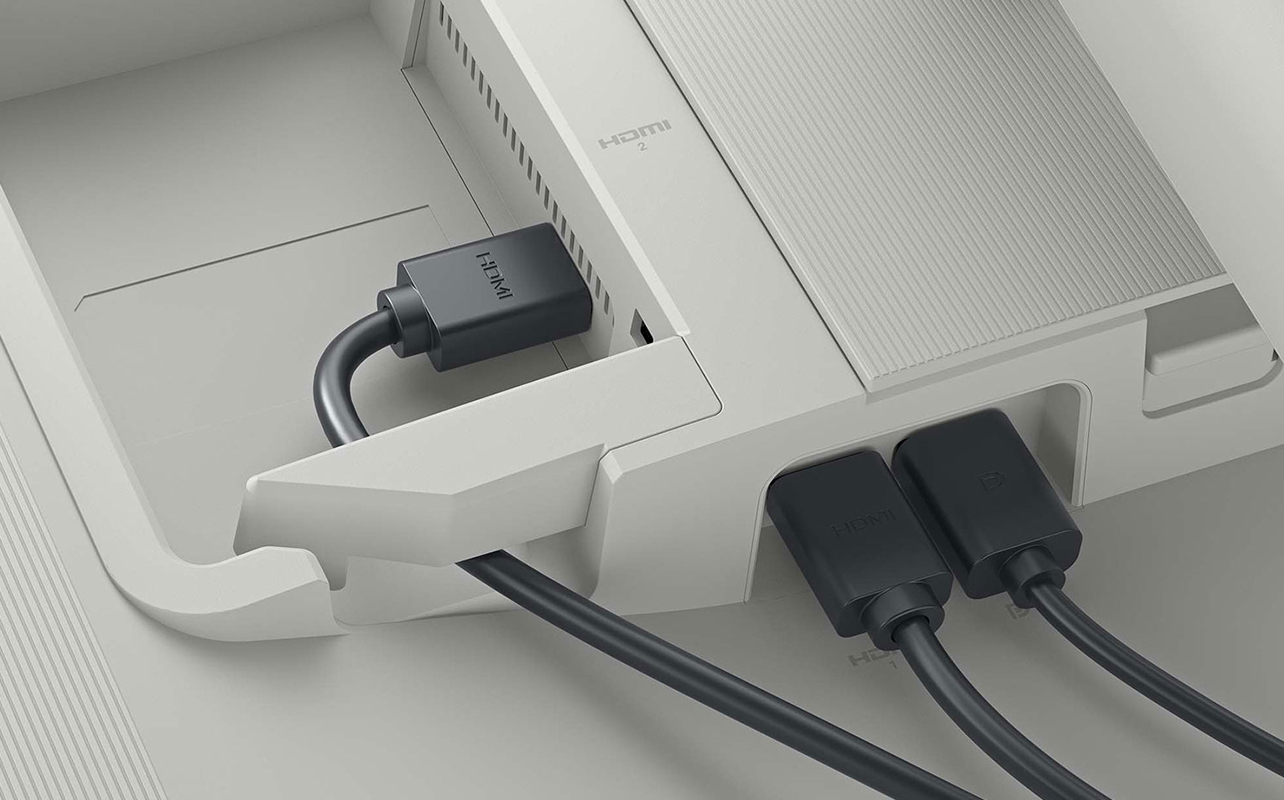
More than most students realize. The wrong connectivity can mean adapters cluttering your desk, or a monitor that simply won’t work with your laptop out of the box. Here’s what to look for.
HDMI and USB-C for laptop compatibility
- HDMI is the most universally compatible video connection. Virtually every laptop and desktop has it, and virtually every monitor accepts it. For most students, HDMI alone is sufficient.
- USB-C is increasingly important, particularly for MacBook users and students with newer Windows laptops that have moved away from traditional ports. A monitor with USB-C input receives both video and audio over a single cable. Some USB-C monitors also support Power Delivery, which means the monitor can charge your laptop through the same cable it uses for video. No separate power adapter needed during study sessions.
If you use a MacBook and want a clean, minimal setup, a monitor with USB-C Power Delivery is worth prioritizing. Arriving at your desk, plugging in one cable, and having your screen connected and laptop charging is a convenience that’s easy to take for granted until you have it, and if you’re still deciding on a laptop to pair with your monitor, our laptop buying guide covers everything you need to know.
DisplayPort and USB hubs
DisplayPort is another video standard. It’s common on desktop graphics cards and some higher-end monitors. For laptop-focused students, it’s less likely to be relevant but useful if your setup includes a desktop PC.
Some monitors include a built-in USB hub, adding extra ports on the side for a mouse, keyboard, or USB drive. It keeps cables off your laptop and your desk tidier. Not essential, but a real quality-of-life improvement for students who work at a fixed desk.
6. Match the monitor to your budget
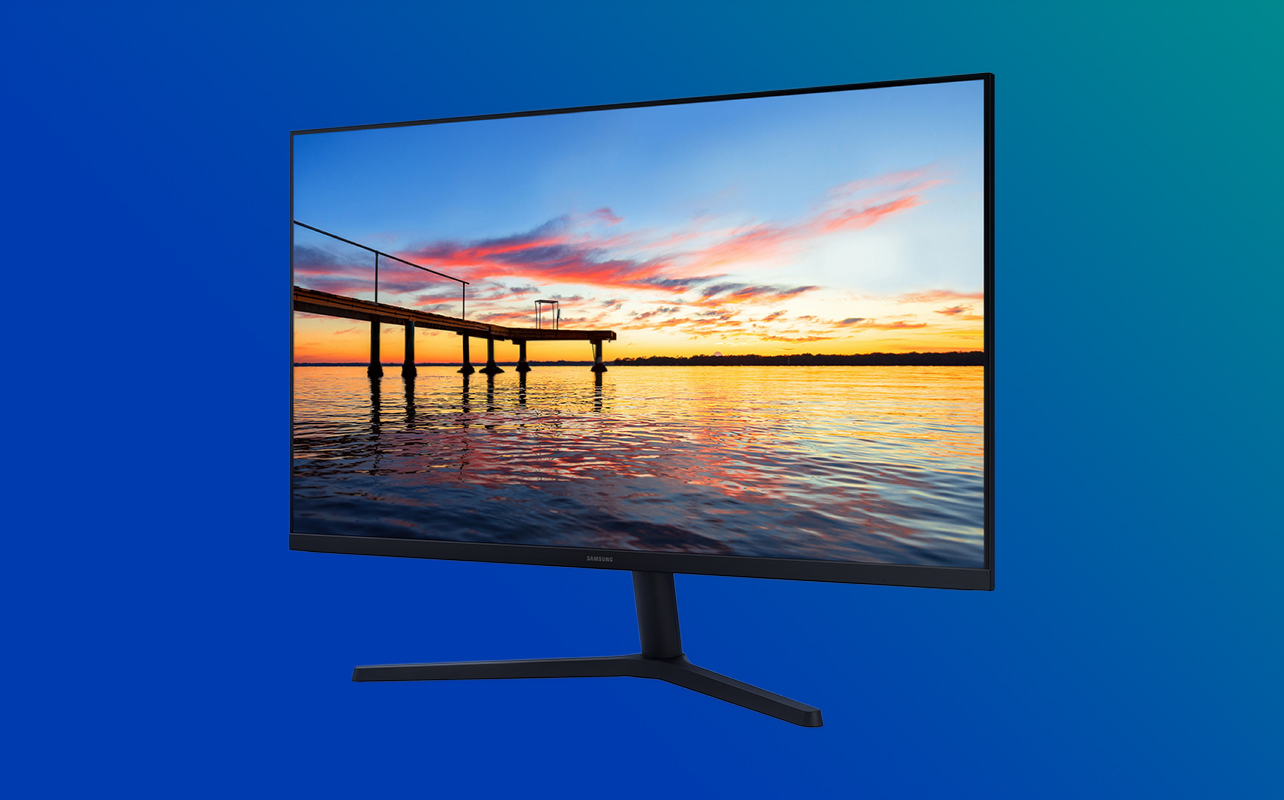
A good study monitor doesn’t require a big budget, but knowing where to spend and where to save makes a real difference. These three questions will help you decide.
What do you want prioritize?
Working within a tight budget? Focus on these four things before anything else:
- IPS panel: the comfort and colour consistency benefit is worth prioritizing over extra size or resolution.
- 1080p or 1440p resolution: matched to your screen size.
- HDMI or USB-C connectivity: depending on what your laptop supports.
- Adjustable stand: height adjustment at minimum; ergonomic support is harder to add after the fact.
A 24-inch 1080p IPS monitor with a height-adjustable stand, and HDMI covers all the essentials. This is where you’ll find the best value for students focused on reading, writing, and online classes.
When does it make sense to spend more?
There are a few scenarios where a higher budget is justified:
- If you multitask heavily, a 27-inch 1440p monitor is a meaningful upgrade. More workspace, sharper text, and a better experience with multiple windows side by side, you’ll benefit from it every day.
- If you use a MacBook or a USB-C-only laptop, a monitor with Power Delivery simplifies your setup and reduces cable clutter in a way that’s worth paying for.
- If your studies involve design, photography, or video editing, a 27-inch 1440p or 4K IPS monitor with strong colour accuracy becomes a practical tool rather than a luxury.
What specs or features can you safely skip?
- High refresh rates (144Hz and above): These exist for gaming, specifically for fast-paced titles where every millisecond counts. For writing, reading, or watching a lecture, 60Hz is completely sufficient. A monitor with a 144Hz refresh rate as its headline feature is almost certainly a gaming display. The premium you’re paying for that spec does nothing for school.
- Extreme HDR ratings: HDR can improve the look of video content. HDR400 certifications on budget monitors often deliver minimal real-world improvement.
- RGB lighting and aggressive styling: If the monitor glows and has angular design language, it was built for gaming setups, not study sessions. These aesthetic choices add cost without adding any value for schoolwork.
Finding the right study monitor
The right monitor for studying doesn’t need to be the most powerful or the most expensive it needs to be the most comfortable and the most practical for how you actually work. A 24-inch 1080p IPS monitor covers everything most students need and keeps costs reasonable. If you multitask heavily or want sharper text for long reading sessions, a 27-inch 1440p IPS monitor is a worthwhile step up.
Focus on IPS panel quality, sensible resolution for your chosen screen size, eye comfort features, and connectivity that works with your laptop without adapters. Skip the gaming specs, put that budget toward something built for the work you actually do, and once you know what you’re looking for, Best Buy Canada has a solid range of computer monitors to compare across every budget.
Frequently asked questions
What monitor size is best for studying?
Most students are best served by a 24-inch or 27-inch monitor. A 24-inch monitor fits comfortably on most desks and pairs well with 1080p. A 27-inch monitor gives more workspace for multitasking and pairs naturally with 1440p for sharper text.
Is 1080p still good enough for schoolwork?
Yes. 1080p works well for most students, especially on a 24-inch screen. The pixel density at that size keeps text sharp and readable. On a 27-inch screen, 1080p looks noticeably softer. 1440p is the better match at that size.
Which panel type is best for studying IPS, VA, or TN?
IPS is the safest and most versatile choice. It offers wide viewing angles, consistent colours, and comfortable brightness across all types of schoolwork. VA works well for video-heavy use. TN should generally be avoided; they often offer poor colour accuracy and viewing angles.
Is a 60Hz or 144Hz monitor better for studying?
For studying and productivity, 60Hz is completely sufficient. Refresh rate measures how many times per second the image updates. The difference between 60Hz and 144Hz only matters in fast-paced gaming. A 144Hz monitor adds cost without any real benefit for schoolwork.
How important is blue light filtering for studying?
It’s a useful feature, particularly for students who study in the evenings. Blue light from screens can interfere with sleep patterns when viewed close to bedtime. A hardware-level blue light mode is more effective than software alternatives. Note that flicker-free technology is a separate feature that reduces eye fatigue during long sessions rather than affecting sleep.
What ports should a study monitor have for a laptop?
HDMI covers compatibility for most laptops. USB-C matters for MacBook users and students with newer Windows laptops. Some USB-C monitors also support Power Delivery; they charge your laptop through the same cable used for video, which keeps your desk clean and simple.
Is an ultrawide monitor good for studying and multitasking?
An ultrawide can help with multitasking, particularly for students who keep many windows open at once. They’re larger, more expensive, and less straightforward to position on a standard desk. For most students, a 27-inch 1440p monitor provides a strong multitasking experience without the added complexity.
Do students need an adjustable monitor stand?
Yes, ideally. A height-adjustable stand lets you position the screen so your eyes align naturally with the top of the display. This reduces neck and shoulder strain during long study sessions. If a monitor you like doesn’t include height adjustment, a VESA-compatible monitor arm is a practical alternative.