
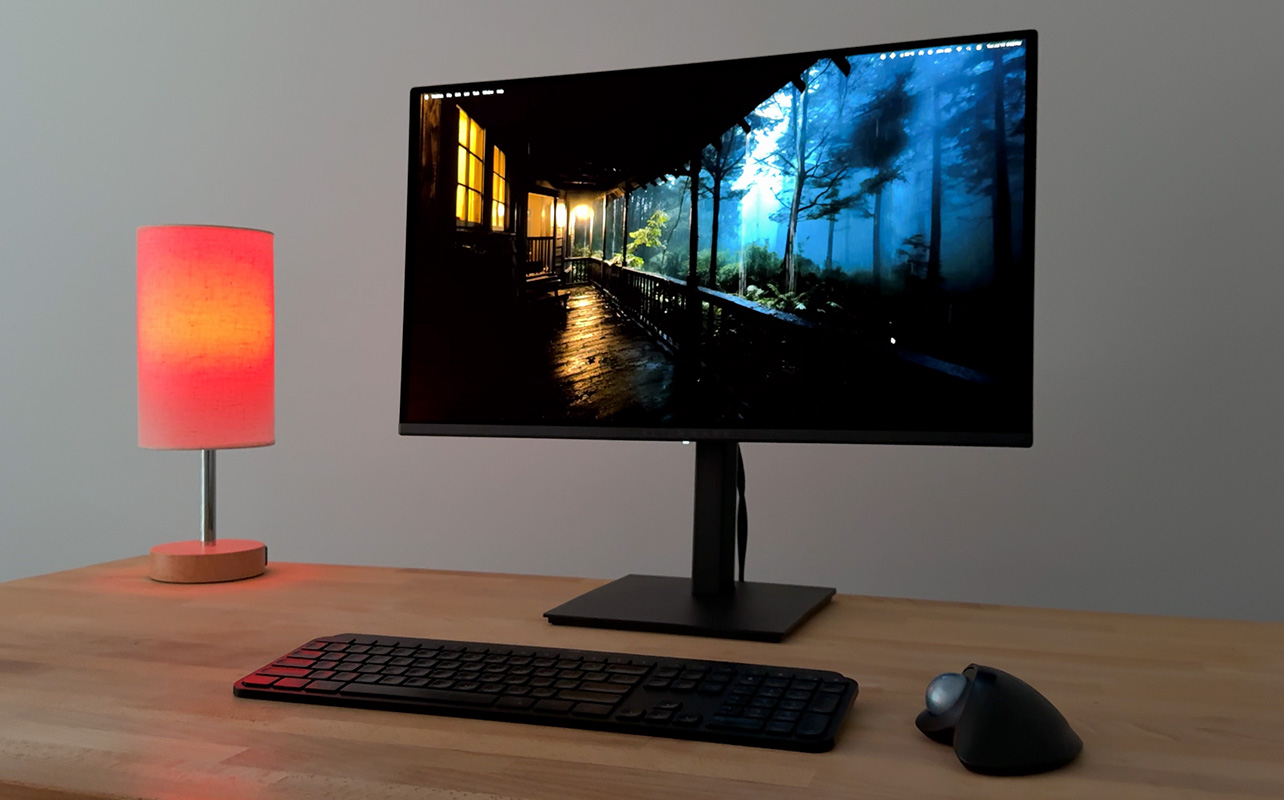
I’ve spent the past 2 weeks running the Alienware 27 240Hz QD-OLED gaming monitor – AW2726DM, splitting time between photo edits, regular work, and a bit of gaming once the day winds down. That mix is actually the right way to test this one, since Alienware’s own pitch for it isn’t ‘built for hardcore gamers only.’ Instead, it’s QD-OLED gaming for everyone. Here’s what actually held up.

Alienware 27 QD-OLED gaming monitor overview video
Unboxing: what’s actually in the box
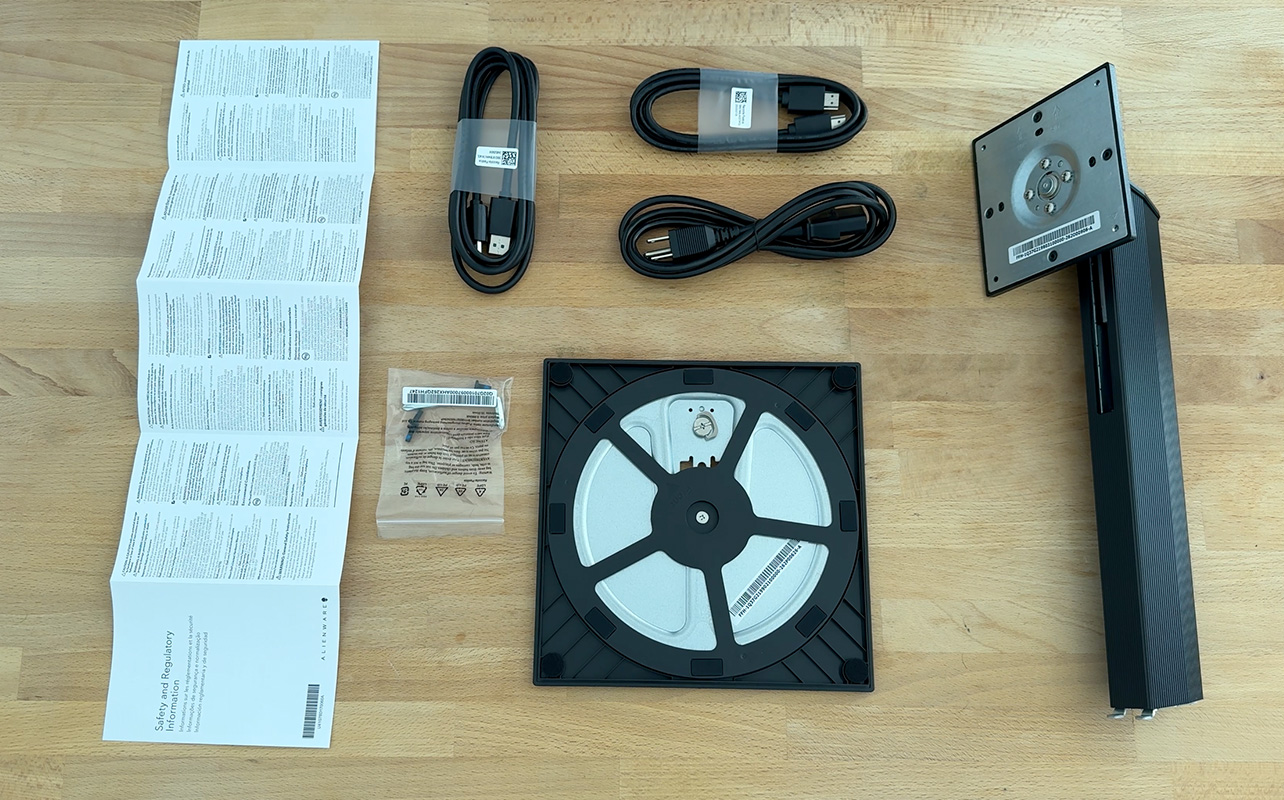
Setup starts simply, and everything you need is already in there. Inside the box:
- The upright and stand base, which connect with a single bottom screw
- Four extra screws to attach the panel to the upright
- Power cable
- DisplayPort and HDMI cables
- Instructional manual
- The 27-inch QD-OLED display panel
Assembly is genuinely a five-minute job. The stand base and upright click together with one screw, and the panel mounts on with four more. No tools beyond what’s included, no guesswork.
Why does the picture look so different
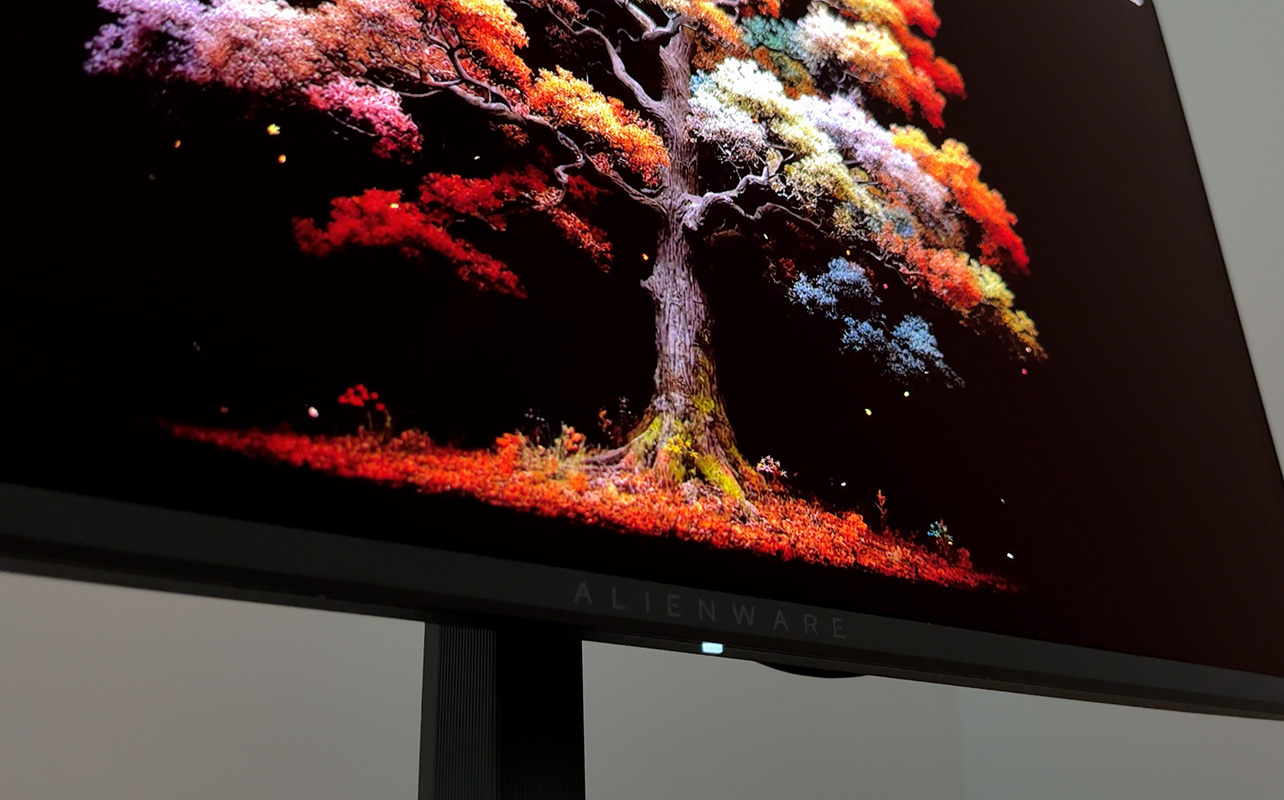
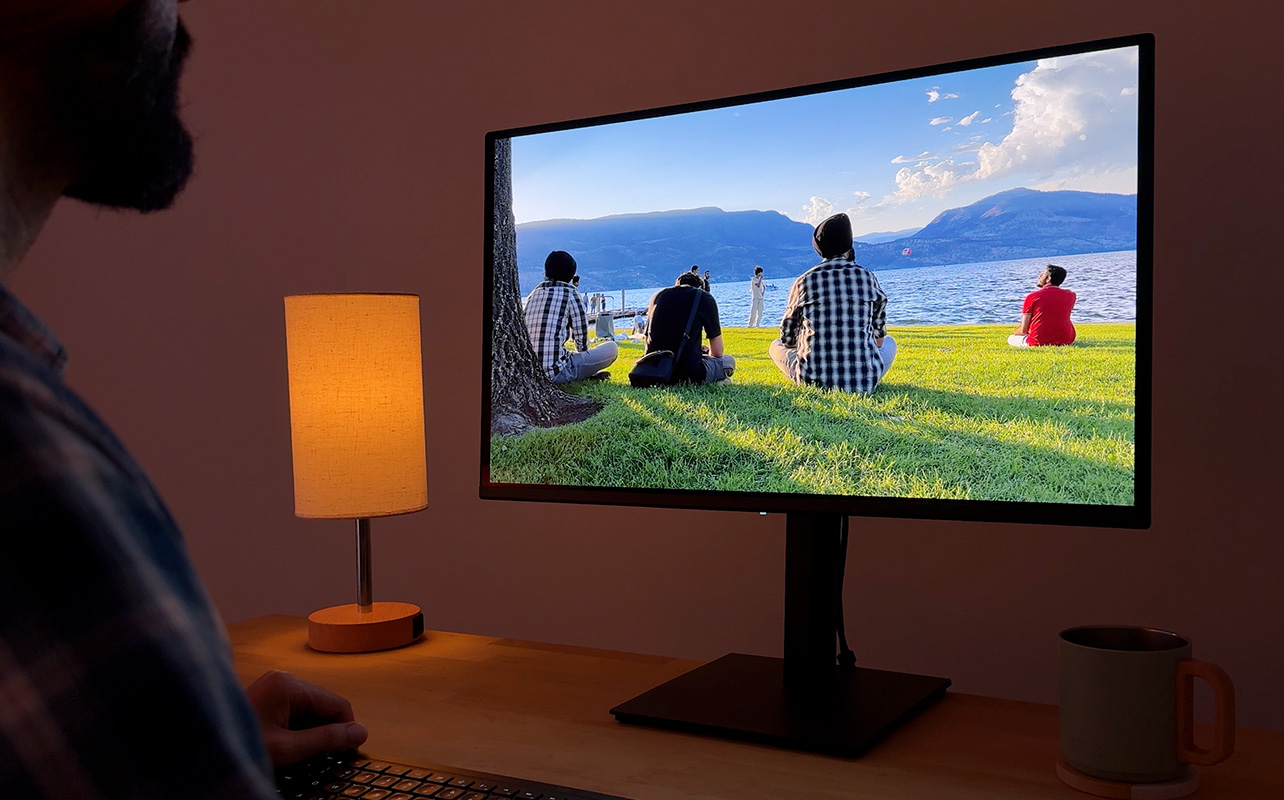
The short answer is QD-OLED. This panel runs at QHD resolution with what Alienware calls an “infinite contrast ratio” and “99% DCI-P3 colour coverage.”
In plain English: standard monitors keep a backlight glowing behind every pixel, even the ones that should stay black. QD-OLED panels have individual pixels that can turn themselves off completely in the dark areas of your screen. That’s what actually creates the “infinite” part of that contrast ratio. Also, this is why every other colour on the screen, in a photo or a game, ends up popping harder against a background that’s genuinely black instead of a dim grey.
Built for speed: refresh rate and response time
This is still a gaming monitor first, so motion matters as much as colour. It packs a 240Hz refresh rate and a 0.03ms response time, meaning the pixels change colour almost instantly. When something fast-paced is happening on screen, that speed is the difference between smooth, blur-free motion and a ghosted trail behind everything that moves.
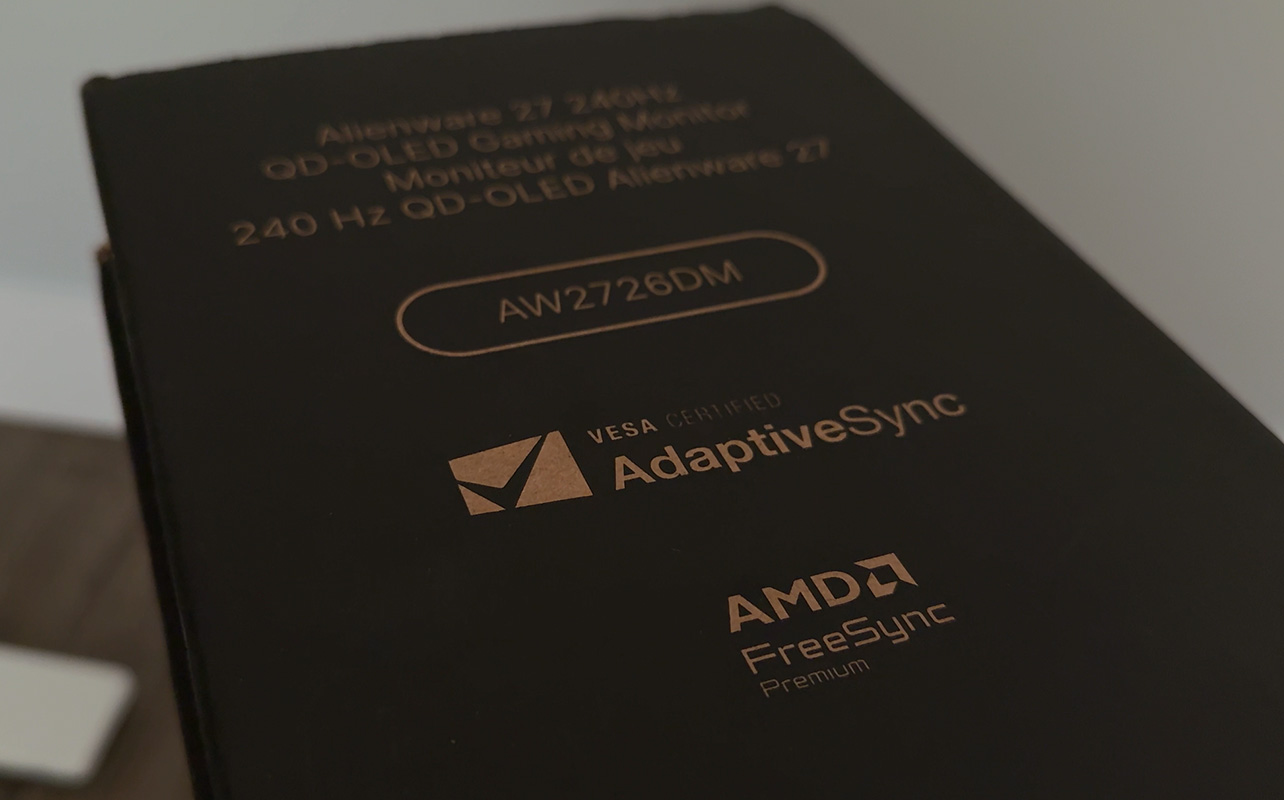
It also runs AMD FreeSync Premium and VESA AdaptiveSync, which keep the monitor’s refresh rate matched to your graphics card in real time. That’s the part that actually stops tearing and stuttering, regardless of what GPU is driving it.
Comfort that keeps up with long sessions
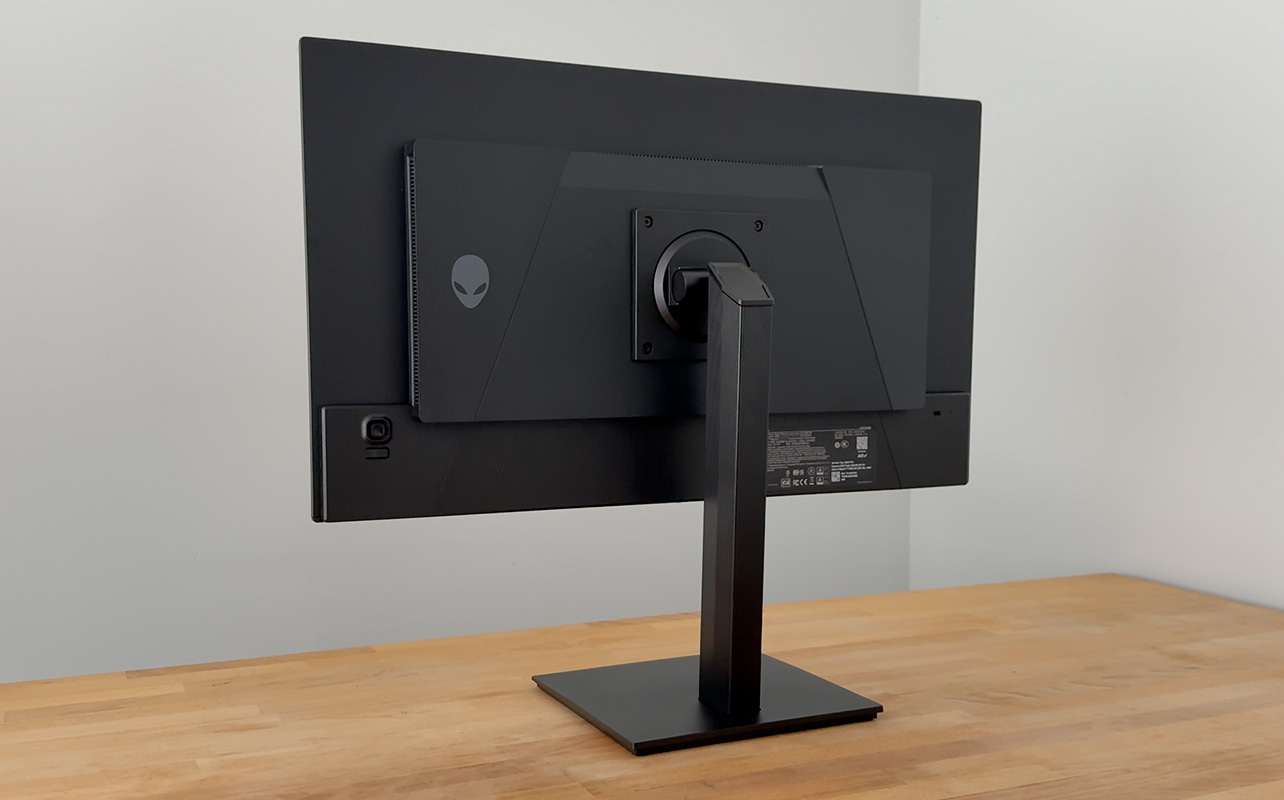
Alienware built this one for endurance, not just speed. The stand offers height, tilt, swivel, and pivot adjustments, so getting the screen to the proper eye level takes seconds rather than a wrestling match with the desk setup.
It also carries a TÜV Rheinland 3-star eye comfort certification, which matters more than it sounds. A lot of eye comfort features work by dialing back colour accuracy to cut blue light. This one’s certified to reduce eye strain without giving up the accuracy that makes the QD-OLED panel worth having in the first place.
Tackling OLED’s biggest question: burn-in
If you’ve looked at OLED displays before, burn-in has probably come up, and it’s a fair thing to ask about before spending on this kind of panel. Alienware addresses it directly with built-in display health tech, including an AI algorithm and a graphite film heatsink designed to manage heat and protect the panel over time.
Who is this monitor for?
Gamers who want motion to actually keep up
If fast-paced games are the priority, the 240Hz refresh rate and 0.03ms response time are exactly what you’re after. Paired with FreeSync Premium and AdaptiveSync, competitive and fast-moving titles stay smooth without tearing.
Editors and anyone who works with colour
Photo editing, video work, or anything where accurate colour actually matters benefits directly from that 99% DCI-P3 coverage and true black levels.
Anyone who splits time between work and play
This is really the point behind Alienware’s own tagline for this monitor. You don’t need to be exclusively a gamer or exclusively a creative professional to get value here, since it’s built to handle both sides of that split without compromise on either one.
Final thoughts
Two weeks in, the thing that’s stuck with me most isn’t any single spec; it’s how little I’ve thought about the screen at all, which is usually the sign of a display doing its job right. Colour looks the way it should, motion holds up when things get fast, and the comfort features mean longer sessions haven’t been an issue either. Between the QD-OLED panel, the 240Hz refresh rate, and the burn-in protection backing it all up, the Alienware 27 QD-OLED Gaming Monitor makes a solid case for itself, whether your priority is gaming, creative work, or a balance of both. You can check it out at your nearest Best Buy or order it online at BestBuy.ca.

This content is created in collaboration with Alienware. All opinions expressed are our own.