It’s 9 a.m., math just started, and your kid’s wrist buzzes with a new game alert. Cue the teacher’s glare. If you’re a parent, you’ve probably already heard about school policies around devices: distractions during lessons, worries about sneaky photos, or too much screen time. At the same time, you want your child to stay safe and reachable.
That’s where school mode on a kids smartwatch comes in. School Mode is a feature that temporarily limits distractions during school hours by blocking games, notifications, and other non-essential functions while keeping important safety features, such as GPS location tracking and emergency calling (where supported), available. Parents can typically schedule School Mode through the smartwatch’s companion app, so it turns on automatically during class and switches off when the school day ends.
Whether your child uses a dedicated kids smartwatch like the Garmin Bounce or Xplora X6 Play, or an Apple Watch with Family Setup, setting up School Mode can help them stay focused in class while giving you peace of mind. In this guide, we’ll explain how School Mode works, which smartwatches support it, and how to set it up for your child’s device.

How does School Mode work on a kids smartwatch?
School Mode works by automatically restricting distractions during scheduled school hours. Depending on the smartwatch, it can block games, mute notifications, disable messaging, and limit access to certain apps while continuing to support essential features like GPS tracking and SOS calling. Unlike Do Not Disturb, School Mode is typically controlled by a parent through the companion app and follows a schedule. This means your child can’t just switch it off in the middle of math.
And schools are paying attention: recent surveys suggest that more than half of Canadian schools restrict smartwatch use unless they’re muted or in a designated learning mode. That’s why having schooltime mode pre-set makes your child’s smartwatch school-friendly.
If you’re still deciding which device is right for your child, explore our guide to choosing the best smartwatch for kids and teens.
Which smartwatches have School Mode?
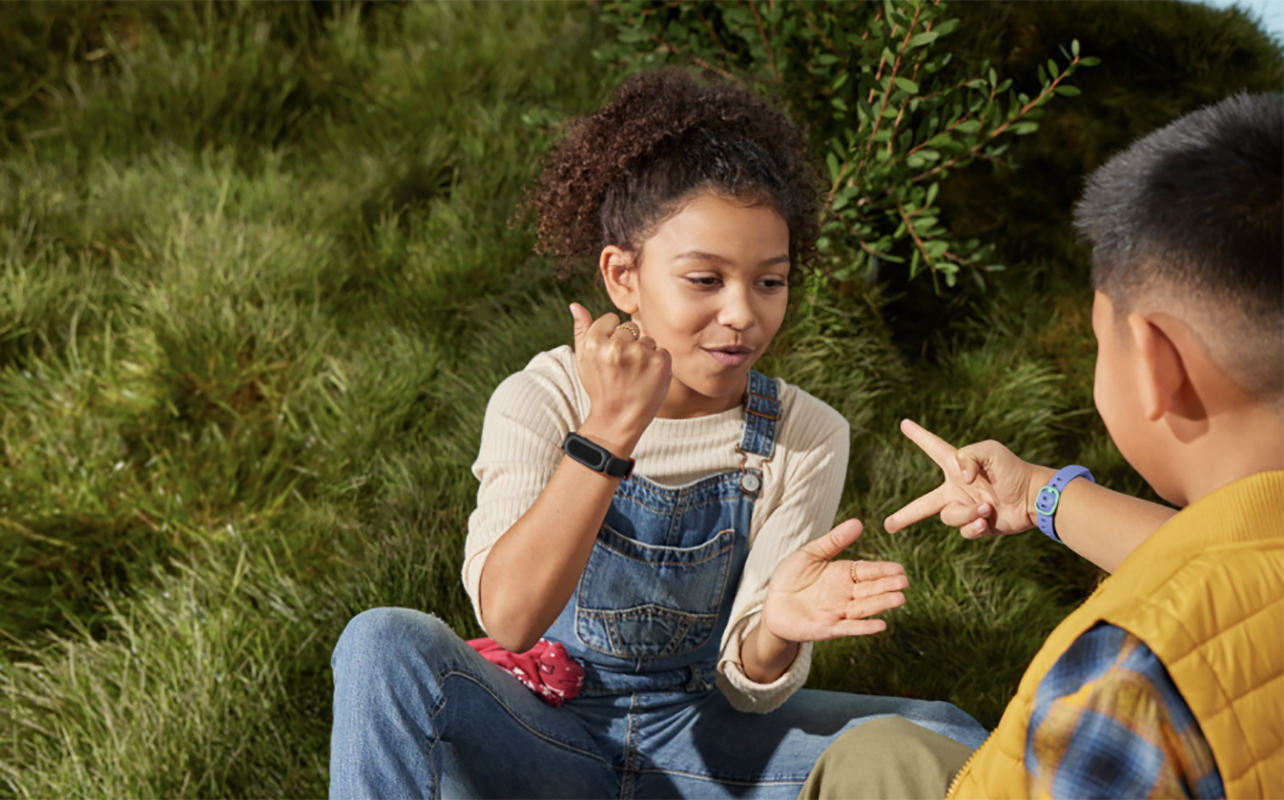
Not every smartwatch includes a dedicated School Mode. Here’s how the most common smartwatch categories compare.
Kids’ smartwatches with built-in School Mode
Smartwatches designed specifically for children—such as Apple Watch with Family Setup, Xplora, Spacetalk, and Garmin Bounce—include a built-in School Mode that parents can manage through the companion app. These modes are schedule-based and parental-locked, helping prevent children from disabling them during school hours.
Adult smartwatches
Devices like the Apple Watch (without Family Setup), Samsung Galaxy Watch, and Google Pixel Watch don’t include a dedicated School Mode. However, you can create a similar experience using Focus Modes, Do Not Disturb, or custom routines to limit notifications and distractions during class.
Fitness trackers
Most fitness trackers, including Fitbit and Amazfit models, don’t include a true School Mode. Instead, they typically offer manual or scheduled Do Not Disturb settings.
Pro tip: Before buying a smartwatch, check the companion app to confirm whether School Mode or Class Time is supported, as available features can vary between models.
How to set up School Mode on a kids smartwatch
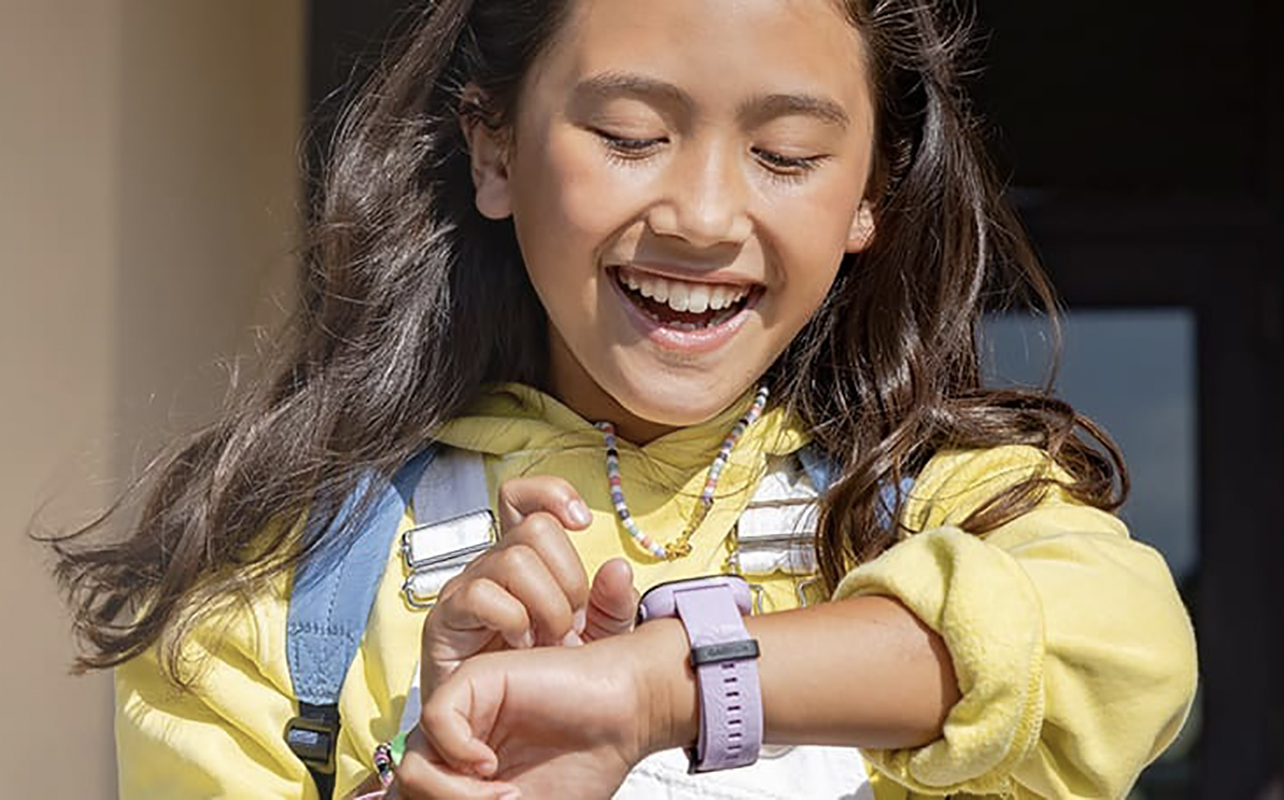
The exact setup process varies slightly by brand, but most kids’ smartwatches follow the same general steps.
Apple Watch with Family Setup
Open the Watch app on the parent’s iPhone and enable Schooltime for your child’s watch. Choose the days and times you want Schooltime to run automatically. During Schooltime, notifications are limited while important safety features remain available.
Garmin Bounce
Open the Garmin Jr. app, select your child’s smartwatch, and enable School Mode. Set your preferred school schedule, save the settings, and test that games and notifications are restricted during class hours.
Xplora smartwatches
Open the Xplora companion app, select your child’s watch, enable School Mode, and choose the days and times it should be active. Once enabled, the watch limits distractions while keeping essential safety features available.
Spacetalk smartwatches
Using the Spacetalk app, configure School Mode by selecting the school schedule and saving your settings. Your child will still be able to access approved safety features while classroom distractions are minimized.
General setup steps
Although the menus differ slightly, most devices follow the same process:
- Open the parent app linked to your child’s smartwatch.
- Find School Mode or Class Time in Settings.
- Turn the feature on.
- Choose your child’s school schedule.
- Select any available restrictions, such as blocking games or muting notifications.
- Save your settings.
- Test the watch during the scheduled time to make sure School Mode activates correctly.
On many devices, a small school hat or similar icon appears on the watch face when School Mode is active.
Note: Apple’s Schooltime feature automatically disables Apple Pay while Schooltime is enabled.
How to create School Mode on smartwatches without built-in School Mode
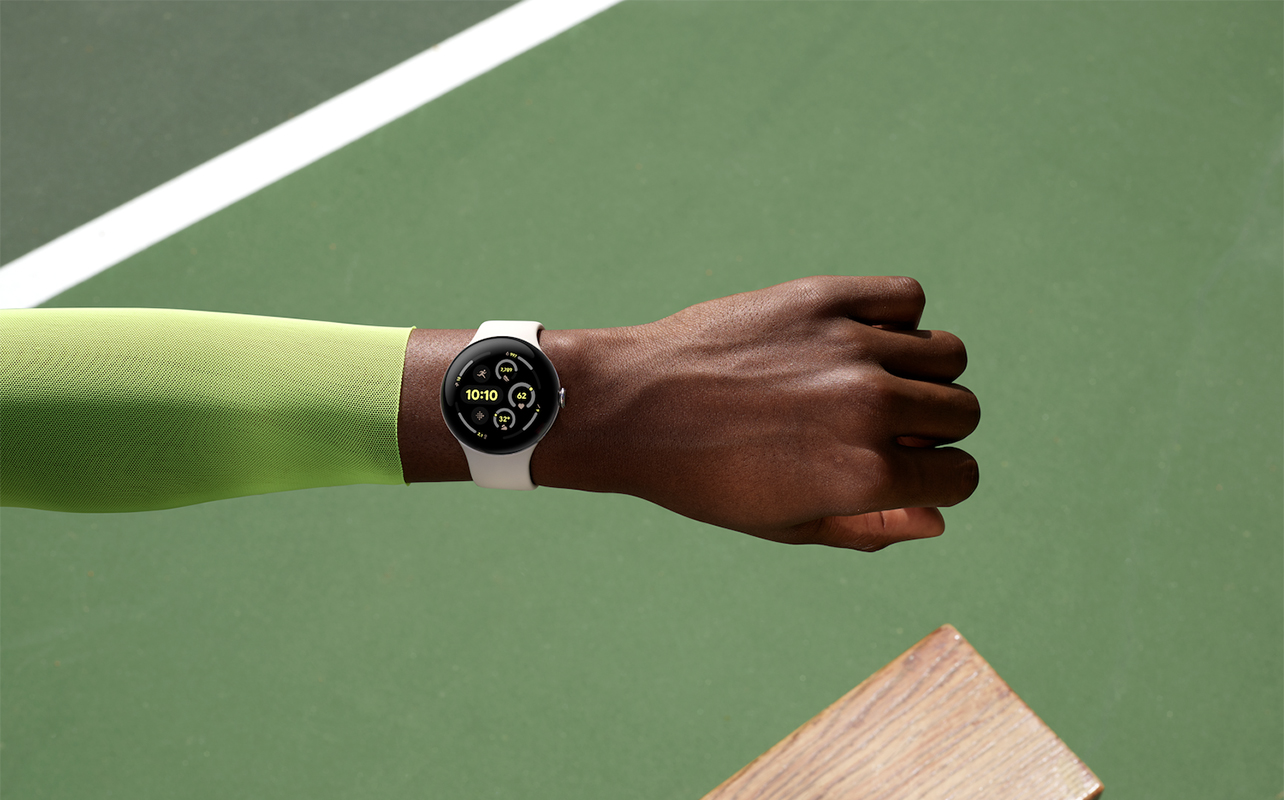
If the smartwatch you have doesn’t include a school mode, or if you have gotten a fitness band for your child instead, no worries! You can create a similar experience using the device’s built-in Focus or Do Not Disturb features.
Apple Watch (without Family Setup)
Go to Settings › Focus › Schooltime. Set a recurring schedule for weekdays and lock changes with your Screen Time passcode to prevent unauthorized changes.
Samsung Galaxy Watch, Google Pixel Watch and other Wear OS smartwatches
Open Settings › Modes & Routines › Add routine. Set triggers for weekday mornings to mute notifications and restrict distracting apps during school hours.
Fitbit and Amazfit fitness trackers
Swipe down and toggle Do Not Disturb. Some firmware allows you to set a timed DND window.
Tip: Rename the routine “Class hours” so your child instantly recognizes when it’s meant to be on.
At-a-glance: school-mode features by model
| Model | Built-in school-mode | SOS active? | Payment disabled? | Parental lock? | App to manage |
|---|---|---|---|---|---|
| Apple Watch (Family Setup) | Yes | Yes | Yes (Apple Pay off) | Yes | Watch app + Screen Time |
| Xplora X6 Play | Yes | Yes | N/A | Yes | Xplora app |
| Spacetalk Adventurer | Yes | Yes | Yes | Yes | Spacetalk app |
| Garmin Bounce | Yes | Yes | N/A | Yes | Garmin Jr. app |
| Any Wear OS watch | DIY Focus mode | Yes | Optional | Limited | Manufacturer’s companion app |
| Fitbit/Amazfit | Manual DND only | Limited | N/A | No | Fitbit/Amazfit app |
If you’re choosing between kids’ smartwatches, built-in School Mode is one of the easiest ways to reduce classroom distractions while still allowing important safety features like GPS tracking and emergency contacts.
Which smartwatch has the best School Mode?
If you’re deciding which smartwatch to buy, School Mode is just one feature to consider. Here’s how some of the most popular kids’ smartwatches compare based on who they’re best suited for.
| Smartwatch | Best for | School Mode |
|---|---|---|
| Apple Watch (Family Setup) | iPhone families | Excellent |
| Garmin Bounce | Younger kids | Excellent |
| Xplora X6 Play | Calling & GPS | Excellent |
| Spacetalk Adventurer | Safety-first families | Excellent |
| Samsung Galaxy Watch | Older teens | Focus Mode workaround |
While each smartwatch approaches School Mode differently, dedicated kids’ smartwatches generally offer the simplest setup and strongest parental controls, making them the best choice for younger children.
Pro tips for parents
- Battery boost: Schooltime mode can stretch battery life by 5–10% since it silences background activity.
- Revisit each term: Update the schedule whenever your child’s class timings change.
- Homework focus: Create a second “Homework Mode” in the evenings for distraction-free study time.
- Durability counts: Kids aren’t always careful, so add a smartwatch screen protector for peace of mind.
- Upgrade from an old tracker? Trade it in for credit with the Best Buy smartwatch trade-in program.
FAQs about school mode on smartwatch
Will alarms still ring in school-mode?
Yes. Most kids watches keep vibration timers or alarms active since they’re considered study aids. Apple honours existing alarms, while Garmin, Xplora, and Spacetalk allow silent reminders.
Does schooltime mode save battery?
Definitely. Silencing notifications and dimming screens can extend battery life by 5–10%. On simpler kids models, that might mean a whole extra day between charges.
Can my child bypass the lock?
Not on kids models. Apple requires your Screen Time passcode, and Garmin, Xplora, and Spacetalk only allow changes from the guardian app. For DIY Focus modes, make sure you also set a device passcode.
What about the camera?
Schooltime mode disables the camera shortcut on most kids models. For DIY setups, add the camera app to your blocked list.
Is school-mode the same as airplane mode?
No. Airplane mode shuts off all radios, including GPS and SOS calls. Schooltime mode mutes distractions but keeps your child safe and reachable.
Can my kid swim with school-mode on?
Yes, if the watch itself is waterproof. Check out the best waterproof smartwatch options for models that can handle pool days.
Final takeaway: smarter school days ahead

Whether your child’s watch has a one-tap kids smartwatch school mode or you create a DIY version, the outcome is the same: fewer classroom distractions and more peace of mind for you.
Need a watch first? Check out the best smartwatches for students, and read more to understand the best choice for school between a smartwatch or fitness band. If you’re shopping for a kids smartwatch, look for features like School Mode, GPS location sharing, parental controls, calling and messaging, and all-day battery life. Browse the latest kids smartwatches at Best Buy to compare models with School Mode, GPS location tracking, parental controls, calling and messaging, and long battery life from trusted brands like Garmin, Xplora, and Apple.