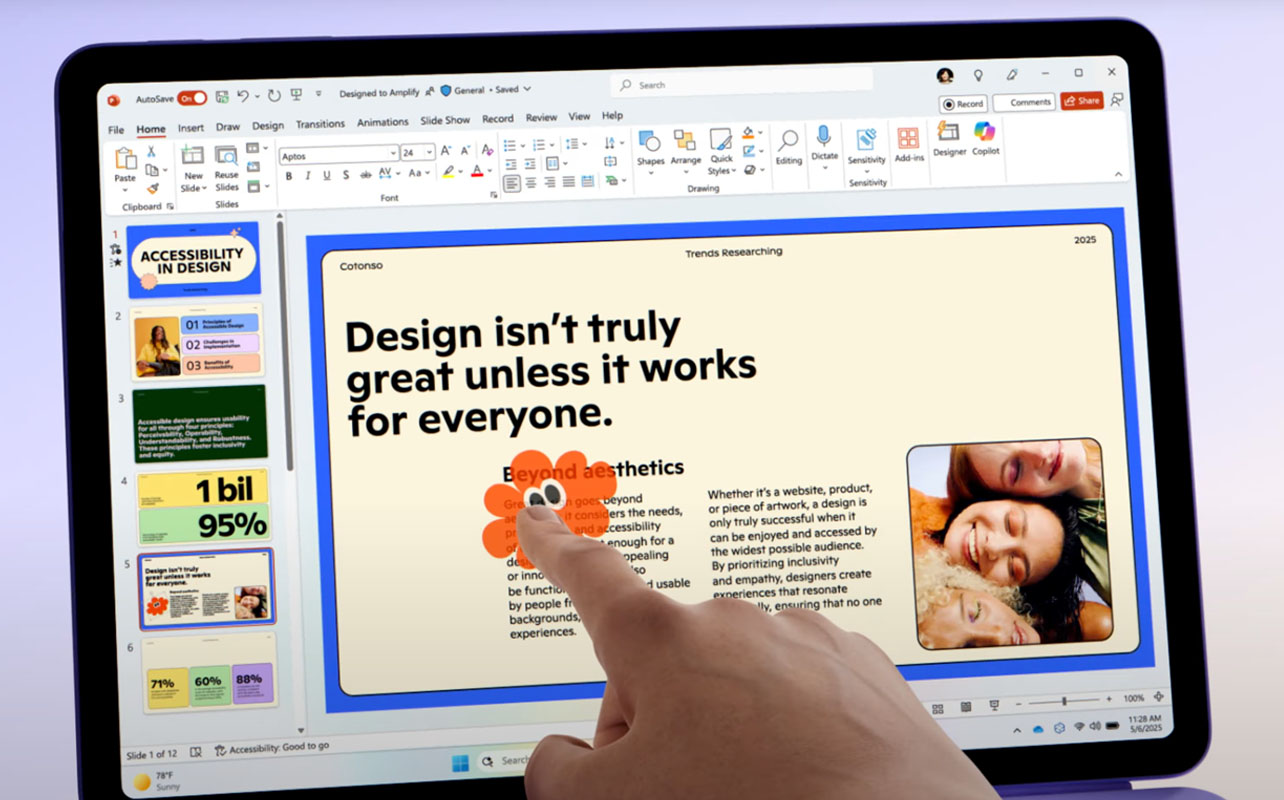
A second screen can make a surprising difference when you’re juggling lecture slides, research articles, notes, assignments, and video calls. The challenge for many students is that dorm rooms, apartments, and study spaces often don’t have room for a dedicated monitor. If you already own a Mac and an iPad, you may not need to buy additional hardware at all.
Apple’s Sidecar feature lets you use an iPad as a second screen for your Mac, creating a portable dual-display setup that’s ideal for studying. Whether you’re writing essays, attending online lectures, conducting research, or taking handwritten notes with an Apple Pencil, an iPad can become a powerful productivity tool.
In this guide, you’ll learn how to use an iPad as a second screen for studying, how to set up Sidecar, how it differs from Universal Control, and how to create a more efficient study workflow using the devices you already own.

Table of contents
- What Sidecar does for study workflows
- When Universal Control is the better choice
- How to set up Sidecar on Mac and iPad
- Troubleshooting Sidecar
- How to use Apple Pencil with Sidecar
- When a monitor may still make more sense
- Frequently asked questions

What Sidecar does for study workflows
Sidecar is Apple’s built-in feature that turns an iPad into a second display for a MacBook or Mac desktop. It’s part of Apple’s Continuity suite, a collection of features designed to help Apple devices work together without friction.
- Extend your Mac desktop to create additional screen space: This allows you to spread apps and windows across two displays instead of crowding everything onto a single screen. Students can keep research, notes, assignments, and lectures visible at the same time, reducing the need to constantly switch between windows.
- Mirror your Mac display: Mirroring shows the same content on both screens, which can be useful when presenting to classmates, sharing your work during study sessions, or viewing content from a different angle.
- Support Apple Pencil input for compatible apps: This lets you use the iPad as a drawing and annotation surface for your Mac, making it easier to mark up PDFs, sketch diagrams, or write notes by hand.
In practice, this translates into a much smoother study experience. Instead of constantly switching tabs and windows on a single screen, you can dedicate each display to a specific task, such as researching articles on the iPad while writing an essay on the Mac, lecture slides on one screen while keeping notes on the other, or a Zoom session on the MacBook while assignment instructions stay visible on the iPad. The result is less mental friction, fewer interruptions, and more room to think.
Perhaps most practically, Sidecar lets students build a dual-screen setup without buying a separate monitor, a real advantage for anyone working from a small desk or a tight budget.
Looking for the right iPad? Check out our tablet and iPad buying guide.
When Universal Control is the better choice

Sidecar and Universal Control are often confused because both allow a Mac and iPad to work together, but they serve different purposes. With Universal Control, your Mac and iPad remain separate devices. Rather than extending your display, Universal Control allows you to use a single keyboard, trackpad, or mouse across both devices. For example, you can move your cursor off the edge of your Mac’s screen and onto your iPad, then continue working as though both devices are connected.
This makes Universal Control particularly useful for dragging files between devices, copying and pasting content, using iPad apps while working on your Mac, and managing multiple Apple devices simultaneously. Sidecar, by contrast, turns the iPad into an actual second display for your Mac, making it the better choice when your goal is to expand your workspace for studying and multitasking.
Sidecar vs Universal Control
What’s the difference between Sidecar and Universal Control? Here’s a quick comparison.
| Feature | Sidecar | Universal Control |
|---|---|---|
| Turns iPad into second display | Yes | No |
| Shares keyboard and mouse | Yes | Yes |
| Separate app windows | Yes | Limited |
| Best for multitasking | Excellent | Good |
| Best for drag-and-drop between devices | Moderate | Excellent |
For most students looking to create a dual-screen study setup, Sidecar is usually the better choice.
How to set up Sidecar on Mac and iPad
Getting Sidecar running is straightforward, but there are a few requirements worth confirming before you begin.
1. Check device compatibility
Not every Mac or iPad supports Sidecar, so the first step is making sure both of your devices qualify:
- Compatible iPad models include all iPad Pro models (every generation and size), iPad Air 3rd generation and later, iPad mini 5th generation and later, and iPad (standard) 6th generation and later. Current models like the iPad Pro 11-inch (M4 and M5), iPad Pro 13-inch (M4 and M5), iPad Air 11-inch and 13-inch (M2, M3, and M4), and iPad mini (A17 Pro) all support Sidecar.
- Compatible Mac models include MacBook Pro (2016 or later), MacBook Air (2018 or later), Mac mini (2018 or later), iMac (late 2015 or later), iMac Pro (2017), Mac Pro (2019 or later), and Mac Studio (all models). All Apple Silicon Mac models, including the MacBook Air M1 through M4 and MacBook Pro M1 through M4, are fully compatible. Both devices must be running current versions of macOS and iPadOS for the best experience.
Beyond the hardware, you’ll also need:
- The same Apple Account is signed in on both devices, with two-factor authentication enabled. Sidecar uses your Apple Account to confirm that both devices belong to the same user.
- Both devices are running supported software versions. Keeping your Mac and iPad up to date is the simplest way to ensure compatibility and avoid connection issues.
If you’re unsure which generation your iPad or Mac is, you can check under Settings > General > About on the iPad, or Apple menu > About This Mac on your Mac. If you’re unsure which iPad you own or are weighing an upgrade, our iPad comparison guide walks through every current model.
2. Turn on Wi-Fi, Bluetooth, and Handoff
Wireless Sidecar depends on several Apple ecosystem features running in the background at the same time. Before trying to connect, make sure:
- Wi-Fi is on for both devices. Sidecar uses your local Wi-Fi network to maintain the wireless connection between your Mac and iPad.
- Bluetooth is on for both devices. Bluetooth helps establish the initial connection when Sidecar first launches.
- Handoff is enabled. Handoff is part of Apple’s Continuity platform and is required for Sidecar to work. You can turn it on under Settings > General > AirPlay & Handoff on the iPad, and System Settings > General > AirDrop & Handoff on the Mac.
- Both devices are signed into the same Apple Account.
Keep your Mac and iPad within about 10 metres (30 feet) of each other during use. Distance is one of the most common causes of lag and dropped connections.
3. Connect wirelessly or with USB
You have two options for how to connect, and the right one depends on where and how long you’ll be studying.
- Wireless Sidecar is the most convenient option for most students. There are no cables to manage, which makes it easy to set up a dual-screen workspace wherever you are: a library study room, a coffee shop, a campus lounge, or your dorm desk. It’s also easy to reposition your devices without worrying about cord length. For shorter study sessions on newer hardware, wireless performance is generally smooth and reliable.
- Wired Sidecar uses a USB-C or Lightning cable to connect your iPad directly to your Mac. Most current iPad use USB-C, including every iPad Pro and iPad Air released in the past few years, as well as the iPad mini 7th generation. Older models like the iPad mini 6th generation and iPad 9th generation use Lightning. A wired connection typically delivers lower latency, fewer dropped connections, and the added benefit of keeping your iPad charged throughout the session. For students spending several hours at a desk working through exams, long research projects, or lecture-heavy days, wired is often the more dependable choice.
For help choosing the right cable for your setup, our USB-C cable guide covers what to look for
Sidecar setup checklist
| Requirement | Needed for Sidecar |
| Compatible Mac | Yes |
| Compatible iPad | Yes |
| Same Apple Account | Yes |
| Two-factor authentication | Yes |
| Wi-Fi enabled | Yes |
| Bluetooth enabled | Yes |
| Handoff enabled | Yes |
4. Launch Sidecar
Once your devices are ready, connecting only takes a moment:
- Open Control Centre on your Mac. You can access it from the menu bar. This is where Apple places many display and connectivity controls.
- Click Screen Mirroring. This menu shows available displays and compatible devices that can be used with Sidecar.
- Select your iPad from the list. After a few moments, your Mac should establish a connection with the iPad.
- Choose whether to mirror or extend your display. Extending creates additional workspace, while mirroring shows the same content on both screens.
- Arrange displays through Display Settings if needed. You can reposition the virtual displays so that cursor movement matches the physical placement of your Mac and iPad on your desk.
Your iPad should immediately begin functioning as a second display, allowing you to move windows and applications between screens.
Troubleshooting Sidecar
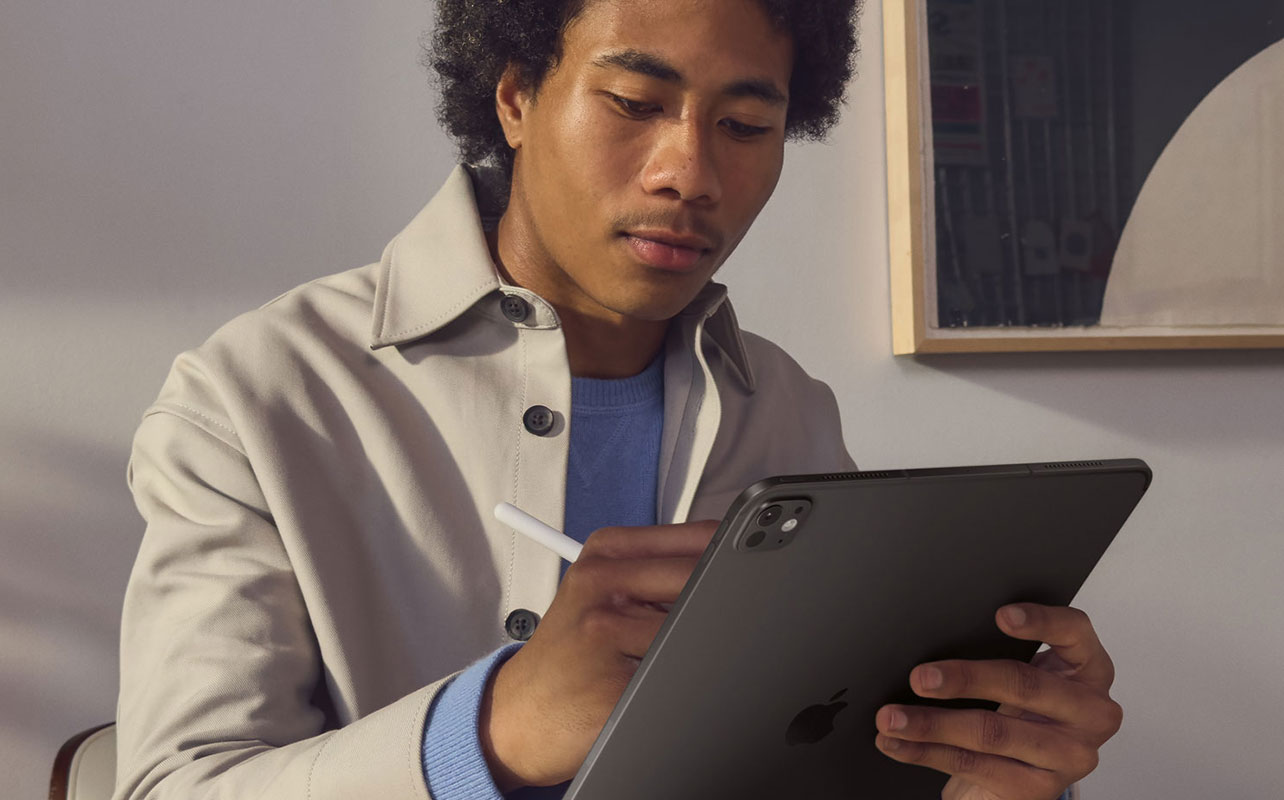
While Sidecar is generally reliable, occasional issues can occur. Fortunately, most are relatively easy to fix.
iPad not appearing in Displays
If your iPad doesn’t appear as an available display, first confirm that both devices are using the same Apple Account, as Sidecar requires them to be linked to the same user. Make sure Wi-Fi and Bluetooth are enabled on both devices because these services help establish the connection. Verify that Handoff is turned on, since Sidecar relies on Apple’s Continuity features to function properly. It’s also worth checking that both devices are running current software versions and that your Mac and iPad support Sidecar. If everything appears correct but the problem persists, restarting both devices often resolves detection issues.
Connection drops or lag
Lag or intermittent disconnects are usually caused by wireless interference or connectivity issues. Moving the devices closer together can improve signal strength and stability. Disconnecting and reconnecting Sidecar may re-establish a cleaner connection, while restarting Wi-Fi and Bluetooth can resolve temporary communication problems. Closing unnecessary apps can free up system resources, particularly on older devices. If lag continues during long study sessions, switching to a wired USB connection often provides the most reliable experience.
Charging and battery issues
Using an iPad as a second display naturally consumes more battery power than normal use. To extend battery life, try lowering the brightness on both displays and closing apps that are running in the background but not actively being used. Enabling Low Power Mode on the iPad can also help conserve energy during lengthy study sessions. For students spending several hours studying at a time, connecting the iPad to the Mac with a USB cable provides the added benefit of charging while Sidecar is running.
Quick guide: Sidecar troubleshooting
| Issue | Possible Fix |
| iPad not detected | Check Apple Account and Handoff settings |
| Laggy display | Use USB connection |
| Frequent disconnects | Restart Wi-Fi and Bluetooth |
| Fast battery drain | Lower brightness or plug in |
| Unable to connect | Verify compatibility and software updates |
| Delayed Apple Pencil response | Use wired connection |
How to use Apple Pencil with Sidecar
Apple Pencil support is one of the features that distinguishes Sidecar from many traditional external displays. When used with compatible Mac applications, Apple Pencil can serve as a precise input device for writing, drawing, and annotations. Students frequently use it to annotate academic PDFs, review essays and drafts, draw charts and diagrams, mark up screenshots, and edit visual projects. This functionality can be especially valuable in courses such as engineering, architecture, design, science, and mathematics, where handwritten notes, sketches, and diagrams often play an important role in learning. Many students also find that drawing concepts and writing equations by hand improves comprehension and retention compared with typing everything on a keyboard.
Need a second screen when studying? Here’s why

The biggest practical advantage of using an iPad as a second screen for studying is reduced context switching. When everything you need is visible at once, you spend less time hunting through tabs and more time actually working. Here are some of the most useful ways students put Sidecar to work:
Keep notes open while reading
Research-heavy assignments often demand constant back-and-forth between sources and your notes document, which breaks concentration and slows your writing down. With Sidecar, you can keep a research paper, PDF, or digital textbook open on the iPad while drafting on your Mac. The source stays visible without covering your primary workspace, so referencing information becomes a glance rather than a context switch.
Split research, slides, and assignments
For study sessions that involve multiple types of material at once, Sidecar helps you keep everything in view. You might display your assignment brief or course outline on the iPad while your draft document takes up the Mac screen. Or keep presentation slides visible on the iPad while you take notes on the Mac. Keeping reference material on a dedicated screen reduces the mental load of managing multiple open windows on a single display.
Improve productivity during online classes
Remote and hybrid learning workflows are a natural fit for Sidecar. During a Zoom or Microsoft Teams lecture, you can dedicate the Mac to the video call and use the iPad to display course notes, assignment instructions, or supplementary reading, so you’re engaged with the class without losing track of your other materials.
Use Apple Pencil for annotations
Unlike a traditional external monitor, an iPad lets you write directly on the screen. With Apple Pencil support through Sidecar, you can mark up PDFs, annotate lecture slides, draw diagrams, highlight research papers, and work through equations by hand, all within Mac apps that support Pencil input. For students in courses that involve a lot of visual thinking, engineering, architecture, design, science, and mathematics, this can make a meaningful difference to how you engage with material.
If you want to get more out of macOS while studying, essential MacBook tips every student should know covers the shortcuts and settings that make the biggest difference
Optimize your study setup
Once Sidecar is running, a few adjustments can make your study sessions even more comfortable.
Best positioning for dual screens
Proper screen positioning is particularly important because poor ergonomics can contribute to neck strain, eye fatigue, and discomfort during long periods of study. For the best experience, place the iPad beside your Mac rather than flat on the desk, keep both screens at similar heights, and position them at a comfortable eye level. Maintaining good posture throughout the day can make a significant difference during exam season or major assignment deadlines.
Useful accessories for Sidecar setups
A few accessories can help improve your workspace.
- iPad stand: An adjustable stand raises the iPad closer to eye level and creates a more comfortable viewing angle.
- Apple Pencil: Apple Pencil is especially useful for students who regularly annotate documents, draw diagrams, or take handwritten notes.
- USB-C hub: Students using a MacBook may appreciate extra ports for charging and accessories.
- Bluetooth keyboard and mouse: These can improve comfort when studying at a desk, especially with Mac mini or desktop setups.
Study setup ideas for small spaces
One reason Sidecar is so popular among students is its portability. Unlike a dedicated monitor, an iPad can easily fit into a backpack and travel wherever you study. This makes it an excellent solution for students who don’t have a permanent workspace or who frequently move between locations throughout the day.
Whether you’re studying in a dorm room, student residence, library, coffee shop, shared apartment, or campus study space, Sidecar allows you to create a dual-screen workstation almost anywhere. You can enjoy many of the productivity benefits of a traditional multi-monitor setup without carrying additional equipment or sacrificing valuable desk space.
When a monitor may still make more sense
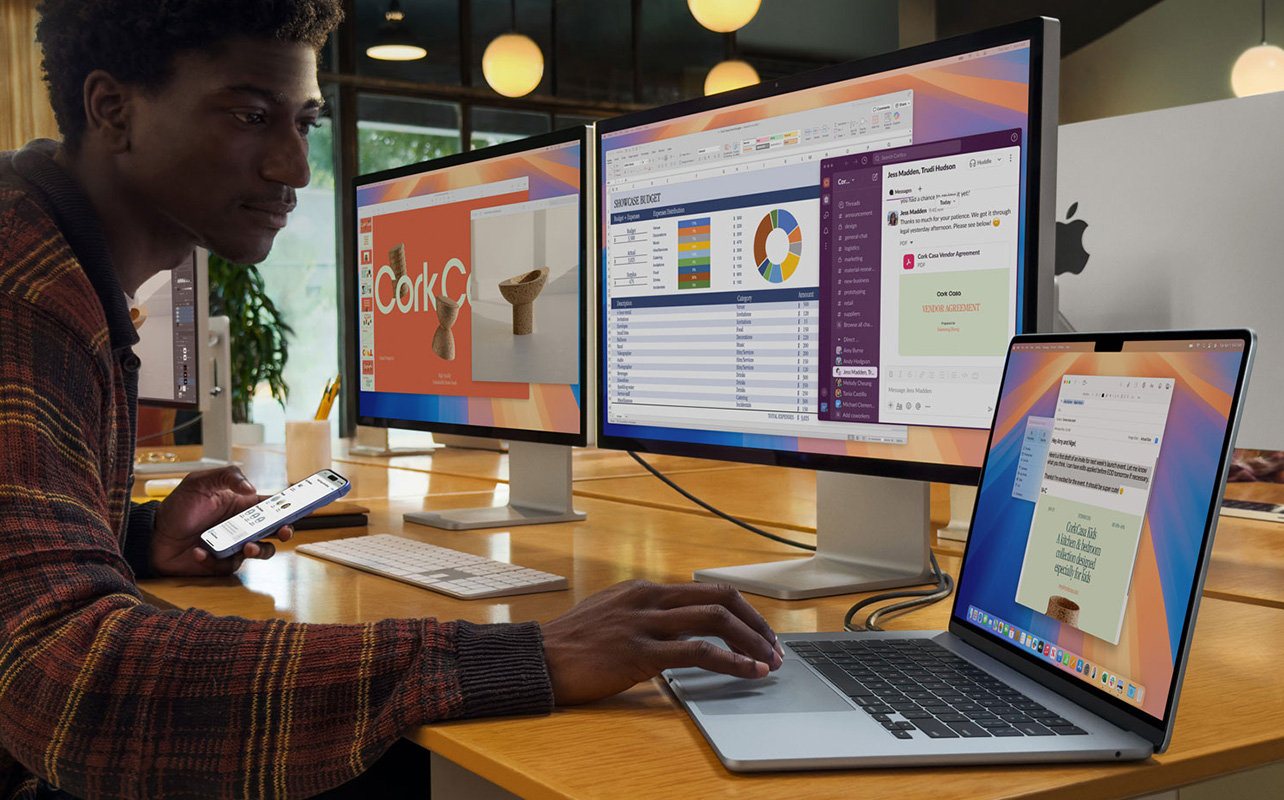
Sidecar works well for a wide range of study situations, but it’s worth being honest about its limits too.
The iPad’s screen is smaller than most dedicated monitors, and for certain types of work, such as large spreadsheets, video editing, graphic design projects, or multi-window programming environments, the additional screen real estate of a 24- or 27-inch monitor may be more useful. If you spend most of your time at a permanent desk and rarely move your setup, a dedicated monitor gives you a larger, more stable display that stays at a fixed position without requiring a connection step each session.
If you’re looking to upgrade your study setup this semester, Best Buy Canada carries a wide range of iPad, MacBook and laptops, plus accessories to help you get the most out of your devices.
Frequently asked questions
Does Sidecar work without a cable?
Yes. Sidecar works wirelessly over Wi-Fi and Bluetooth, and for most casual study sessions, the wireless experience is smooth. That said, a wired USB connection offers lower latency, fewer disconnects, and keeps the iPad charged, which makes it the better choice for long sessions or older devices.
Is Universal Control the same as Sidecar?
No. Sidecar turns the iPad into a second display for your Mac, extending your desktop to a second screen. Universal Control lets a single keyboard and mouse work across both your Mac and iPad as separate, independent devices. They serve different purposes.
Can you use an iPad as a second screen without a Mac?
Sidecar is an Apple feature and requires a Mac. Some third-party apps, including Duet Display and Luna Display, allow iPad to function as external displays for Windows PCs, though the setup process and performance vary.
Is using an iPad as a second monitor good for studying?
For most student workflows, yes. Having a dedicated second screen for research, notes, reference materials, or online lectures reduces the constant window-switching that interrupts concentration. It won’t replace a large dedicated monitor for every use case, but for portable, everyday study use, it works well.
Should students connect the iPad with USB or Wi-Fi?
Wireless is more convenient and works well for shorter sessions and newer hardware. USB is more reliable for longer sessions, older devices, and situations where battery life is a concern since it keeps the iPad charged while Sidecar runs.
Can you use an Apple Pencil while Sidecar is active?
Yes. Apple Pencil works through Sidecar with supported Mac apps, including Preview, Notes, Freeform, Adobe Acrobat, and others—making it useful for annotations, handwritten notes, diagram sketching, and document markup.
What are the best apps to use with a dual-screen study setup?
Popular choices include Notes, Freeform, Preview, Safari, Microsoft OneNote, Microsoft Word, Google Docs, Adobe Acrobat, Zoom, and Microsoft Teams. Most students display reference material on the iPad, PDFs, slides, and research articles, while keeping their primary work application on the Mac.
What is Stage Manager, and is it the same as Sidecar?
Stage Manager is a separate iPad and Mac multitasking feature that organizes open app windows into a visual stack on the side of the screen. It’s designed for managing multiple apps on a single device. Sidecar, by contrast, extends your Mac’s display onto the iPad. They can coexist but serve different purposes. Stage Manager is about window organization, Sidecar is about adding a second display.
Does running Sidecar affect Mac performance?
On the recent Apple Silicon Mac, MacBook Air M1 and later, MacBook Pro M1 and later, the performance impact of Sidecar is minimal in everyday use. On older Intel Mac or when running demanding apps, you may notice slightly higher CPU usage, particularly over a wireless connection. Switching to USB typically helps, and closing unused background apps on both devices can also reduce the load.

This article was drafted using AI technology and then reviewed, fact-checked, and revised by a member of our editorial team.