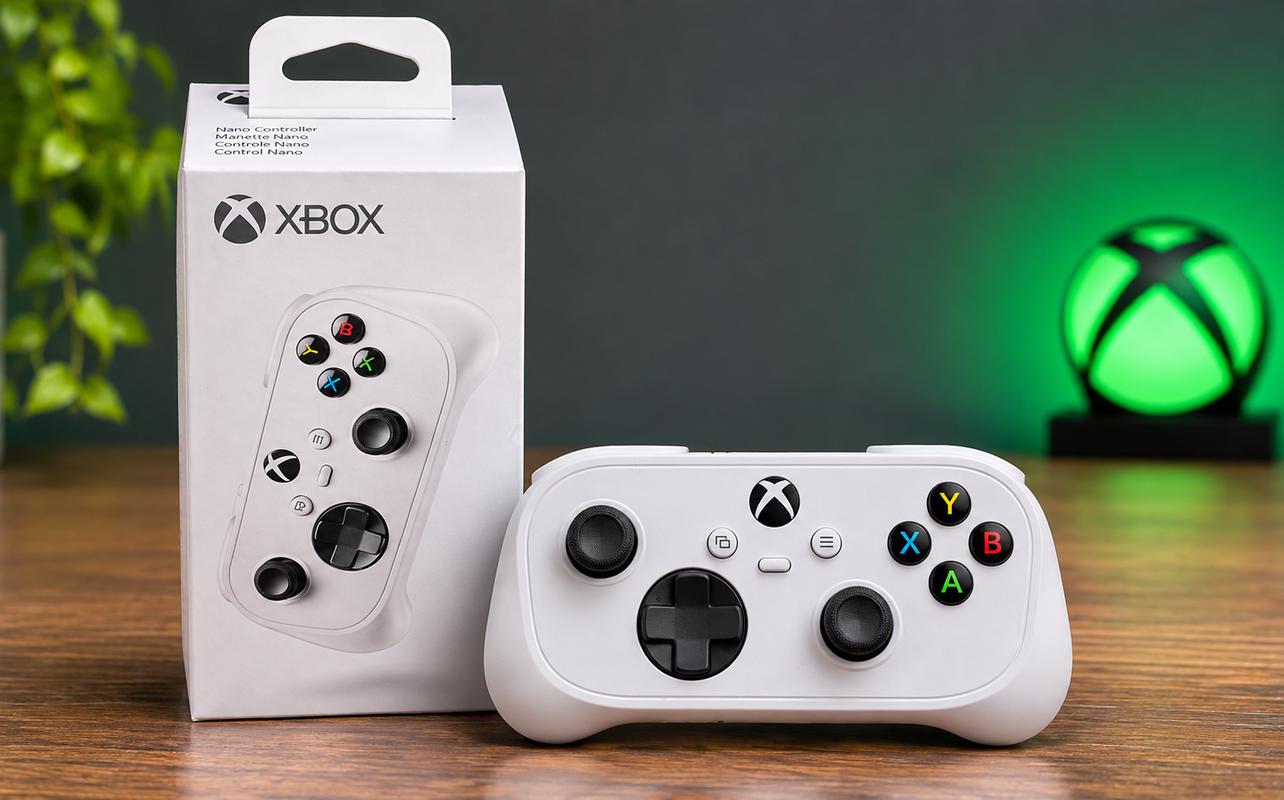
After more than a week using the XBOX Nano Controller, I really enjoyed having the familiar layout of the standard XBOX Wireless Controller in something so much smaller. The thumbsticks, face buttons, triggers and bumpers are all where I’d expect them, so getting started with my favourite games was easy.
The shorter grips took some getting used to, especially when aiming or reaching for the bumpers. But after playing games like Fortnite and Forza Horizon 6, I think the XBOX Nano Controller is a great option for gaming on the go.

Smaller design with familiar XBOX controls
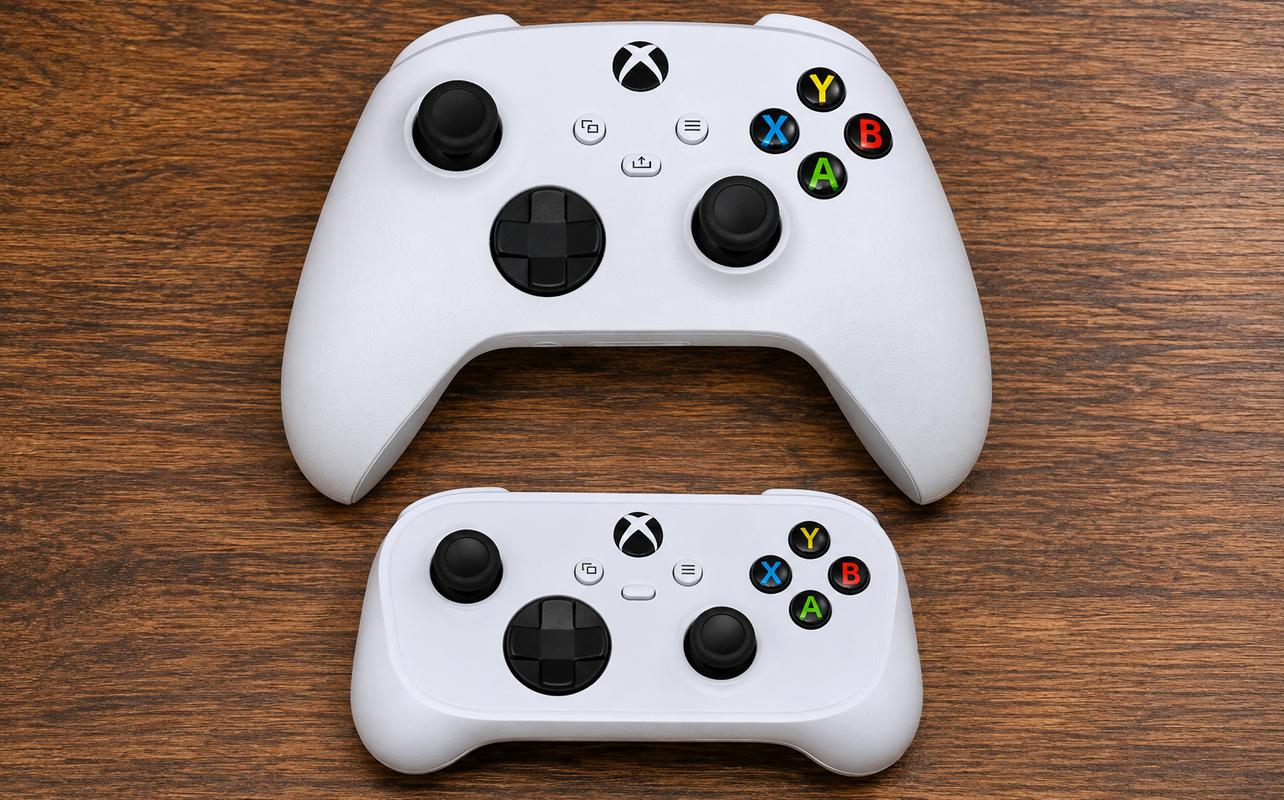
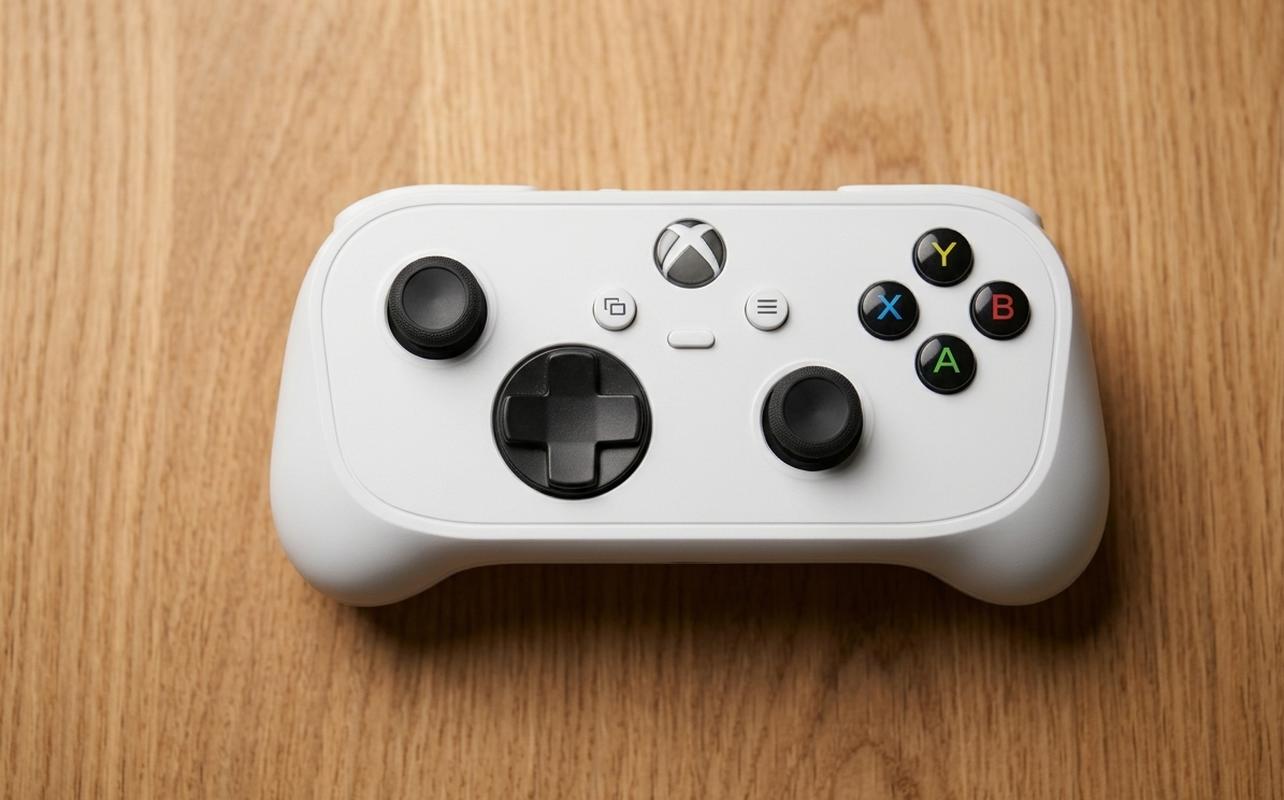
At 13.3 cm long and 101 g, the XBOX Nano Controller is much smaller than the standard XBOX Wireless Controller. The front is flatter, the left and right grips are shorter, and its construction feels sturdy. It still has all 18 standard gameplay inputs.
The biggest change for me was how I held it. My hands wrap around the longer grips on the standard XBOX Wireless Controller. With the XBOX Nano Controller, I rested more of my fingers underneath instead. When I reached for a bumper, I had to shift where my fingers rested without moving my thumbs off the sticks.
I can also see the XBOX Nano Controller being a good option for younger children who find the standard XBOX Wireless Controller too big for their hands. The shorter grips and closer buttons could make it easier for them to hold and use.
Aiming in Tom Clancy’s The Division 2 with smaller thumbsticks
The face buttons were familiar from the moment I started playing. A, B, X and Y were where I expected them, and I could use them without looking down. The shorter thumbsticks took longer to get used to.
I liked the textured tops of the thumbsticks because I didn’t have to worry about my thumbs slipping off. The sticks are shorter and don’t tilt as far as those on the standard XBOX Wireless Controller. That left me less room to move them when trying to aim.
Tom Clancy’s The Division 2 was one of the first games I played to test the XBOX Nano Controller. I didn’t have any trouble moving into cover or firing with the XBOX Nano Controller. Aiming took a little more work, though, especially when making small adjustments to line up a shot. That came much more easily to me on the standard XBOX Wireless Controller.
The triggers impressed me more than the bumpers or D-pad
Another game I played with the XBOX Nano Controller was Forza Horizon 6. I was impressed with the smaller left and right triggers. They’re analog, just like those on the standard XBOX Wireless Controller, so I could gradually accelerate instead of going straight to full throttle.
The bumpers took a little more getting used to. When I moved my finger up from a trigger, I had to shift it to reach the narrower bumper. Both buttons responded well, but reaching between them is easier for me on the standard XBOX Wireless Controller.
The XBOX Nano Controller’s D-pad makes less sound than the one on the standard XBOX Wireless Controller, and it worked well when I used it to move through menus and options. To get a good idea of how the D-pad performed, I played Street Fighter II: The World Warrior in Capcom Arcade Stadium. Ryu’s fireball needs a quick roll of the thumb from down to forward, and that’s where I missed the firmer feedback of the standard XBOX Wireless Controller. The XBOX Nano Controller still registered my presses, but I couldn’t feel each direction as distinctly.
Connecting the XBOX Nano Controller across devices
The XBOX Nano Controller has several ways to connect, so you aren’t limited to using it with an XBOX console. It uses XBOX Wireless with XBOX Series X, XBOX Series S and XBOX One. Bluetooth works with compatible Windows PCs, Android devices, iPhones, iPads and smart TVs. There’s also a wired USB connection.
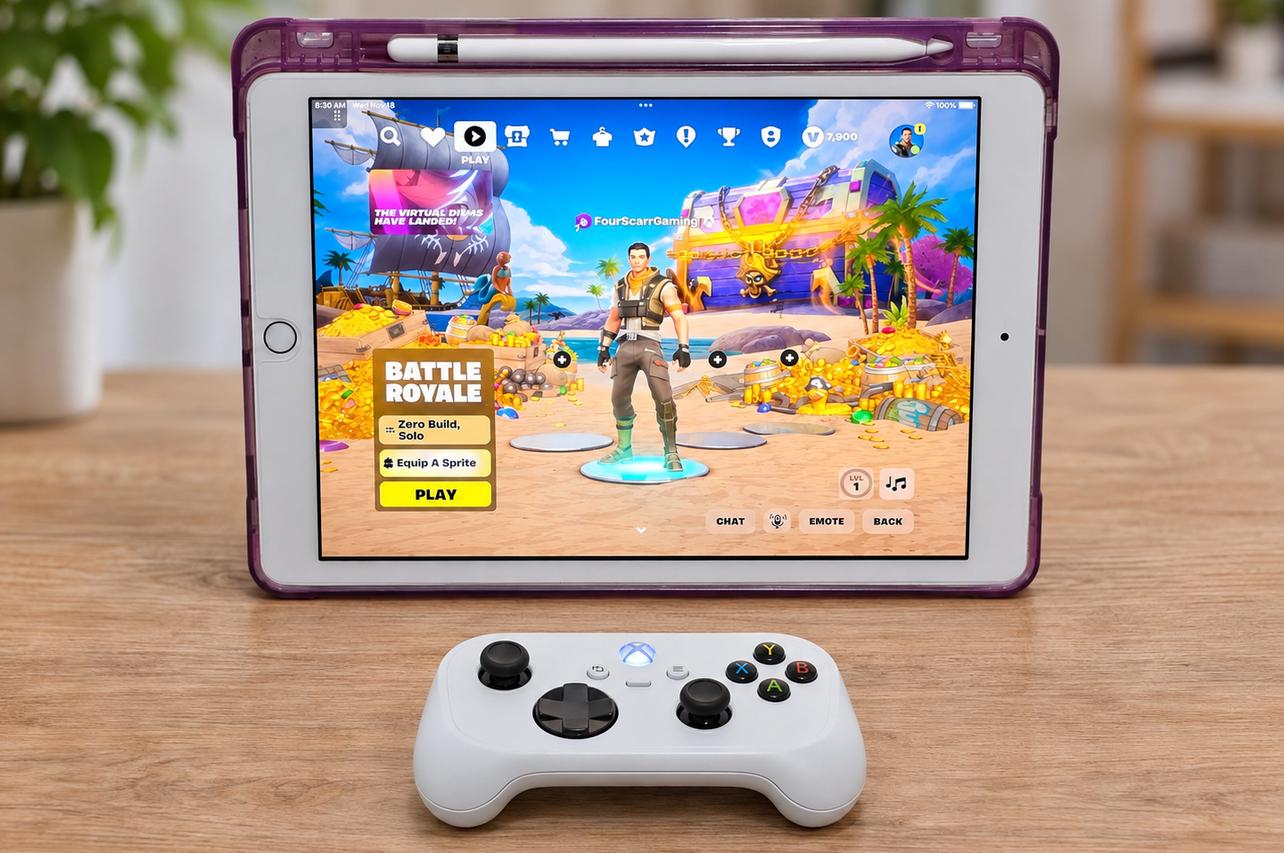
When I play on a phone or tablet, I much prefer holding a controller instead of covering the screen with my fingers to use touch controls. The XBOX Nano Controller is great for that, provided your game and device support controller input. The only catch is that switching between your XBOX console and phone may mean pairing the controller again.
The XBOX Nano Controller also supports Cloud Connect, which uses Wi-Fi to connect directly to supported XBOX Cloud Gaming experiences instead of relying on Bluetooth. That can reduce input delay, so games may respond faster to button presses. However, the feature is currently limited to a US preview and isn’t available in Canada.
Without Cloud Connect, you can still use Bluetooth to play XBOX Cloud Gaming on a compatible device. To test that, I played Fortnite through XBOX Cloud Gaming on a tablet. Gunfights ask a lot from a controller, since you’re moving, aiming, firing and swapping weapons all at once. I never noticed a problem with how the XBOX Nano Controller responded.
Battery life and missing controller features
The XBOX Nano Controller has a programmable Action Button for things like screenshots and gameplay captures. You can assign a shortcut using the XBOX Accessories app, and on a Windows PC, you’ll need a compatible USB-C cable to set it up.
Two noticeably missing features are vibration feedback and a 3.5 mm headphone jack. Not having vibration wasn’t a big deal for me, although I could definitely tell it was missing. I missed the headphone jack more, especially for a controller I’d take on the go. If you use a wired headset, you’ll have to connect it to your gaming device instead.
XBOX rates the rechargeable battery for up to five hours, and that was close to my experience. I got about five hours of gameplay between charges, which I was happy with. I’d still charge it before heading out, since you can’t swap in AA batteries like you can with the standard XBOX Wireless Controller. You can charge the XBOX Nano Controller or keep playing with a wired USB-C connection, although the cable isn’t included in the box.
XBOX Nano Controller is great for gaming on the go
After using the XBOX Nano Controller for more than a week, I know when I’ll reach for it. If I’m playing on a tablet or taking my laptop away from home, I’d bring the XBOX Nano Controller instead of packing my standard XBOX Wireless Controller. I really enjoyed using it with Fortnite through XBOX Cloud Gaming, and having familiar XBOX controls in something this small is a big part of why I like it.
That said, I wouldn’t replace my standard XBOX Wireless Controller at home. I still prefer the larger thumbsticks and bumpers for shooters, and I definitely miss having a headphone jack on the XBOX Nano Controller. But those things didn’t stop me from having a good time with it when gaming away from my TV.
If you enjoy gaming on a laptop, phone or tablet, I’d recommend the XBOX Nano Controller. I can also see it being a good option for younger children who find the standard XBOX Wireless Controller too big for their hands.