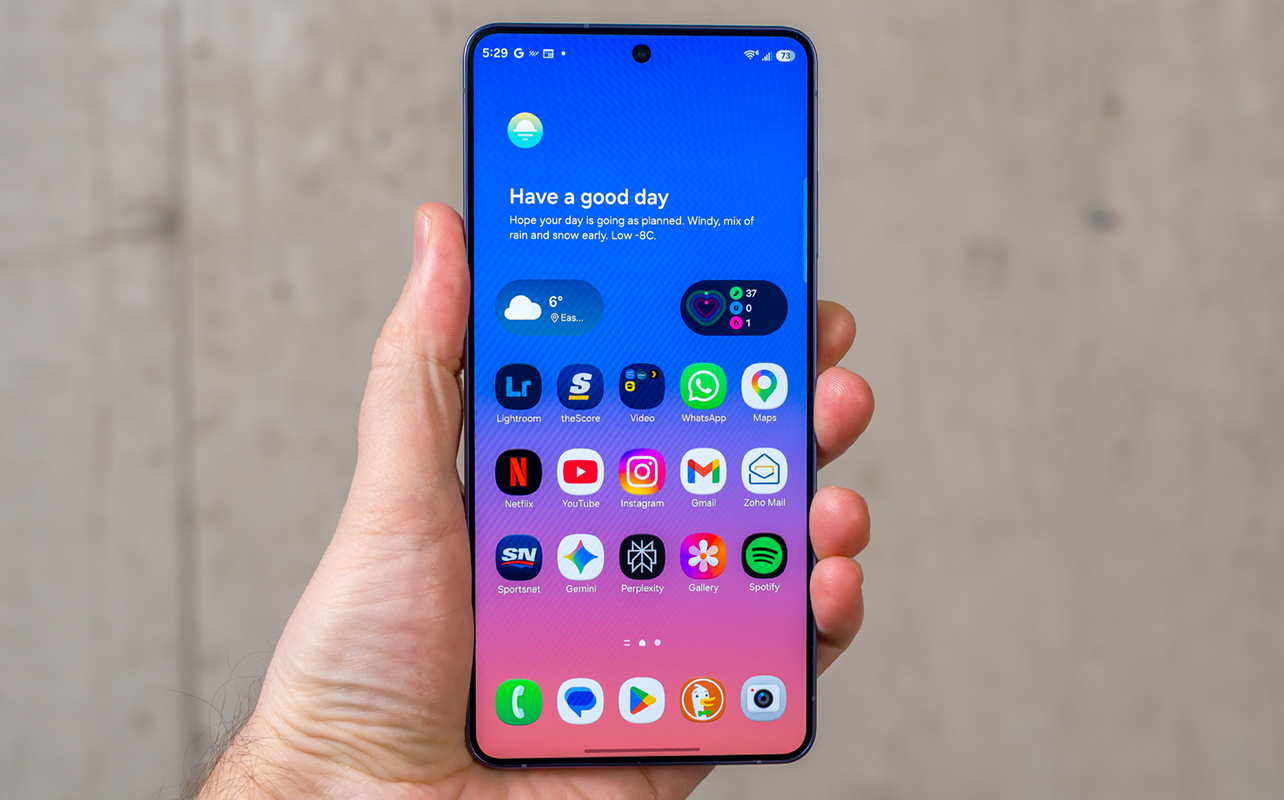
Samsung doesn’t change much in how the Galaxy S26 Ultra looks, preferring to stick to very familiar design and focusing more on advancing AI. While not surprising, it is odd Samsung didn’t try to at least change things with its latest flagship in more meaningful ways.
That may not matter as much if you prioritize software—or AI-driven software—more than anything else. It’s what drives the biggest changes, apart from one screen-related one that gets my vote as the most innovative thing Samsung’s done in years.

Galaxy S26 Ultra review video
Samsung Galaxy S26 Ultra (as tested):
|
Sticking to a similar design philosophy
Just like the last few years, Samsung changes little on the physical side. The Galaxy S26 Ultra is only marginally taller and wider, with a barely thinner body that feels a wee bit lighter. They’re not the kind of differences you’re going to notice in any significant way. The S Pen maintains a slot underneath, though its placement is so close to the corner that you’ll notice the pen’s top is sloped. While you can slide it in either way, it only goes in snugly in one direction, meaning you have to pay attention each time you holster it.
Samsung sticks to the same 6.9-inch Dynamic AMOLED screen from the S25 Ultra, so there is no difference in size, except they diverge in one key respect, which is the Privacy Display. I’ll get to that further down. Even if it’s a familiar display, it still looks premium and works that way, too.
Apart from rounded corners, the phone’s edges go back to aluminum after being made of titanium before (S24 and S25 Ultra). I suspect one reason is better thermal management given the lighter metal doesn’t really make this phone feel feathery by comparison.
Under the hood, there are some decent changes. Base storage is now 256GB across the S26 line, so the Ultra doesn’t come in with that advantage anymore. This phone will also charge faster by supporting 60W chargers (one doesn’t come in the box), though its 5,000mAh battery is exactly the same as the previous model’s. Yet again, Samsung chose not to go with silicon-carbon battery technology that would enable it to go with more capacity in the same battery size.
The S26 Ultra runs on the Qualcomm Snapdragon 8 Elite Gen 5, a robust and powerful chipset that keeps so much of the software running smoothly.
S Pen stays the course
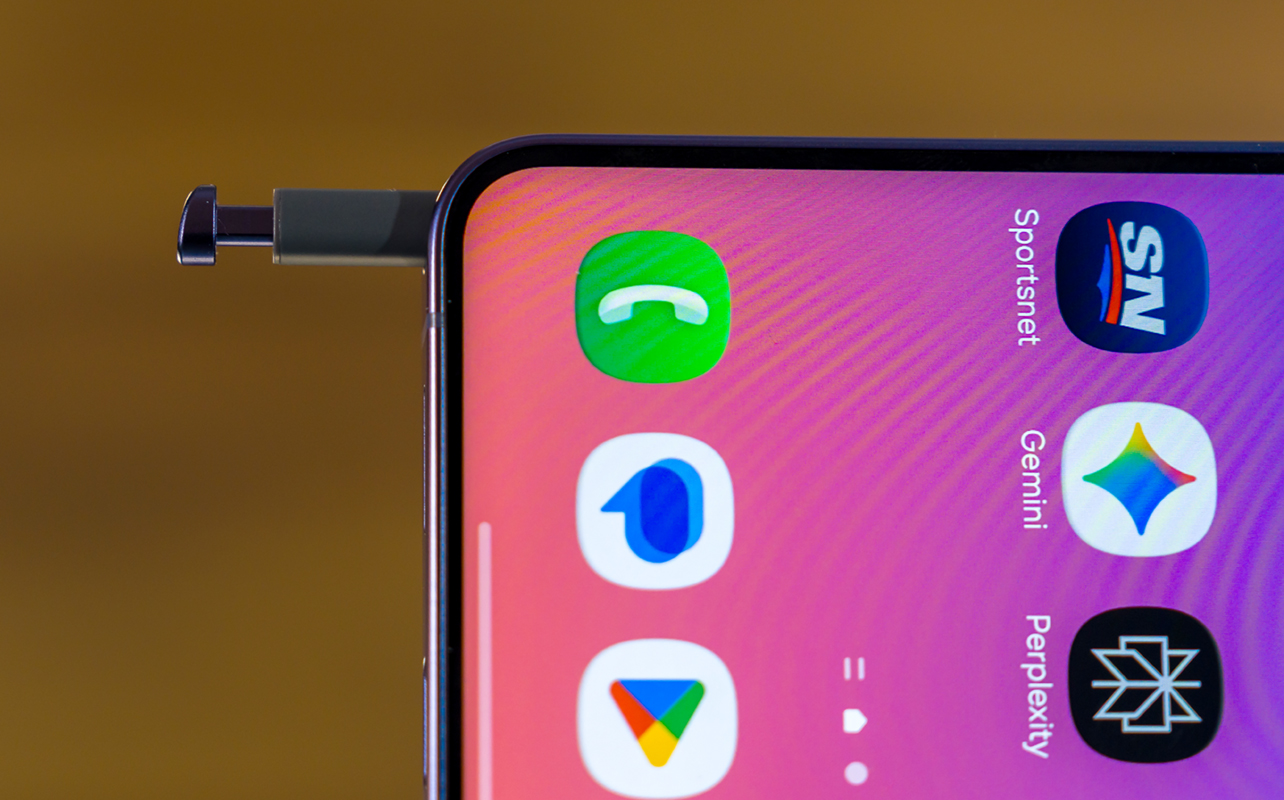
There is no new tech in the S Pen this time around. That also means it still loses the Bluetooth radio Samsung removed in the previous version. No air gestures or remote camera shutter support, leaving writing and navigation as its only real purpose. Since there’s no improvement in latency or responsiveness, how you write on the S26 Ultra will be exactly the same on the S25 Ultra.
However, its placement differs in that the slot is closer to the corner. That means the pen’s base has a slope to it that all but forces you to take a look and make sure you’re orienting it right before sliding it in.
Privacy Display
Only the S26 Ultra gets this feature, which turns out to be a clever way of dimming pixels onscreen to create some privacy while viewing content. It’s easy to set up and enable from the notifications pane. Slide it down and you’ll see Privacy Display as one of the primary options. You can simply turn it on so that it applies at all times or set the conditions for it to do so.
That can be specific apps you use where some privacy could be advisable. Think banking, home security, messaging, email, or even dating apps, for instance. This works system-wide or with any app, so it’s really up to you. All that happens is once you open up that app, the effect turns on, even if you’ve toggled if off generally.
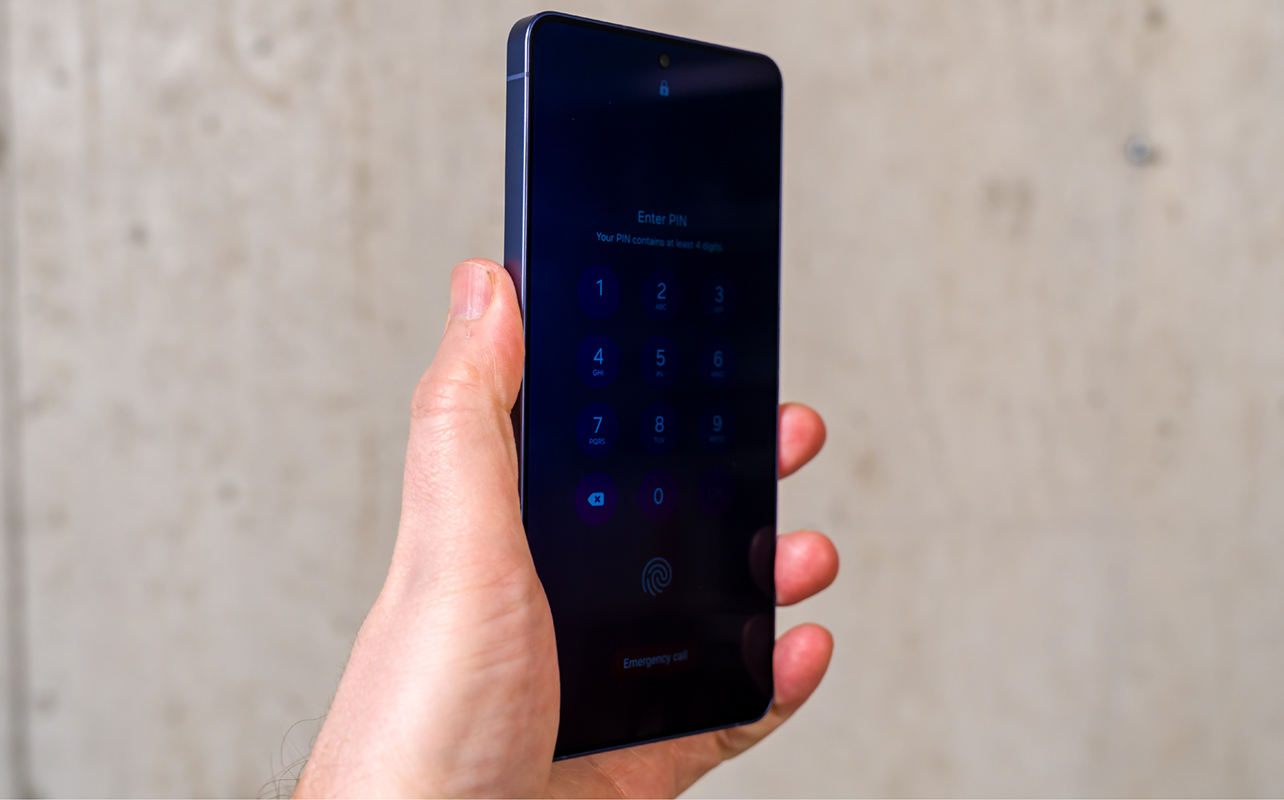
Moreover, it can also kick in when entering your screen unlock PIN, pattern, or password. It can also isolate notification pop-ups that come in, dimming them while the rest of the screen looks normal. This, however, is universal in that it will apply to every single notification that comes in—not just those from certain apps. Nor does it matter if you chose to use the feature with those certain apps. For now, all notifications come in dimmed if you toggle that on.
I also erred in my previous hands-on by assuming the effect only worked laterally. Not so. It works when tilted up or down and is exactly the same whether the phone is upright or tilted in landscape. The more I used it, the more I liked it. It’s practical and easy to use, including a maximum mode that ramps up the dimming even more.
Software with One UI and AI
While this is an Android phone, Samsung’s One UI and its Galaxy AI features are blurring together. You’re not forced to use them but you will see the odd nudge to give them a try as you go along. This is where I feel a little conflicted.
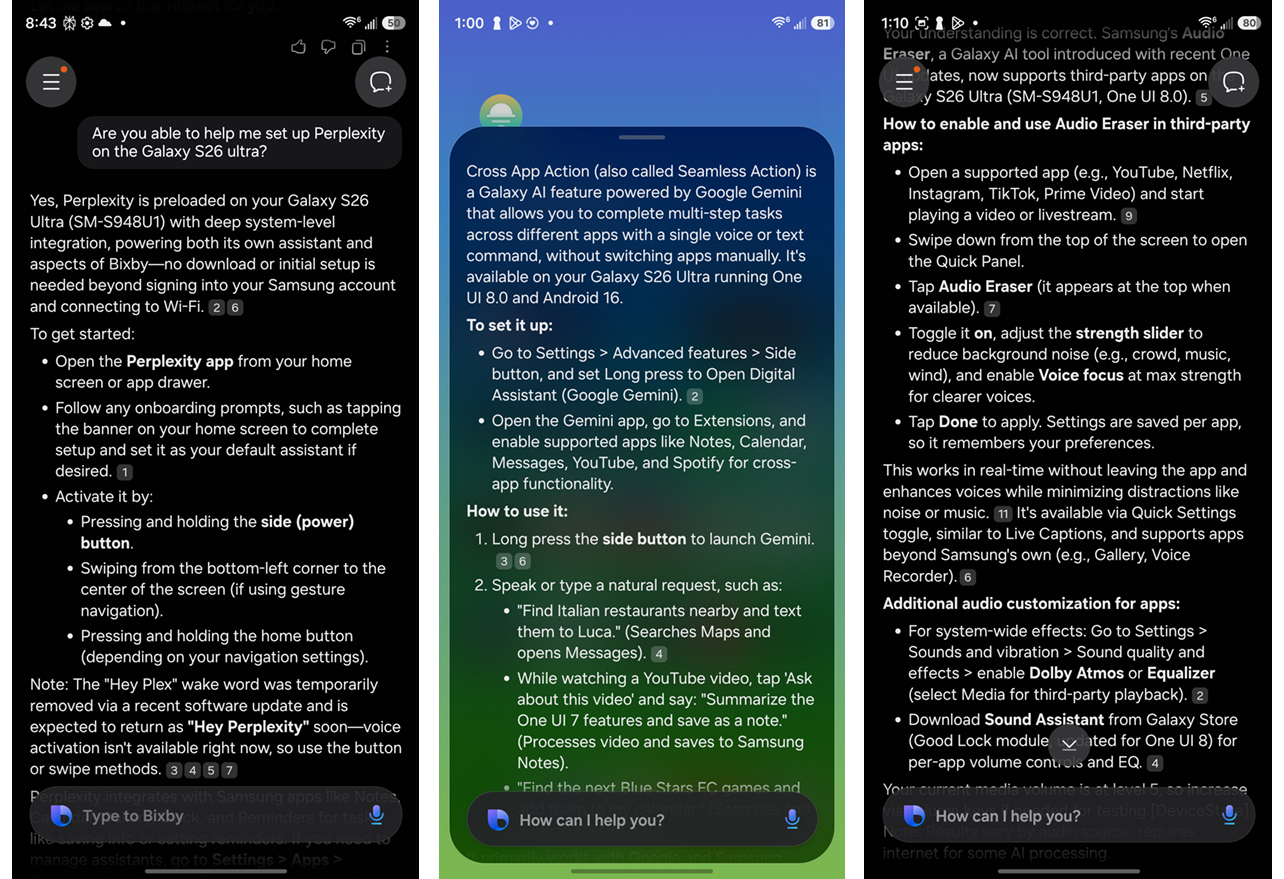
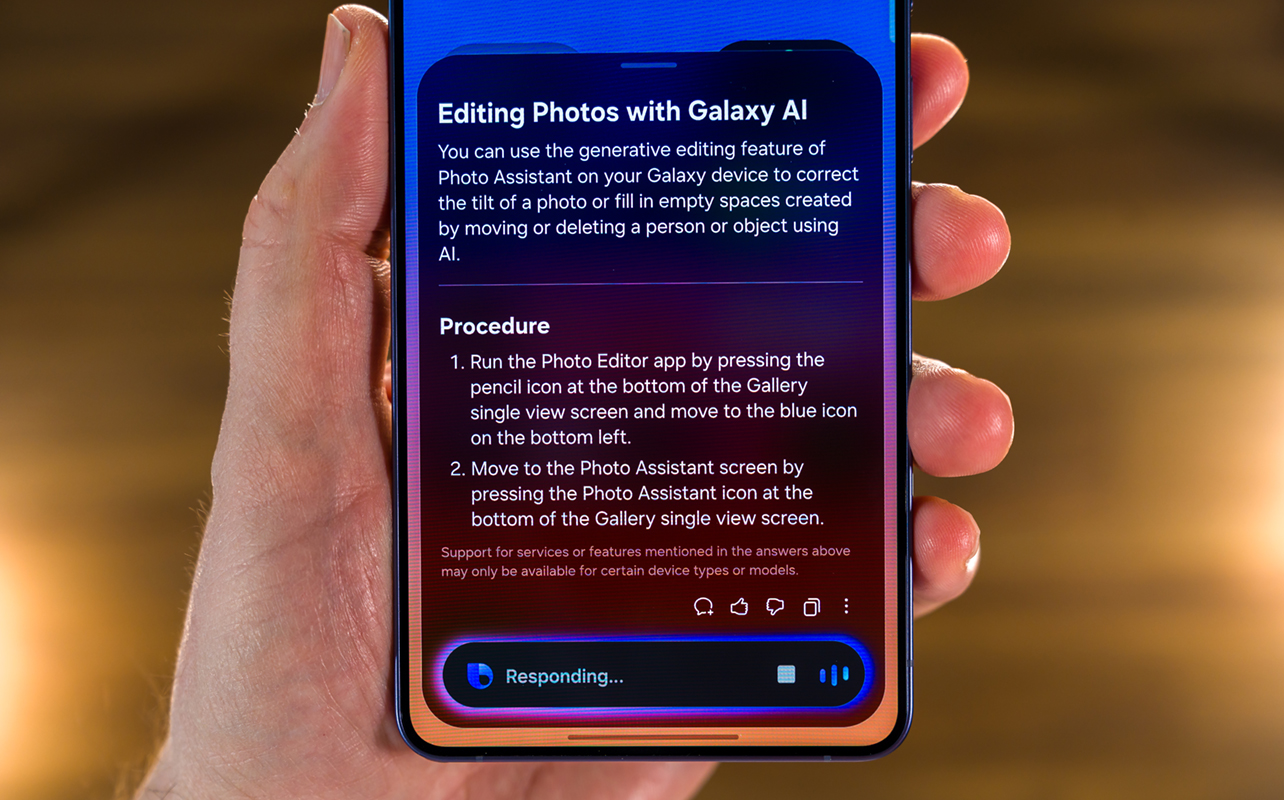
While I test Bixby as part of reviewing phones like this, I’ve otherwise shunned Samsung’s own voice assistant because it always struggles compared to the likes of Google Assistant/Gemini. Fortunately, Samsung’s found a use for Bixby that works in tandem with other voice assistants, which is a means to learn about the S26 Ultra. Through it, you can ask where certain settings are or generalize your question. It understands natural language better now, helping it discern what you might be looking for and present solutions.
All this works in parallel with, say, Gemini, if you prefer that as your main AI assistant. Hold down the power button to bring up Gemini, or say “Hi, Bixby,” to access that without the two interfering. I previously covered how good Gemini is on Samsung devices in my review of the Galaxy Z Fold7, so won’t rehash here. Either way, you have choices because Samsung also brings in Perplexity, another AI assistant, into the mix.
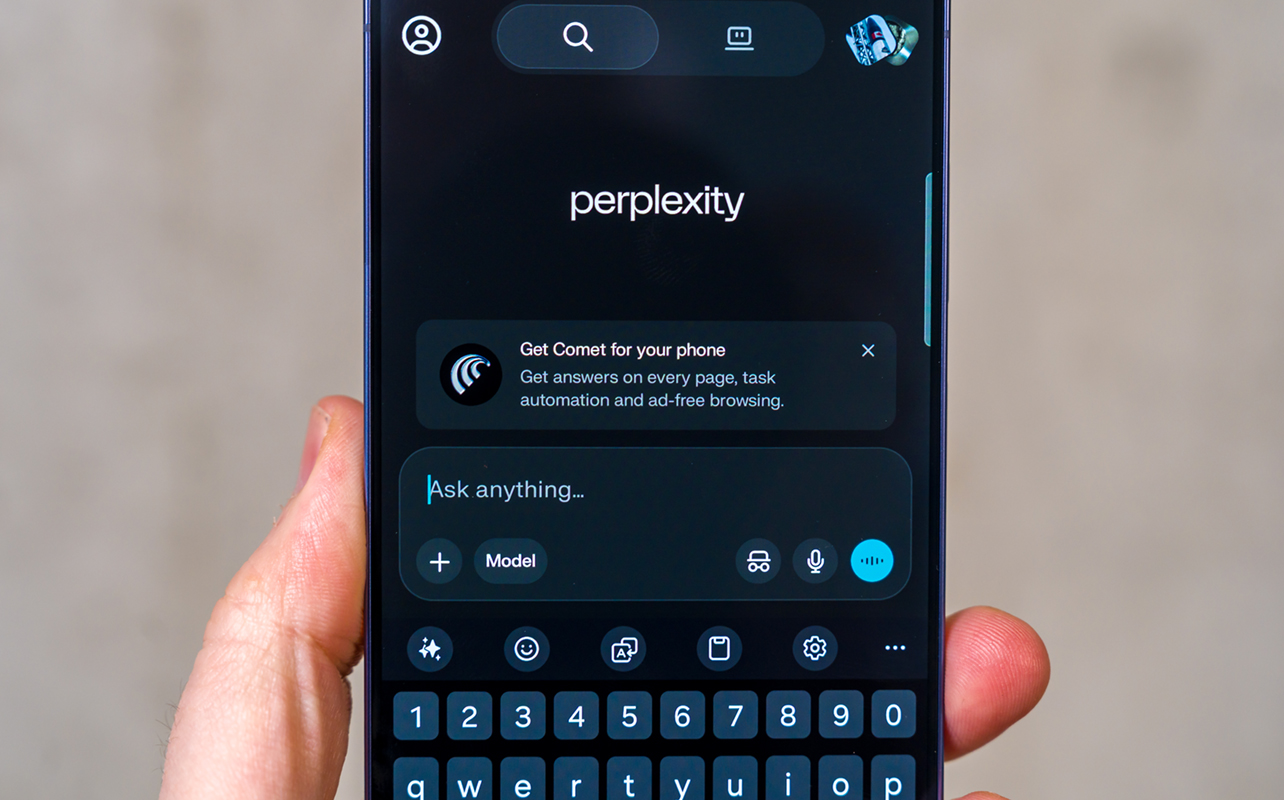
As of this review, I couldn’t access it through a wake word, though that’s apparently coming. Saying “Hey, Perplexity,” will do the trick. I’m just not entirely sure if it will work in parallel with both Gemini and Bixby. If not, you can still access from its app like you can any other AI with an app (i.e. ChatGPT, Claude, etc.)
Personalization gets more personal
Samsung’s Now Brief widget actually feels like it gets personal. Before this, I looked at it more like a glorified weather app. Now, it recommends music from Spotify based on what I’ve listened to, along with YouTube videos aligned with my account. It just took a couple of days for it to actually populate with videos.
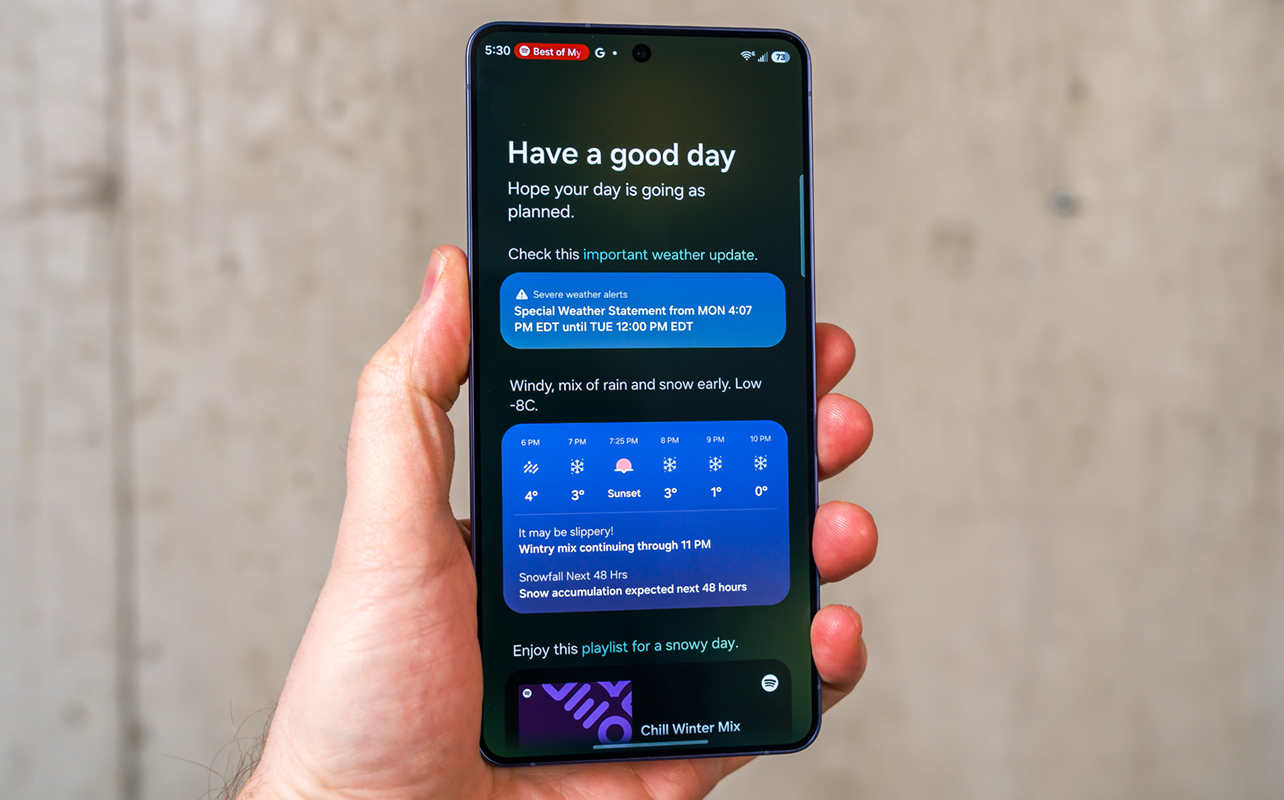
The only catch with all that is the more you want Now Brief to do, the more personal information it needs to do it. That’s where I personally get a little weary. Do I want it showing photos I took? Probably not. A mix of weather, music, and YouTube seems like a safe enough trio.
Now Nudge is sort of a copy on Google’s Magic Cue in that it attempts to supply contextual information based on what you see or receive. For instance, if you get a message asking for the address of a restaurant you looked up, it may appear as an option to slot in. If someone asks about your plans, it may pull in your calendar entries for that day. Again, this requires permissions to enable Galaxy AI to track what you’re doing on the phone. That doesn’t mean it’s sharing it with everyone, just that you’re sharing information even when you don’t think you are.
Galaxy AI is everywhere
This is also where Bixby’s presence stands out. Samsung’s ever-growing Galaxy AI suite, along with the third-party app integrations, can make the S26 Ultra feel bloated. Or, you might not even know what it can do in some cases. For example, Cross App Action (also called Seamless Action) is a feature we’ve seen before in past Samsung devices, but would you know how to set it up? Ask Bixby and it can lay it out for you, including taking you straight to the settings page.
Cross App Action is slick because it multitasks across apps without forcing you to open each one. The problem is it doesn’t work like that out of the box; you have to enable it. Bixby’s instructions simplify the process.
Go into the Galaxy AI section under settings and you’ll see the growing list of AI-driven features inside. Note that at the bottom, there’s a toggle for processing data only locally on device. That means these features won’t push your data to the cloud for any reason, which can negate some of the more advanced features. It’s a trade-off you’ll have to decide for yourself depending on what you use.
Galaxy AI multimedia editing
Galaxy AI continues to do more in this space, too. The Gallery app’s Photo Assist tool lets you describe the edits you want to make in a photo. That can include changing the time of day in a scenery photo or even changing clothes on you or someone else. You could also swap out the logo of a t-shirt with another logo. Or at least try to because results are a mixed bag, to say the least. Sometimes the swap works, other times it fails. That also goes for adding an element to an image, like a sun in the sky or cutting and pasting a person from one image into another.
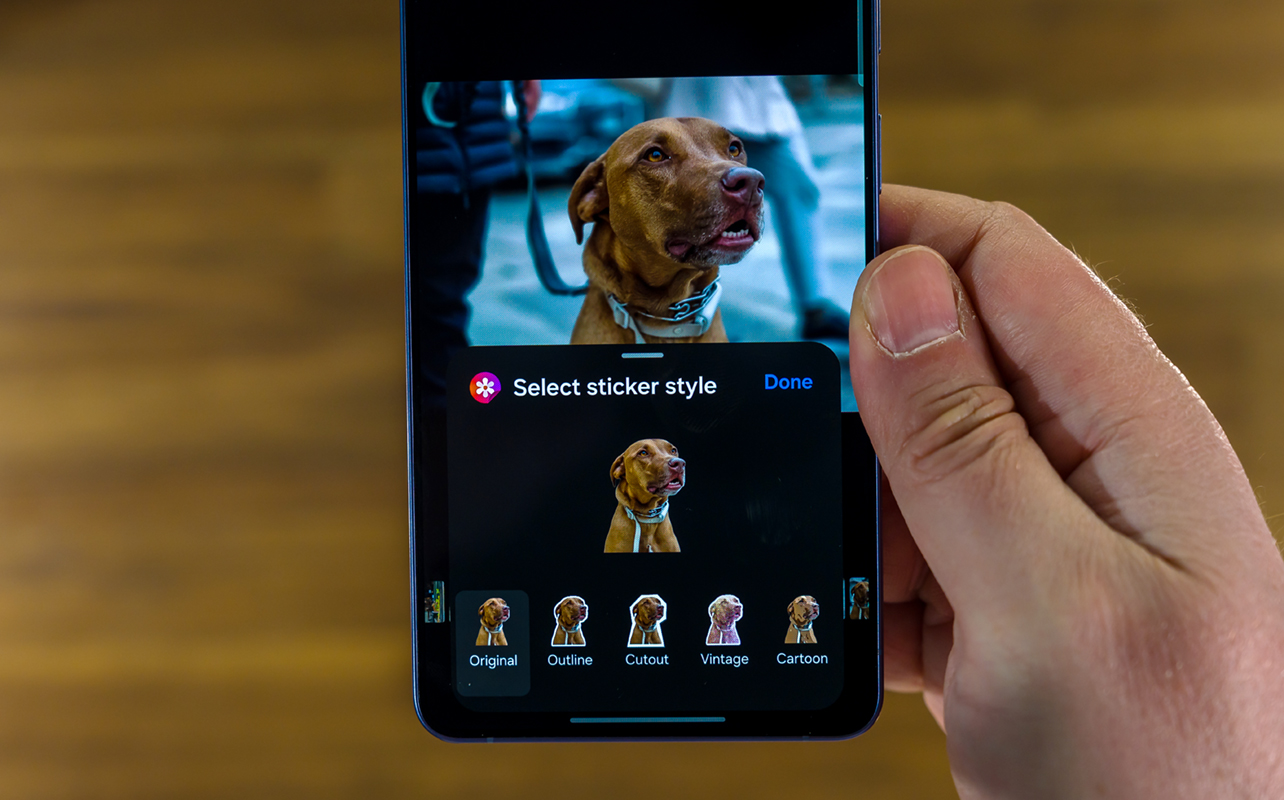
Creative Studio covers much of the generative AI content but it’s also a mixed bag. That’s especially true when using your own photos as references. Sometimes the results are superb, other times head-scratching. You can also choose to generate totally new images by typing in or voicing a prompt. Some can be stickers, greeting cards, phone wallpaper, and even invitations. As always, Samsung places a watermark on any image you save or download.
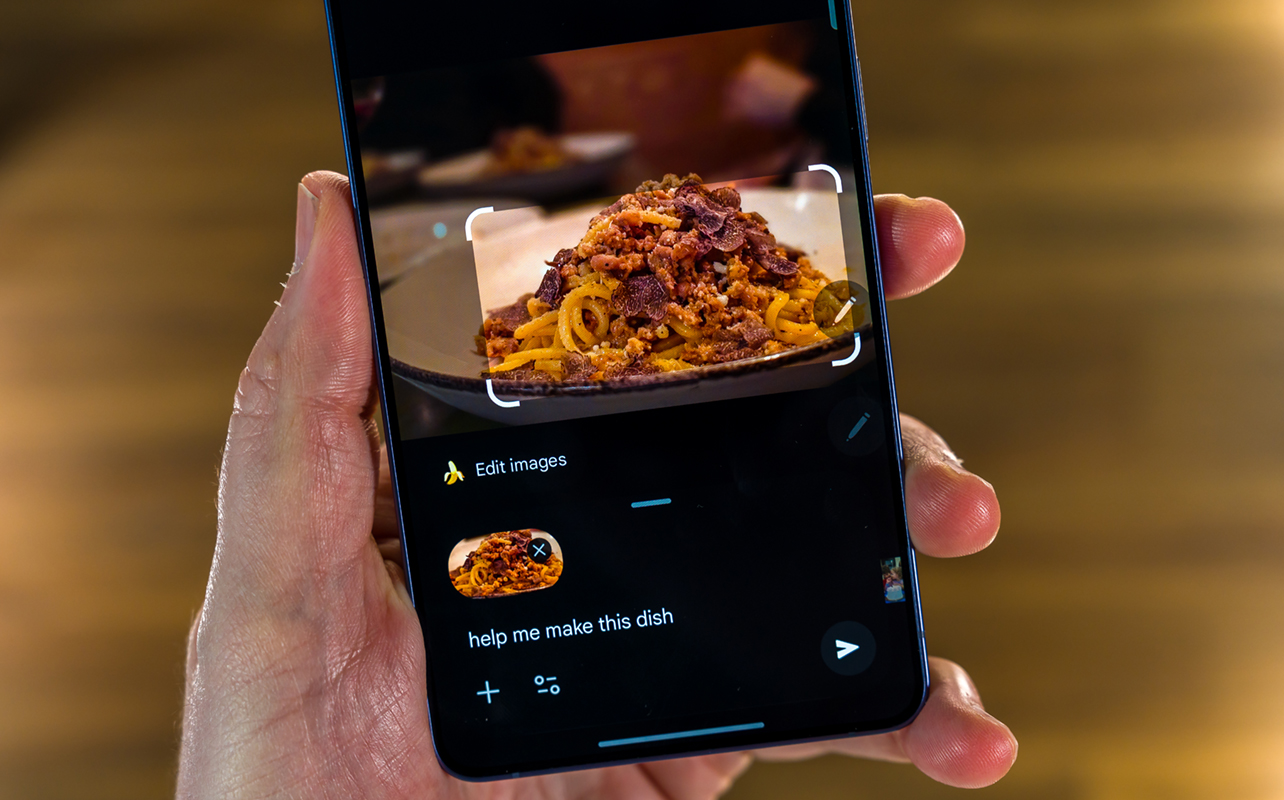
Circle to Search is a Google feature, but the S26 Ultra is among the first to allow you to search for two items at once. If you’re interested in a jacket and pair of shoes, circle them separately and it goes to work. This way, you can see what they are and where you might be able to buy them.
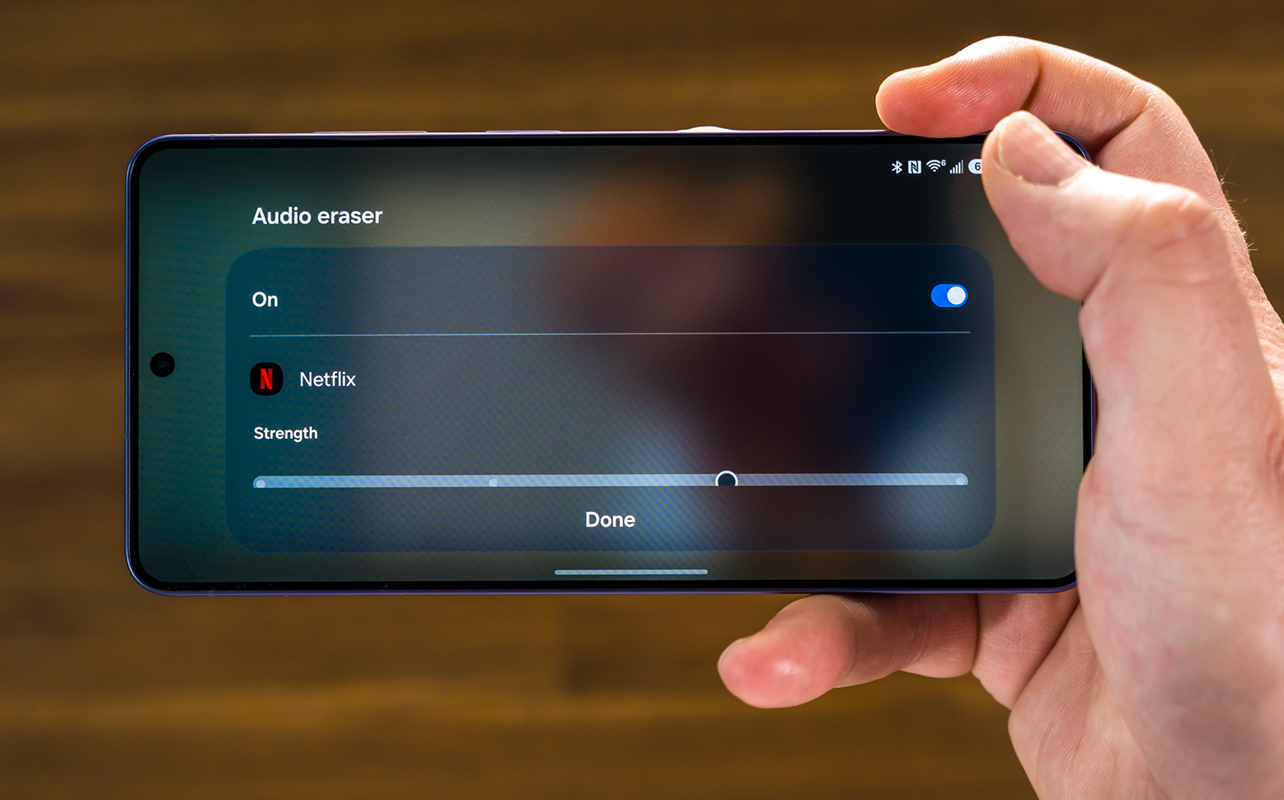
Hidden within Audio Eraser is an option to apply it to apps beyond just the camera. For example, if you’re watching a video on YouTube, Instagram, or Netflix and feel like the background music or noise is drowning out the dialogue, swipe down from the top of the screen and tap Audio Eraser. Toggle it on and adjust the background and voice sliders to get the balance you’re looking for. Plus, it works on device, so no cloud connection necessary.
Camera
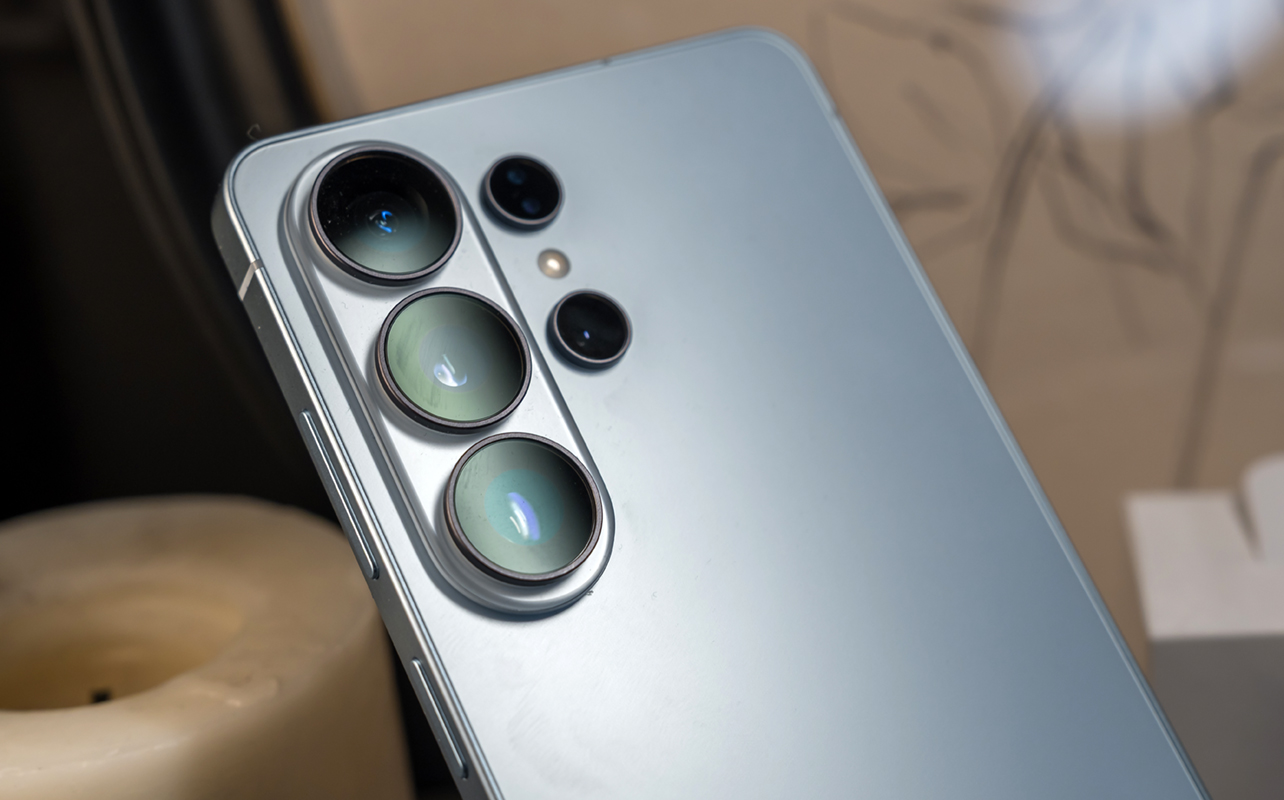
There’s not much to say here because Samsung changes so little about the cameras. Apart from wider apertures for the main and telephoto lenses, the rest of the camera array is exactly the same as the previous S25 Ultra. By now, this is an aging mix given the rear cameras go back as far as the Galaxy S23 Ultra three years ago.
While low-light shots get a little boost from the wider apertures, image quality doesn’t change much. Samsung’s processing feels the same to me, which is to say blending HDR with some colour pop to make photos look vibrant. You just run into problems when trying to capture moving subjects, even if tracking autofocus is turned on.








You retain the option to take photos in 12-, 50-, or 200-megapixels. Compare them to photos the S25 Ultra takes and you would have a hard time noticing the differences. They are subtle at best, imperceptible at worst. While photos are okay, there’s just nothing to celebrate here.
Video gets a nice new feature in Horizontal Lock. Toggle this on (you will see it in the menu of the moving person icon) and it maintains a landscape orientation during recording, regardless of how much you tilt the phone. This is great when trying to record video at an event amongst a crowd or keep things steady while a child is playing.
Battery life
The 5000mAh battery goes all the way back to the S22 Ultra. Samsung continues to eschew silicon-carbon technology, leaving little room for real improvements in battery life. As usual, any battery life boosts have to come from the efficiencies built into the Snapdragon 8 Elite Gen 5 processor. You can get through a day reasonably well but the AI features do require power to run.
Faster 60W charging helps a lot when you have a suitable fast 60W charger to go with the included cable. I was stunned to see it go from zero to 80% in just 28 minutes, and then fully charge by 45 minutes. These numbers were unheard of for past Samsung devices, so it’s a major improvement. The same goes if you have a 25W wireless charger—a marked upgrade from the 15W max before. There’s just no built-in magnet in the phone, so you would need a case that supports MagSafe to make that work.
Final thoughts
Samsung sticks to its seven-year guarantee for Android and security updates for the S26 Ultra. I didn’t even mention that Samsung’s DeX mode desktop operating system works pretty robustly. Plug the phone into a smart TV, and you can use it to play video, games, and more, while still having full access to everything else on the phone screen.
But the real value proposition is how Samsung pushes its AI suite as the most impactful. These are the features that clearly get most of the company’s resources and attention, and it shows. It fleshes out better in practice on this phone but gauge first before you make a move.
The Samsung Galaxy S26 Ultra is available now in black, sky blue, and cobalt violet.