Windows 10 support ended on October 14, 2025, meaning Microsoft no longer provides security updates, bug fixes, or technical support for the operating system. If you are still running Windows 10, your PC is now vulnerable to security threats that will never be patched.
Whether your computer can run Windows 11 depends on its hardware, especially because Microsoft’s requirements are stricter than they were for Windows 10. This guide explains exactly how to check if your PC is compatible with Windows 11, what to do if it isn’t, and how to upgrade if it is

What are Windows 11 system requirements?
Microsoft has an itemized list of hardware specs necessary to ensure a PC is capable of running Windows 11. These specs are mostly moderate by today’s standards, so it is certainly possible that your Windows 10 PC can upgrade and run it effectively—even more so if it’s not too old.
These are the current hardware specs required to install and run Windows 11:
- Processor (CPU): 1 GHz or faster with 2 or more cores on a 64-bit compatible chip.
- Must be from a supported Intel (8th Gen or newer), AMD (Ryzen 2000 or newer), or Qualcomm (Snapdragon 850+) processor.
- RAM: 4 GB minimum (8 GB recommended for better performance).
- Storage: 64 GB or larger storage device (SSD recommended for faster performance).
- System firmware: UEFI (with Secure Boot capability enabled).
- TPM (Trusted Platform Module): TPM 2.0 (most modern PCs have this).
- Graphics card: DirectX 12 compatible / WDDM 2.x driver.
- A 720p display (or higher) larger than 9 inches with 8 bits per colour channel.
- Internet & Microsoft account: Windows 11 Home requires an internet connection and a Microsoft account during setup.
If we break these down a little further, there are nuances to consider that are integral to making an upgrade possible.
What is TPM 2.0?
Windows 11 requires TPM 2.0 to install—if your PC doesn’t have it, Microsoft will block the upgrade. TPM, or Trusted Platform Module, is a dedicated security chip built into your PC’s motherboard that protects sensitive data like encryption keys and passwords, and defends against malware and ransomware.
TPM comes in different versions, and Windows 11 specifically requires version 2.0. TPM 1.2, which is found in many older PCs, isn’t good enough. If you’re unsure whether your PC has TPM 2.0, open Device Manager –> Security devices and see if Trusted Platform Module 2.0 appears.
If not, you can check to see if the PC manufacturer disabled it by taking these steps:
- Restart the PC and press Del + F2 or F12 during bootup to enter BIOS/UEFI.
- PCs with Intel processors will show TPM or PTT, whereas AMD models will show fTPM in settings.
- Enable it by setting it to TPM 2.0.
Note that if your PC lacks TPM entirely, meaning it can’t run it at all, it’s incompatible with Windows 11 and has no way of upgrading. That’s also true if it’s stuck at 1.2.
What about Secure Boot?
Secure Boot is a UEFI firmware security feature that Windows and other trusted software within the operating system load during the bootup process. This check and balance wards off malware from infecting or taking over, and is a prerequisite for Windows 11. Secure Boot must be enabled because of it.
Compatibility differences with Windows 10
Windows 11 is stricter because there is less support for legacy hardware compared to previous Windows versions. For example, it only runs on 64-bit processors, and sets minimums for processing power, memory, storage, screen resolution, and the aforementioned security protocols. It’s also the first time Microsoft requires an account and internet access to install and run it. Once installed, you can run your PC offline but internet is necessary to download a copy from the cloud and all subsequent updates.
How do you know if your PC is compatible?
Without support, especially critical security patches, Windows 10 PCs become defenseless against emerging threats. Cybercriminals know this and actively target outdated software on these unprotected Windows 10 PCs with zero-day exploits, ransomware attacks, and sophisticated malware infections. Windows Defender, which serves as the primary security layer, won’t be equipped to fight against new malware strains, opening security holes it can’t plug. This is even riskier for businesses still using Windows 10 machines after support ends.
Beyond security, it will be harder to run the latest software versions as their hardware requirements also stand to increase over time. Major applications will drop support for Windows 10 to avoid potential performance issues or security flaws. Newer software may struggle to run efficiently on aging hardware, as developers optimize their programs for modern operating systems. This extends to the drivers that help run peripheral devices smoothly, like printers, webcams, and external storage.
Use the PC Health Check app
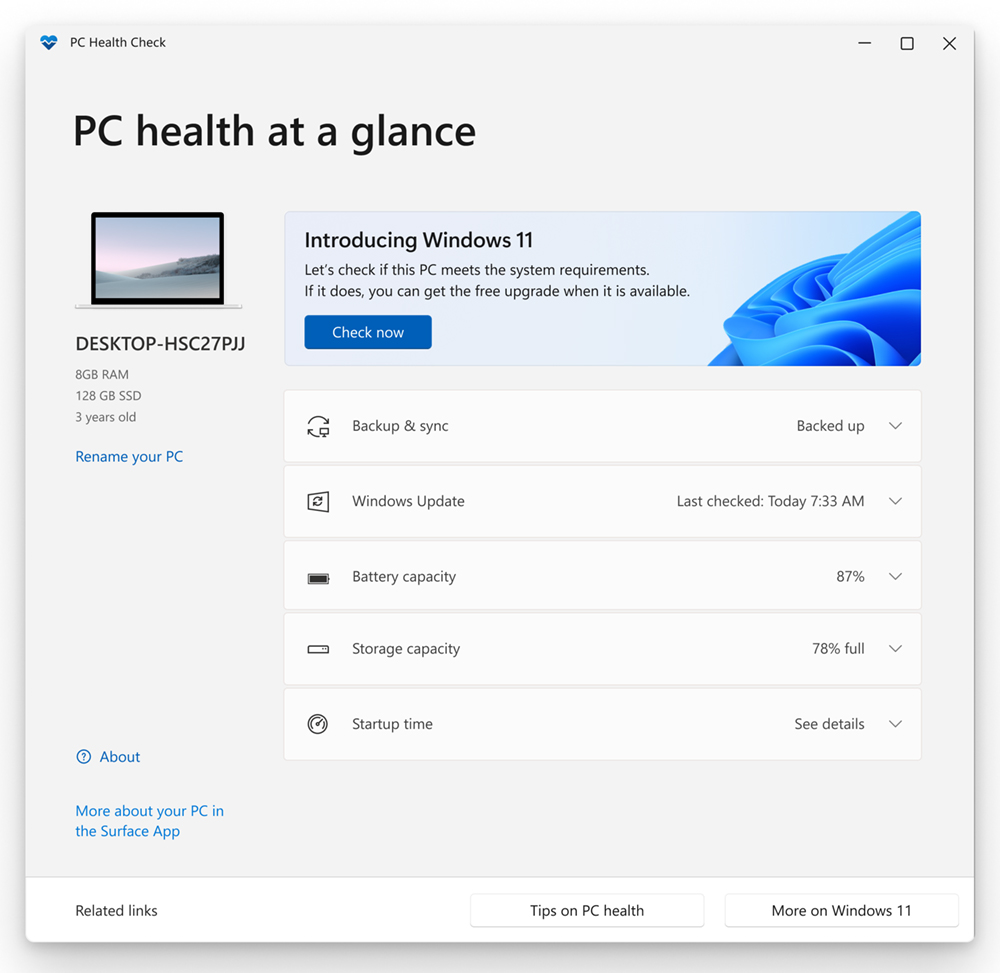
Microsoft’s PC Health Check app is a free tool you can utilize to run a test on whether your Windows 10 PC meets the Windows 11 system requirements. It will highlight specs that don’t match and provide potential remedies to make the device compliant. It’s simple to use by following these steps:
- Download and install the PC Health Check app.
- Open it from the Start menu.
- Click Check Now under Windows 11 and let it do a full scan.
- If your PC is compatible, you’ll see the message: “This PC meets Windows 11 requirements.”
- You can take it further by clicking See all Results and checking the itemized list.
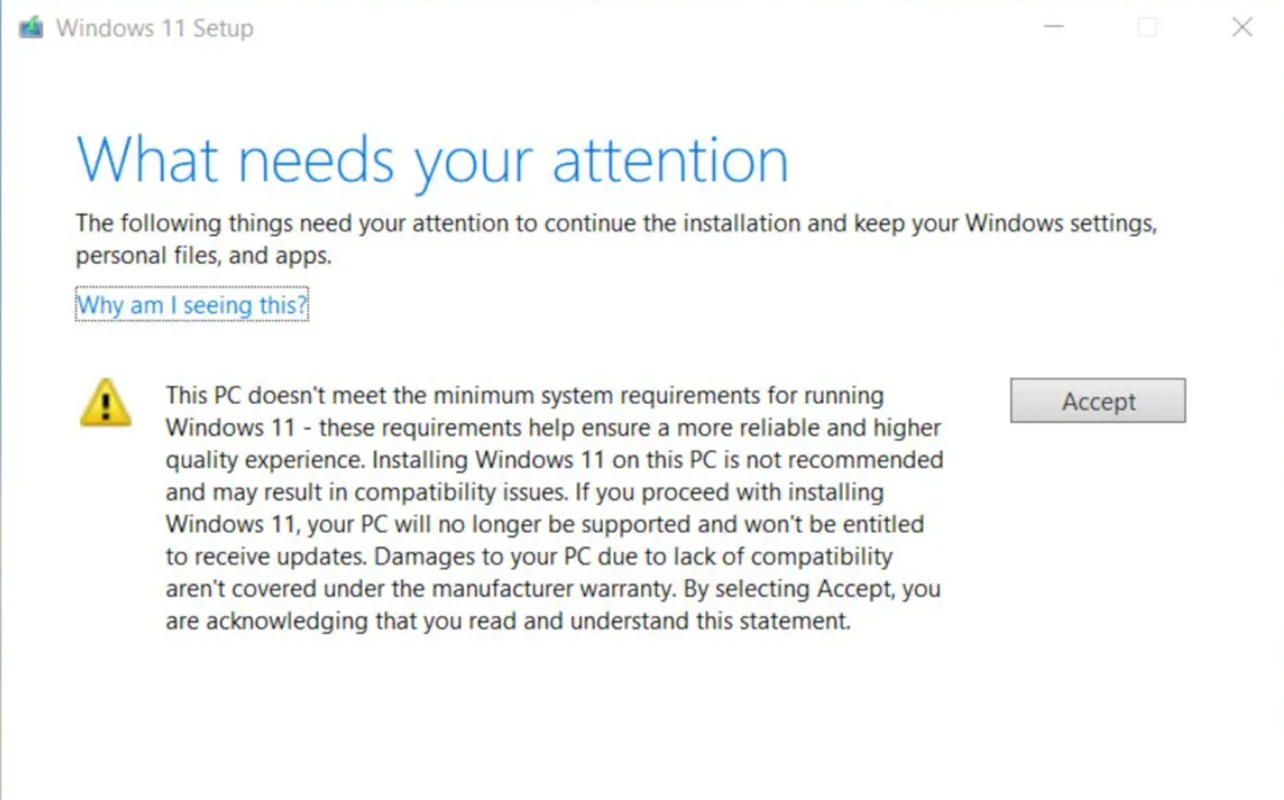
If it finds that the CPU isn’t compatible, there is no real way around that since the processor is such an important piece of the hardware puzzle. While it is technically possible to upgrade things like RAM and storage by manually installing newer components, it may not be a very cost-effective solution.
If the only issue is that TPM or Secure Boot aren’t enabled, you can always try to enable them yourself. With TPM, follow the steps noted above. For Secure Boot, you can actually follow the same steps, only instead of searching for TPM, you switch from Legacy/CSM to UEFI mode. Doing this may require reinstalling Windows, which can be done without affecting the data stored on the PC but it’s definitely smart to do a full backup in any case.
What are the options if your PC isn’t compatible?
Keep Windows 10 just a little longer
You can apply for Microsoft’s Extended Security Updates (ESU) to get certain Windows 10 security updates past the EOS (end of support) date, though it’s little more than a limited time stopgap. For Windows 10 Home users, it costs $30 USD per device for 12 months, but it also expires soon (November 2026). For business users, it will last an extra two years—with the subscription cost doubling each year per device. While this may feel like a reprieve, Microsoft won’t provide technical support during this period for Windows 10 users.
There are other workarounds involving setting up a bootable Windows 11 USB stick or ISO file that bypasses TPM and Secure Boot checks. Beyond ESU, some users attempt other unofficial workarounds, albeit with significant risks. They’re also not bulletproof since Microsoft could always block updates to the PC, or aging hardware may make it run slower.
Buying a new Windows 11-optimized device
A more productive PC will be one running Windows 11 natively. Pre-2017 Windows 10 PCs almost always lack the hardware necessary anyway, and upgrading an underpowered model may not lead to better performance. Windows 11 offers a redesigned Start Menu, Snap Layouts, and virtual desktops to improve productivity. Gaming gets a boost with DirectStorage and Auto HDR. Newer PCs also run Microsoft’s Copilot AI platform, along with more robust support for Microsoft 365 and integration with Android devices and apps.
Plus, there are variables to consider. Are you looking for a desktop, laptop, or 2-in-1 device? Windows laptops come in various sizes and designs, plenty of which now qualify as Copilot+ PCs running the latest AI-driven features. With NPU (neural processing unit) chips on board to handle AI processing, they enable the CPU and GPU to deal with their respective processes.
Using a 2-in-1 device allows you to use a laptop or tablet based on what you need. Gaming PCs always come with cutting edge technology, and the best ones exclusively run Windows 11. The same goes for all-in-one or desktop PCs, which offer the largest displays to work from home or the office.
What if your PC is compatible to upgrade to Windows 11?
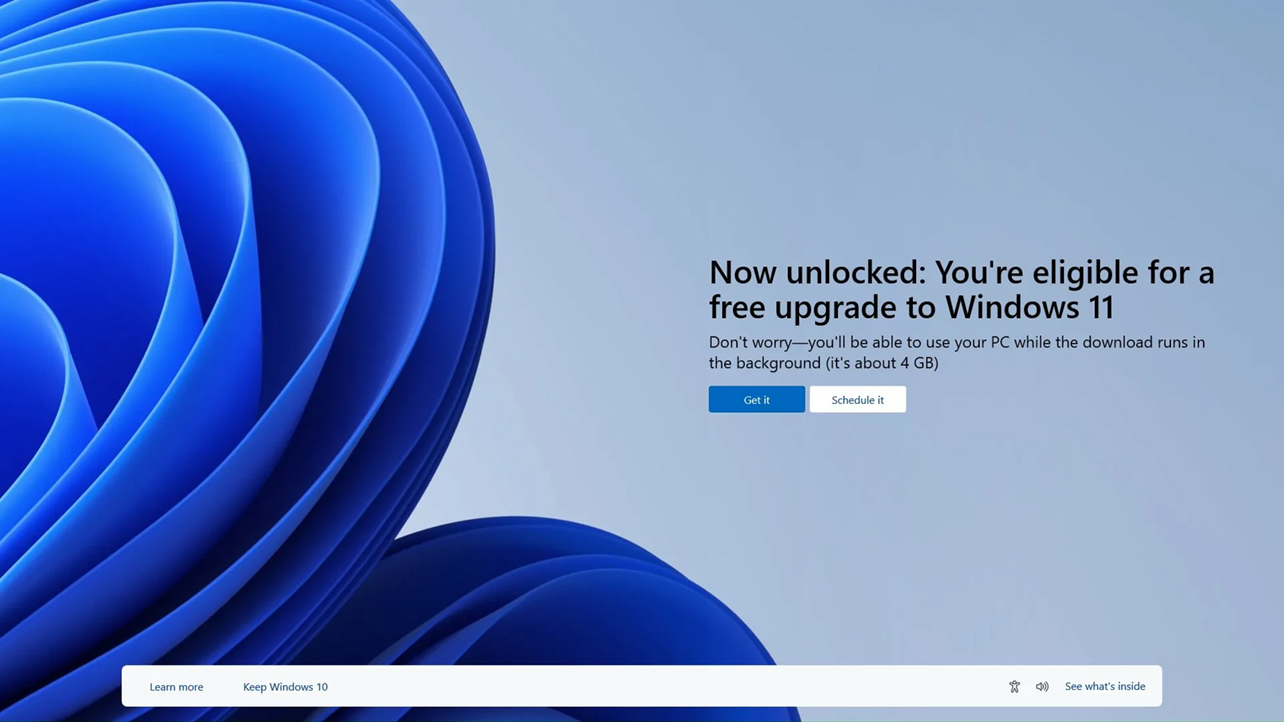
If you haven’t seen it already, you should see an eligibility prompt to upgrade to Windows 11 if all the compatibility checks clear. The easiest and most efficient way to go about this is to go through Windows Update in the settings. Click Check for updates and the option to download and install Windows 11 with the message: Upgrade to Windows 11 is ready.
Your PC will restart multiple times to complete the process, taking between 30-60 minutes to finish. This install leaves your stored apps and files untouched, so you probably won’t lose anything, though you should still perform a full backup beforehand just in case something goes wrong.
If you don’t see the prompt to update, you’ll have to bring it up manually using the Windows 11 Installation Assistant. Download and install it (accept the terms) to initiate the process whereby the PC will reboot into a Windows 11 setup with a series of prompts and steps to follow. This method also keeps all your apps and files intact.
Take steps to ensure a smooth Windows 11 transition
The longer a system remains on Windows 10, the more it becomes a liability. Plus, its performance only worsens over time, affecting productivity with frustrating lag and loading times. Much of this may depend on how advanced your PC is in spite of running the older OS, but Windows 11 offers a more stable, secure, and sophisticated user experience now that Microsoft has cut off Windows 10. Making the switch is easier than ever, as are the options to upgrade.
Check out all the latest Windows 11 devices available at Best Buy.