
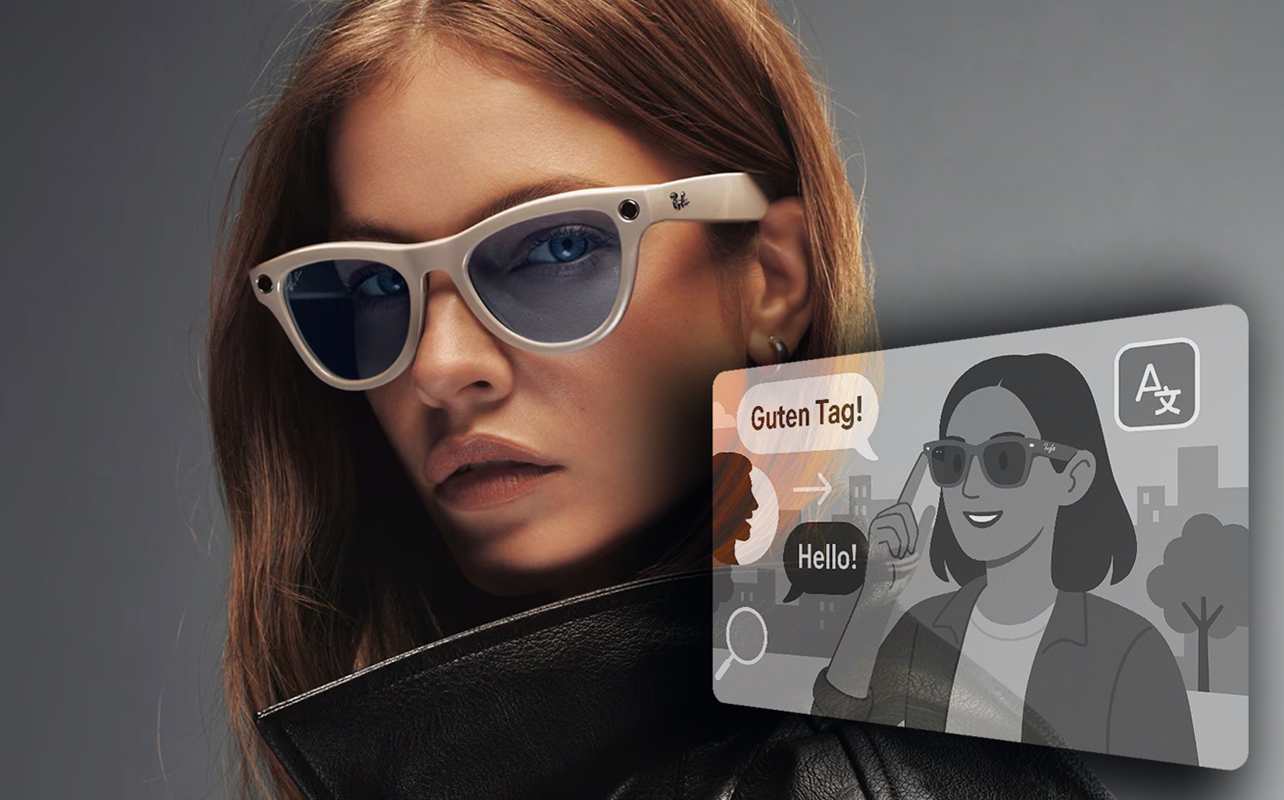
Ray-Ban Meta AI Glasses take what would otherwise look like regular sunglasses and infuse them with cool tech that you can utilize. We’re talking a camera, open-ear speakers, five-microphone array, and Meta AI inside frames most wouldn’t even look twice at. In this guide, I’ll walk you through everything to get you sorted and start using these features once you put them on.

Table of contents
- Introduction
- What are Ray-Ban Meta AI Glasses?
- How do Ray-Ban Smart Glasses Work?
- How to Set Up Ray-Ban Meta Glasses
- How to Use Ray-Ban Meta Glasses
- How to Take Photos and Videos
- Maintenance and Care Tips
- Troubleshooting Common Issues
- Tips to Get the Most Out of Your Smart Glasses
What are Ray-Ban Meta AI Glasses?
Ray-Ban Meta AI Glasses are smart glasses borne out of a collaboration between Ray-Ban and Meta. The object is to combine the storied and familiar design of Ray-Bans with the AI-driven feature set Meta offers.
Core features include a 12-megapixel camera for photos and 1080p video, open-ear directional speakers, a five-microphone array, and hands-free Meta AI integration. A discreet LED on the front of the frame illuminates whenever the camera is active. They’re mostly built for content creators, everyday users, and tech enthusiasts who want an AI assistant always available at a word.
How do Ray-Ban Smart Glasses work?
Key components
Camera: A 12-megapixel forward-facing camera sits at the top-left of the frame. It captures photos easily and records video for up to 60 seconds per clip. It also serves a dual purpose as both a tool for content creation and for visual AI tasks, where you can ask Meta AI what it sees in front of you.
Open-ear speakers: There are embedded speakers in both temple arms to deliver audio without blocking your ears. This way, you’re still aware of your environment while listening to music, taking calls, or receiving AI responses.
Touch controls: All of the touch-sensitive controls are on the right temple arm. You tap, hold, and swipe along its surface to control playback, volume, and camera capture, negating the need to reach for your phone.
Voice assistant: Say “Hey Meta” to activate Meta AI. From there, you can ask open-ended questions, request actions, or use the camera to get AI-powered information about what’s in front of you.
Connectivity
The glasses connect via Bluetooth for calls, music, and voice assistant access, along with Wi-Fi for faster photo/video syncing and live streaming. The Meta AI app (iOS and Android) is your control hub to manage setup, sync or transfer files, update firmware, and configure AI settings. You need to install it on your phone before getting started.
How to set up Ray-Ban Meta Glasses
Unboxing and charging
Ray-Ban Meta glasses ship inside a hard-shell charging case. It’s best practice to fully charge the case before kicking off the setup process. The glasses will also charge while sitting inside. A full case charge takes around 75 minutes but that’s likely to be less since the case will likely already have some charge in it. Look for the LED indicators to indicate charging status—pulsing means it’s still going, while solid white means a full charge.
Pairing with your phone
- 1. Download the Meta AI app from the App Store or Google Play
- 2. Log into your Meta account
- 3. Open the charging case (the glasses will automatically go into pairing mode)
- 4. Follow in-app prompts to complete Bluetooth pairing
- 5. Grant all requested permissions when prompted
- 6. Initial pairing shouldn’t take more than a few minutes
Initial configuration
For full functionality, you will need to grant all app permissions during setup. That includes camera and microphone access for voice commands and AI, contacts to enable calling contacts by name, and notifications (incoming call and message alerts). You’ll also set up the “Hey Meta” wake word with a brief voice training exercise.
How to use Ray-Ban Meta AI Glasses
Using voice commands
Wake the assistant by saying “Hey Meta,” clearly. The glasses will chime to confirm they’re listening. From there, speak naturally — you don’t need to memorize specific command syntax.
Useful voice commands to start with:
- “Hey Meta, take a photo,” captures an image immediately
- “Hey Meta, record a video,” starts recording, while “Hey Meta, stop recording” ends it
- “Hey Meta, what am I looking at?” uses the camera to identify objects, landmarks, or text in your field of view
- “Hey Meta, call (contact name),” initiates a hands-free call
- “Hey Meta, translate this,” reads and translates text or spoken language in front of you
- “Hey Meta, what’s the weather?” pulls real-time information
Meta AI can also handle open-ended questions like those you might ask another voice assistant, so you’re not limited to preset commands. Just be aware that Meta’s AI assistant isn’t as rich in knowledge or detail as the likes of Gemini, ChatGPT, Claude, and others.
Using touch controls
The right temple arm responds to touch gestures for quick control without voice. A single tap plays/pauses music or answers/ends a call. Double tap skips to the next track, while swiping forward increases volume, and swiping background lowers it.
These controls work at all times, even when your phone is in your bag or pocket, so they can be handy ways to make quick adjustments when you’re indisposed or don’t have your phone within arm’s reach.
How to take photos and videos
Capturing photos
There are two simple methods to take a photo: either press and hold the capture button on the top of the frame, or say “Hey Meta, take a photo.” The white LED on the front of the frame stays lit for the duration of any recording as a means to ensure those around you know the camera is active. It’s a privacy feature for everyone’s safety, so best not to tinker with it in any way.
Recording videos
Press and hold the capture button for two seconds to start video recording, or use the voice command. Meta caps videos at 60 seconds per clip. Since the camera is also moving with you, it’s best to try moving your head with a smoother and more deliberate cadence to make footage come out more stable. The camera doesn’t have optical stabilization, so sudden movements will show with jerky points in the clips. You should be fine recording while walking, but quick head turns can look disorienting. Odds are better you will get smoother video while cycling or riding compared to running.
Viewing and sharing content
Photos and videos sync automatically to the Meta AI app via Wi-Fi when the glasses are in their case and connected. This is a key step because you need to go through the app to export directly to Instagram, Facebook, or your phone’s camera roll. There is live streaming support for Instagram, letting you start a stream via the app and then broadcast directly from your glasses.
Audio features and everyday use
The open-ear speakers won’t be confused for giving you the quality of earbuds or headphones but they can handle music okay. They’re generally better suited to calls and podcasts, or conversing with Meta AI. The five-microphone array aims to reduce background noise for callers you’re speaking to so that conversations don’t drown out. You may find differing results depending on how loud it is around you. You can always control volume through temple swipes or voice command. It also works the other way, meaning others may be able to hear if you’re at a higher volume with others nearby.
Battery life and charging tips
If we’re talking mixed, active use, you should expect roughly four hours. Camera-heavy sessions drain faster, putting it closer to 2–2.5 hours. The charging case gives you additional charges, so you can go for a while before you need to recharge the case, too. If you want to squeeze more out of the battery, try to reduce live streaming, lower volume, and disable Wi-Fi when you don’t need it. The Meta AI app shows real-time battery percentage for both glasses and case.
Maintenance and care tips
Cleaning the lenses
Only use a microfibre cloth to clean the lenses and frames. Avoid paper products, other fabrics, or household cleaners because they’re more abrasive surfaces might scratch coatings. Lens solution is okay but always apply it to the cloth, not directly to the lens.
Storing your glasses
If you’re not using them, keep them in the charging case. It’s really no different than a regular pair of Ray-Bans. Would you keep those out of their case? Unlike those, however, try to avoid keeping them in your car on a really hot day for extended periods. Like phones or tablets, excessive heat isn’t good for batteries, so look out for that. Also, be very careful at the beach or pool. These glasses are not resistant to saltwater and waterproofing is limited to drops of rain and small splashes. Don’t submerge them, ever.
Software updates
The Meta AI app notifies you when firmware is available. Check every so often to make sure you’re up to date. When an update is ready, place the glasses in the case with Wi-Fi on and let it install the update.
Troubleshooting common issues
Glasses not connecting
Toggle Bluetooth off and on, then open the charging case to re-trigger pairing mode. If that fails, force-quit the Meta AI app and reopen it. As a last resort, forget the device in Bluetooth settings and pair from scratch.
Camera not working
Check app permissions first by going to Settings -> Apps -> Meta AI (this sequence may differ slightly depending on your phone) and confirm camera and microphone access are enabled. If permissions are correct, place the glasses in the case for 10 seconds, then reopen to restart them.
Poor audio quality
Audio issues sometimes emerge as issues with how the glasses fit. Adjust the nose pads and temple angle so the frame sits close to your ears. In windy conditions, expect audio to drop noticeably. If call quality is muffled for the other party, confirm microphone permissions are active.
Tips to get the most out of your smart glasses
For travel: Use visual AI to identify landmarks, translate signs, and get local information hands-free. The first-person camera captures authentic travel moments in ways that are hard for a phone to emulate.
For content creation: Shoot in good light, keep movements smooth, and keep clips to 15–30 seconds for social media. First-person footage edits naturally and is ideally suited for Instagram and Facebook.
For calls and productivity: The glasses shine during any time you’re wearing them with your hands full. Set up contact shortcuts so calls connect instantly with a single voice command.
On privacy: The LED indicator is there by design to protect those around you, so don’t mess with it. Try to be transparent about wearing camera-equipped glasses in private settings and check local recording rules in case you’re in a restricted or sensitive area. It will be hard to argue you didn’t know you were recording.
Voice command tip: Wait for the confirmation chime after “Hey Meta,” before saying anything back. If you’re in a noisier spot, you may have to position your mouth slightly closer to the right temple arm where the primary microphone sits.
Check out the full Ray-Ban Meta lineup available at Best Buy now.





Do you have glass with hearing aids in them